Blog

Best Practices + Table Partitioning: Merging Boundary Points

Partitioning, SQL Server

One of the many best practices for SQL Server’s table partitioning feature is to create “extra” empty partitions around your data. This is explained in SQL Server Books Online in the page on altering a Partition Function:

Always keep empty partitions at both ends of the partition range to guarantee that the partition split (before loading new data) and partition merge (after unloading old data) do not incur any data movement.

Ever wondered why that’s the case, and what might happen if you don’t follow it? Check out this sample case to learn the nitty gritty.

A Quick Summary of Partition Switching

One of the biggest benefits to table partitioning is the ability to move a lot of data in or out of the table very quickly. You can write a bunch of new data into a table, index it, and put some constraints on it without your users ever being the wiser. Then, you can “switch” the data into the table as a new partition super quickly.

Similarly, you can create an empty table, add minimum indexes to match the partitioned table, and “switch” a whole partition of data out into the empty table. SHAZAM! That data is now out of sight of your applications and users and you haven’t run a single delete.

This is called “partition switching”.

(Need more of a general refresher on table partitioning? Check out our reference page on partitioning, or our article, “How to Decide if You Should Use Table Partitioning“.)

When You Switch Out, Will SQL Server Always Remove the Filegroup You Want?

Splitting and merging boundary points can be complicated business. Today, we’re going to focus on merging. Here’s our sample scenario. (Want to see this hands-on? Scripts that do this are available for download at the end of this article.)

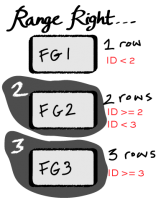
  • Create a Partition Function (Range RIGHT) with two boundary points: 2 and 3
  • Map three filegroups to the Partition Function using a Partition Scheme. The filegroups are named: FG1, FG2, and FG3
  • Create a clustered table on the partition scheme, partitioned by ID
  • Add one row with ID=1. Based on the boundary points, it’ll automatically go into Partition 1 on FG1
  • Add two rows with ID=2. Those two rows automatically go into Partition 2 on FG2
  • Add three rows with ID=3. Those three row automatically are put into Partition 3 on FG3

So we’ve got 1 row in FG1, two rows in FG2, and three rows in FG3.

Now, the data in Partition 1 on FG1 is old and we don’t need it anymore. We decide to switch out the data, and then we want to remove FG1 from the partition function. So here’s what we do:

  • Create a new table for switching out with the same definition and clustered index as our partitioned table
  • Switch partition 1 out to the other table (magic!)

After the magical swtich out, we now have 0 rows in Partition 1 on FG1, 2 rows in FG2 and three rows in FG3. We’re halfway there!

We want to remove FG1 altogether, but it is still mapped to our Partition Function with our Partition Scheme. We need to tell SQL Server to just get rid of one of the partitions altogether, and to do this we have to alter our Partition Function.

We have no rows “below” the boundary point of 2 — those are all gone. So we merge the boundary point of 2. That command is successful, but to get things done SQL Server may not do exactly what you would think.

What SQL Server Actually Does in this Case

You might assume that SQL Server would see that FG1 has 0 rows on it, and remove that filegroup.  After all, FG2 has rows in it, so why not just keep that one? It’s less work, right?

Well, it might be less work, but SQL Server doesn’t stop to figure that out.  Instead, SQL Server decides to move the two rows from FG2 onto FG1, and then it un-maps FG2 from the partition scheme. It doesn’t ask before it does this– there’s no warning that “data movement” is going to happen. When you issue the command to merge the boundary point, you don’t have the option to CHOOSE where you want the data to go.

Whoops! Not such a big deal when it comes to two rows, but in production you’re going to have a lot more than two rows, and moving them around between filegroups can be pretty painful. It’s literally copying all the data from one filegroup into another. And if you do this by accident, by the time you figure it out, well, you may not have a lot of great options!

The fix for this is simple– follow the best practice of having extra boundary points at both ends of your partition range. Just like Books Online says, this prevents unexpected data movement. (We’ve got a demo code for that as well– check it out in the download at the end of this article.)

Why Did This Happen?

This happened because the rules of this game are complicated. We defined the partition function as RANGE RIGHT. That means that our boundary points are “lower” boundaries– the boundary point of 2 in this case is tied to all the rows with the value of 2.
Boundary Points: They love the partition they’re with. So much that when you merge ’em, they take that partition with them.

Here’s how MERGE RANGE works. When you merge a range, you provide a boundary point. SQL Server then does the following (the emphasis on the last paragraph is mine):

Drops a partition and merges any values that exist in the partition into one of the remaining partitions. RANGE (boundary_value) must be an existing boundary value, into which the values from the dropped partition are merged. The filegroup that originally held boundary_value is removed from the partition scheme unless it is used by a remaining partition, or is marked with the NEXT USED property. The merged partition resides in the filegroup that originally did not hold boundary_value.

Clear as mud, right? (I’m pretty sure that paragraph was written by a German Philosopher.)

Unpacking/ decoding those sentences, essentially when you MERGE a boundary point, you are telling SQL Server to get rid of the partition associated with that boundary point. This will vary depending on whether the partition function was defined with RANGE RIGHT or RANGE LEFT.

In this case, boundary point 2 is a lower boundary point (RANGE RIGHT), and it’s associated with FG2. When we merged boundary point 2, we directly told SQL Server “ditch FG2!”. And it directly did as we asked.

But even though it had to get rid of FG2, it knew better than to lose the data on it. So based on our Partition Function, it had no choice but to move it into FG1.

How to Stay Sane with Table Partitioning

The way to stay sane with table partitioning is to always start out with the belief that your memory is imperfect. Whenever you ask a “how do I…” or “what happens if I…” question, build a quick script using a small amount of data and work out your issue in a development environment.

While you’re testing changes, go beyond just memorizing the best practices. Make sure you’re looking at details about how much data lies in each partition and where each partition is mapped. Always check your end state and make sure that what happened is actually what you expected!

Scripts!

Get the scripts here: Table Partitioning Tutorial – Unexpected Data Movement.

The scripts show two examples:

  1. The initial scenario where merging the boundary point causes “unplanned data movement”
  2. A second scenario where the best practice of using empty partitions at the end of your partition range makes this much simpler, and merging the boundary point goes just like you’d think.

More SQL Server Table Partitioning Resources

Before you start designing a table partitioning strategy, or if you’re trying to troubleshoot why your partitioned tables aren’t working as fast as you expect, check out our SQL Server table partitioning resources page.

The Okapis of SQL Server Indexes

SQL Server
11 Comments

They are elusive and hard to spot in the wild, but they exist: rare index options that can enhance the performance of your queries. If you have a solid knowledge of index basics and want to add to your collection, this is the session for you! In this 30-minute video, Jes will show you how filtered indexes, compressed indexes, and indexed views work and can improve performance.

https://www.youtube.com/watch?v=MH6ptOhWQCg

Want to get a closer view of the demos? Try full-screening the video – it’s available in 720p and 1080p.

Check out our indexing resource page for more.


SQL Server Table Partitioning Tutorial: Videos and Scripts

There’s a secret to learning about SQL Server’s table partitioning feature: you need to get your hands on some code and really play with it in a test environment.

In this tutorial, Kendra will walk you through test scripts that set up a sample table partitioning environment. These scripts demonstrate gotchas to look out for and the cool features that can dramatically change your database’s performance.

Want to run the demos yourself? Download Table Partitioning Tutorial: Scripts.

Part 1: Our Mission

How can you use the demo and scripts from today in the best way possible? Find out here. 3.5 minutes

Part 2: How to create your test database and helper objects

It’s demotime! We create a test database with views that will help us quickly see critical information about out partitioned object. 3.5 minutes

Part 3: How to create partitioned objects

Next up we create a partition function. We create filegroups and files, and use a partition scheme to map the filegroups. We then create a partitioned object and indexes. Our helper views (created in Part 2), help us make sure things went as expected. 15 minutes

Part 4: Switch IN! How to use partition switching to add data to a partitioned table

Now for the cool stuff. In this session we explore how partition switching can allow us to snap a pile of data quickly into a partitioned table– and a major gotcha which can derail the whole process. 12 minutes

Part 5: Switch OUT! How to move data out of a partitioned table and merge boundary points

Deleting data is never fun… unless you’re switching data out of a partitioned table. But make sure to mind those best practices. In this section we show how to remove a lot of data from a partitioned table quickly and safely. 8 minutes

Part 6: Table partitioning takeaways

What are the big things we covered that you need to remember? Make sure you got all the important points here. 3 minutes

Learn More

The good news: we’ve got tons more information on table partitioning at https://www.brentozar.com/go/partitioning

The bad news: things get even more complicated than you see in this post. If you’re looking at switching out and merging partitions, before you get started on that read my post here on best practices and merging boundary points.

Looking for the scripts? Download Table Partitioning Tutorial: Scripts.


When a Query Isn’t Quite a Query

SQL Server
2 Comments

Databases exist to store data and answer questions about that data. The way we ask questions has to change based on the database itself – SQL changes between different RDBMS vendors. Things get even stranger when you venture outside the RDBMS world and start storing your data in Hive. Even though Hive Query Language (HiveQL) looks like SQL, there are some subtle but important differences to querying that first timers will want to keep in mind.

It All Starts With A Question

Everything starts with a business requirement. In this case the requirement was simple: “We want to see a rolling average of price ranges over the last 6 months.”

Depending on which version of SQL Server you’re using, this is a pretty easy query to build; it can be accomplished using a CTE or a sliding window function. Since a CTE is the simpler example, we’ll start using it for our sample query.

As a user of the database, we can safely assume that the database server is going to compute an average for the six months prior to x.date. SQL Server’s optimizer is going to do a lot of work behind the scenes to make sure this query gets executed efficiently. The upside of using a database with a complex query optimizer is that the optimizer does the hard work for us – it determines the best way to deliver the data and we only have to worry about the questions we want answered. Things don’t work quite the same way with Hive.

Rolling Averages with Big Data

Hive can be queried using the Hive Query Language (HiveQL). While based on the SQL-92 standard, HiveQL doesn’t conform to the standard; even where Hive supports SQL functionality, there are gotchas to keep in mind. The first of these is language support: Hive doesn’t support CTEs. Admittedly, CTEs aren’t a part of SQL-92 but developers will find many language features missing or slightly different. Back to the topic at hand: it’s possible to write this query without using a CTE. The first step is transforming the body of the CTE into a sub-select and joining to the derived table:

Unfortunately, this won’t fly in Hive – only equality conditions are supported on a join. There’s a valid reason for this – it’s very difficult to translate this type of join into a map/reduce job behind the scenes in Hive. Hive 0.10, just released last week, has support for CROSS JOIN, but this version of Hive isn’t a viable option since it is still under heavy development.

Although not quite as simple, it’s still possible to make this query work so we can produce rolling averages:

Tuning the Rolling Average

This query isn’t going to win any awards for performance. In fact, that rolling average query is a good candidate to win an award for terrible performance. Although Hive will perform some optimizations to the query we provided, the re-write process is nothing like what happens with full fledged cost-based optimizer. This query will produce a large amount of intermediate data before results are delivered and moving that data around the cluster takes a lot of time. What if there were a way to make this execute faster?

Let’s re-write this query so instead of computing a rolling average, we only compute a six month average based on today’s date. The first step is to grab just the data for today. Experienced SQL Server developers would say “Ah ha, I can do this using some kind of date math function in conjunction with CAST and GETDATE().” Hive has its own function names that accomplish the same things: date_sub, cast, and unix_timestamp.

What we’re trying to accomplish here is tell Hive, “Hey, I want to see all rows where date is greater than the current time (in seconds since 1970), converted to a TIMESTAMP, minus 180 days.” This doesn’t work, but it’s not by lack of syntactical correctness. There’s a bug in how Hive handles converting Unix time to a TIMESTAMP (HIVE-3454). The documenation and spec says that during a CAST, Hive should treat an INTEGER as seconds since epoch and other numeric types as milliseconds since epoch.

What HIVE-3454 means is that our query will give us an average of data since some time in early January, 1970. While interesting, that’s not what we’re looking for. To make sure that we get the right time, the best approach is to perform date comparison using seconds instead of time functions. This next query almost works (it finds anything less than 180 days from right now):

Since we really want to get an average based on the previous 180 days, we tell Hive to round to the current time to the nearest day from_unixtime(unix_timestamp(),'yyyy-MM-dd'), subtract 180 days datesub(value, 180) and then treat that as a temporal value unix_timestamp(value, 'yyyy-MM-dd'):

What’s The Best Solution?

Through developing these queries, I found that the best approach to computing a rolling average in Hive is to approach the problem in chunks. It’s necessary to be more explicit in the queries presented to Hive. While Hive doesn’t have a sophisticated query optimizer, Hive does give developers the ability to run queries across many servers and perform a massive amount of data processing very quickly. Although we have a lot of power at our disposal, we have to make a bit of extra effort when developing queries to ensure that they perform well.


Choosing the Right SQL Server Version: It’s Trickier than You’d Think

SQL Server
39 Comments

It’s finally time– you’ve been given the thumbs up to upgrade to SQL Server 2012. You’ve selected your SQL Server Edition and worked out your licensing agreement. You’ve sized new hardware in production and sketched out your migration plan. You’re ready to install developer edition in the test environment. You grab your installation media and…

Suddenly you realize you’re not quite ready. You need to make sure that all testing goes against the same version of SQL Server you’re going to go live with. But which version of SQL Server do you choose?

What’s the SQL Server Version?

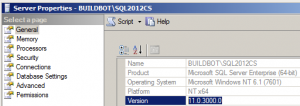
I turned my SQL Server Version up to 11 … 11.0.3000.0, to be exact.

The SQL Server “version” is often called the “patch level” of SQL Server. When a new SQL Server version is released you get the “RTM” version of the product. Over time, lots of fixes are released for each version: Service Packs, Cumulative Updates, and hotfixes.

You can find your current SQL Server version by going into your Server Properties in Management studio, or running the TSQL command:

SELECT @@VERSION;

To decode your version number, check out this big list of SQL Server Builds.

Identify SQL Server Service Packs

First, check if a service pack is avaiable for your version of SQL Server, and which one is the latest. SQL Server 2012 Service Pack 1 was released in November 2012.

Service Packs contain important fixes for a product and are tested even more rigorously than incremental releases like cumulative updates, so they’re pretty important to install. But like everything else, they may contain something that has unexpected side effects– so you need to test your application with the service pack before you change it in production.

Sometimes new features get snuck into Service Packs these days — check out what features were added in SQL Server 2012 SP1.

If you forgot to install the service pack at the beginning of testing, you may wonder if it’s worth it to go back and install the service pack and re-test. If you have any of these doubts, read the list of bugs the Service Pack fixes— but note that you’ll also have to read the release notes for all the cumulative update packages it includes as well.

Cumulative Updates

Upgrading ain’t easy, but sometimes it’s REALLY worth it
[Photo credit: essarah]
You’ve found your service pack, so you’re good, right? Not so fast.

You also need to consider the Cumulative Updates that Microsoft releases for SQL Server. These updates are more frequent than service packs, and technically Microsoft recommends that you only install them if you are impacted in an issue that the Cumulative Update corrects. However, there are many people who prefer to test and go live on their chosen version of SQL Server + Latest Service Pack + Latest Cumulative Update– because these updates do fix some doozies.

My favorite resources for cumulative updates is the SQL Server Release Services Blog. I subscribe to this by RSS, and anytime I need to do research on cumulative updates, I head to their blog and use their posts to find all the related links for documentation.

For SQL Server 2012, you’ll find that Cumulative Update 1 has been released post SP1, so you can consider the version SQL Server 2012 SP1 CU1. This CU1 has some pretty critical sounding fixes in it, including out of memory errors, incorrect results on parallel queries, and databases offline if an index rebuild is performed when the transaction log is full. That sounds pretty compelling, right?

Don’t get too comfortable, there’s even more to consider.

Critical Hotfixes – And a New Way to Find ‘Em!

Microsoft works hard to release fixes regularly– hence those Cumulative Updates. But they still need to release out of band hotfixes sometimes for big issues, and it can take little time for those critical issues to be handled in a cumulative update.

This is the trickiest part of selecting a version, really, because you need to be able to find if there are critical hotfixes that might impact you, and what to do about them. There typically hasn’t been an easy way to find out about these. Even for people like us who work on and talk about SQL Server every single day, we’ve been pretty dependent on word of mouth in the community to find out about things.

Good news, Microsoft has recently created some new RSS feeds for KB articles that you can use to research and stay informed of new hotfixes for Windows and SQL Server! (We’re talking about SQL Server versions in this post, but guess what? The same stuff applies to Windows version. File that one under ‘job security’.)

Make sure to research your choices well, because you can make the wrong choice.

Hard Choices: When Service Packs and Critical Updates Collide

Here’s an example of a sticky situation.

SQL Server 2012 SP1 has a nasty little bug that only happens sometimes. The symptoms are that after the service pack is installed, processes named msiexec.exe keep running and use up lots and lots of CPU– up to 100%. This persists after rebooting the instance.

This doesn’t happen every time that you install the service pack. But when it happens, it can be very tricky to resolve it– for evidence of that, just read the notes in the Microsoft Connect item on the issue.

Microsoft responded to the problem and released a hotfix for the issue– KB2793634. That’s great, but if you read carefully and check that Connect item, you’ll find that this hotfix should only be installed if you experience the issue and have NOT installed Cumulative Update 1 for Service Pack 1. A hotfix is planned to be released later that is valid for that situation.

So, at this point, you have multiple options:

  • If you’re really compelled by the fixes in SQL Server 2012 Service Pack 1 + Cumulative Update 1, you could install them all everywhere and gamble that you won’t get hit by the msiexec.exe bug in production. If you even consider this one, you need to be prepared with the steps you’re going to take to monitor and make sure you know if the issue is occurring, and how you’re going to respond if it happens.
  • If you’d like to go the safer route, you may choose to install only SQL Server 2012 + Service Pack 1. You still want to know the steps you’re going to take to monitor for the msiexec.exe bug and how you’re going to respond if it happens, but you have more options. In this case you’ll be able to use the published hotfix if needed. (By the way, it’s not always straightforward– read the user reports in the Connect item.)
  • If you’re scared off by this entirely, you may choose to install SQL Server 2012 RTM version and skip all updates. That may seem like the safest option, but research all the fixes that were made in the cumulative updates and service packs– you could burn yourself with this choice as well.

Update (Feb 16, 2013) – Potential Software Registry Bloat from SQL Server 2012 Sp1

There’s more you should know about the potential problems introduced by SQL Server 2012 SP1. If you hit the issue with the msiexec.exe installer process running post-installation (which does not happen all the time), you may experience growth of your software registry hive over time.

Symptoms include server level instability — and yes, those three words are terrifying! Learn more about how to diagnose if you have the issue and repair it from Remus Rusanu.

There’s Often No “Perfect” Choice

Many factors go into a version selection– what your vendor supports, the release/change frequency your organization allows, your business’ tolerance of risk, and the amount of testing and validation you can do are all critical factors. Not to mention your upgrade surface and whether your high availability options could be impacted by the change! (If you’re like me, one of the last things you ever want to risk is getting stuck doctoring up a Windows Registry in a critical downtime situation.)

But no matter how perfect your change process, you’ll always need to keep current on fixes as they are released AND do research to find the bugs which may impact your choice. Things change fast!

Don’t have time to do all the research, or want some expert advice? Drop us a line— we often help clients figure out the right path to take their environment to the next level.


VMware HA is Not Database Server High Availability

I served with High Availability. I knew High Availability. High Availability was a friend of mine.  VMware HA, you’re no High Availability.

See, for us database administrators, high availability means protection when:

  • The system drive fills up because some potato decided to download a bunch of files
  • An operating system or database server update goes horribly awry
  • Or even when an OS or SQL update goes right – because the beauty of real high availability solutions is that they let you patch the standby node first, make sure it works, and then fail over to it so you can patch the other node.

Don’t get me wrong – I love VMware, and I love using VMware HA for database servers.  It’s a fantastic way to get higher availability for those old dinosaur database servers running SQL Server 2000 that we just can’t kill, yet still run important apps.  But in systems where uptime really matters, a single virtual machine isn’t the answer to high availability.  That’s where solutions like clustering, database mirroring, replication, and AlwaysOn Availability Groups come into play.

Thankfully, there’s good news: when VMware HA is paired with SQL Server technologies, they can both work even better.  Two standalone physical database servers running AlwaysOn Availability Groups are more reliable than just one server, but two virtual machines doing the same thing are even more reliable.  They’re protected from hardware failures because they can be spun up on any VMware host in the datacenter.  They’re more flexible because we can add CPU power or memory quickly based on demand.

I’ve blogged about why your SQL Server cluster shouldn’t be virtualized, and that still holds true.  If you need to build a hybrid AlwaysOn solution involving both failover clustered instances (FCIs) and standalone instances, I would rather not put the FCIs in VMware first.  But if you’re under pressure from management to cut costs and cut your datacenter footprint, put the rest of the instances in virtual machines.  You’ll gain the power and comfort you want from physical machines while getting even higher availability from the virtual machines.  Everybody wins, and the future will be better tomorrow.

Wanna learn more? Check out our VMware, SANs, and Hardware training videos. It’s a 5-hour training video series explaining how to buy the right hardware, configure it, and set up SQL Server for the best performance and reliability.


Big Changes for Big Virtual Machines in VMware vSphere 5

Even if your SQL Server is the only guest on a host, it still might not be as fast as bare metal.

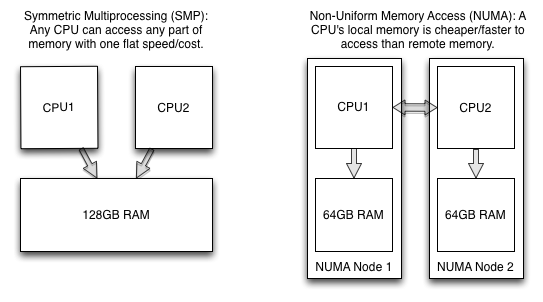
One of the reasons is NUMA, which stands for Not Ur Momma’s Architecture.  Okay, no, smart reader, you caught me – it actually stands for Non-Uniform Memory Access.  In your momma’s architecture (Symmetric Multi-Processing), any CPU could access any memory all at the same low price.  In today’s NUMA servers, a single motherboard with two CPUs and 128GB of memory can actually be divided into different nodes.

Exhibit A1 – Mmmm, steak sauce.

When a process running on CPU #1 wants to access memory that’s directly connected to it, that’s local access, and it’s fast.  However, when that same process wants to grab data stored in CPU #2’s memory, that’s remote access, and it’s not as fast.

The performance penalty of remote memory access varies greatly from system to system, and you can measure it with Coreinfo from Sysinternals.  (That Russinovich knows everything.)  Blogger Linchi Shea went so far as to test the overhead of local versus remote access on one particular system, and he saw about 5% performance reduction.  He considered that the worst case scenario for the server hardware he was using, but keep in mind that the situation will be much worse on servers with higher costs for remote memory access like IBM’s x3850 and x3950.

Windows exposes NUMA configuration details to applications, and it’s up to the app to tune itself appropriately.  SQL Server has been NUMA-aware since 2005, and Microsoft’s continued to add improvements for it through 2008 and 2012.  To learn more about how SQL Server handles NUMA, check out Gavin Payne’s SQLbits presentation, The NUMA Internals of SQL Server 2012.

How Virtualization Screws Things Up

The good thing about virtualization is that it abstracts away the hardware.  You can run any virtual SQL Server on any server in the datacenter without a reinstall.  You can even move virtual machines from one host to another, live, without a service restart – even if the underlying hardware is completely different.  You can use multiple VMware hosts with completely different NUMA architectures – different numbers of cores per NUMA node, different amounts of memory per node, etc.

In order to pull this off, virtualization just presents a lump of CPUs and memory to our guest.  Our virtual machine has no idea what the underlying NUMA configuration is – and it can’t, because it could change at any time when we’re moved from one host to another.  This isn’t a performance problem for most apps because they don’t need to know anything about NUMA.  They just want a lump of CPUs and memory.

Unfortunately, this is a performance problem for SQL Server because it actually wants to know the underlying configuration – and wants to tune itself for it.  This is why when even running on a host with no other guests involved, performance still won’t match bare metal.

How vSphere 5’s Virtual NUMA Fixed Things Up Again

There are three key decisions that will make your life easier (and possibly your performance better).

First, isolate your virtual SQL Servers onto their own hosts.  With SQL Server 2012’s licensing, when you buy Enterprise Edition for the host’s CPUs, you get unlimited virtual machines on that host.  For a while, this wasn’t easily doable in VMware because of their incredibly stupid memory limits with licensing, but thank goodness they fixed that license stupidity recently.  I can’t imagine a software vendor being dumb enough to limit their product to 64GB of memory in this day and age. <cough>sqlserverstandardedition</cough>  I’m so glad VMware listened to their end users and fixed that limitation.  <cough>microsoftpayattention</cough>  Restricting a database server to just $500 worth of memory, why, that’d be like releasing a tablet with 4 hours of battery life.  <cough>mylastpostasanmvp</cough>

Second, in that pool of hosts, use identical hardware running vSphere 5.  All of the hosts need to have the same NUMA architecture.  This does come with a drawback: it’s harder to do hardware refreshes.  Most shops just buy new hardware as it becomes available, throw it into the VMware cluster, and let VMware DRS automatically rebalance the load.  Unfortunately, the SQL Servers won’t be able to vMotion onto this hardware if it has a different NUMA configuration.  The guests will need to be shut down at the next maintenance window, get a different NUMA config, and then be booted on the appropriate hosts.

Finally, configure vSphere 5’s Virtual NUMA on your guests.  This is done automatically for guests with more than 8 vCPUs, but at 8 or less, you’ll need to enable it manually.  Presto, SQL Server will see the underlying architecture and tune itself appropriately.  (Well, not entirely appropriately – now SQL Server just solves the easy problems for you, and creates new hard problems.)

To enable virtual NUMA on VMs with 8 or less vCPUs, follow the instructions on page 41 of the Performance Best Practices for VMware vSphere 5.1 PDF.  And hey, while you’re in there, get your learn on – it’s an excellent resource for SQL Server DBAs who want to know if their shop is doing things right.

Wanna learn more? Check out our VMware, SANs, and Hardware training videos. It’s a 5-hour training video series explaining how to buy the right hardware, configure it, and set up SQL Server for the best performance and reliability. Here’s a preview:

https://www.youtube.com/watch?v=S058-S9IeyM

Buy it now.


Video: Documentation – It Doesn’t Suck!

SQL Server, Videos
1 Comment

Without documentation, you could probably do your taxes, build a new piece of “some assembly required” furniture, or manage a database instance – but you’d probably end up living in prison, living with broken furniture, or living in fear of your servers.

Writing documentation might not seem as important or exciting as developing or tuning code, but it keeps database administrators out of prison. Join Jes to learn what you need to capture and what tools to use.

http://youtu.be/XZDj3luixrA

Hungry for more goods on documentation in SQL Server?

Check out https://www.brentozar.com/go/documentation!


Documentation: It Doesn’t Suck!

SQL Server
11 Comments

Some parts of our jobs are not glamorous, but necessary. For example, I have to brush Brent’s Bob Dylan wig weekly, to make sure it’s shiny and perfect. Documentation is a task many people roll their eyes at, procrastinate about starting, have a hard time keeping up-to-date, and in general avoid.

Stop avoiding it, and embrace the benefits!

The most important part of documentation is starting, so I’d like to help you by giving you a list of things to document. It’s going to take time and won’t be as fun as tuning queries from 20 minutes to 2 seconds, but it could save the day sometime in the future.

You can call this your SQL Server Run Book, your SQL Server Documentation, your SQL Server Best Practices Guide – whatever works for your environment. Make sure it’s filled in for each server, and kept up to date, and you’ll soon realize the benefits.

Click here to download a template SQL Server Documentation Run Book.

Need an example? Here is a sample SQL Server Documentation Run Book!

Server-Level Settings

You’ll want basic information about your instance recorded so that if you have to rebuild it, the environment will be the same.

  • Number and type of CPUs
  • Amount of memory
  • Storage – type and amount
  • SAN settings (if applicable)
  • Server name
  • Instance name
  • SQL Server version and edition
  • Service account
  • Min and max memory settings
  • Collation
  • Trace flags
  • Any non-default options that have been configured, such as MAXDOP or Optimize for ad hoc workloads.
  • Clustering
    • Virtual server name
    • Virtual IP address

Databases

Each database on your server – including system databases – should be well-documented. Beyond knowing what is contained in the database, you should also know why it exists and whom to contact with questions.

  • Name
  • Purpose
  • What application or program it is for
  • What person, business unit, or department is the owner
  • Are two or more databases on the server related? Do they need to be restored on the same server, or in a specific order?
  • Location of data and log files
  • Recovery model
  • Backup schedule and file locations
  • Collation
  • Information about tables, views, stored procedures, and functions, such as table names, field names, data types, default values, or parameters
  • Database roles
  • Database users and permissions
  • Is log shipping enabled?
    • What instance are you restoring to or from?
    • Frequency of backups
  • Is mirroring enabled?
    • Operating mode
    • Principal or mirror?
    • Instance that is the principal or mirror
  • Is replication enabled?
    • Type of replication
    • Publisher, subscriber, or distribution database
    • Distribution server name

 Security

Having a secure SQL Server is highly important. Only the users that need access to the server should be granted access, and they should only be granted the minimum rights needed.

  • Authentication mode
  • Logins – Windows and SQL authentication
    • What roles a login is granted
    • Databases the login has permissions to and the roles in those databases
  • Server roles
  • Credentials
  • Certificates
  • Linked Servers
    • Name
    • Type
    • Login/Security Context

Maintenance Plans/Agent Jobs

There are many important tasks that can be set up and scheduled on your database server, such as backups, restores, and maintenance. Document these, as well, so you know what each job is for, and can recreate it in the event of a disaster.

  • Name
  • Purpose
  • Owner
  • Tasks performed
  • Schedule
  • Are any related, and do they need to be run in a specific order?

Anything that goes against best practices, and why

Do you have xp_cmdshell enabled because a third-party application requires it? Are all of your linked servers configured with an sa account? Any special circumstances should be documented and explained. In the case of an emergency, you don’t want to have to think about why these things were turned on. You also want this information readily available for anyone else who is or will be responsible for the instance.

Documentation is Worth the Effort

You will thank yourself for doing this work. Don’t let the task overwhelm you – start with one server, and work your way through your environment. Once you have to rebuild a server, train a new DBA, or explain what a specific Agent job does, you will appreciate the time you have put in to building your run book!


Developers: Help Us Pick Cities for 2013 Training

SQL Server
2 Comments

You’re a developer stuck managing a database server that you don’t feel comfortable with.  You’ve got no formal database training, but over a couple years of work, you’ve taught yourself how to design databases and write queries.  You want to improve the performance and reliability of your SQL Server, diagnose problems with your T-SQL and schema, and build a prioritized to-do list for the team.

After 2 days of in-person training from Brent, Jeremiah, Jes, and Kendra, you’ll leave armed with knowledge and scripts to hit the ground running when you return to work.

UPDATE – The survey is closed. Thanks for your help!


Does Your SQL Server Need Critical Care®?

SQL Server, Videos
0

Overwhelmed with problems on your SQL Servers? Maybe it’s time you stopped playing around with bandages and got some Critical Care®.  In this 30-minute video, we’ll introduce our Critical Care® process, explain what we look for, and show you how to explain it to your manager. Let’s make your SQL Server faster and more reliable – together.

https://www.youtube.com/watch?v=5fcFN9UJPtE

Sound good?  Contact us now to get the ball rolling.


The Brent Ozar Unlimited® 2013 Company Retreat

Company News
12 Comments

Our day jobs involve quickly fixing some of the toughest technical (and political) challenges that have stymied companies for months.  We’re under very high pressure to produce amazing results quickly, and we pride ourselves on knocking it out of the park every time.

And forget the client gigs – keeping any small business running is stressful.  Jeremiah, Kendra, and I are constantly juggling balls in the air to deal with contracts, lawyers, accountants, marketing, payroll, and of course, sales.  There’s so many months where I look back and go, “What the hell just happened?”

There’s even stress being an employee of a small company.  Jes Schultz Borland took a gamble on us when she signed on as Employee #1.  Small companies fail all the time with financial, political, and business problems. She took a risk, and we want to reward that risk.  We start with a killer benefits package that includes six weeks paid vacation, two paid conferences, MVP Summit paid travel & time off, and much more.

We get to go to a lot of conferences, but… conferences aren’t vacations for us at all.  We can’t imagine going to conferences without volunteering to present and give back, which means that we’re stressing out over our presentations and demos.  Plus, we end up spending all our after-hours time attending cool community events and catching up with our buddies – and we never get to catch up with each other.  That’s where our retreat comes in.

The Brent Ozar Unlimited® Company Retreat

Last year we had a great time touring Alaska on SQLCruise, but this year we’re flying the other direction.

We’re spending ten days in Mexico at Casa Panga, a beach house about 45 minutes away from Cabo’s spring break crowds.  Just us, our loved ones, Ernie, and … the house’s live-in staff to bring us meals and margaritas.

Casa Panga, Cabo, Mexico – the perfect place to burn your s’mores.

We’ll talk about what we’ve learned in the past year, what we want to do next, how we can improve the business, and how we can grow the company so we can hire more friends – and bring them along to the next retreat.  We’re not playing around when we say we wish you were here with us.


Implementing Snapshot or Read Committed Snapshot Isolation in SQL Server: A Guide

How to change isolation levels without losing your marbles.

A client said the coolest thing to me the other day. He said, “We talked before about why we would want to start using optimistic locking in our code. How do we get there?”

If you’re not a SQL Server geek, that comment probably doesn’t even make sense. But to some of us, when you get an environment to the point that it can handle optimistic locking AND you have developers who are ready to make a few code changes to use it to their advantage, it’s exciting!

I am a huge fan of optimistic locking in SQL Server and have seen dramatic improvements in performance when it’s implemented well. For the right database and the right team, a little hard work makes scaling the application easier in the long run.

Optimistic Locking 101: A Quick Review

If you’re new to Isolation Levels in SQL Server, this post may be hard to follow. Consider taking a quick break to browse through our big list of references on Isolation Levels in SQL Server around the web.

Here’s a very simplified refresher for those who know their isolation levels, but need to brush out the cobwebs:

SQL Server uses “pessimistic” locking in user databases unless you tell it to do otherwise. Your default isolation level in SQL Server is READ COMMITTED. Although that sounds reassuring– who doesn’t want a little commitment from their database?– it’s a form of pessimistic locking. Under the READ COMMITTED isolation level readers can block writers, and writers can block readers. Sometimes the default isolation level isn’t strong enough to provide the right level of consistency, so people need to use higher (“more pessimistic”, if you will) isolation levels to prevent phenomena like non-repeatable reads and ghost records.

Let’s say we have an Orders table, and we’ll add a row in it:

When our database isn’t under much load, it’s easy to query the open orders – just SELECT * FROM dbo.Orders, and you instantly see the one and only order we’ve had.

However, as load increases in a database, then tension between ensuring transaction isolation / correct results and also supporting concurrency increases. You start to battle with blocking and deadlocks.

While someone is trying to load a new row into the Orders table:

If someone tries to check our Orders at the same time, they’re blocked:

In the screenshot above, the left window is inserting a row, and the right window is blocked. That select will just hang there forever until the left query either commits their transaction, or rolls it back.

To work around that, people often use NOLOCK – which works in the sense that the query on the right can now finish instantly:

But that has disastrous results because NOLOCK will show you rows that never got committed, it’ll skip rows, it’ll read rows twice, and your query can outright fail. I explain and demo that over here.

Enter optimistic locking.

SQL Server 2005 introduced two new isolation levels to help you in your mission towards ever greater concurrency: SNAPSHOT and READ COMMITTED SNAPSHOT isolation (this second option is often called “RCSI”). These two isolation levels use versioning to allow some or all of your queries to speed on by “in flight” transactions and read a previously committed version of the data.

I just have to do two things: turn on optimistic concurrency (more on that in a second), and add a single line to my read-only queries that want to bypass blocking problems while still seeing accurate results:

The result is, well, results! I can get results instantly instead of being blocked:

The select query sees only the true data – as if the insert on the left hasn’t committed yet, which is true!

Readers Don’t Block Writers, Writers Don’t Block Readers

Pessimistic marbles

The simplest, purest benefit from optimistic isolation levels in SQL Server is just this: you can allow heavier, reporting style queries to run without blocking your critical writes under OLTP. You suddenly have another option between tuning every expensive query, using dirty reads, or having to run queries against a secondary server.

Sometimes you can decide, “This query isn’t the greatest, but it’s OK to run if it doesn’t block anyone and just reads previously committed data.”

And yes, you can do more than that. You can use the SNAPSHOT isolation level for data modification queries, but then you need to start detecting and handling update conflicts. (Note: this does not apply to READ COMMITTED SNAPSHOT.) There’s nothing wrong with doing that, but in most environments it is not the “biggest bang for your buck” change to implement.

How Do You Implement Snapshot or Read Committed Snapshot Isolation… Safely?

Moving to optimistic locking sounds great, but it’s not a quick change. Rush in too soon and you may suffer big performance problems, loss of availability, and incorrect query results.

That list of potential problems scares off most people. That list makes a project manager think, “I’ve got 99 problems and optimistic locking ain’t one.”

But it really isn’t that hard to test and implement optimistic locking. It just takes a little time and a good plan. Here are three steps I always include when planning out an Isolation Level change.

1. Measure the Effect that Enabling Optimistic Locking has on SQL Server Performance

When you have an existing code base and you’re evaluating optimistic locking, at first it seems that you have a little bit of a chicken and egg problem.

  1. You’re not sure if your production server can handle the load
  2. Testing resources are required to make sure the change won’t create bad data

Nobody wants to invest in testing if the environment can’t handle the load. And people don’t know how to test the impact of the feature safely if it hasn’t been proven to not create bad data. It may seem like a project management deadlock.

Optimistic marbles

Never fear– there’s a method to testing the load first! The key lies in understanding the difference between the two isolation levels. If you enable SNAPSHOT isolation on a database, SQL Server starts implementing versioning technologies so that queries can set their isolation level to snapshot. (Queries have to do this explicitly– as in run a command ‘SET TRANSACTION ISOLATION LEVEL SNAPSHOT’.)

Here’s the bit that’s easy to miss. As soon as you enable SNAPSHOT isolation on a database, SQL Server waits for running transactions to complete, then immediately starts using versioning for data modifications. You start using an extra 14 bytes per row on tables in the database itself. Also, versions are created in the tempdb version store to hold the previous value of data for updates, deletes, and some inserts. This happens even if no queries are run using SNAPSHOT isolation. Seriously.

This may seem a little bit like a rip off. Yeah, you’ve gotta pay for the performance even if you’re not using SNAPSHOT! But it’s for a good reason– your SQL Server does not yet have the feature of being psychic. It can’t predict if at any instant you’re going to start a query using SNAPSHOT, and it’s got to make sure that the database is ready if you do that at any time.

But this can also be a useful feature. You can test the performance impact of versioning for a database just by setting ALLOW_SNAPSHOT_ISOLATION to ON. When you issue the command to change this, SQL Server will wait for all active transactions to complete before returning a status to you (Books Online explains why and how to handle it here – search for ALLOW_SNAPSHOT_ISOLATION on that page.) You can then monitor performance for as long as you have planned and then reverse the process.

As long as you haven’t changed any code and are using the ALLOW_SNAPSHOT_ISOLATION option, no queries will actually USE the changed isolation level and you can simply monitor performance impact of optimistic locking.

One gotcha: I’ve mentioned a specific setting on purpose. The READ_COMMITTED_SNAPSHOT option is named similarly, but is very different! That setting changes your default isolation level to use optimistic locking without code changes on your queries. As soon as you turn it on, some queries could start getting unexpected results or writing incorrect data. (An example of this is below in #3.) The process of turning on  READ_COMMITTED_SNAPSHOT also works differently. For a single instant the connection issuing the command to enable RCSI must be the only active command in the database. (I go into more detail on this in the “gotchas” section at the end of this guide.)

Because of both of these reasons, ALLOW_SNAPSHOT_ISOLATION is much more suitable to dip your toe in and find out how enabling optimistic locking impacts your workload. Still follow common sense: test first at low volume times and work your way up to busier times. Know that disabling and going back to “normal” may not always happen as fast as you want if you have long running transactions or a very heavy workload.

2. Plan to Prevent Disaster with Snapshot Isolation

The second step to identify what might get out of hand if something unusual happens– like a rogue session that leaves a transaction open. This isn’t a far fetched scenario. I’ve had this happen due to both human error as well as bugs in application frameworks. It’s really not that rare and it could happen to you.

Your plan needs to identify the biggest risks from the change for your business and what may be challenging to the team who responds to incidents. Then set things up so that if weird things happen, people get notified and know how to triage the issue.

Here’s an example of two things you may identify as your biggest concerns if you implement optimistic locking in SQL Server:

  • Tempdb could fill
  • Long version chains could be created, causing query performance to get super slow

How you handle these will vary depending on your monitoring system, tools available, and documentation. Even if you don’t have fancy tools, you can use SQL Server’s performance counter Alerts to let you know if used space in Tempdb rises above a given water line. You can also alert on performance counters for longest running transaction time, or use DMVs to monitor the version store in detail. (Note that not all these DMVs are lightweight to use when the version store gets large.)

Your mission is simple: identify the simplest way for you to monitor the conditions you’re concerned about. Test that it works on a non-production system. Most importantly, write down documentation for the alert that will help someone decode the problem if you’re not around to handle everything and take basic actions.

3. Choose Carefully Between Snapshot and Read Committed Snapshot Isolation (RCSI)

OK, now this is where the developers come in. You can use optimistic locking in SQL Server by using either of these database options– or both. Which one is right for you?

The biggest consideration with an existing code base is how much testing is available for the code. I think the READ COMMITTED SNAPSHOT isolation level is great, but it is going to change your default isolation level for every query right away. This may lead to incorrect results, depending on how your code is written. The worst-case example is if your code:

  1. Reads table data into variables or temp tables
  2. Uses the variables or temp table data to update table data, and the code just assumes no changes have been made between steps 1 and 2

This is called a race condition, and explaining this is beyond the scope of this post. Not all coding patterns are prone to this issue. However, with an existing code base, validating all the code and ensuring that you don’t have any legacy code that’s prone to this issue isn’t always a simple thing. If you have the ability to make changes to your code and you already know a class of queries which you’d like to use with optimistic locking, you may prefer to introduce SNAPSHOT isolation into your environment first, instead of READ_COMMITTED_SNAPSHOT.

To implement SNAPSHOT isolation on some statements, you need to first enable it using the ALLOW_SNAPSHOT_ISOLATION database option. You can then implement SNAPSHOT isolation for some queries– you do this by setting the isolation level with ‘SET TRANSACTION ISOLATION LEVEL SNAPSHOT’. It’s easier to implement this at first for read queries which you’ve tested and know aren’t prone to data issues similar to what we showed above. This means that you may need to use separate connection strings for those queries, or make sure you reset and check the isolation level that you’re operating at after statements complete.

In other words, isolation level is a session level setting. You need to make sure that don’t use SNAPSHOT isolation by accident for more queries than you intend to.

Gotchas With Implementing Snapshot and Read Committed Snapshot Isolation Levels

There’s a few little facts that I’ve found over the years which I didn’t expect. They make total sense, I just hadn’t thought of them until I worked with optimistic locking in SQL Server.

    • Hints in your code still apply. Let’s say you have a problem with locking. Over the years NOLOCK hints are added in many places to help make this better. You finally get confirmation from your dev team that READ_COMMITTED_SNAPSHOT is safe for your applications and your change is approved, so you turn it on. You’re spending all those performance resources on versioning, but guess what? Those NOLOCK hints are still causing queries to do dirty reads instead of using the data versioning! The NOLOCK hints gotta go.
    • Writers still block writers in Read Committed Snapshot Isolation (RCSI), and depending on how you’ve written your transactions, this could change results in your application. Read more here.
    • Update conflicts aren’t the same as deadlocks. Update conflicts are only possible when you use SNAPSHOT isolation for data modification queries– you don’t have to worry about these with READ_COMMITTED_SNAPSHOT. However, it’s often more practical for people to implement SNAPSHOT because of the testing issues I outline above. Even if you’re only implementing SNAPSHOT for read transactions, familiarize yourself with the error codes and messages for update conflicts and make sure your code handles error 3960 (“Snapshot isolation transaction aborted due to update conflict…”).
    • Enabling READ_COMMITTED_SNAPSHOT on a busy system is harder than it sounds. As I mentioned before, turning READ_COMMITTED_SNAPSHOT on or off is a little unusual. You don’t technically have to put the database into single user mode, but to get the command to complete you need to be running the only active command at the moment. The simplest way to do this is to use the ‘WITH ROLLBACK IMMEDIATE’ clause of the ALTER DATABASE command (search for it on that page.) However, I have not found this to run predictably or easily on very high transaction systems. I recommend planning a change to turn the READ_COMMITTED_SNAPSHOT setting on or off in a database in a very low volume time if you need to keep things predictable.
    • Rolling back and disabling SNAPSHOT requires more code changes. In order to stop row versioning, you need to disable SNAPSHOT — and as soon as you do that, queries that set the isolation level to SNAPSHOT and try to run will fail with Error 3292: “Snapshot isolation transaction failed accessing database ‘dbname’ because snapshot isolation is not allowed in this database”

Want help? Talk to Brent for free.

See sample findings now

The problem probably isn’t fragmentation – you keep defragmenting and the problems keep coming back.

Our SQL Critical Care® is a quick, easy process that gets to the root cause of your database health and performance pains.

Learn more, see sample deliverables, and book a free 30-minute call with Brent.


How We Write

The four of us were talking about the writing tricks we use, and we thought you might enjoy hearing our styles.

How Brent Writes

I use RememberTheMilk.com to track my blog post ideas.  I can use it from anywhere via a web browser, phone app, whatever.  I can tell when I’m in the mood to write because I’ll come up with 4-5-6 blog post ideas in a row in a matter of minutes.  When that happens – and it’s almost always in the morning – I look at the day’s schedule and figure out if there’s a way I can spend a few hours writing.  Seems like it strikes in spurts, too – weeks will go by without me producing a single blog post, and then suddenly I’ll have several days in a row where I just can’t stop sneaking away to write.

I can write anywhere, but I can’t be around people I know, because then I feel guilty for not spending time with them.  (This also means no email and no Twitter.)  This usually means that I grab my laptop or iPad and head to a coffee shop or pub that doesn’t mind me sitting there for hours, banging away.  Right now, my favorite writing place is Kroll’s Bar and Grill in Chicago.

I can only write with music playing on headphones – almost always with just one song on endless repeat.  The music affects the tone of what I write.  Bubbly pop music like Lady Gaga and LMFAO produces fun, relaxed posts like my SQL Server 2008R2 Review and my AlwaysOn Availability Groups introduction.  Client findings seem to work best while listening to Tokyo Police Club’s manic upbeat stuff like Your English is Good and Wait Up.  I wrote all of my chapters for 2008 Internals and Troubleshooting while listening to the long version of Death Cab for Cutie’s I Will Possess Your Heart.  Over.  And over.  And over.

I write in a text editor first.  I stopped using WYSIWYG stuff a long time ago because I got too caught up in presentation rather than content.  The words themselves have to seduce me on the screen, just by themselves, without any makeup.  When I’m pretty happy with what I’ve got, I move it into the final production tool (WordPress, Word, PowerPoint) and then start applying the makeup.

How Jes Writes

Sometimes, I think that I could write non-stop, all day, every day. It wouldn’t always be good writing, and it wouldn’t always have a point, but I can put words down all day long.

I have a list of blog ideas – technical and non-technical – in a OneNote notebook. I put down the topic or the title as soon as it comes to me, and a couple sentences if I have more. The next step is to fire up a Word document and put together an outline. Sometimes, that’s as simple as two or three bullet points. Sometimes, it’s a lot more complicated.

The act of writing requires discipline, mixed with a little inspiration. I try to block off specific times to write – that way, I can’t always put it off until I “feel” like it. Of course, if inspiration hits, I will sit down and bang out as much as I can when it happens. If I’m away from my computer, I usually have a notebook with me (I love Moleskine), and I’ve been known to scribble away and then type it up later.

My environment is very different depending on whether I have a technical or non-technical blog. As I write this, I’m in my office, door open, dog running amok around the house, music playing, laundry going, drinking coffee. If I have a technical topic to write about – especially if it involves code or examples – things are very different. Silence rules. I go in my office, I close the door, I turn on the light, I turn off music, close email and Twitter, open Word and whatever tools I need, and go. I don’t want to be bothered – at all, about anything. I’ll hack away for an hour or two, take a break for a snack, and go back at it. I like to finish technical blogs in as few sittings as possible, so I try to start these on a weekend, or during a week I don’t have a lot of stuff happening in the evenings.

When I’m done, every piece of writing gets set aside for at least a day. Then I re-read and edit it, sometimes a couple of times, and schedule it!

How Jeremiah Writes

As much as it pains me to say it: haphazardly. My process isn’t as disciplined as it used to be (or as disciplined as I’d like it to be). That being said, I’ll outline what I do right now and where I want to be.

I keep track of rough blog post ideas in Remember the Milk. As I flesh out the ideas, I add notes and links to references that will help me flesh out the article. Remember the Milk is critical for my workflow because I can get to it anywhere – ideas don’t happen when you’re sitting in front of the computer. They often strike when you’re at work, on the bus, or stuck in traffic. Being prepared with a lot of different ways to record a good idea is critical to saving that idea for later.

I’ve tried using any number of WYSIWYG editors – they help me agonize over font choice. I’ve tried distraction free editors – they get in the way of working with reference material. When I want to write, I use a text editor. Sublime Text 2 works for me; it has tools for writing prose and tools for writing code. Once I’m in the editor, I draw up a rough title and introductory paragraph – the first paragraph works as an outline. After putting together an outline, I write slugs to draw the reader through the article. It’s after I’ve outlined that I start writing.

I’m a big believer in revision. The first time through an article, I write down my thoughts as quickly as possible while trying to stick to the outline I’ve put together. If there are interesting diversions, I make a note of them and carry on. After the first draft, I let it sit and work on something else.

Clutter is the disease of American writing.

William Zinsser said that. He’s right. During my editing process, I distill my writing. Once I reach minimalism, I build it back up; carefully adding words where they’re needed. I repeat this process several times until I’m as happy as I’m going to be with the results. Whether I’m writing prose or code samples, I use this approach.

Unfortunately, I don’t succeed every time. My least favorite writing is something I produce quickly. I feel that a moment of genius or art has struck and that I can happily push “Publish” and move on to something else. The discipline of revision isn’t there and it shows in the quality of the work – it’s sloppy, jumbled, and dissatisfying. In a perfect world, I could revise each piece three or four times.

My writing process takes time and discipline and is a piece of habit. Great writing doesn’t come from a burst of inspiration, it comes from daily exercise. Relentlessly tuning my prose makes it easier to write something better the next time through.

How Kendra Writes

I admit it: I hate writing sometimes. Writing is very difficult for me. Here’s how I cope.

Mainly, I try to play to my strengths. I have some good skills that I value. I’m really good at a few types of writing, and I’m also a really fast typist. When I’m working in a form of writing I’m good at, I’m much more productive than when I work in a form where I struggle.

Here’s where I shine: I’m great at describing a problem and creating an action plan to solve the problem. I’m a star at documentation and writing up recommendations. I love the balance of trying to add just enough detail and links so that the nuances are clear, without getting so bogged down in detail that the meaning is hidden.

I practice this type of writing a lot in my work. When I write this way, I don’t really need much of anything except my laptop– it’s pretty easy for me to “get lost” in the writing. I tend to stop noticing things around me. I try to remember to stop and drink water or stand up and move around periodically.

Here’s where I struggle: more creative forms of writing. Blog posts are incredibly hard for me. We try to be very thoughtful about blog posts on this site and have a lot of internal discussions about how we can write the best posts possible. It’s just not as simple and straightforward as business writing where you’re out to slay a specific dragon. It’s more about connection and humor and finding meaningful things to share with a much bigger audience.

Here’s what I’ve done to try to make myself better at writing things where it’s hard for me:

  • I don’t force myself to write creatively at very busy or stressful times.
  • I encourage myself to write creatively when I’ve finished my task list for the week or had a great night’s sleep on a weekend morning.
  • I remind myself that I am good at writing, even if some forms are hard for me. (There’s no worse thing for you as a writer than to tell yourself that you’re a bad writer.)
  • I encourage myself to let writing flow creatively in one session, then use another session to go in and edit furiously.
  • I stop writing when I’m still feeling good about it.
  • I save off content in Evernote and periodically pull out older content and work on it again– I don’t set myself a quota for finishing.

I also sometimes get to integrate the forms of writing where I’m strong into the website, too! I created most of the sp_BlitzIndex® documentation in one long afternoon of thinking and writing about indexes– and I’m so proud of it. Those pages would not have made a good blog post, but they’re a way I was able to contribute sharing information in a meaningful and helpful way.

To me, becoming a better writer is all about mindset and strategy. Observe where you’re strong, appreciate what you’re good at, and build from there. Don’t try to write like anyone else, just always strive to write as well as you can.


Here’s to the Ones Working Today

SQL Server
3 Comments

Happy New Year’s Eve!  And no, I’m not looking for a kiss.

Are you working today?  I usually did.  I’ve been in IT for over a decade, and I worked most holidays (not to mention most weekends).  It was the best time to get outage windows to do a lot of things that would help my systems stay online.  Before that, I was in hospitality – hotels and restaurants.  You’d better believe I worked every single holiday.  Every.  Single.  One.

I worked holidays and weekends because that was what my job duty required.  I wanted to be really good at my job, and that meant being around when my customers and my systems needed me the most.  I wanted to make sure I took good care of everything.

I might have grumbled a little, but truth be told, I was proud of myself.  Every time I pulled into an empty office parking lot after dark and waved my badge to get in, I knew I was going the extra mile.  I didn’t do it for other people – I did it for myself.  It was the right thing to do, and that itself was a reward.

Meet the Fukushima 50

In 2011, a major earthquake struck off the coast of Japan.  The Fukushima Daiichi nuclear power plant suffered a series of catastrophic failures that went from bad to worse to unbelievably horrific.  The reactor leaked radiation that started killing employees onsite.

You can’t just walk away from a failing nuclear reactor.  It doesn’t shut itself down gracefully.  Trained professionals have to make decisions about mitigating risk, and then they have to do dangerous things to save others.

Fortunately for all of us, the Fukushima 50 were passionate about doing the right thing.  These employees stayed at the plant while others were evacuated.  They put their lives on the line to stop the radiation leaks and save lives.  They were prepared to die to carry out their duties.

Thankfully, we IT professionals are rarely faced with real life-or-death choices.  I hope 2013 doesn’t bring a challenge like that to you, but knowing how many admins work weekends and holidays by choice, I bet you’d do the right thing.


Every Consultant Needs Three Things

Tired of workin’ for the man? Want to live the glamorous life of jet setting around from place to place, working on really challenging problems, and eating at foodie restaurants?  You just need three things.

1. A price.

Right now, people probably don’t put a value on your time.  You can’t exactly put up an hourly rate sign, but you can start to put in some gentle barriers to make sure people respect the worth of your time.

When I was a DBA and people walked into my cube asking me to do something, I pulled up my task list in RememberTheMilk.com.  The cool thing about RTM is that it even works on mobile devices, so I can access the exact same task list from anywhere.  I would show them the list and say:

“Here’s what I’m working on right now.  If I push these aside, see the names next to each request?  That’s the person who I’ve promised it to, and here’s the dates when they need it by.  Can you run interference for me and get them to delay the dates on theirs?”

Just that it's really, really good food.
Jeremiah and Kendra will work for food.

It worked magic – people suddenly understood that there was a cost to my time.  Often, they were even completely willing to pay that cost.  They’d put skin in the game by going to these other executives and bargaining for my time, and they’d be forced to use political favors in order to get what they wanted.  Even though I didn’t profit directly, there was still a new cost to my time, and I wasn’t the one paying the cost.  I stopped acting as the go-between – I left it up to the consumer to pay for my time.

Later on, I got gutsier with meeting invites I received, too.  I’d reply back (without accepting the invite) and say:

There’s not an agenda attached to this meeting invite.  Can you give me a quick rundown of the decisions that we need to make during this meeting?  I’d like to make sure I come prepared, and I might be able to get the work done even earlier.  If you’re not sure what will be discussed, I’ll need to skip the meeting – I’ve got a lot of irons in the fire right now.

When I did get the meeting agenda, I busted my hump to do whatever was required ahead of time, and I’d send it to the meeting holder and copy all of the attendees.  My goal was to give them whatever they wanted without actually having the meeting.  It worked wonders.

But if I didn’t get the answer I needed, I didn’t attend the meeting.  If somebody fired off an email to my boss and said, “Dammit, Brent’s presence is urgently required,” I had my boss trained well enough to ask, “For what deliverable?  He’s really busy.”

2. A service.

In the beginning of my IT career, my service offering was “fixer.”  When something expensive and technical was going to hell in a handbasket, I wanted to be the first number on everybody’s speed dial.  I specialized in reverse-engineering stuff I’d never seen before and figure out the root cause.

That worked great as a full time employee of small to midsize companies, but it doesn’t work for consulting.  To understand why, you have to know the difference between consultants and contractors.  Consultants advise you on what to do, and contractors do what you tell ’em.  If you’re a great fix-everything guy, you end up as a contractor there for the long term.  (There’s nothing wrong with contracting – but remember, this post is about consulting.)

No dice. Smart negotiator.
We tried to pay Jes with food and jazz hands, but…

Over time, I ended up specializing in turning around SQL Servers in bad shape.  If you had a SQL Server problem that nobody else could solve, I was your Winston Wolf.  I got even more specialized and focused on SQL Servers that used storage area networks (SANs) or VMware.  It’s good to have a generalist background, but if you focus your service really tightly, you can do an amazing job at that service.  This is especially true when you specialize in an expensive technology.  If you’re having SQL Server CPU usage problems on a 40-core server, and Enterprise Edition costs $7,000 per core, then my services look pretty darned cheap.

Often, I’m brought into shops where a few local generalist consultants have struggled with a problem for months.  I parachute in, use a few slick proprietary scripts and tools, and get right to the root of the problem in hours.  I’m able to do that because I just specialize on one product (SQL Server) and I know that product forwards and backwards.  It’s the same reason your general practitioner refers you to a specialist doctor when you’ve got ear/nose/throat or back problems – even though it’s all just the body, there’s specialized skills for different parts of it.

I don’t wanna fix the printer.  I wanna be the one guy who gets called in when there’s a specialized SQL Server problem – and that’s where the final piece comes together.

3. A reputation.

When people are having a problem, and your skills are the answer, you want them to immediately say to themselves, “Man, there’s only one guy we need to call, and I know exactly who he is.”  It takes a long, long time to build up that reputation.  If you don’t have it, you have to rely on advertising and marketing, and then you’re in competition with a big pile of other consultants who are doing the exact same thing.

She's a bit of a biter.
Ernie works for food, but she has the wrong kind of reputation.

You have to start building your reputation right now – and I don’t mean by blogging, I mean by your own coworkers.  When you walk into a meeting, are they excited to see you?  Do other departments call and ask for you by name?  Do they say, “We gotta get so-and-so in here because I just know she’ll take care of this once and for all.”

You can’t get this reputation by being a jerk.  You can’t be the one who has all kinds of rules and always says “NO!”  You have to understand the difference between positive and negative reinforcement, and you’ve gotta use the former way more than you use the latter.

Every coworker and manager you have – they’re your test clients.  Right now, they’re not paying anything at all for your services.  Use them as your test market by becoming an internal company consultant for SQL Server.  If you can get raving fans inside your company, you’ve got a chance at becoming a consultant.

Probably the best gauge of future consultancy success is to ask yourself, “If I quit this job tomorrow, and I offered my former users a contract with a price and a service, would they make budget room for me?”  Don’t think of asking your manager, because one of your manager’s jobs is to make you feel welcome and loved no matter how bad your personal skills are.  Think about the users.  They’ve got real budgets, real business needs, and real feelings that they’ve probably expressed to you.  If they’d gladly – excitedly – hand you their budget money, then you’re ready to take a shot.

If not, go buy the book Secrets of Consulting: A Guide to Giving and Getting Advice Successfully (or the Kindle version).


sp_BlitzIndex® Holiday Week Edition

Only one thing could have dragged me away from the soft glow of the electric leg lamp glowing in the window… sp_BlitzIndex®

It’s one of those weeks when things get nice and slow. Your business users and managers are all out of the office due to holidays. Your inbox is blissfully quiet. You get a few moments to step back, make sure everything’s running, and catch up on a few of those things you just never have time to look into.

This was always one of my favorite weeks of the year as a production DBA. This isn’t a week when you want to do anything risky, but it’s the perfect week to learn about how your database servers have been running.

It’s Time to Check Your Index Sanity

Good news— unless you’ve just restarted all your SQL Servers, they’re still caching tons of information about your index performance. Even though it’s a quiet week, now is a great time to check on your indexes– is there something crazy hiding in your schema that you need to devote some time to in the new year?

Our free sp_BlitzIndex® stored procedure is designed to give you insight into your index schema and performance. sp_BlitzIndex® rolls through your database and looks for potential gotchas and issues with your indexes. It reads only metadata (no use of heavy DMVs or anything that needs to scan pages in your data tables themselves), then diagnoses what looks like it may get a little bit crazy in your database— everything from heaps with active deletes to multi-column clustered indexes.

sp_BlitzIndex® version 1.4 is Out

Just in time for the holidays, sp_BlitzIndex® is out with fresh updates.

The biggest new features are that sp_BlitzIndex® now diagnoses “Abnormal Psychology” in your indexes. This diagnosis finds indexes of specific types that require special handling and alerts you to their existence. We let you know if we find indexes using page or row compression, or columnstore, XML, or spatial indexes.

sp_BlitzIndex® also includes a few fixes for bugs users reported after our “Instant Index Insight” webcast. The stored procedure now works no matter what the default collation is of your SQL Server instance, and we added a few lines of code that prevents problems if you’re using any default user settings that might produce a problem.

What if You Find Something?

If you find that your indexes are hiding legions of problems, don’t panic. This isn’t the week to panic– this is the week to observe, learn, and plan. Each diagnosis has a URL so that you can learn more about the diagnosis. Spend some time with us and dig into the issue, then plan to make improvements in 2013.

How to Get Started

To spend your week getting to know your database schema and index performance better, get sp_BlitzIndex® from our download page.


The First Step to the Poor Man’s Runbook

In theory, before you introduce a new system – database server, load balancer, virtualization infrastructure, etc – you build a robust runbook that documents how you’ll handle every conceivable scenario.  When there’s any kind of failure, you’ll simply turn to chapter X and start going through a precise checklist that will guide you to the promised land of uptime.

Yeah, right.  In reality, you’re behind the 8 ball.  Everybody wants to go live with brand spankin’ new technology right now – even if we have absolutely no experience troubleshooting it.  Do it live, they say.

Here’s the easy way:

  • Find a room with a big whiteboard and a projector
  • Gather one person from each team (networking, systems, database, app, etc)
  • Connect to the system in question via remote desktop or whatever
  • Write a list on the whiteboard of every component involved

For example, on a SQL Server 2012 AlwaysOn Availability Group system, I connect to Failover Cluster Manager and list through all of the components:

  • Servers
  • Drives (local, SAN, quorum if applicable)
  • IP addresses
  • Services (local & clustered)
My ex-girlfriends would have been surrounded by red and yellow.
Ah, if only all risks were marked with signs.

For each component, ask:

  • When it fails, what will the symptoms look like?
  • How will it affect the system as a whole?
  • When we suspect that the component failed, who do we call to troubleshoot it further?
  • How long will we wait for them to figure out if it’s broken?
  • After that time, what’s our Plan B?

If we wrote down all of the answers, we’d have a runbook – but remember, we’re probably under the gun, so we probably won’t produce something that good.  That’s completely okay.  Let’s just get started by thinking through the complexity of the system and envisioning what failure might look like.

In complex systems, nothing every fails in a way that’s completely obvious and intuitive.  There’s no warning message in the event log that says, “The root cause is that Bob in Accounting decided to grab your cluster’s admin IP address for his new virtual server.  Go tell Bob to get his own unique IP address, and everything will be fine.”  Even if you’ve never experienced a failure like that, you might be able to recognize the symptoms if you imagine what a cluster admin IP failure would look like.  Document that, and you’re on your way to a killer runbook – which means faster recovery and easier troubleshooting.


Instant Index Insight: How to Use sp_BlitzIndex® (video)

First Responder Kit, Videos
5 Comments

You probably don’t have enough time to dig through DMVs trying to figure out which indexes you should add or drop. Whether you’re a DBA or developer, junior or senior, you’re probably too busy doing your real job to master all the index best practices – and now you don’t have to. In this 30 minute video, Kendra Little introduces you to sp_BlitzIndex®, a free script which you can immediately run to see if your indexes are healthy, or if they are heading towards insanity. Want to try out the tool? Check out sp_BlitzIndex®.

https://www.youtube.com/watch?v=-UL3gQmh4hE


sp_Blitz® v16: Snapshots, Recompiles, ShrinkDB, and More

SQL Server
9 Comments

I don’t blog every release of sp_Blitz® (we pushed v15 out silently with a few bug fixes) but we added a lot of improvements and fixes in this version – and by we I mean you.  After I blogged about v14’s release earlier this week, that encouraged a lot of people to come out of the woodwork and contribute code.  I’m still going through all the submissions and adding ’em in, but I’m pushing this one out the door now because it’s got some cool stuff:

    • Chris Fradenburg @ChrisFradenburg http://www.fradensql.com added check 81 for non-active sp_configure options not yet taking effect and improved check 35 to not alert if Optimize for Ad Hoc is already enabled.
    • Rob Sullivan @DataChomp http://datachomp.com suggested to add output variable @Version to manage multiple-server installations.  This way you can query all your servers and get back what version they currently have installed.
    • Vadim Mordkovich added check 85 for database users with elevated database roles like db_owner, db_securityadmin, etc.
    • Vladimir Vissoultchev rewrote the DBCC CHECKDB check to work around a bug in SQL Server 2008 & R2 that reports dbi_dbccLastKnownGood twice.
    • I'll give you fifteen minutes to stop that.
      Bear Blitzes Brent from Behind
      We added checks for database snapshots, stored procs with WITH RECOMPILE in the source code, Agent jobs with SHRINKDATABASE or SHRINKFILE in the steps, and a check for databases with a max file size set.
    • We added @CheckServerInfo perameter default 0. Adds additional server inventory data in checks 83-85 for things like CPU, memory, service logins. None of these are problems, but if you’re using sp_Blitz® to assess a server you’ve never seen, you may want to know more about what you’re working with. (Kendra’s idea!)
    • Tweaked check 75 for large log files so that it only alerts on files > 1GB.
    • Fixed a few case-sensitivity bugs.
    • Added WITH NO_INFOMSGS to the DBCC calls to ease life for automation folks.  I was surprised by the number of requests we got for this – turns out a lot of people are doing widespread patrols of their servers with sp_Blitz®!
    • Works with offline and restoring databases. (Just happened to test it in this version and it already worked – must have fixed this earlier.)

    If you’d like to contribute code, contact us.  Pro tip: if your code is written in a way that I can just copy/paste into sp_Blitz®, it’ll get published a lot faster.  I get a lot of contributions that are various DMV queries, but if I have to rework it to handle multiple databases simultaneously, work differently for 2005/2008/2012, and handle case-sensitive collations, then it takes me much longer to implement (sometimes months).

    You can download sp_Blitz® now and stop getting surprised by your SQL Server’s hidden past.  Enjoy!