One weird trick for managing a bunch of servers
41 Comments
Let’s face it, most people don’t have just one SQL Server
How many they tell Microsoft they have is another matter, but let the record show that I don’t condone licensing dishonesty. But going one step further, most places… Well, they’re ‘lucky’ if they have one DBA, never mind a team.
Everyone else: Give me your network people, your sysadmin, your huddled SAN group yearning to breathe free, the wretched refuse of your teeming developers.
Doing things on one server is aggravating enough. Doing things on a bunch of servers is even worse. Given some of today’s HA/DR features (I’m looking at you, Availability Groups, with your lack of a mechanism to sync anything outside of user databases. Rude.) people are more and more likely to have lots of SQL Servers that they need to tend to.
Sometimes just keeping track of them is impossible. If you’re one guy with 20 servers, have fun scrolling through the connection list in SSMS trying to remember which one is which. Because people name things well, right? Here’s SQLVM27\Instance1, SQLVM27\Instance2, SQLVM27\Instance3, and that old legacy accounting database is around here somewhere.
Register it and forget it
But don’t actually forget it. If you forget it and it goes offline, people will look at you funny. Turns out people don’t like offline servers much.
So what’s someone to do with all these servers? Register them! Hidden deep in the View menu of SSMS is the Registered Servers window
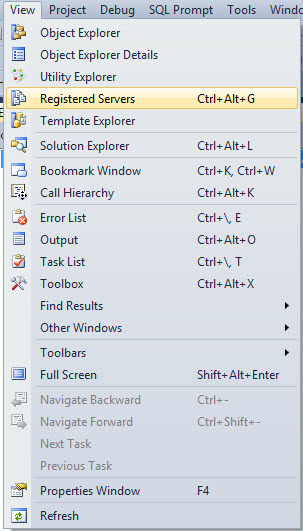
It will look pretty barren at first, just an empty folder. But you’ll fill it up quick, I’m sure. Can never have enough servers around, you know.
It’s pretty easy to populate, you can right click on the Local Server Group folder, or on servers you’re connected to in Object Explorer.

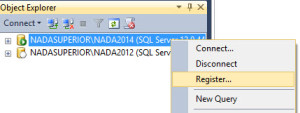
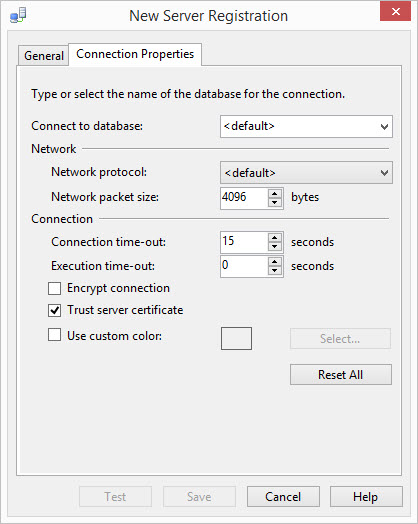
Either way, you get the same dialog box to add a server in. You can give it a friendly name if you want! Maybe WIN03-SQL05\Misc doesn’t tell a good story.

And if you hip and hop over to the Connection Properties tab, you can set all sorts of nifty stuff up. The biggest one for me was to give different types of servers different colored tabs that the bottom of SSMS is highlighted with. It’s the one you’re probably looking at now that’s a putrid yellow-ish color and tells you you’re connected and that your query has been executing for three hours. Reassuring. Anyway, I’d use this to differentiate dev from prod servers. Just make sure to choose light colors, because the black text doesn’t show up on dark colors too well.
Another piece of advice here is not to mix servers on different major (and sometimes minor) versions. The reason is that this feature gives you the ability to query multiple servers at once. If you’re looking at DMVs, they can have different columns in them, and you’ll just get an error. Even a simple query to sys.databases will throw you a bonk between 2012 and 2014.


Even if you’re running 2008R2, there are some pretty big differences in DMVs between SP1 and SP3. Microsoft has been known to change stuff in CUs (I’m looking at you, Extended Events).
On the plus side, you can use your multi-server connection to SELECT @@VERSION to help you decide how you should group them. If they have something better in common, like participating in Log Shipping, Mirroring, an AG, etc., all the better.

But my favorite thing, because I was a devotee to the Blitz line of stored procedures even before I got paid to like them, was that I could install them on ALL OF MY SERVERS AT ONCE! This was especially useful when updates came out. You know what it’s like to put a stored proc on 20 servers one at a time? Geeeeeet outta here!

Check that out. It’s on both of my servers. At once. That means simultaneously, FYI. If you have a DBA or Admin database that you keep on all your servers to hold your fancy pants scripts and tools, this is an awesome way to make sure they all have the latest and greatest.
You’re already better at your job
Even though this feature came out in 2008, I hardly see anyone using it. I found it really helpful comparing indexes and query plans across app servers that held different client data across them. It also exposes far less than Linked Servers; you need to worry less about access and level of privilege.
Just don’t forget to export your list if you change laptops!
Thanks for reading!