Blog

Why Nobody Ever Patches Their SQL Servers

I saw a DBA.StackExchange.com question and had to laugh out loud:

“Is there a cool way of performing CU updates for SQL Server on hundreds of machines?”

Patching got me like

No, and it has nothing to do with technology.

  • Which servers are mission-critical 24/7 and can’t go down?
  • Which servers can only be taken down in specific time windows?
  • Which servers have dependencies between each other, like database mirroring and AlwaysOn Availability Group replicas?
  • Which servers have automatic failover mechanisms (like clusters) where you can patch the standby node first, then fail over once, and patch the primary without having to fail back?
  • Which servers have vendor apps that required a specific hotfix that may not be included in the cumulative update you’re about to apply?
  • Which servers are running long batch jobs like data warehouse loads or backups that would take a long time to restart if you took it down in the middle of its operations?
  • Which servers have pending sp_configure changes that will take effect and surprise you when you restart?

Patching is hard work. Seriously.


Getting the last good DBCC CHECKDB date

whether it’s a new job or a new (old) server

If you’re reading this, you’ve at some point in your career stared at a server, for the first time, with great trepidation.

The smarter you are, the greater your trepidation is. The 2nd century mathematician Trepidatius the Wimpy had an equation that described this, but he only applied it to leaving his hut.

So the first thing you check is backups. Miraculously, someone is at least taking FULL backups. The logs and diffs are another story, but that’s why you’re getting paid. If your DBA checklist looks like mine, the next box down is seeing if someone has ever run DBCC CHECKDB to find corruption.

BUT HOW?

Since it’s my favorite test data set, I’ll use the StackOverflow database.

Ready?

That’s it. But the output is a nightmare. It’s about 80 lines of stuff you will probably never care about. Around line 50 is what you’re looking for.

Hi, I'm nonsense.
Hi, I’m nonsense.

And this is probably what you’ll see! A date of 1900-01-01 etc. That means never. If you run DBCC CHECKDB on the database, perhaps like so:

And then re-run the DBCC DBINFO command, our date is now updated to current:

LOOK HOW MUCH FUN WE'RE HAVING
LOOK HOW MUCH FUN WE’RE HAVING

IS THIS THE ONLY WAY?

Of course not. But if you need a quick solution, there it is. The only catch is that it will update if you run your DBCC CHECKDB with PHYSICAL_ONLY set. Using that option skips the logical consistency checks that a full run of DBCC CHECKDB does.

If you’re a smarty pants, and you’re using Ola Hallengren’s maintenance scripts, you can check the CommandLog table it creates to [drumroll] log commands, see when DBCC CHECKDB was last run, and even how long it took.

If you’re doing something else, some guy named Brent wrote a stored procedure called sp_Blitz® that will tell you if any of the databases on your server have not had a consistency check run in the last two weeks. It will also tell you everything else wrong with that new server. It was one of my favorite things in the world, back when I had a real job.

Kendra says: Ever been confused by those weird messages about CHECKDB in the SQL Server log when your instance starts up, but sometimes it might show a really old date? Fun fact: it’s actually looking up last CHECKDB run date for the database.


“Dear $firstname”: Tell Us Your Recruiter Stories

SQL Server
18 Comments

There are two kinds of recruiters. The first kind is the Relationship Recruiter. These are the great ones. These recruiters take time to listen, not just to you but to their clients. They try their best to match you and your skills with a client and their needs. If the two sides don’t match well, they don’t try to force it to work. People-based recruiters stay up-to-date on your career. They ask what kind of work you want to be doing — not what you have been doing — and try to place you somewhere that will help you get there.

Then there’s the second kind of recruiter. The Shotgun Recruiter. These are the people whose email you reflexively trash because you already know how bad it’s going to be. The ones who will send you an opening for a Visual Studio Forms Designer when you’ve been an operations DBA for twelve years and only listed Visual Studio on your LinkedIn profile because you had to emergency repair an SSIS package late one night. I feel for these people; recruiting is hard work. But it’s still work (or at least it should be):

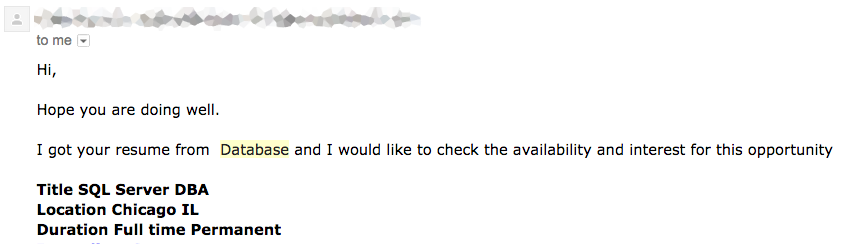
Where can I get a copy of Database?
“Hello, I’m calling on the behalf of Database.”

We want to hear your Shotgun Recruiter stories. We know you have them. We know they’re amazing. Send us your worst/funniest/strangest recruiter stories and we’ll share the cream of the crop.

But that’s not all.

We don’t want to destroy your faith in humanity without building it back up again. Therefore, we also want your stories of surprisingly spectacular recruiters — those who went out of their way to make people (or at least the two of you) happy. Like we said, there are two kinds of recruiters. We want to hear about them both.

If you’ve got a great recruiter story and want to share it on Dear $firstname, please send it to doug@brentozar.com. Thanks!

Brent says: I get so many of these emails that I had to come up with an email template for recruiter replies.


Consulting Lines: “I’d be a bad consultant if I didn’t put that in writing.”

Consulting, Consulting Lines
7 Comments

I have to deliver a lot of bad news. It’s pretty much my full time job. Nobody calls us when things are going well. (Well, they tweet us, because that’s free.)

Sometimes, that bad news is very dangerous – especially for the company as a whole, or its customers.

In today’s consulting line, I’m working with a group of developers on a performance issue. We’re using sp_BlitzCache™ to check out the top resource-intensive queries on their system, and figuring out how to make them go faster.

The Conversation

Me: “It looks like this query returns the customer’s email address, password, birth date, and address.”

Larry: “Yeah, it’s the profile page. We show them their account.”

Me: “So this is stored in the database, and it’s not encrypted.”

Larry: “Yeah.”

Me: “And we’re on the development server that everybody in the company has access to, right?”

Larry: “Everybody.”

Me: “Okay, let’s stop for a second. I have to cover my own butt. Gimme a few minutes to document this, and I’ll include it as part of your written findings. I know you didn’t call me in for a security review, but I’d be a bad consultant if I didn’t put that in writing.”

"What do you mean the whole world knows that my password is p0ll0?"
“What do you mean the whole world knows that my password is p0ll0?”

What That Line Does

Putting a big security risk in writing is a career-limiting move.

This line helps you defuse that bomb.

Nobody wants to have something like this in writing – especially a written document that gets forwarded up the management chain. They’re going to want you to stop writing and just ignore it, but this line establishes that it’s not really your call to make. Nobody wants to be bad at their job – but ignoring huge, dangerous risks would make you bad at your job.

What Happens Next: The Easy Way

Larry: “OK, cool.”

Sometimes the rest of the team isn’t happy about the risk either, and they’re dying to have someone else champion the cause.

And you know what’s funny? The developers and sysadmins are often quietly high-fiving each other while you’re writing it down. But if there’s a manager in the room…

What Happens Next: The Hard Way

Moe the Manager: “Wait, that’s not why we brought you here. Let’s focus on the problem at hand.”

Me: “I totally understand. This will only take a few moments for me to document, and we can work a few extra minutes at the end of the day. I won’t bill you at all for this. I just have to write this down to cover my butt.”

Moe the Manager: “I can’t really have something like this in writing.”

Me: “Believe me, I totally understand why you’d say that. If I was in your shoes, I’d say the exact same thing. But I have to protect myself – say for a second that another Target, Anthem, AshleyMadison, or whatever happens here, and it gets out that I was the database consultant, and that the personally identifiable data was out in the wide open, and I didn’t tell you about the risk.”

Moe the Manager: “We won’t tell anybody.”

Me: “You say that now, but if you got hacked and the personal data got out, Curly the CEO would tell your lawyers to point the blame at me. They’d say I was a bad consultant because I didn’t alert you about this risk. I have to include this in my written findings to cover my butt. You can feel totally free to ignore it if everybody else in the company is comfortable with that risk, but I have to put it in writing or I’m a bad consultant.”

I’ve actually lost a couple of clients when this line went downhill, but you have to be careful with your own reputation. Nobody wants to hire the DBA who was on duty when one of these incidents went down.

For more fun, read more of my favorite consulting lines.


I’m Killing It at PASS Summit 2015!

#SQLPass
5 Comments

I’m delighted and honored to be presenting two sessions at the 2015 PASS Summit in Seattle: “Living and Dying by Dynamic SQL” and “SQL Server Mystery: Dead Reports Don’t Talk”. Since I’ve never done either of these sessions at the Summit before, here’s a little more information about the sessions to help you decide whether to attend:

  • Although the titles differ, these are both murder mystery sessions, modeled after a murder mystery dinner party. Except we won’t be serving food.
    "Where were you on the night of the 27th?"
    “Where were you on the night of the 27th?”
  • Like a murder mystery party, you’ll be conversing with the people around you. You’ll discuss clues and work as a group to solve the mystery.
  • The suspects will be sitting in the crowd too; you may end up next to one of them.
  • The mystery loops through a pattern 3-4 times: topic – interview – clue. This means every 2-3 minutes, we’re moving on to the next step and keeping things lively.
  • The two main goals of the session are for you to learn more about 1) the technical topic and 2) the people you’re sitting with. The PASS Summit is as much (if not more so) a networking event as it is an educational event. I want to emphasize both points in the same session.
  • In the coming months, I’ll be retweeting people at Cromulent Technologies — people you’ve never heard of. If you’re thinking of coming to my session(s), pay special attention to these retweets. Cromulent Technologies is the workplace of the principal characters in our murder mysteries.
  • If you’re familiar with other speakers in the SQL Server community, you’ll probably recognize a few of the suspects.

I promise you, you’ve never seen SQL Server presentations quite like these. I hope to see you there! Got questions? Ask away in the comments!

Brent says: I love stuff like this that breaks up the monotony of conference sessions. Make me think in new ways and keep the conference lively – that keeps me engaged.


Office Hours is Moving to Wednesdays

SQL Server
6 Comments

For the last few years, we’ve hosted a Tuesday webcast to talk SQL Server.

We’re giving it a vacation in August, and then starting September 2, Office Hours is coming back on Wednesdays.

This is easier for us because of the way our SQL Critical Care® service works. We’re typically working with clients interactively on Monday and Tuesday, and then Wednesday we take a break to write the findings recap. It’s easier for us to take a midday break on Wednesdays.

Here’s a sampling of some of the questions we’ve answered at Office Hours:

  • What are your recommendations for service accounts? Unique domain accounts for each instance/service, shared domain accounts, or something else?
  • Can you explain why one database can be added to AG with just a full backup and another would need a transaction log backup as well?
  • Working on my first AG setup in 2012. I don’t quite understand how the listener works with DNS. Does the listener name get registered with each AG IP?
  • We’re looking into Amazon Web Services cloud with SQL Server, any thoughts or tips or things to be aware of?
  • Ever ran into an instance where database gets detached automatically after server restart?
  • What would you recommend as MAXDOP for a server with 80 cores?

To pick our brains and learn from other questions/answers, register for Office Hours here.


I’m Presenting at kCura Relativity Fest 2015 in Chicago

kCura Relativity, SQL Server
2 Comments

This sounds really cheesy, but I’m honestly excited to be presenting again this year at kCura Relativity Fest 2015.

Here’s what I’ll be talking about:

How to Check Your SQL Server’s Health

The Abstract: You’re a system or database administrator responsible for the uptime and performance of Relativity’s SQL Servers, but you’ve never received professional training on SQL Server and you need to figure out if it’s safe. I’ve built up an array of free tools over the 15-plus years I’ve been working with SQL Server, and I’ll show you how to use them in this demo-packed session.

Why I’m Presenting It: For the last few years, kCura has sent me around to dozens of the biggest Relativity shops around to do a one-day SQL Critical Care®. I want to teach you that exact same process – and trust me, it’s way easier than you think. I’m not going to teach you how to put fires out – but I *am* going to teach you how to tell in just a few minutes if your server is on fire or not, and whether it’s a small trash can fire – or a big, blazing three-alarm monster.

Buying the Right Hardware for SQL Server

The Abstract: Ever wonder if there was a simple list of instructions for picking out the perfect infrastructure for Relativity at your organization? Wonder if you should use mirroring, replication, clustering, or AlwaysOn Availability Groups? Are you better off with solid state or shared storage? Is virtualization an option? Microsoft MVP Brent Ozar has worked with dozens of Relativity customers, and he’ll simplify your infrastructure options in this one-hour session.

Why I’m Presenting It: I see the same situation over and over again: your Relativity infrastructure started out small – just one SQL Server in the corner that you didn’t worry too much about – but man, has that thing grown. It’s become really important to the business, and people are stuffing data in there like it’s some kind of Chipotle data burrito. You need to buy exactly one replacement environment, and it’s gotta be right the first time. You don’t buy a lot of SQL Servers, so you want simple independent advice that you can take home to management. I’m going to hand you a few sketched-out options with budget ranges.

Want to Learn More About Relativity Fest?

Check out this video, and then head over to RelativityFest.com to register. It sells out, so move fast.


Out of Office: Time For the Brent Ozar Unlimited Retreat

SQL Server
10 Comments

manzanitaThank you for your web visit. We’re out of the office and will be back on Monday, August 3.

During this period we will have limited access to our email. We’ll still have full access to Twitter, Facebook, and Instagram. We apologize in advance about that, because we’re going to be posting a lot of photos about this year’s company retreat.

This year, we’re spending a week on the Oregon coast – specifically, Manzanita, an adorable little town in Tillamook County – population 598. We’ve rented a couple of houses for us, our spouses, and our dogs. (In the past, we’ve done our retreat on a cruise ship, and a couple of times in a beachfront house in Cabo.)

For immediate assistance, please contact Microsoft Support at 1-800-642-7676.


Finding Tables with Nonclustered Primary Keys and no Clustered Index

Indexing, SQL Server
31 Comments

i’ve seen this happen

Especially if you’ve just inherited a database, or started using a vendor application. This can also be the result of inexperienced developers having free reign over index design.

Unless you’re running regular health checks on your indexes with something like our sp_BlitzIndex® tool, you might not catch immediately that you have a heap of HEAPs in your database.

You may be even further flummoxed upon finding that someone thoughtfully created Primary Keys with Nonclustered Indexes on them, yet no Clustered Indexes. Unless the original developer is still around, the intent may not be clear.

Using this code snippet, you can quickly identify tables that were created with Nonclustered Indexes on the Primary Key, and no Clustered Index. Another way to spot this potential issue might be looking for RID lookups, or Table Scans in your Plan Cache. Wide Nonclustered Indexes may also be present to compensate for the lack of a good Clustered Index.

There are times when heaps are a valid choice

ETL or staging tables are the most common examples of when raw insert throughput is necessary, and a Clustered Index may not be.

But when tables are designed to be queried against and lack a Clustered Index, it’s usually a problem to be fixed.

Brent says: and remember, kids, SQL Server won’t suggest a clustered index.

Kendra says: if you think this probably didn’t happen to you, that’s a good sign you should doublecheck.


New Cardinality Estimator, New Missing Index Requests

Indexing, SQL Server
3 Comments

During some testing with SQL Server 2014’s new cardinality estimator, I noticed something fun: the new CE can give you different index recommendations than the old one.

I’m using the public Stack Overflow database export, and I’m running this Jon Skeet comparison query from Data.StackExchange.com. (Note that it has something a little tricky at the top – it’s using a local variable for the @UserId, which itself makes for a different execution plan. When literals are used in the query, the behavior is different, but that’s another story for another blog post.)

First, here are the two different execution plans, both of which do about 1mm logical reads:

With the new cardinality estimator (compat 2014)
With the old CE (compat 2012)

It’s a really subtle difference in the plans – at first glance, just looks like the 2014 CE removed a single operator – but the big difference is in the number of estimated rows returned:

  • Old CE estimated 82 rows returned
  • New CE estimated 352,216 rows returned

In actuality, 166 rows get returned with this particular input variable – the new CE is just flat out making bad guesses on this data.

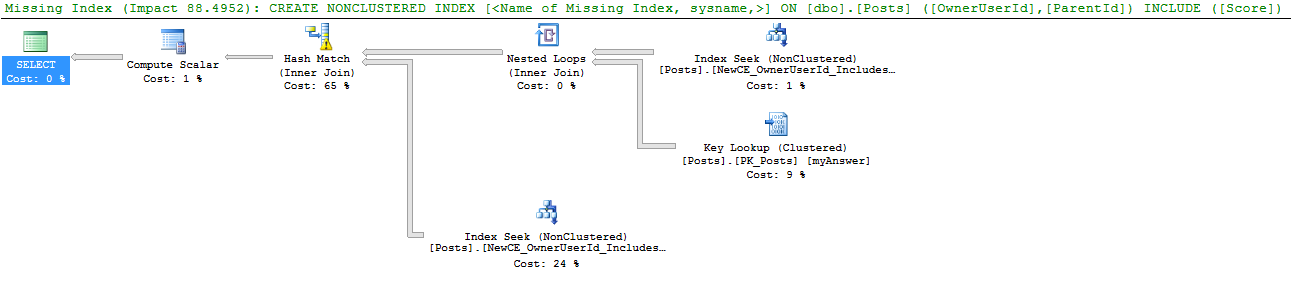
Here are the different index recommendations:

And when I run sp_BlitzIndex® after doing a little load testing, both missing index recommendations show up in the DMVs:

sp_BlitzIndex® output

But surely the new CE’s recommendation is better. We’ll create just the one it recommends, and the resulting execution plan does 57k logical reads. Both the new CE and the old CE produce an identical plan, albeit with wildly different row count estimates (old 83, new says 37,423, actual is 166):

Execution plan with the new CE's recommended index
Execution plan with the new CE’s recommended index

HAHAHA, now the new CE agrees that it needs the index recommended by the old CE in the first place. So let’s remove the new CE’s recommendation, and only create the old CE’s recommended index. Both the old and new CE choose to use it:

With the old CE's recommendation
With the old CE’s recommendation

And even better, the old CE’s recommendation results in only 175 logical reads.

So what’s the takeaway? If you’re relying on the execution plan’s missing index recommendations for fast performance tuning, you’re not going to get the best results – no matter which cardinality estimator you’re using. With 2014, the recommendations are different, not necessarily better.

The real keys are knowing how to do it yourself, and we teach you how in our training classes.


The Easiest Way to Restore Transaction Logs to A Point In Time (Spoiler: Use AmazonRDS)

… is to use a SQL Server where a robot does it for you!

Let’s take a look at how you can do this in AmazonRDS’s hosted SQL Server these days.

 Normally, restoring transaction logs is super tedious.

You’ve got to restore all the files in the right order, for every single database. Even if you script it, if you’ve got a bunch of databases you need to restore, it’s a giant pain.  AmazonRDS has essentially done all the scripting for you.

Amazon RDS makes sure it can always restore your SQL Server to a point in time

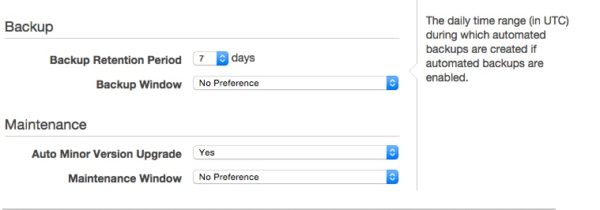
When you set up an RDS SQL Server instance, it asks you how long you’d like to keep backups, and if you have a preferred full backup window. And that’s all it asks. Transaction log backups are taken every 5 minutes to support point in time restores, no matter what you want.

Amazon RDS Instance Backup Settings

So I wondered, what happens if someone creates a database in the wrong recovery model by accident? Does this break the transaction log backups?

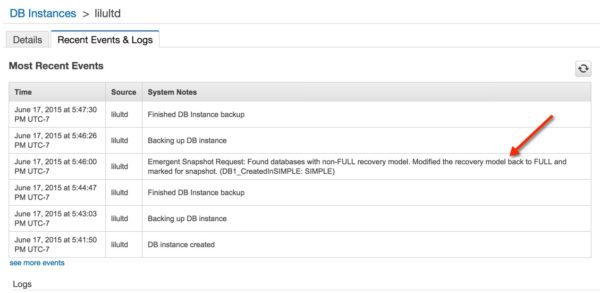
Nope! I created a database named DB1_CreatedInSIMPLE using the SIMPLE recovery model. Check out what showed up in the RDS logs right afterward:

RDS Recovery Model Set Back to Full
Alrighty then, we’ll do it your way

How Recently Can I Restore?

You can see log backups in the “Recent Events & Logs” above, or you can just look at the latest restore time for your instance. Since transaction log backups are every five minutes, you can’t always restore to one minute ago.

RDS Last Restore Time on Instance

OK, Let’s Restore This Thing! How Easy Is it?

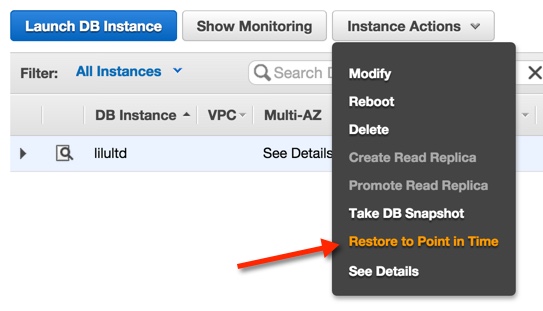
I wasn’t lying when I said it was easy.  You just highlight your instance in the console and select “Restore to Point in Time” under instance actions.
Restore RDS Instance to Point in Time

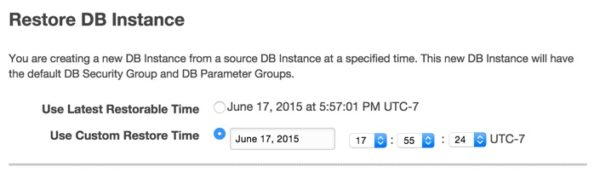
This is going to create a whole new instance using the backups they’ve been taking. You get to pick the time you want to restore from. This will vary depending on how long the instance has existed, and what your backup window is set at. (Mine’s at 7 days, it can go up to 35 days.)

Restore RDS Instance to Point in Time- set time

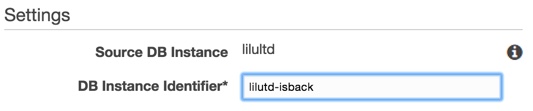
You also get to pick the instance name you’re going to restore to, along with all sorts of properties and security settings:

Restore RDS Instance to Point in Time- set new instance name

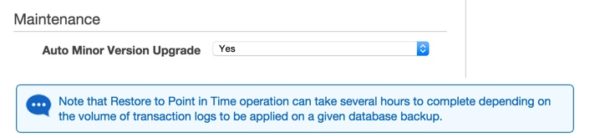
Setting up the restored instance isn’t immediate. RDS has to set up a new Windows instance and apply a whole lot of your backups, and that takes time.

Restore may take a bit of time

After you get all your settings done, you click Launch to get your new RDS instance in motion to be created:

Restoring is launching a new instance

Our instance is Cooking

The instance goes through multiple phases. It automatically backs up the instance as part of the process if you’ve got backups enabled, just like any other instance.

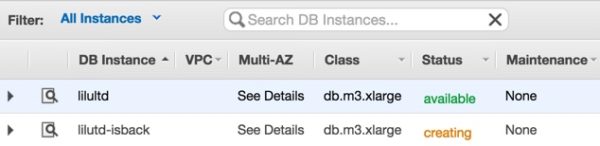
New restored instance is creating

Once that completes, I can connect

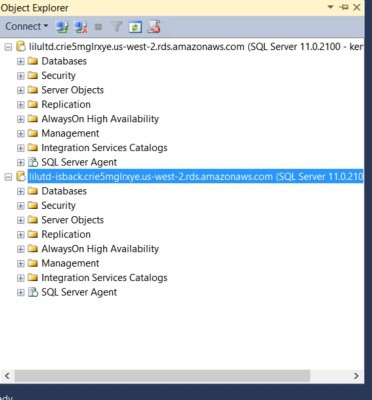
Here I am, connected to my original and restored instances via SSMS on my desktop!

Connected to both RDS instances via SSMS

SQL Server in RDS Isn’t Perfect, But It Does a Lot For You

I am not a founding member of Team Cloud. But I meet a lot of people who struggle making sure that backups are being taken properly and that they can restore. They’re frequently teams of developers who don’t want to learn to deal with backups and restore. They also want things like database mirroring without having to learn it, and RDS handles that for them, too.

This isn’t for everyone. RDS limits the number of databases you can have on an instance. It doesn’t do all maintenance for you — you have to set up your own CHECKDB jobs, for instance, which you can do in the SQL Server Agent. You don’t get tools like Database Mail inside the SQL Server, or the ability to see the SQL Server Error log via SSMS (don’t worry, you can get to that and other logs in the AWS Console). You can’t use every version of SQL Server out there (2008R2 and 2012 only, currently). You can’t do Availability Groups in Amazon RDS, either, just database mirroring. (I’m a big fan of mirroring, so I’m not all that sad about that.)

Putting it All Together

Database as a service is a pretty compelling option these days. It doesn’t take away the role of the DBA, and it doesn’t handle everything for you — but the flip side of that is that you get a lot of flexibility and customization.

And dang, I love the ease of restoring that instance to a point in time.

Brent says: what I love about the cloud is that it takes away the parts of the DBA job that I never really liked in the first place.

Jeremiah says: I’m with Brent – I love getting rid of the parts of the job I never liked. Cloud lets me do that. And RDS lets me ease up management on a certain class of servers even more

Erik says:  I, for one, welcome our new Robot DBA overlords.


Database Connection Hazards with Entity Framework

SQL Server
23 Comments

I recently came across a curious case where a SQL Server was suffering a number of long-running queries coming from an application written in Entity Framework. When I measured the average query execution times, I got some unexpected results:

  • CPU time: 12 milliseconds
  • Reads: 273
  • Elapsed time: 6800 milliseconds

Wait, what?

Looking at the wait stats for these queries, I saw there was a lot of ASYNC_NETWORK_IO — often 1000+ milliseconds. That didn’t make any sense either! How can a query with so little CPU time and so few reads take so long to complete? It’s not like the application was asking for millions of rows and couldn’t consume the results fast enough.

I ran the query myself in Management Studio:

  • CPU time: 17 milliseconds
  • Reads: 273
  • Elapsed time: 155 milliseconds

These numbers made a lot more sense, and confirmed that the application was to blame. But what exactly was the application doing for 6645 milliseconds?

Entity Framework will try to be clever about connections

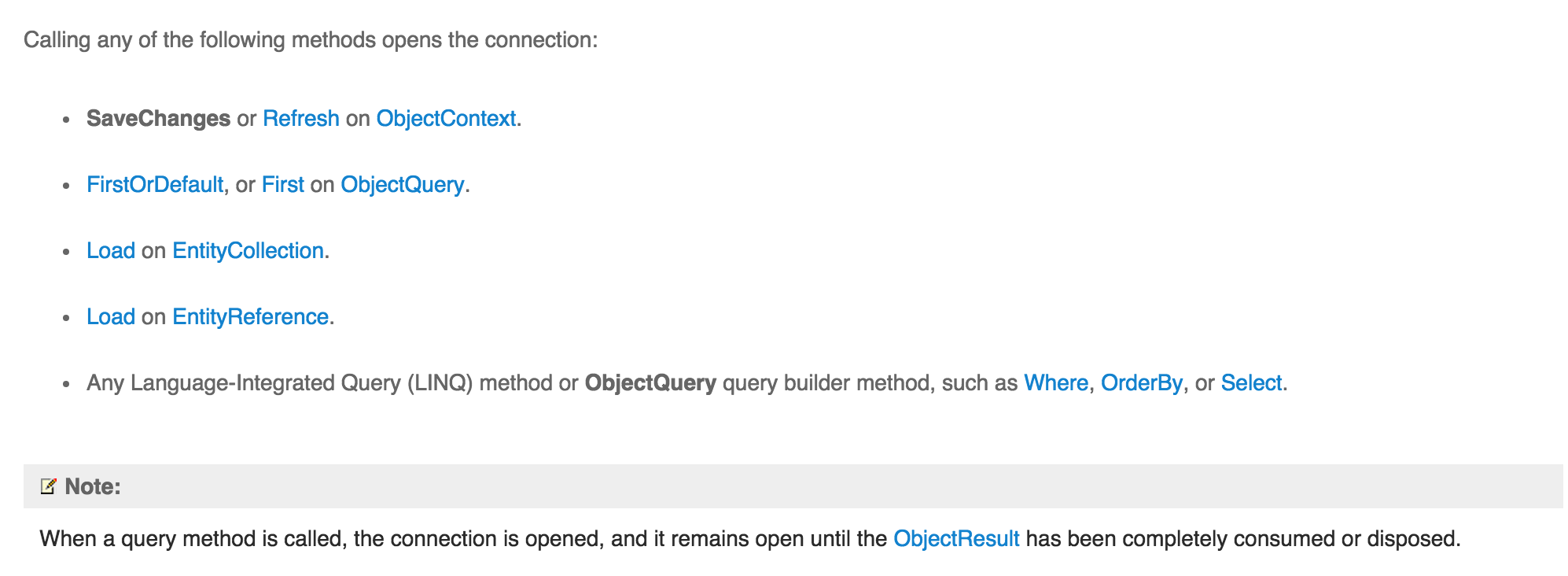
After some research, I found that Entity Framework can be sneaky about how it manages database connections. An article about EF connection management on MSDN proved both enlightening and slightly terrifying:

Entity Framework Connection Management

Entity Framework will handle database connections automatically by default. Note two things here: EF will open the connection if you specify any LINQ or ObjectQuery method, and that connection won’t be closed until the ObjectResult has been completely consumed or disposed.

In this case, the EF code invoked the Where method, then went on to do a number of foreach loops, assuming the connection had been closed when it hadn’t. SQL Server was left holding the phone until EF said good-bye and hung up. The solution here was to open the connection, do as little as necessary, and then close the connection.

UPDATE: EF MVP Julie Lerman (@julielerman on Twitter) mentions in the comments below that the MSDN documentation is outright wrong about some methods opening a connection, and has passed this on to Microsoft so they can correct the error.

This would be the end of the connection management story, except…

Entity Framework would like to announce it will no longer be clever about connections (when you open them yourself)

Another MSDN article about EF connection management points out changes to Entity Framework 6 and later:

EF6+ Connection Management


Again, the seemingly innocuous and trivial “Note” is anything but. It’s a reasonable assumption on Entity Framework’s part; if you’re going to open it yourself, you’ll be the one who closes it. Still, it means we have to be careful with Entity Framework code when it comes to database connections. And now, depending on the Entity Framework version, we’ll see one of two different connection management behaviors.

How to spot Entity Framework keeping connections open

The tell-tale signs, as we discovered in this case are:

  • When running the query from the application
    • Relatively low CPU time but high elapsed time when running the query from the application.
    • ASYNC_NETWORK_IO waits for the query
  • When running the query from SQL Server Management Studio
    • Relatively similar CPU time and elapsed time when running the query from Management Studio.
  • Significant amounts of application code that execute in between the connection open event and close event. To prove the connection is left waiting during the open and close events, step through the code in a debugger and pause before the connection is closed. You should see the query racking up ASYNC_NETWORK_IO waits. (Remember, the events that open and close the connection may not be explicitly doing so.)

IT’S NOT A SQL SERVER PROBLEM. IT’S An entity framework problem.

Entity Framework is great for developers who don’t have the spare time or motivation to learn SQL Server querying, but that convenience comes with costs. One of those costs is keeping a suspicious eye on how it manages database connections. It’s tempting to look at a long-running query and blame SQL Server for being slow. However, if this happens to you and your Entity Framework-based application, it’s worth investigating further to see who’s leaving whom waiting.

Brent says: don’t be ashamed of using EF, either! I’m all about getting to market as quickly as possible. After all, if you don’t get your app out there, you don’t get paid, and DBAs need to get paid too.


Logical Query Processing

You can’t do that on management studio

Recently, while working with a client, I did something in a query that they were mystified by. I didn’t think much of it, but I thought it might be useful to you, dear readers, as well. Along with an explanation.

Here’s a sample query that takes advantage of the same type of trick, but with a few extra bats and worms added in to illustrate a larger point.

Can you dig it?

What I did was order by the alias of the COUNT_BIG(*) column, Coconuts.

What they didn’t understand was why that’s legal, but filtering on that alias wouldn’t be legal. A more familiar scenario might be using ROW_NUMBER(); you can ORDER BY it, but not filter on it in the WHERE clause to limit result sets to the TOP N per set. You would have to get an intermediate result in a CTE or temp table and then filter.

When SQL goes to figure out what to do with all this, it doesn’t look at it in the order you typed it. It’s a bit more like this:

8. SELECT
9. DISTINCT
11. TOP
1. FROM
2. ON
3. JOIN
4. WHERE
5. GROUP BY
6. WITH CUBE/ROLLUP
7. HAVING
10. ORDER BY
12. OFFSET/FETCH

To make that a easier to read:

1. FROM
2. ON
3. JOIN
4. WHERE
5. GROUP BY
6. WITH CUBE/ROLLUP
7. HAVING
8. SELECT
9. DISTINCT
10. ORDER BY
11. TOP
12. OFFSET/FETCH

And that’s how babies get made

Since the ORDER BY is processed after the SELECT list, ORDER BY can use a column aliased there. You can’t do that in the WHERE clause because it gets processed before SQL does its fancy footwork to get you some stuff to look at.

Here are some examples of what happens when you try to move the alias to different parts of the query.

Using it in the HAVING filter:

And again using it in the WHERE clause:

Both result in the same error, give or take a line number. Coconuts is not reference-able at either of these points.
Msg 207, Level 16, State 1, Line 33
Invalid column name 'Coconuts'.


13 Questions to Ask Before You Touch a Database Server

SQL Server
10 Comments

I’ve touched a lot of SQL Servers over the years. After my share of trips to HR for inappropriate touching, here’s the questions I ask first these days:

  1. Is this in production now?
  2. If this goes down, what apps go down with it?
  3. When those apps go down, is there potential for loss of life or money?
  4. How sensitive are these apps to temporary slowdowns?
  5. When was the last successful backup?
  6. When was the last successful restore test?
  7. Is everyone okay losing data back to the last successful backup?
  8. When was the last successful clean corruption test?
  9. Do we have a development or staging environment where I can test my changes first?
  10. Is there any documentation for why the server was configured this way?
  11. What changes am I not allowed to make?
  12. Who can test that my changes fixed the problem?
  13. Who can test that the apps still work as designed, and that my changes didn’t have unintended side effects?

Pull Request 101 for DBAs Using GitHub

SQL Server
8 Comments

I’ve worked with source control quite a bit over the years — everything from ye olde Visual Source Safe to Subversion to TFS. I even supported the Source Depot system at Microsoft as an engineer for a year back in the day!

These days I don’t use source control a ton. We keep repositories of scripts in GitHub to help manage our scripts as a team, but I don’t really use it often enough to learn the command line well.

Even so, I’ve learned the basics of branching and merging. Git can be really confusing because there’s a ton of features, but here’s an outline of how you can work with a team in an uber-simple branching scenario safely.

When I Say 101, I Mean 101

We’re talking GUI screenshots and simple concepts, here. I’m not talking about how to do source control for schema and diffs, I’m just talking about how to save all those scripts you wrote about checking for that weird thing that happens in production every third Tuesday.

Onward!

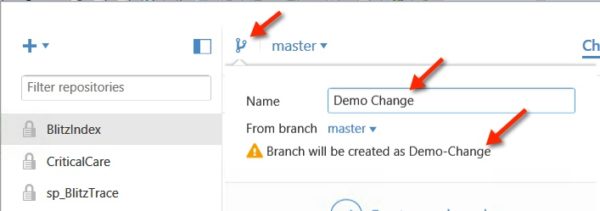
1. Create a Branch

Branches are great, because they keep you safe. They give you a sandbox to work on your code where you don’t disrupt the main line of code. You can work in iterations and make multiple commits to your code, so you can do / undo incremental changes.

Creating a branch in the GitHub client for Windows

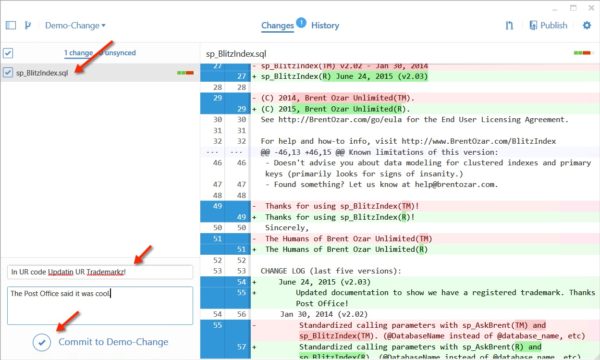
2. Check in Your Code (Commit to your branch)

You can make changes to multiple files. For this example, I made changes to just one file. Make sure that you’re committing to the new branch you created!

Review and commit the change you saved in the GitHub for Windows Client

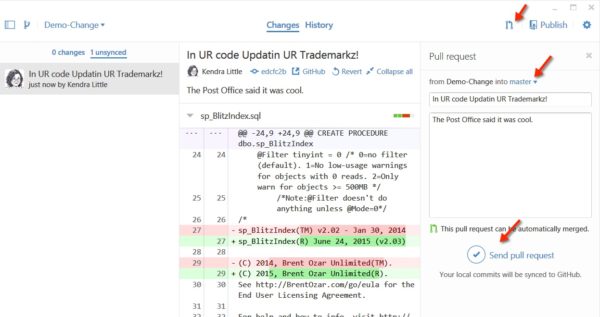
3. Create a Pull Request (to merge into another Branch)

Once all your commits are done and you’ve tested your code and you’re ready to roll, create a pull request. You’re essentially proposing your change for someone else to review and merge to a destination branch of your choice.

The big advantage to pull requests is that it makes it simple for your reviewer to see exactly the changes you’ve made and know clearly what will be impacted by merging.

Create Pull Request in GitHub for Windows Client

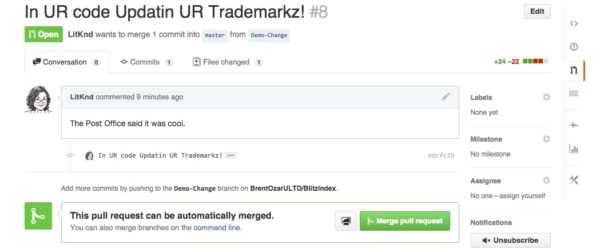
Your pull request will automatically send out an email and notify other users of your repo that you’re ready for things to happen, and it’s time to review.

My pull request is ready for action!

4. Reviewing the Pull Request (Someone else does this!)

Now it’s time for someone else to be responsible. The good news is, your pull request makes it easier for them to review your code. Here’s what it looks like in the GitHub web application:

Pull Request Summary

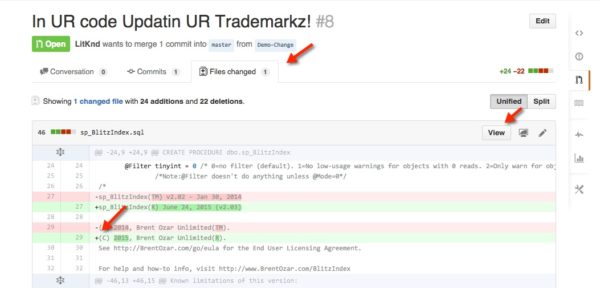
To get into the details, it’s super easy to click on the “Commits” tab and see all the changes. The reviewer can easy open all the files, leave comments, and even edit changes if they really wanna get up in your business. Or they can push it back to you.

Reviewing changes on the commit tab

5. When the Reviewer is Happy, they Confirm the Merge

This pushed the change down to the branch you targeted, nice and easy.

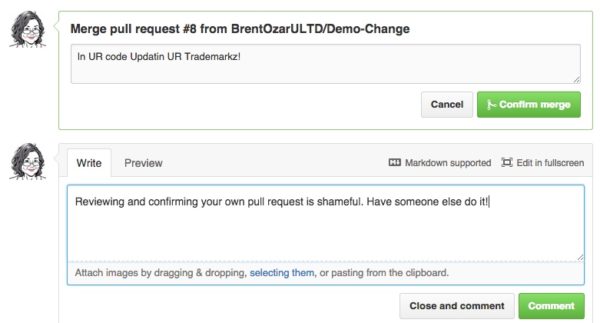
I'm reviewing my own pull request. Quite shameful, really.
I’m reviewing my own pull request. So tacky!!!!

6. Delete the Branch

Right after merging this, it’s very easy to delete the branch and cleanup. You can also leave the branch there if you want, and there’ll be a history of what happened with the pull request. No more wondering, “what happened with this branch?”

Cleanup couldn't be easier
Cleanup couldn’t be easier

It’s so easy, even a manager can do it

You don’t have to be sloppy and save all your scripts in a file share!

Jeremiah says: pull requests make collaborative development easier – you can bundle up related changes, comment on why you did what you did, and collaborate with your team to get the best fix in place.

Doug says: This also answers a question we get frequently: “What can I use for source control for SQL Server?” It’s not integrated with SQL Server, but it’s free and not too shabby.


The sp_rename follies

SQL Server
28 Comments

Before we get started…

I know. I know. BOL. It’s documented.

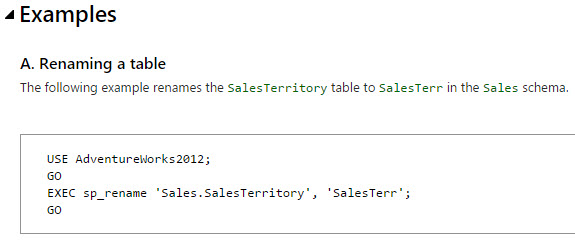
They even show you how to rename a table.

Thanks, sp_rename!
Thanks, sp_rename!

But sometimes…

You just forget.

And as with most simple mistakes, fixing them is… Weird.

Here’s what happened to me recently, when I was working on a table swapping demo.

Here’s where I was going to rename it, and then make another table with the INT column as a BIGINT.

Which worked, except…

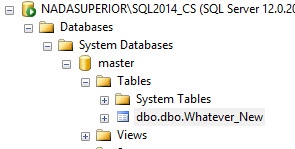
Oh, that's just great.
Oh, that’s just great.

dbo.dbo.

Like most people who make mistakes, I decided to revisit the documentation afterwards. And, yeah, you don’t specify schema in the new object name.

So, now that you all know you’re smarter than me, how would you fix it?

I’ll spare you the trial and error:

There were quite a few different arrangements of brackets and schema prefixes leading up to this.

I hope this post saves someone a little time.

Brent says: dear reader, please use this as part of an April Fool’s prank. Just not in production.


Three Easy Tweaks to Tune Up Your SQL Server

SQL Server
18 Comments

I’ve been doing SQL Critical Care® work with clients for over a year now. It’s absolutely true that every client’s situation is different and needs special attention. However, I’ve found that there’s a short list of issues that nearly all clients have in common. Drawing from that list, here are the top three high-impact, low-effort areas you can work on today to tune up your SQL Server.

Check power savings everywhere

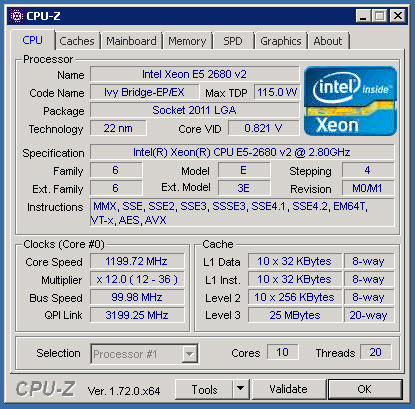
I recently had a client whose CPU would peg at 100% for short stretches even though the server was under a light load. After some exploration, we found they had power savings turned on. In the BIOS. Because we couldn’t get to the BIOS remotely (and we didn’t want to reboot the server right then and there), we used a free tool called CPU-Z to watch core speeds. Can you spot the difference in speeds?

Specification Core Speed - Actual Core Speed = Sadness Factor
Specification Core Speed – Actual Core Speed = Sadness Factor

That’s a whole lot of CPU speed you paid for and aren’t getting! When checking power savings, make sure you check all of the following:

  • Windows Power Options (under Control Panel)
  • If a physical server, also check the BIOS at startup
  • If a virtual server, check:
    • hypervisor power settings/performance plan
    • BIOS at startup of the hypervisor host server

One other thing: make sure you don’t have outdated BIOS firmware. That can have some nasty CPU consequences too.

Changes to the BIOS require a server restart, so plan accordingly.

How to tell if it worked: Using CPU-Z, watch the Core Speed box at lower left. If it deviates from the core speed in the Specification box by more than approximately 1%, there’s probably power savings turned on somewhere.

address hot missing index requests

Every time a query runs and wants an index that doesn’t exist, SQL Server files that missing index request away. You need to know which missing indexes are being requested and how helpful that index will be. There are DMVs you can query for this information, but my favorite method is sp_BlitzIndex®. It will tell you the missing index definition, as well as three numbers:

  • Impact – the difference this index is expected to make in query cost.
  • Avg. Query Cost – the price in magical Microsoft Query Bucks as determined by SQL Server.
  • Uses – the number of times this index would have been used.

The product of these three numbers (Impact x Cost x Uses) equals the Estimated Benefit.

Because these numbers get reset with every service restart, we need to factor in uptime as well. If you’ve been up for seven days or more with your average user load during that time:

  • Est. Benefit > 1,000,000: Keep an eye on this index.
  • Est. Benefit > 10,000,000: Try it out in dev environment and see how it does.
  • Est. Benefit > 100,000,000: Try it out in a dev environment — TODAY.

I can’t recommend outright that you deploy these missing indexes to production, just that you test them. One reason: it may be more efficient to alter a very similar existing index rather than add the new one. You’ll have to decide what’s best, but don’t let the 100M+ indexes go unnoticed.

And in case you’re wondering, the record high I’ve seen for the Estimated Benefit number is just over 14,000,000,000 (billion). Let’s hope you can’t beat that. (You don’t want to.)

How to tell if it worked: This missing index recommendation should go away in sp_BlitzIndex® results and the query running it should decrease in CPU time and cost.

Raise cost threshold for parallelism

Is your server still humming "Mambo #5"
Is your server still humming “Mambo #5”?

SQL Server’s default Cost Threshold for Parallelism (CTP) is 5. Microsoft has left this setting untouched since the 20th century.

(Don’t laugh — that was at least sixteen years ago.)

Face it — pretty much everything that old needs an update. Your hairstyle. Your clothes. Your car. Your server’s CTP is no different. CPUs are way more powerful today than they were in the late 90’s. With CTP set to 5, chances are a lot of queries are going parallel when they don’t have to. Raise the bar to 25 or even 50 (as always, test this in dev first). Unlike licensing additional cores, changing CTP settings is absolutely free.

How to tell if it worked: You should see a drop in CXPACKET waits, along with some query plans no longer showing parallelism.

There you have it: three simple and quick checks to speed up your SQL Server. For more ideas, try Five SQL Server Settings to Change.

Brent says: Listen, people, this is free advice. Don’t pay us to tell you this. Just do it today. Then pay us anyway. Actually, ignore this post.


An Update to SQL Server Management Studio is Available

SQL Server
1 Comment

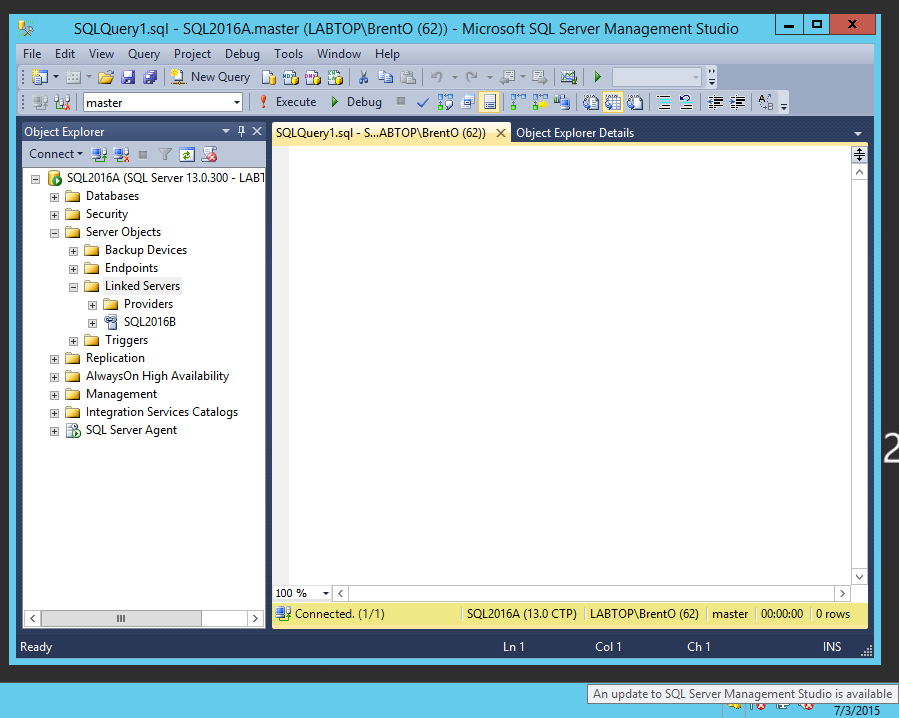
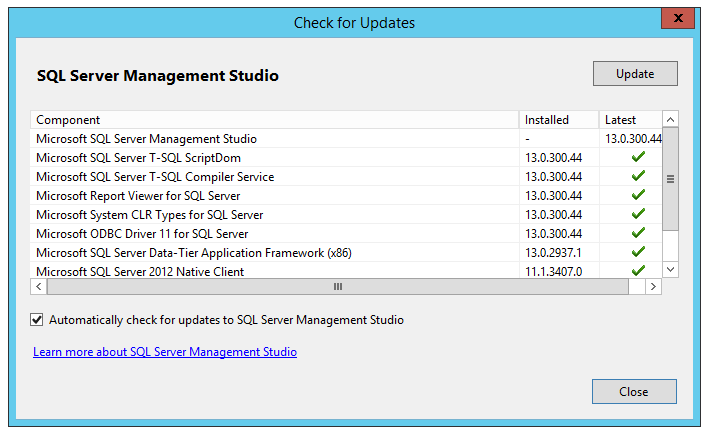
That’s the message you get in your tray if you open SSMS 2016 today:

SSMS Update Available

Then click Tools, Check for Updates, and you get:

Check for Updates
Check for Updates

What’s awesome is that I didn’t even install SQL Server Management Studio from the new standalone installer – this is my full CTP2.1 installation of SQL Server, and it’s still smart enough to know that SSMS can be updated separately.

Upon clicking the Update link, I’m taken to the Download SQL Server Management Studio page.

Some folks will probably say that it should update itself the way most apps do these days, by downloading and applying the update without launching a web browser. I think launching a browser is the right call, though – there are release notes to read, important gotchas to be aware of, and hey, who doesn’t like reading documentation? Okay, maybe that last part is just me.


Replication Won’t Refresh Your Dev and Pre-Production Environments

reflection-photo-1415200358018-bb07fced3660
It’s almost like the real thing, except it’s totally different.

At first glance, SQL Server’s transactional replication seems like it’s useful for moving data around in all sorts of situations: it works in Standard Edition, it’s not synchronous, and you can have multiple subscribers.

Why People Want Replication to Test and Pre-Production Environments

Setting up a test environment sounds simple at first. But it’s pretty tricky. Here are typical requirements:

  1. Data in the test environment needs to be fresh, recent production data to support query tuning
  2. Data and schema in the test environment need to be writable for testing purposes
  3. Data and schema in the test environment need to be periodically reset back to production-like configuration

The first of those requirements are why replication sounds like a great idea. There’s a lot of gotchas, even with that issue, but the second two requirements are where replication just clearly doesn’t meet the bar.

Replication isn’t Friendly to Changing Subscriber Tables

Transactional replication won’t like it if you go around changing data and schema on its subscriber tables. If you change the data, updates and deletes flowing through replication may start to fail. Well, let’s just be realistic– they WILL fail, and fixing it will be manual and a major pain point.

Schema changes are even dicier. You can’t just drop or change the data type in a replicated column, you need to modify replication for that– and that means adding filters to the publication.

Resetting Replication isn’t Fun, Either

Re-initializing a replication subscriber is often very impactful on the publisher: running a replication snapshot is an intensive, time consuming process that causes CPU, IO, and lock overhead on the publisher. (Warning: this snapshot is a totally different thing from the database snapshot I talk about a bit later. This one basically copies out all the contents of the published articles on the publisher into flat files, copies everything, and then loads it into the subscriber.)

You can initialize a replication subscriber from a full backup, but that’s not lightweight or fast for large databases, and it’s very dependent on great custom scripting and timing. And usually people are looking at replication because they want to avoid big backups and restores.

What About a Creative Solution Involving Replication?

Refreshing test and staging environments is a tough problem. So tough that people often try to get creative, like this:

  • ProductionDB in Denver is a transactional replication publisher on PROD01
  • SubscriberDB in Portland is a transactional replication subscriber on STG01
  • Periodically, some process is run against subscriber DB to reset other databases on STG01. Ideas usually involve database snapshots, backups, and custom scripts.

But when you dig into the details, this is never great. Here’s why.

Transactional Replication Impacts the Publisher, Your Developers, and Your DBAs

If there’s one thing that most DBAs and developers can agree on, it’s that replication has made them work late and curse a lot.

Replication requires that every table have a primary key. This may mean schema changes just to get it set up.

Replication slows down your software deployment, because it’s easy to mess up publishing tables when you make schema changes to them. The only way to not mess this up is to also implement replication in your development environment, which developers hate. And in our scenario, where the test database is the subscriber, what would that even mean? Recursive replication torture?

Replication impacts performance on the publisher, particularly under high load. It frequently requires tuning storage, setting up a scale out distributor ($$$ hardware and licensing $$$), fine tuning your publisher and subscriber properties, implementing custom monitoring, and basically having at least one team member obtain a Masters Degree in Replication at the School of Late Nights. I went to that school a long time ago, and I didn’t keep the yearbook, but I did write about it here.

Database Snapshots are Read-Only

There’s no such thing as a writable database snapshot in SQL Server, even though it’s an Enterprise Edition feature. (Fancy SANs have options for that, SQL Server itself does not.) That pretty much takes most of the uses out of it for a staging environment.

If You’re Writing a Custom Script in the Staging Environment, Why Use Replication?

If you have to basically write a custom ETL to read from the subscriber to refresh staging databases, transaction log shipping is much easier to manage than replication, and it allows a read only standby mode on the subscriber.

If You’re Using Backup and Restore, Replication is Also Overkill

While it’s technically possible to back up a replication subscriber and restore it, then remove replication from it, it’s not all that great.  This is a lot of complexity without a lot of payoff.

  • You’ve still got the time to do the backup and restore (which you were trying to avoid in the first place)
  • You haven’t validated that the database you’ve restored has a schema that matches production (it could be very different on the replication subscriber)

You’re much better off basing the restore off production in this case. Even if the pre-production and testing databases are in a different datacenter, you can optimize the types of backups used, compression and network copy time, and restore schedule. Even setting up multiple test instances that restore “in rounds” and which can be used at different times a day is often operationally preferable to the performance, monitoring, and caretaking needs of replication.

There’s No Easy Answer to this Problem

Refreshing staging and development environments doesn’t have a single right answer. This is done many different ways based on application requirements. Just don’t pin all your hopes on replication and start investing in it without looking at the details of exactly how it will work — because it’s probably not what you think it is at first. Always make sure you factor in:

  • Performance impact on the publisher and hardware/storage/licensing costs to mitigate this
  • Any restrictions or requirements on schema changes at the publisher and impact on code development
  • Operational cost of upkeep of the technology

Don’t give up! Having staging and development environments with recent data that works well for you is totally possible, you just need to consider more technologies than replication.


The Fastest Way to Reconfigure a Bunch of Servers

… is to use a SQL Server where a robot does it for you!

I stole that from Kendra – someone else already wrote the sentence for me and why not keep re-using things, right?

Configuring SQL Servers the Usual Way

What’s the usual way to do this?

There are a few commercial tools on the market that let you deploy scripts to multiple servers, they all vary in how they apply the changes and deal with errors.

You could also roll your own tools. This gives you full control of the process, but you have to spend time implementing and maintaining code over time.

Finally, you could just hire junior DBAs and make them implement the changes individually. This will give all of your servers a delightful hand-crafted flair. Sure, the changes may or may not all be applied with equal rigor, but hey, you’re a job creator now.

SQL Server RDS Parameter Groups

SQL Server RDS is part of Amazon’s database as a service offering. We’ve covered RDS a couple times before and we’re still in love with RDS all these years later.

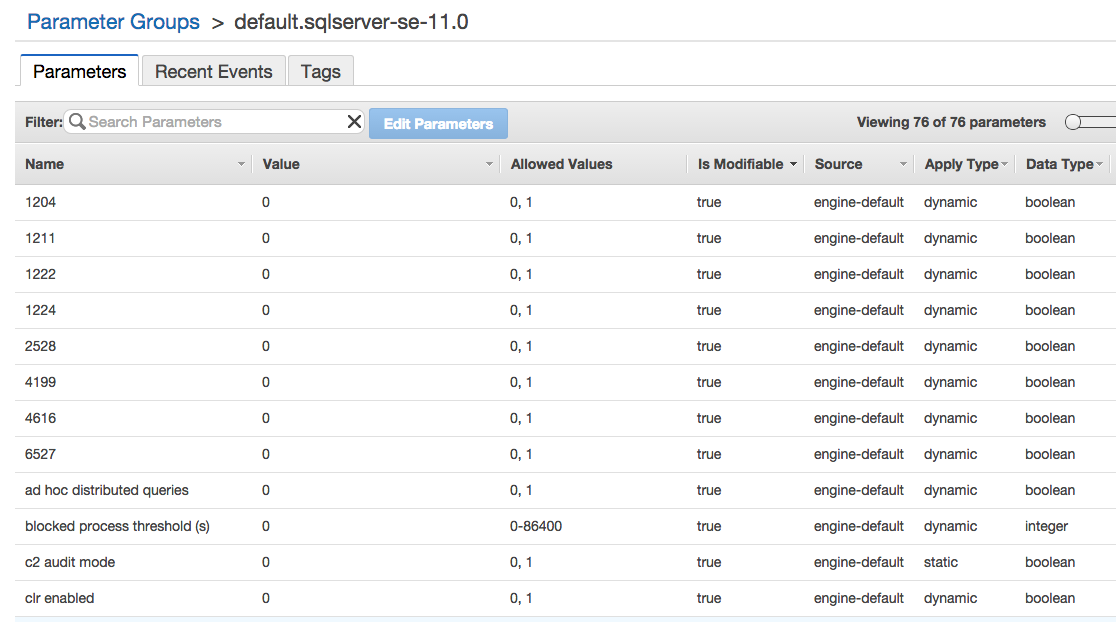
One of my favorite features of RDS is the idea of parameter groups. Parameter groups are a unified set of parameters. A parameter group contains a bunch of different things that we’d normally set up through trace flags and sp_configure changes.

Parameters everywhere

How Can I Change a Parameter Group?

Changing parameters in a parameter group is incredibly easy. The first step is to create a new parameter group.

Creating parameter groups is hard!

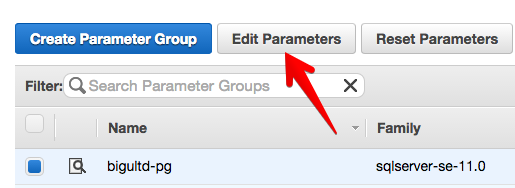
Once that parameter group is created, we can highlight the parameter group and click “Edit Parameters”.

Edit parameters with ease!

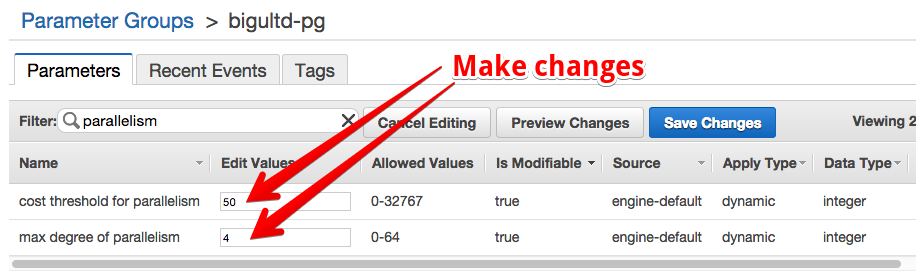
The UI makes it relatively easy to sort and filter. Here, I’m looking to adjust how parallelism is handled on these particular RDS instances. These parameters are applied to all instances assigned to the parameter group; make sure that you put similar SQL Server instances in the same parameter group.

Change doesn't have to be hard.
Change doesn’t have to be hard.

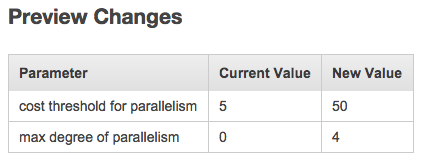
If you’re unsure about what you’ve changed, you can even select “Preview Changes” and get a quick overview of current and new values.

It's almost like we can see the future.
It’s almost like we can see the future.

Applying Changes with a Parameter Group

Once you’ve changed the parameter groups, you’d be tempted to think the changes will be immediately applied to the servers. They won’t be applied immediately. You’ll still need to schedule a restart to each SQL Server RDS instance for the new parameter group settings to be applied.

This approach works well for many applications – you can restart a small portion of the servers in the system, make sure that the application is performing correctly, and then restart more servers. By leveraging the power of the cloud – scale out, not up – we can make operations easier and simpler.

What’s it mean for you?

Once you’ve gotten the hang of parameter groups, new SQL Server RDS instances can be created with the parameter group already applied. Existing SQL Server RDS instances can be moved into a parameter group. Managing settings across 10s or 100s of instances just got significantly easier – change a parameter group and you’re off to the races.

Brent says: But I put all this work into learning PowerShell! Oh, wait, no, I didn’t. Carry on.

Jeremiah retorts: Good news! There’s a PowerShell suppository toolkit.