Blog

A Developer’s Guide to Dangerous Queries (Video)

4 Comments

http://youtu.be/2c33WStd94s

Want to help us shape our training? Take 30 seconds and answer 5 questions.

Are you looking for sample code from the presentation? Download the samples from A Developers Guide to Dangerous Queries.


What’s a DBA’s Defining Moment?

29 Comments

Database administration is very much an “accidental” career.  So many of us start out as programmers, network administrators, or desktop support, and one day we just get handed a database server.  It’s a Windows app – how hard can it be, right?

Somewhere along the way, we start managing more and more servers, or we find that more of our time is taken up with database administration.  We probably don’t even have DBA in our job title – it just happens accidentally.

If you’re a DBA, what was the moment when you realized you were a database administrator?

If you’re not a DBA, what do you think is the one thing that makes a person a real DBA?


Five Things That Fix Bad SQL Server Performance

SQL Server
64 Comments

Is your SQL Server slowing you down? Are bad queries giving your application a case of the blues? Before you go looking for help with SQL Server, make sure that you’ve done everything you can to solve the problems on your own. Many of SQL Server’s ills can be solved with some easy preventative maintenance, patching, and TLC.

5. Upgrade to the latest SQL Server version

If you aren’t on a recent version of SQL Server, what are you waiting for? SQL Server 2000 and 2005 are no longer under active development – the query engines are intolerably old and diagnostic support has improved by leaps and bounds in newer versions of SQL Server. Once you have the licensing figured out, use our SQL Server setup and post installation checklists to make sure you configure SQL Server the right way the first time through.

Why is a new version of SQL Server going to make things faster? New versions of SQL Server get new versions of the SQL Server query optimizer. While Microsoft sometimes sneaks big performance fixes into a service pack, the biggest improvements come in major version releases. New versions of SQL server also contain fixes for bugs, take advantage of new CPU instruction sets, and are filled with the latest and greatest in software development techniques. In short: you wouldn’t expect a 10 year old sports car to be as fast as a brand new sports car, why would you expect the same thing from SQL Server?

Some vendor applications can’t be upgraded to SQL Server 2008/R2/2012. Odds are these applications are also sitting on older physical hardware. When you’re stuck running old versions of SQL Server on old hardware, it’s a no brainer to virtualize SQL Server and assign enough resources to keep things running quickly.

Even if you can only upgrade from 32-bit to 64-bit SQL Server, take the time to make the change. It’s well worth it to remove the limits of a 32-bit memory space.

4. Add more memory

SQL Server 2008-2014 Standard Edition maxes out at 64GB of memory, and SQL 2016 Standard takes 128GB. If you don’t have at least 64GB of memory in your SQL Server, what are you waiting for? Head on over to your vendor of choice and expense account your way to better performance. Since SQL Server uses memory to cache data and avoid additional trips to disk, you might as well drop a bit of coin and max out SQL Server’s memory. You’ll get the added benefit of additional memory to cache query plans, perform bigger joins and sorts in memory, and may even see a reduction in CPU and disk utilization to boot.

Make sure that you increase SQL Server’s max memory setting after you add more memory, too, or else SQL server won’t take advantage of that new RAM that you just added.

3. Check Task Manager

You’ve upgrade to the latest and greatest SQL Server and you have 64GB of RAM in the server. Things are still slow, what now?

Open up task manager and sort first by CPU and then by memory. If there is anything running that you don’t know about, kill it. If anti-virus is installed, configure exceptions. If other users are RDPing into the server to develop SSIS packages, revoke their access. Get rid of every extra piece of software that is slowing the server down or eating up memory.

If you’re on Windows Server 2008 or newer, you should also make sure that the Windows file system cache isn’t eating up all of your memory. Windows will cache data for file system access when you drag and drop a file, copy it with xcopy, or push a backup across the network. This behavior is by design because it’s supposed to add to the feeling of faster performance for the end user. Unfortunately, it also steals RAM from server-side processes like SQL Server. You can check this by opening up Task Manager, switching to the Performance tab, and checking the Cached number under “Physical Memory (MB)”.

2. Look in the Event Log

Check both the SQL Server error log and the Windows Event Log. Both locations contain a potential motherlode of information that most teams ignore. If SQL Server or Windows is running into any kind of problem, they’re going to be complaining about it. In both locations you’ll be able to see if SQL Server is dumping core, waiting on disks for a long period of time, or encountering any hardware related issues. You’ll also be able to see what other services might be running into problems on the server – just because anti-virus isn’t running right now doesn’t mean it hasn’t been running in the past. The Event Log is another place to look to get an idea about what’s running on your server, what kind of problems it’s having, and what you can do about it.

Filter down the Event Log to just warnings and errors and you may find out if you have hardware that’s on the verge of failing. Most hardware and drivers should report problems up to Windows and the Event Log makes it easy to track down these issues, diagnose the problem, and potentially find a solution. Eliminating hardware problems can be an easy way to eliminate causes of poor performance – you never know what kind of bugs are lurking in out of date drivers and firmware.

While you’re thinking about SQL Server and the Event Log, take a minute to make sure that you have some SQL Server alerts configured. These alerts will make sure that you’re being kept up to date on all of the goings on inside your SQL Server. As the person responsible, you should know if your storage is failing or if SQL Server is encountering serious errors.

1. Run sp_Blitz®

The last thing you should do before going to get help is run sp_Blitz®. Adapted from our consulting, sp_Blitz® is a fast way to diagnose any configuration problems with your server. The procedure looks at configuration, database design, statistics, and index status to give you a set of general recommendations for improving server help. Don’t freak out after you run sp_Blitz®; work through the output, check out the reference links, and make the changes that you need to get your server in working order. Download it now.

Want help? Talk to Brent for free.

See sample findings now

The problem probably isn’t fragmentation – you keep defragmenting and the problems keep coming back.

Our 3-day SQL Critical Care® is a quick, easy process that gets to the root cause of your database health and performance pains.

Learn more, see sample deliverables, and book a free 30-minute call with Brent.


The Use and Abuse of RECOMPILE in SQL Server (Video)

8 Comments

What are the costs when you ask SQL Server to recompile a statement or a stored procedure each time it runs? In this 30 minute talk Kendra Little explains the impact on query execution– and on your SQL Server instance– of forcing recompilation. This talk is appropriate for DBAs and Developers who have a working knowledge of execution plans in SQL Server.

Want to use the scripts from the video? Scroll on down to the bottom of the page.

http://youtu.be/Gd53NnHxfKM

Learn more about Recompilation in SQL Server

Scripts used today:


Why Your SQL Server’s Network Connection Matters

If you’re using SQL Server 2012’s hot new AlwaysOn Availability Groups feature, your databases will go offline when your network connection does – even if you’re using asynchronous replication.

This is not a bug.  This is working as designed – and it’s important to understand the underlying concepts.

Nothing to see here, I'm just going down.

AlwaysOn Availability Group functionality relies on Windows Failover Clustering technology to know when things are going well, or when the poop has hit the fan.  A core concept of failover clustering is quorum – the voting mechanism that lets each individual node understand whether it’s online or isolated.  Windows Server 2008 has a variety of quorum methods, but in the vast majority of configurations, each server needs to be able to see the network in order to reserve its IP address, network name, and see other nodes in the cluster.

Take the following scenario:

  • SQL2012PROD1 – primary active node.  All read/write connections are going here.
  • SQL2012PROD2 – secondary node with asynchronous replication.  I could let users query this server, or just let it run in standby – it doesn’t matter for this scenario.

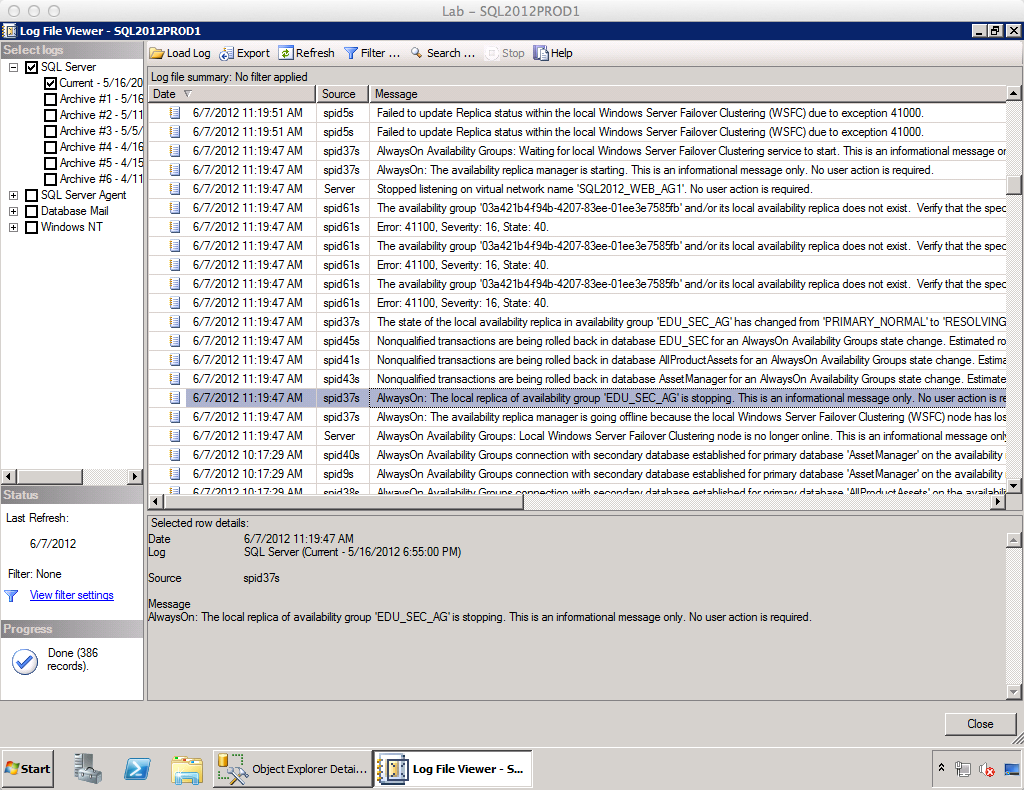
If I disconnect the network connection for SQL2012PROD1 – even for a brief moment – all of the databases in my availability groups roll back all open transactions and then go offline.  The informational messages in the SQL Server event log are shown at right for humor purposes.

The SQL Server itself is still up – but the databases in the availability group aren’t because they have a dependency on the availability group’s listener and IP address.  Since those aren’t available without a valid network connection, the databases are taken offline.

This is a dramatic departure from database mirroring or replication on a standalone (not clustered) database server.  Both of those technologies leave the primary SQL Server’s databases up and running when the network drops.

Bottom line – when deploying AlwaysOn Availability Groups, make sure you understand the risks of everything presented in the cluster validation wizard.  Some of the alerts (like some storage alerts) can be skipped for shared-nothing AlwaysOn Availability Group deployments, but others (like the network redundancy alert) definitely can’t.  Just a general tip: mission-critical SQL Servers should be connected to two separate network switches, as should all other mission-critical servers.  That way when one network switch fails, the mission-critical servers can still all talk to each other and nothing will go down.

More SQL Server AlwaysOn Resources

If you want to learn more about how to design, test, and manage this slick feature that offers high availability, disaster recovery, and scale-out reads, visit our AlwaysOn Availability Groups resources page.


Three Free Tools to Catch Killer Queries – Training Video

SQL Server
6 Comments

What’s slowing down production? It’s easy to find out in 60 seconds by running a simple plan cache query. See, in order to turn your beautifully written query into a set of results, SQL Server needs a plan – an execution plan. It caches these plans in memory along with statistics like the number of times a query has been run, how long it’s taking on average, and the execution plan itself. Whether you’re a junior DBA or a senior developer, you can use the three free tools covered in this video to find the culprit:

https://www.youtube.com/watch?v=g2xRLuFM2J4

The links we discuss in the video are:

  • ClearTrace – a free utility to slice and dice your Profiler trace files
  • Plan cache check with sp_Blitz® – this replaces the plan cache query shown in the video. Use @CheckProcedureCache = 1 to achieve the same results.
  • sp_WhoIsActive – replacement for sp_who that actually shows you the queries and execution plans

We’re Presenting at the #SQLPASS Summit 2012!

#SQLPass
0

All four of us – Brent, Jeremiah, Jes, and Kendra – got sessions approved for the PASS Summit in November!  Here’s what we’ll be covering:

Shazam! We’re speaking at the PASS Summit!

A Developer’s Guide to Dangerous Queries – Jeremiah Peschka

Jeremiah says: “SQL Server does a good job of working with whatever garbage we throw at it, but sometimes a helping hand is needed to smooth things out. You may have meant well when you wrote that sloppy SQL, but that predicate lurking under the surface is poisoning your performance. This talk will expose your worst habits, anti-patterns, and bad practices. By the time we’re done, your T-SQL will be on the path to make things right again. This talk will be therapeutic for anyone from a junior DBA or a senior developer.”

Diagnose T-SQL Performance Problems Fast with sp_Blitz® (Spotlight) – Brent Ozar

Brent says: “Every week, people tell me our sp_Blitz® helped them quickly figure out what’s dangerously wrong with a server.  I wanted to take it to the next level and start making complex performance troubleshooting easy, too.  I’m building the next major version of sp_Blitz® to analyze what queries have run recently on the server and help you find out why they’re slow.  At the PASS Summit, I’ll unveil this publicly for the first time and explain how it works.  I want to make you look like a genius – again!”

Real-Life SQL 2012 Availability Group Lessons Learned – Brent Ozar

Brent says: “SQL Server 2012’s new AlwaysOn features kick ass, and I’m deploying it in production for clients like StackOverflow.com, AllRecipes.com, and Discovery Education.  I still can’t believe I get paid to have this much fun, but it’s not all unicorns and bacon – there’s some gotchas too.  I’ll share some of the complexities involved with combinations of failover clustering and availability groups, solutions with all local solid state storage, and how to avoid painful surprises at go-live time.”

SQL Server First Responder Kit (Spotlight) – Kendra Little

This database is out of control. Kind of like you’ll be at Karaoke night.

Kendra says: “Know that horrible feeling you get when your critical SQL Servers are having a heart attack? In this session I’ll outfit you with a kit to abolish that not-so-fresh feeling. The SQL Server First Responder Kit sets you up to diagnose the toughest problems with confidence. I’ll share the proven methods that I train my clients to use when triaging in a crisis. Demos will cover SQL 2005, 2008, and will include new tools for SQL 2012 that will revolutionize the way we troubleshoot performance problems in SQL Server.”

Index Psychiatry: Diagnose and Treat the Top Five Disorders – Kendra Little

Kendra says: “Do you have the right indexes in place to make queries run faster without dragging down write performance? I find major disorders in indexes everywhere I turn– and I’m not just talking about fragmentation. At the PASS Summit I’ll introduce you to the top five index problems I find in the wild, from multiple personalities to narcissism. I’ll give you the scripts to demonstrate when your indexes are just plain crazy, and the steps to help you fix up the patient without calling Sigmund Freud.”

The What, Why, and How of Filegroups – Jes Schultz-Borland

Jes says: “Filegroups aren’t the new hotness, but they’re a reliable and flexible method for organizing data in your database. They’re often misunderstood. Come to my session at PASS Summit to learn about creating, managing, and maintaining Filegroups. I’ll discuss best practices for them. I’ll even wow you with a walk-through of a piecemeal restore!”

Wanna join us?  Register before June 30th and it’s just $1,395.  If you want help pitching it to your manager, read Brent’s post on How to Get Budget Approval for Conferences.


What I Learned at #MSTechEd North America Last Week

15 Comments

Last week, I soaked up sun, rain, and knowledge in Orlando, Florida at the annual Microsoft TechEd conference. It’s a huge conference with something like 10,000 attendees, and it covers development and administration for Windows, SQL Server, SharePoint, and more. Between the keynotes, sessions, and attendee chats, here’s what I learned:

Microsoft’s cranking out the server hits. Windows Server 2012 has great new features like better file copy handling, improved clustering, and slick SAN integration. When your file servers and virtualization hosts are backed by an ODX-savvy SAN, you’re going to be shell-shocked at the performance improvements. The SharePoint, BI, and Visual Studio folks seemed just as excited about their upcoming stuff too.

Hi Mom!
Me teaching a workshop at TechEd. “Everybody say Hi Mom!”

DBAs are pretty sensitive about SQL 2012’s Enterprise Edition licensing. Microsoft switched to core-based licensing in this release. The short story is that the price is still about the same for quad-core CPUs, but above that, cost rises fast. Many DBAs told me their shops were gritting their teeth at paying $140,000 in licensing to run SQL Server on a $25,000 piece of hardware. Whenever I talked about a new feature in SQL Server 2012, people instantly asked, “Is that feature available in Standard, or just Enterprise?”

Hyper-V and System Center are coming on strong. The vast, vast majority of my clients happily use VMware, but they’re not so happy about the continued price increases. Hyper-V’s feature sets catch up to (and in some areas, even surpass) VMware – as long as you’re willing to buy into the whole System Center suite to get the full feature set. System Center’s deployment costs in terms of hardware, software, and manpower mean that there’s not an immediate ROI to replace VMware with Hyper-V, but if your company hasn’t deployed virtualization in a wide scale yet, they’re going to. I talked to less and less holdouts.

Attendees weren’t excited about Windows 8 clients. Turns out I’m not the only one who hates the clunky, low-res, low-information-density Metro interface on high-resolution desktops and laptops. I heard a lot of Windows Vista jokes, and I heard a lot of sysadmins saying, “We’re still running a lot of XP. We held out as long as we could, but right now, we’re going to deploy Windows 7 across the board.” I’m not sure that’s a good idea, though; if you have to retrain all your users on a new UI anyway, I’d skip to 8. If I was already on 7, though, I think I’d hold pat for a couple of years.

We still aren’t hearing release dates. Microsoft missed a big opportunity here because thousands of geeks are about to go home to their coworkers and do free marketing for Microsoft. They’re going to say, “I love what’s coming, but even though the year is half over, we still can’t make any plans because I have no idea when it’ll drop.” I know Microsoft understands the power of good word-of-mouth marketing, so the fact that we still don’t have release dates makes me think the products still have a ways to go before Microsoft can even announce a shipping date.

There’s a huge demand for good PowerShell basic training. The majority of sysadmins and DBAs that I spoke with still aren’t using PowerShell. They’re vaguely interested in it, but they’re not getting the education they need. Don Jones and Jeffry Snover ran an incredibly well-attended PowerShell crash course session with almost 1,500 attendees and got very, very positive feedback. Thanks to Microsoft, you can watch the PowerShell session recording now.  (You may have to turn the audio *way* up in the video, and on your computer.)

You like me.  You really like me.  Attendees voted my session on Building the Fastest SQL Servers as one of the top five sessions at TechEd – not just the SQL Server track, but out of all 419 sessions at the entire show!  I’m really humbled by that, given the quantity and quality of presenters like Mark Russinovich, Mark Minasi, and Paula Januszkiewicz.  I’m still walking on air about that one, and I find myself asking – what do I do to take things to the next level?


Everything You Know About Clustering is Wrong

Clustering
59 Comments

Remember that weirdo in high school who had no social skills?  Couldn’t get a date, worked at the fast food joint as a fry cook, face covered with zits – you know the one.

Okay, actually, it was us.  Anyway, the point is, we got our act together, didn’t we?  So did Windows Failover Clustering.  When you weren’t looking, Windows Server 2008 cleaned up its clustering, and now it’s the new hotness that gets all the dates.  It’s time to revisit what you thought you knew about Windows clusters.

Clusters Require Identical Hardware and Configuration

No, that’s not me. Although it’s pretty close.

When I was your age, I had to look up every single piece of server hardware on the Windows Hardware Compatibility List (HCL) to make sure it was tested and approved.  I either had to buy approved clusters as a package, or assemble them from detailed hardware lists.  The new servers I wanted were never on the HCL, or they were way too expensive.  Even when I got the goods, I had to assemble everything and then just hope it worked right.  Inevitably, it didn’t, but the hardware usually wasn’t to blame – it was my own stupidity.

With Windows 2008 and newer, you can slap together pretty much any old hardware, run the Validate a Cluster wizard, and know right away that…uh, you’ve got a lot of work to do.  I know you’ve got passionate feelings about how wizards are evil, but the Validate a Cluster wizard is AWESOME. It tests just about all of the requirements for a failover cluster and gives you a simple report of what’s broken and why you need to fix it.

You don’t need identical hardware on each node anymore – not by a long shot – but the configuration rules are still really, really specific.  Some rules are guidelines (like the suggestion of multiple network cards to mitigate risks of a patch cable coming loose) but some are outright requirements.

See, this is one of my favorite things about the wizard: by default, if your cluster doesn’t pass the validation wizard, SQL Server won’t install.  This is a DBA’s best friend in the war for systems excellence.  If your company has separate Windows, storage, and networking teams, you can run the wizard before installing SQL Server.  If it doesn’t pass, you can shrug, pass the ball back to the other teams to get the setup right, and work with them to get ‘er done.

Clusters Need a Heartbeat Network

Cluster nodes used to keep tabs on each other, and if they couldn’t reach a node, they’d freak out.  To minimize the freakiness, we used a separate heartbeat network that didn’t handle any other traffic than just cluster chatter.  In simple two-node clusters, this was often done by running a crossover cable between the two nodes, which even eliminated the possibility of switch failures.  This was a giant pain, and almost nobody got the configuration quite right – 258750 was one of the few Microsoft knowledge base article numbers I actually knew by heart.

Windows Server 2008’s failover cluster networking is less freaky and more friendly: it’ll use whatever networks it can to reach the other nodes.  This has its own drawbacks – we need to make sure that any node can reach any other node over any available network, and we need to make sure that all of our networks are highly available.  That highly available part is key – preferably we’ve got two network cards in a teamed pair, and we test before go-live to make sure the cluster stays up if a patch cable goes down.

Clusters Require Shared Storage (SAN)

As the film business died, Kodak chose…poorly.

The entire history of Windows clustering has revolved around a shared set of drives that all of the nodes could access.  If one server crashed, another node reset the drive ownership, took control, and fired up SQL Server.

You can still build shared storage failover clusters, but Windows Server 2008 and 2012 both manage to run some clustered applications with no shared storage devices.  The app has to be designed to work without shared storage, like SQL Server 2012’s new AlwaysOn Availability Groups.  Heck, we can even fake-out traditional shared-disk clustering solutions by using UNC paths for our databases.  Jonathan Kehayias wrote an in-depth tutorial on how to build a SQL Server cluster on a NAS.

Cluster Quorums Manage Themselves

Back in the days of the quorum drive, all of the cluster nodes got together and decided who was boss simply based on who could see the quorum drive on shared storage.  We could move the cluster ownership around by passing the quorum drive around.

Today, since we don’t necessarily have shared storage, we can’t rely on a quorum drive.  Windows Server now offers a variety of quorum options including node majority, node and disk majority, and my favorite at the moment, node and file share majority.  This means a file share can act as a voting member of the team, enabling two-node clusters with no shared storage.

Configuring quorum – especially managing non-voting members of the quorum – is a tricky but necessary part of building a solid cluster.  I’ve already helped a few folks bring their clusters back online after they accidentally took the whole thing down due to rebooting just one (seemingly) passive node.  We have to understand our cluster’s quorum method, document what happens if one of the members is rebooted, and ensure that all team members know what needs to happen during patch windows.

Cluster Management is Painful and Obscure

I don’t need to learn PowerShell. Betty handles that for me.

If you’ve had the misfortune of memorizing cluster.exe commands just to get your job done, raise your hand.  No, wait, put your finger back down, that’s not appropriate.  This is a family web site, and we don’t need to hear your horror stories about reading obscure knowledge base articles in the dead of night.

Unfortunately, the bad news is that this particular point is still true.  You’re still going to be managing clusters at the command line.

The good news is that for the most part, you can use PowerShell instead of cluster.exe.  This means that as you learn to manage clusters, you’ll also be learning a language that can be used to manage more SQL Servers simultaneously, plus Windows, VMware, Exchange, and lots of other things that you probably didn’t want to have to learn.  Okay, so that’s also still kinda bad news – but the good news is that sysadmins will find cluster management more intuitive, because they can use the language they already know.

More Microsoft SQL Server Clustering Resources

Whether you want help choosing between an active/passive and an active/active cluster, or if you’re the kind of DBA who knows that’s not even the right name for failover clustered instances anymore, check out our SQL Server clustering training page.


Meet Our SQL Storytelling Winner

#SQLCruise Alaska: Class is In Session!

The Brent Ozar Unlimited® crew sailed on SQLCruise Alaska last week. Brent, Jeremiah, and Kendra each taught a session (or two) on the cruise. There was much talk of transactions, performance killers, and SSDs. There were lessons on backups, PowerShell, and boat drinks.

As a sponsor, we got to design a contest for the cruisers. We decided that above all else, we wanted to hear each cruiser tell us a story.

The rules: The story could be on any topic, and it could be a story of success or failure, of glory or defeat. The story needed to be told aloud to the group in person and take less than three minutes.

When it came time for SQL Storytelling, everyone gathered round on couches and the tales of technology began. We heard stories about power outages, about sql injection, about attempts to back up tempdb (don’t try this at home, kids), and even stories about sausage!  We enjoyed every story. It was the best contest ever.

For our grand prize winner, we selected a story we loved. It was thoughtful, perfectly timed, and told with friendly humility, grace, and a little bit of mystery. Our winner received a shiny new Kindle Fire, and we are sharing her story with you here on the blog.

How I Became Friends with the VMWare Administrator

By Darcy Williams (twitter)

As a DBA I’m often challenged by developers, application owners and vendors but on this occasion it was the VMWare admin. I had heard some rumblings around the office about a puzzling SQL Server.  It seems the VM folks built a high end lightning fast machine to host their SQL Server database but to their surprise the application was painfully slow.

Darcy Williams and her boxer, Harley
Meet Darcy Williams and her boxer, Harley

Several months passed and the mystery remained unsolved.  I heard they were planning an upgrade to the VMWare application during my on call weekend and Saturday afternoon my pager went off with a message to call the VM admin.  Seems he had been up most of the night working on the upgrade.  He said the database was so slow he would be up until 3am just to finish the updates and was there anything I could do?  I felt bad for the guy and thought for sure he would be up all night since I have no idea how to speed up his VMWare Server.

He seemed desperate so I thought I could run the “what we are waiting for DMV” just to cover all the bases.  I was skeptical because I’ve ran it before and it usually generates more questions than answers but surprisingly this time it worked.  One of the top wait types was related to mirroring and I thought the Primary server might be slow because it was waiting for transactions to be committed on the Mirror.

I explained to him how mirroring works and that it needs to complete the transaction on the Mirror server before returning control to the application.  We paused mirroring to test the theory and ran a few update statements.  The mystery was solved because the updates ran incredibly fast.

Turned out the VM folks built two completely different servers. One was blazing fast with all high end components and the other with less than par hardware, slow disks and minimal RAM.  The following week the Mirror got a much needed face lift to match the Primary and the end result was a blazing fast application and happy customers.

Do You Have a Story?

We love Darcy’s story because it celebrates the simple glories of life as a DBA. We think this story may remind you of your stories.  Sometimes when that pager goes off, you solve big problems and make a real difference. Stop and enjoy those achievements, and share your story to help others.


Simulating OLTP Queries: How to Run Load Tests Against SQL Server with HammerDB

Load Testing, SQL Server
53 Comments

Do you have a SQL Server that’s not getting enough action?

Maybe you have a new piece of production or lab hardware that you’d like to benchmark, to see how it compares with other gear in your environment.

Or maybe you just want to run some activity against your own test SQL Server instance to practice working with an active database. This can be incredibly useful at any stage of your career as a SQL Server DBA or Developer— sometimes you want to simulate some database load to test your troubleshooting scripts, or to demonstrate or learn about SQL Server features.

Writing Custom Load Testing is Hard Work

Put your SQL Instance on a Treadmill
I’m training for a half marathon. Why shouldn’t my SQL Server instance work out with me?

To simulate load against a database, you want to have multiple application users and a mix of read queries and data modification statements. You don’t want to always update a single row to the same value, or just insert the same dummy value over and over again, though.

It’s certainly not impossible to write your own load generation scripts in Powershell, C#, or other languages, but it’s time consuming, and you need to create (or restore) a database schema and data set to work with the test.

The Free and Easy Way to Stress Your SQL Server: Simulate OLTP Database Load with HammerDB (Formerly HammerOra)

HammerDB is a free, open source tool that allows you to run TPC-C and TPC-H benchmarks against SQL Server, Oracle, MySQL, and PostgreSQL. You can use HammerDB to generate and populate the schema for a database to load test against. HammerDB also allows you to configure the length of a test run, define a warm up period, and set the number of virtual users for each run.

Best of all, HammerDB has an autopilot sequence that lets you stitch together a sequence of multiple runs at varying levels of virtual users — you can use this to easily get a curve of results to see at what level of virtual users performance levels off. You can also use it to simulate a varying workload for demonstration or research purposes.

HammerDB on SQL Server: The Pros and Cons

HammerDB is a free tool, so it’s an extremely accessible, quick way to start benchmarking or simulating load. The autopilot feature also makes running workloads fairly automatic.

The primary downside is that there’s a bit of a learning curve. The user interface isn’t extremely intuitive and can take a bit of getting used to. After you use the tool for a few times it is much easier.

HammerDB also doesn’t run every benchmark. It does not run the TPC-E benchmark, for example, which is a more recently developed OLTP benchmark that SQL Server loves to tune for. You should understand that if you run a TPC-C benchmark with HammerDB, it isn’t directly comparable to published TPC-C benchmark results from major vendors. But it’s free, It’s quick and it’s easy.

Use Cases for Benchmarking

Benchmarking: It lets you make line graphs
Benchmarking: It lets you make line graphs!

Benchmarking workloads won’t mimic the exact traits of your applications. Every workload is unique and will have different bottlenecks on different systems. Benchmarking with a defined workload is still very powerful for many use cases, including comparing performance between:

  • Multiple environments (example: old physical server, new virtualized environment)
  • Different points in time with variable factors (example: performance on a VM using shared storage and shared host resources)
  • The point before and after a configuration change
Of course, <disclaimer> running a benchmark against a database server can impact the performance of other databases on the SQL Server, or of other VMs on a host, so make sure you plan testing responsibly in a production environment. </disclaimer>
And don’t forget, having an active workload is a fantastic tool for training and research!

Ladies and Gentlemen, Start Your Benchmarks

Get started with HammerDB by reading the “SQL Server OLTP Load Testing Guide” on the HammerDB documentation site.


7 Tips to Get the Best Free Help

5 Comments

Right now, people are waiting for your question.  They can’t wait to help you out, and they’ll give you incredibly good advice for free.  Here’s how to get it:

1. Boil the problem down to one question in one sentence. Technology is complicated, and your question probably has a lot of moving parts.  If you can’t fit your question into one sentence, that’s a sign that it’s actually multiple questions, or that you don’t understand the issue quite well enough yet.  Strip out as many moving parts as possible.   Simply by getting the question down to one sentence, I find that I answer it myself – like how Jeff Atwood wrote about rubber duck problem solving.

2. Type that sentence into a search engine.  After all, this is what your answerers are going to do.  You probably aren’t going to find the answer you want (you probably are, but I’m being kind here), but you want to look at the kinds of responses that were posted.  Look at the followup questions other people asked, try that same solution, and compile the evidence that you gather.

Operators Are Standing By

3. Provide additional evidence in an accessible format.  Even though you’ve boiled down your question to one sentence, that doesn’t mean it’s the only thing you’re going to provide.  Start your email/post with that one-sentence-question, and finish it the same way, but in the middle, put all the juicy details about the things you tried.  If you’re asking about a slow query on a database server, that means including the full query and the execution plan.  If you’re asking about how to design a data model, include your idea.  Your goal is to make it as easy as possible for people to copy/paste your work into their own environment, make changes, and then most importantly, copy/paste the right answer from their environment into the answer.  For long copy/pastes, check out Pastebin.

4. Never say “my client” in the question.  If you’re a consultant or a student and you’re tasked with getting the answer, don’t reveal that in the question.  It really pisses the rest of us off because you’re asking us to do your work.  I’m not saying you can’t ask questions; you certainly can, and I encourage it – but don’t rub our noses in it.  You can avoid a lot of negative feedback by using terms like “we” instead of “my client.”

5. Ask as many strangers as possible simultaneously.  Post your question on a Q&A site like StackOverflow, Serverfault, DBA.StackExchange.com, or SQLServerCentral.  There are thousands of people sitting around hitting refresh on these sites, waiting for questions to come in, eager to help you.  This is a much more effective solution than emailing one or two people directly.  I even have an email template set up that instructs folks to post their questions online – I’d rather teach people to fish than feed them one answer at a time.

6. Follow up promptly.  After posting the question, set yourself a repeating 15-minute alarm on your phone.  When it goes off, check for followup questions or comments on your question.  Answer them fully and promptly.  These are strangers who are taking time out of their day to help you – treat them with thanks and respect.

7. If you don’t get the answers you need after 24 hours, escalate it.  If it’s a SQL Server question, post a link to it on Twitter with the #SQLhelp hash tag and a link to your full question.  Email it to your friends and resources, but hold off for 24 hours first – you want to respect their time.


How Big Are Your Log Writes? Spying on the SQL Server Transaction Log

Storage
41 Comments

I’m a bit of a researcher. When I want to know about a topic, I start off by doing a lot of reading. After I take a lot in, I want to make  sure I understand the details. At that point, I try to think like a scientist. I come up with ways to test what I’m learning and see it in action. My process isn’t revolutionary, but it goes something like this:

  1. Formulate a question.
  2. Pose a hypothesis.
  3. Form a prediction.
  4. Run a test.
  5. Analyze the results.

I can’t do this for everything, but I love it when it works.

Today’s story is about how I used this process to learn about how SQL Server writes to transaction log files.

This won’t be a super-practical post that will change your life. I’m not going to make any recommendations here, other than widely published best practices. But I promise to show you a tool that may help you learn a lot about how SQL Server works.

The Question: How Large are the Writes to a Transaction Log File?

A widely published SQL Server configuration best practice is to format your log file drives with a 64KB allocation unit size. There are exceptions to this for certain storage subsystems— you should always check the documentation from your storage provider, and you can also run tests with tools like SQLIO to determine how you can get the best performance with your storage implementation. (Different SAN configurations and settings like RAID stripe size make a difference when it comes to performance with a given allocation unit configuration.)

My question was: what does the allocation unit size mean in terms of how much SQL Server writes to disk when I issue a write against a transaction log? Do I always have to do the same unit of work as my allocation unit size?

In other words, am I always going to do a minimum of 64KB of IO against my log file? That seems like a lot, so I doubt it! But if not 64KB, then how much?

First, Some Background on Allocation Unit Size

The “Allocation Unit Size” on a drive is also called the “cluster size.” These are pretty much synonymous, and the fact that we have two ways to talk about this can make things confusing.

The default allocation unit size on a windows drive is 4KB. When you format the drive, you can set that to a larger size— again 64KB is recommended for SQL Server data, log, and tempdb files. The allocation unit size is basically the smallest unit of storage that any individual file can take up. If I set the allocation unit size on a drive to 64KB and then create a tiny text file which only takes up 11 bytes, that one file will take up 64KB on disk.

So 64KB isn’t a great allocation unit size for a drive with many tiny text files, but our SQL Server log files are all much larger than 64KB—- each file takes up many allocation units.

Hypothesis: We’re Writing to the Transaction Log in Small Chunks

My initial guess was this: even though I’m setting my allocation unit size to 64KB, the way that SQL Server issues the writes doesn’t write out 64KB each time. That would just be too high!

I did some reading to learn more about this from the SQL Server perspective. In the “Determining I/O Capacity” section in the Best Practices Whitepaper, it states, “Log writes are sequential in nature with a varying size, which is dependent on the nature of the workload (sector aligned up to 60 KB).”

So we’ve got a varying size, and it’s “sector aligned.” Bob Dorr explains more about sectors and transaction log writes in his SQL Server I/O Presentation: “Any time the physical flush takes place it occurs on a sector boundary. The FlushToLSN will attempt to pack as many active log records into sector aligned boundaries and write on the sector size. The sectors each contain a parity bit that the log can use to detect the valid sectors flushed before a crash recovery.”

Now we’re getting somewhere! So, in theory, the smallest write should hit ONE disk sector. A disk sector is a physical sector on a drive— it’s configured by the storage manufacturer, and isn’t something you configure. Most drives contain sectors which are 512 bytes, but now new-fangled drives (called “Advanced Format” drives) contain 4KB sectors.

To recap our terminology and put things together: if you format a single (“old school”) drive with a 64KB allocation unit size, each 64KB cluster will have 128 physical sectors. Each sector will have 512 bytes.

Based on this, my prediction is that SQL Server will write 512 bytes to the log file for a single tiny write transaction. Ideally, I want to observe this IO outside of SQL Server, not inside of it. It might be the case that SQL Server thought it was doing a small IO, when Windows saw it doing more IO.

My Test: Watching Writes with Process Monitor

It didn’t take long to find a tool to monitor IO with. I am a big fan of the SysInternals Suite suite of tools. Over the years SysInternals tools have helped me solve many problems and learn a lot.

Process Monitor does just what the name says: it helps you monitor the behavior of processes. As it monitors it streams a lot of information to the client, and I always get a bit nervous if I have to run it in production due to the volume. (Make sure you apply very good filters!)

However, for a lab environment it’s just candy: easy to use, quite intuitive, and highly configurable. I fired up process monitor and filtered out all processes except for sqlservr.exe. (Protip: all the cool kids drop vowels near the end of words. Just call me “Kendr.”)

This first filter helps reduce the abundant flow of information coming from Process Monitor. It helped me focus in on my quarry.

I was just interested in seeing IO to a log file.  Next, I filtered out everything except for writes to the log file for a database named InsertTest, which was located at the path “T:\MSSQL\Data\InsertTest_log.ldf.”

I also validated in a command prompt that my T drive is formatted with a 64KB allocation unit size, and Windows understands my drive to have 512 bytes per sector. Sure enough, 64KB!

Setting Up A Database to Test

I wanted to do a very small write and see how much IO was issued, so I created the following table:

That’s pretty darn small, right?

I started collecting data with ProcessMonitor and I ran an insert into my table:

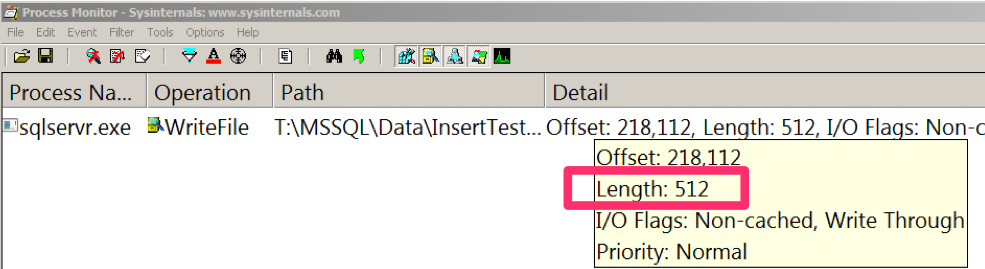
And, what do you know, here’s the write I saw:

You'll have to take my word for it here, but the "Path" column confirms the write was to InsertTest_log.ldf

As soon as I inserted the row, I hadn’t defined an explicit transaction, so it auto-committed. This required that the row be flushed to the log. This write went into my log file with a length of 512— and that length is reported by Process Monitor in bytes.

This verified my theory: tiny transaction log file writes are indeed written in a unit that corresponds to a single phyiscal disk sector, as defined by the drive itself. The answer to my original question is that the size of data written is NOT influenced by the allocation unit size you set when you format a drive.

Wrapping Up

There are lots of questions that the information I showed today may raise for you. What happens when you write larger records, or have multiple sessions doing writes at the same time? Does this all correspond to what you see inside the SQL Server transaction log when you read it with the (undocumented) fn_dblog function? What sizes of writes do you see happening against the data files after a checkpoint?

Good news: it’s really easy for you to find out! Firing up Process Monitor on a test environment is super easy, and will take you less time than reading this post did. Give it a shot, and happy exploring.


The SQL Server Performance Checkup from a Consultant’s Perspective

SQL Server
4 Comments

Here at Brent Ozar Unlimited®, we offer a server performance checkup to clients. As the newest member of the team, I wasn’t sure what to expect when running one. I found out that it’s pretty cool. I pretend we’re Special Forces operatives, strapped into our parachutes, doing a HALO opening over client servers. (This homemade parachute gets caught on my chair a lot.)

This isn’t covered by worker’s comp

This checkup is about learning as much as it is fixing servers. What have I learned? What is it like to be a consultant, to be deep-diving into a variety of environments?

Variety is the Spice of Life

Even though they all use the same software, every SQL Server environment is different. Each one has a few features installed. But have you worked in one company using clustering, replication, mirroring, and log shipping? How about full-text indexing and FileStream? How many different hardware configurations do you have? How many SAN vendors does one company use?

The checkups are enjoyable because I get to see a variety of configurations. There is always something new to learn. Seeing how something works in one environment can give me ideas for fixing or improving something in another.

Teaching Best Practices

Let me take you back a few years, to when I was handed the DBA title for the first time because the DBA left the company. At that time, I could write T-SQL and knew SSRS fairly well. However, I didn’t know auto-shrink and xp_cmdshell were bad. This isn’t knowledge we’re born with, it isn’t covered in most college textbooks, and a programmer won’t know. But I learned. Now, I get to pass on that knowledge.

Our sp_Blitz® script will check for things like databases in Full recovery without log backups being run, users with sysadmin rights, user databases on the C: drive, and auto-shrink enabled. When I see things that aren’t best practices, I can point them out and teach the users why. I can encourage them to change the settings, if applicable, or discuss why they have it set that way. They learn something new, and I get to impart my knowledge. We all win.

Community Contributions

Our very own Brent Ozar wrote the sp_Blitz® script. But there are a lot of other people’s queries we’ve built on. Adam Machanic, Amit Banerjee, and Dave Levy have provided inspiration. We recommend Adam Machanic’s sp_WhoIsActive, and Ola Hallengren’s maintenance scripts.

There are many SQL Server resources available to you, whether they are blogs, videos, books, or scripts. We don’t reinvent the wheel each time we come to a problem, and you don’t need to either. As Brent has blogged before, we send our clients to other people’s blogs for resources.

Ready the Parachutes!

Running a performance checkup is a great experience for me and the client. Solving problems and teaching people at the same time is the most rewarding job I’ve had! I think a huge factor to being successful as a consultant is having the desire to constantly learn. If that sounds like you, there may be a career path for you to explore.


Storage Protocol Basics: iSCSI, NFS, Fibre Channel, and FCoE

SQL Server, Storage
9 Comments

Wanna get your storage learn on?  VMware has a well-laid-out explanation of the pros and cons of different ways to connect to shared storage.  The guide covers the four storage protocols, but let’s get you a quick background primer first.

iSCSI, NFS, FC, and FCoE Basics

iSCSI means you map your storage over TCPIP.  You typically put in dedicated Ethernet network cards and a separate network switch.  Each server and each storage device has its own IP address(es), and you connect by specifying an IP address where your drive lives.  In Windows, each drive shows up in Computer Manager as a hard drive, and you format it.  This is called block storage.

NFS means you access a file share like \\MyFileServerName\MyShareName, and you put files on it.  In Windows, this is a mapped network drive.  You access folders and files there, but you don’t see the network mapped drive in Computer Manager as a local drive letter.  You don’t get exclusive access to NFS drives.  You don’t need a separate network cable for NFS – you just access your file shares over whatever network you want.

Fibre Channel is a lot like iSCSI, except it uses fiberoptic cables instead of Ethernet cables.  It’s a separate dedicated network just for storage, so you don’t have to worry as much about performance contention – although you do still have to worry.

Fibre Channel Over Ethernet runs the FC protocol over Ethernet cables, specifically 10Gb Ethernet.  This gained niche popularity because you can use just one network (10Gb Ethernet) for both regular network traffic and storage network traffic rather than having one set of switches for fiber and one set for Ethernet.

Now that you’re armed with the basics, check out VMware’s PDF guide, then read on for my thoughts.

What I See in the Wild

1Gb iSCSI is cheap as all get out, and just as slow.  It’s a great way to get started with virtualization because you don’t usually need much storage throughput anyway – your storage is constrained by multiple VMs sharing the same spindles, so you’re getting random access, and it’s slow anyway.  It’s really easy to configure 1Gb iSCSI because you’ve already got a 1Gb network switch infrastructure.  SQL Server on 1Gb iSCSI sucks, though – you’re constrained big time during backups, index rebuilds, table scans, etc.  These large sequential operations that can easily saturate a 1Gb pipe, and storage becomes your bottleneck in no time.

NFS is the easiest way to manage virtualization, and I see a lot of success with it.  It’s probably an easy way to manage SQL clusters, too, but I’m not about to go there yet.  It’s just too risky if you’re using the same network for both data traffic and storage traffic – a big stream of sudden network traffic (like backups) over the same network pipes is a real danger for SQL Server’s infamous 15 second IO errors.  Using 10Gb Ethernet mitigates this risk, though.

Fibre Channel is the easiest way to maximize performance because you rule out the possibility of data traffic interfering with storage traffic.  It’s really hard to troubleshoot, and requires a dedicated full time SAN admin, but once it’s in and configured correctly, it’s happy days for the DBA.

Want to learn more? We’ve got video training. Our VMware, SANs, and Hardware for SQL Server DBAs Training Video is a 5-hour training video series explaining how to buy the right hardware, configure it, and set up SQL Server for the best performance and reliability. Here’s a preview:

https://www.youtube.com/watch?v=S058-S9IeyM

Buy it now.


SQL Server Tricks: How Can I Restore a Subset of My Tables to A Prior Point in Time?

Backup and Recovery
7 Comments

This question came up when working with a client last week. The team mentioned they were planning to move some tables into a new filegroup. The new filegroup is intended to help quickly restore data in cases when a monthly process goes off the rails and leaves the data in some tables in a bad state.

Over the years I’ve worked on a lot of backup and restore plans with SQL Server, and I learned the hard way that filegroup level restores don’t do exactly what you might think.

DBZilla Attacks!
What if he only eats a FEW tables?

In this post, we’ll talk through a sample problem. I’ll explain while filegroup level backups don’t fit the bill to solve this problem, and then talk through a couple of alternatives that may make life easier.

Our Problem: We Need to Restore the Data for Some of the Tables in a Database

Let’s say you manage a database named ImportantDB. Some tables are updated daily in ImportantDB, and other tables are only updated once per month. The tables updated once per month are updated by a legacy application and you don’t have access to the source code.

Periodically, the monthly load will fail due to issues outside of SQL Server. When this occurs, the recommended procedure is to reset the monthly tables to the state they were in prior to the monthly load job beginning, and restart the process. (Essentially, you start over.)

Restoring the entire database takes a long time, and might remove changes to the “daily” tables as well.

Attempt 1: Filegroup Level Backups

In SQL Server we have the ability to back up and restore individual filegroups. In Enterprise Edition, SQL Server also has the ability to have the Primary and select other filegroups online and responding to queries while you are restoring individual filegroups.

For situations like this, it seems like filegroup level backups and restores will be the answer to our problem. The plan we make looks like this:

  • Move the monthly tables into a filegroup named MONTHLYTABLES
  • Set the filegroup as READ_ONLY

Whenever we need to load data into the filegroup, we plan to:

  • Take a filegroup level backup of MONTHLYTABLES
  • Set the MONTHLYTABLES filegroup as READ_WRITE
  • Start the process to change data
  • If there are any issues with the data load, restore over the filegroup from the READ_ONLY backup

Why Filegroup Level Restores Don’t Solve This Problem

The restore sequence described above in SQL Server won’t work, by design. SQL Server’s mission with filegroup level restores is described in Books Online here:

Each filegroup-restore sequence restores and recovers one or more offline filegroups to a point consistent with the database.

As soon as the MONTHLYTABLES filegroup is made READ_WRITE, we can no longer restore over it with a backup made from a prior point in time and bring it online. We can perform the filegroup level RESTORE if we’re in the appropriate recovery model, but in order to bring it online we also have to restore additional log backups to bring it to a point in time that is consistent with the rest of the database. (Don’t believe me? Check out Tibor Karaszi’s fine blog on the topic with sample code. Tibor’s examples are for the full recovery model— play around with things and you’ll see that you can’t make it work in the simple recovery model, either.)

Why does it have to be this way? It’s because SQL Server doesn’t track transaction status by filegroups, and its mission is to ensure transactional consistency within a database. If we could restore individual filegroups to different points in time and bring everything online, we wouldn’t have a way to ensure consistency.

Alternative 1: Database Snapshots

If we’re running SQL Server Enterprise Edition, we can automate a solution to our process by using a database snapshot. Our monthly load procedure would look like this:

  • Create a database snapshot
  • Start the process to change data
  • If there are any issues with the data load, either:
    • Revert to the snapshot (this will impact the whole database)
    • Truncate and reload the monthly tables using the snapshot as a data source

This solution will work, but depending on the size of the monthly tables, it may have some performance problems. The database snapshot will use IO for all the data changed in the monthly tables. If the monthly tables are very large, we will end up spending a lot of writes against our snapshot file as well as the database we are repairing.

If it’s OK to lose any other data that has changed since the snapshot was taken, the revert option may work for us— provided that we don’t mind dropping any full text catalogs and rebuilding the transaction log.

The only time I really like a database snapshot option is when I’m 100% sure that other processes have not been updating data. That just isn’t the case for a lot of databases, so we may need to seek other options.

Alternative 2: Views

We could also solve this problem by moving the monthly tables into a new database named ImportantMonthly. Then, we would replace the original tables in ImportantDB with views. A simple view of “SELECT [columnnames] from ImportantMonthly.schema.table” would be put in place for each table.

ImportantDB is safe... and possibly has a friend.
Important DB is safe... and possibly has a friend.

With the views defined in this way, they would function just like tables and allow insert, update, delete, and select statements to be run against the base tables.

This would allow the process to become:

  • Take a full database backup of ImportantMonthly
  • Start the process to change data
  • If there are any issues with the data load, restore over the ImportantMonthly database

The main gotcha to be aware with using views in this manner is that if the definition of the tables in ImportantMonthly changes, you may be required to refresh the metadata for the views with the procedure sp_refreshview.

Alternative 3: Synonyms

Similar to the view solution, we could move the tables into ImportantMonthly, and then replace the original tables in ImportantDB with synonyms.

Synonyms in SQL Server don’t have the same metadata issue as views, but there is one important thing to know: you cannot reference a synonym that is on the other side of a linked server.

The Devil is in the Details

This example highlights one thing to me: when you try to solve a problem with just one kind of tool, you have to make compromises. To build a strong, reliable solution and mitigate the risks, database administrators need the collaboration of whomever controls the application code for the database, whether that be a vendor or an in-house development team.


Wanna Get Your FreeCon This Friday?

When I first started going to conferences, I thought all the value was up on the screen. I took copious amounts of notes in every session. I asked questions. I paid close attention. When the sessions were over, I packed up and went home, eager to implement what I’d learned. Of course, reality set in when I got back home. I had a gazillion emails and help desk tickets, and by the time I dug my way back out, I’d forgotten a lot of what I’d learned. My notes sat dormant on my hard drive for weeks or months.

Punch harder.
Free-Con Seattle 2010 - Homework Time

I’ve since learned that the most valuable things at conferences are peers, not PowerPoints.

I started the Free-Con to connect and inspire people. It’s a free one-day event before conferences, and it completely ignores the conference itself. We focus on improving our content, our people skills, and our sense of community. I only invite a limited number of community content creators, but they’re from all walks of life – new bloggers, MVPs, and corporate spokespeople.

The next one is this Friday, May 18th in downtown Chicago, lining up with SQLSaturday 119. We’ve had a few last-minute cancellations, so now’s your chance to sneak in.

What to Expect

Free-Con feels like a panel discussion without an audience – just one big panel. We’ve got a great list of attendees with all kinds of different experience, and everybody wants to share and help each other. To promote discussion, I’ve got a list of topics and short presentations ready, but expect to spend most of the time interacting with each other.

FreeCon Chicago’s agenda includes:

  • Your Resume is Backwards – Your resume is organized by company, then position, then skill. What if we organized it the other way and looked for gaps?
  • Lean Methodology – “Lean” is part of a manufacturing strategy for minimizing waste. I’ll explain why it’s relevant to your career and your day-to-day work.
  • Zen and V12 Maintenance – Can your work bring you closer to people who inspired you?
  • Tufte’s Supergraphics in Action – Edward Tufte wrote about how to reinvent presentations using large printed handouts. Software manufacturers are starting to do a surprisingly good job of it. We’ll examine one and see how to turn it into a full-blown presentation.
  • And more – like group discussions around where we find inspiration and how we can improve SQLSaturday.
This Could Be You
This could be you. Only older, and without the mouse ears.

The event will start at 9AM and last until 4PM. With this many bloggers in one room, we’ve got an incredible opportunity to build relationships and blog posts. We’ll cover three ways to get other bloggers involved in your blog, and then we’ll actually do it live. (Wait, not “do it” – although, I mean, if you find one of the other bloggers attractive, I suppose you could. Just don’t blog about that.)

Doors will open at 8, and if you make the list, you’re welcome to show up early. A continental breakfast will be served at 9am, and you can’t come to Chicago without having Giordano’s pizza for lunch, so that’s catered in too.

Who To Expect

This event is about you meeting your peers – not just SQL Server peers, but other people who want to build their brand online to get better jobs. I picked people I enjoy spending time with, and if I like hanging out with you, I’m pretty sure you’re going to like the other attendees. You have a lot in common, and you’ll do a better job at it if you’ve got friends you can ask for advice and help.

The attendees for this Free-Con are:

  1. Argenis Fernandez (Blog@DBArgenis)
  2. Bill Lescher (@BLescher)
  3. Bob Pusateri (Blog@SQLBob)
  4. Christina Leo (Blog@ChristinaLeo)
  5. Eric Harrison (LinkedIn)
  6. Garima Sharma (LinkedIn)
  7. Hope Foley (Blog@Hope_Foley)
  8. Jason Fay (Blog@JFay_DBA)
  9. John Mazzolini (LinkedIn@JMazzolini)
  10. Josh Fennessy (Blog@JoshuaFennessy)
  11. Louis Fritz (LinkedIn)
  12. Norman Kelm (Blog@NormanKelm)
  13. Ramin Surya (LinkedIn@RSurya)
  14. Scott Ellis (LinkedIn)
  15. Tim Ford (Blog@SQLAgentMan)
  16. Tim Radney (Blog@TRadney)
  17. Tom Norman (LinkedIn@tjnorman57)

Former Free-Con attendees include:

What Past Attendees Said

Jes Borland wrote:

“I got to pick the brains of some really smart, really talented, really motivated, really funny, really smart people. For someone who is relatively new to the database world, and really new to speaking and blogging, this was like a year’s worth of lessons crammed into a day. I got to sit next to people that I never thought I could and ask them anything about their career, their experiences, for advice, and listen to their stories. I cannot tell you how cool that was.”

Grant Fritchey wrote:

“For me, FreeCon defined some things that have been running around in my brain for the last 18 months or so. It also inspired me to pump up my blogging, to try to improve my game and my brand. I’ve done a very large number of actions in the two weeks since FreeCon went down. Many of them are already bearing fruit, for example, I’m now hosted on my own domain. Others may bear fruit in the near term, and I have EXTREMELY high hopes for these. Still more are the high level goals that I’ve started to define that will likely take me years to deliver.”

Jason Strate wrote:

“It was a terrific event and I learned a lot.  In actuality, there’ll be a free PDF up on my blog fairly soon that is a direct result of attending.  And there’ll likely be a second PDF download available before the end of April.”

Update – Filled Up!

Thanks for your emails – we’re now filled, and the attendees above are the final list.


Who’s Going to Hire You? Seriously.

Professional Development
4 Comments

I got my start in the hospitality business by working at distressed properties.  Distressed is the polite term that hotel management companies use when a hotel is in financial trouble, has health violations, and nobody in their right mind would stay there.  Thankfully, there are a lot of tourists who are not in their right mind.  Think about that the next time you pull into a hotel after a long day of travel and say, “Just give me a room.”  Here’s an example of a distressed hotel’s pool (and yes, I worked at this hotel):

The guests were distressed, too.

That particular hotel had been hit by a tornado, and the owners were fighting with the insurance company over who was going to pick up the tab for the damage.  After the tornado struck, the first management company simply closed the restaurant and shut the power – without emptying or cleaning the freezers.  I had the joyous task of getting maintenance men to clean out hundreds of pounds of rotting steak.

When I say “distressed hotel,” it’s not just the building that’s distressed.

At distressed properties, a pattern emerged pretty quickly:

  • The hotel owners would hire the management company because things weren’t going well
  • The management company brought in their own General Manager
  • The GM would bring in a bunch of his friends in for management positions
  • Things would get better – for a while
  • The hotel owners would fire the old management company and go back to the first step
  • The GM would leave the property, take their friends along, and go to another property

Each time the management company changed and the GM left, I noticed that the GMs were bringing a lot of friends along for the ride.  When the third new GM (Tom) came in, I made it a point to be buddy-buddy with him.  He was thankful for the help, and he taught me a ton about the hotel business in a matter of months.

When the owners fired this new management company, Tom headed off to Georgia to manage yet another property, but this time something different happened.  The phone rang, and Tom was on the other end.

Tom: “I’ve just taken over this hotel in Savannah.  You wanna come down here and manage the front desk staff?

I said, “I have no idea how to do that.”

Tom: “Neither did the last guy here, but at least I know I can work with you, and you’ll work hard for me.”

Sold.  I packed my car and moved down to join him.  It was the easiest promotion I’d ever gotten.  That job was never posted in the newspaper, and if it had been, I’d have never known to look in Savannah’s newspaper – and I wouldn’t have made the cut over all the other applicants anyway.  Tom called me directly and hired me because I’d already gone through a long interview with him – I’d worked for him.

Your Coworkers Are Interviewing You Right Now

There’s a pretty good chance that if your manager quits, you might not want to work for them somewhere else. You probably also only have one manager, and you don’t want to put all your eggs in that one basket.  After all, they may never leave the company.

Your coworkers, on the other hand, are plentiful and ambitious.  I bet at least one of your coworkers leaves this nasty hole every year, and they break free to get a better job somewhere else.  Wouldn’t it be nice if they called you up a few weeks later and gave you the inside track on a new job?  It’s the easiest way to get ahead, and you’ll be working with at least one person who already knows and trusts you.

Recently, I asked you to write a testimonial for the Incredible DBA Team, and I asked you how it made you change the way you see your job.  Now it’s time to go back, read the comments, and think about how you can generate some of those same testimonials for yourself.  Your fellow developers, DBAs, sysadmins, SAN admins, managers, project managers, and end users are your very best network.

Who do you want to take you along?  What can you do today to make sure they’d want to take you along for their adventures?  How do you get them to write testimonials like these?


SQL Server RDS

Amazon Web Services (AWS) is a platform that offers a ton of services ranging from block storage, operating systems, to mail queues, DNS, and caching. When you say “cloud”, a lot of people think of AWS. AWS hosts a variety of businesses, large and small. Unfortunately, you still have to administer and configure your servers. That’s not a bad thing, but it’s something that many teams have to keep in mind. Configuring SQL Server in AWS environment isn’t the easiest thing on earth: the technology behind the AWS platform changes on a regular basis and it sometimes changes in subtle ways that can change how SQL Server performs.

Relational Database Service

Amazon Relational Database Service (RDS) is Amazon’s attempt at creating a hosted database platform on top of the other AWS services. The point is to take a lot of the headache out of managing relational databases. Instead of setting up and configuring servers for MySQL or Oracle, customers can have a database server up and running in a few clicks. Backups happen automatically, restores are easy to accomplish, and instances can be easily added or removed.

The problem is that there hasn’t been a way to do this with SQL Server. Companies using the Microsoft stack but invested in AWS have had to set up and configure their own SQL Servers. While this is normal for many businesses, for start ups this is an extra expense – it means that the servers are either configured by developers or operations staff, or that the company has to bring a DBA on board sooner than they had planned.

Enter SQL Server RDS

Amazon have launched SQL Server RDS: a hosted SQL Server service. Users can easily create instances of SQL Server through a wizard, web service, or command line script. It’s easier than ever to scale your infrastructure in the AWS environment.

Previously it was possible to create a new instance of SQL Server by spinning up a new SQL Server equipped AMI, but it still took time for both Windows and SQL Server to finish the sysprep process. On top of the instance set up time, a DBA would still have to configure the instance with additional security and configuration settings. In short, you could spin up instances of SQL Server in Amazon, but someone on your own team was still responsible for patching and maintenance.

Like every other AWS service, there’s a free usage tier. Developers, or really lean applications, can start out using a free version of the software and migrate up to larger instances as needed. The majority of the instances types are supported, apart from a notable absence of cluster compute instances.

SQL Server RDS gives you most of the features of SQL Server – it compares pretty closely with SQL Server and many features are fully supported. Amazon are pretty explicit about which features aren’t supported, so if you’re expecting a SQL Server Agent, maintenance plans, or the DTA, then you’re out of luck.

Update: Things change all the time in AWS, and SQL Server RDS is no exception. As Ola Hallengren points out below, SQL Server RDS now supports the SQL Server Agent as well as SQL Server 2012, Provisioned IOPS drives, and being run inside a VPC. Make sure you check the supported feature list or the AWS blog.

The Limitations

There’s a lean set of features that can be relied on to work even if your SQL server instance needs to be restarted or if the OS disk becomes corrupted. Features that rely on MSDB or any other system databases simply can’t be used because there’s no guarantee that you’ll be attached to the disk when your new OS volume is spun back up. By making sure that the OS volume never changes, it’s very easy to upgrade an instance – you just attach a new OS volume with the requisite changes at the next reboot. Because of limited access to the system database, many SSMS standard reports don’t work.

SQL Server RDS imposes a hard limit of 30 databases per instance of SQL Server. While that seems purely arbitrary, remember that there’s an unknown pool of storage underneath the instance that is invisible to you as a consumer of the product. On that note, you also can’t scale the storage underneath a SQL Server RDS instance – once you set up your storage at a certain level, that’s the amount of storage that you are stuck with.

Many DBCC commands don’t work at all – DBCC DBINFO and DBCC LOGINFO were explicitly denied. I did, however, discover that I could run DBCC FREEPROCCACHE as often as I wanted.

Keep in mind that these limitations may change over time – new features are added on a regular basis.

Configuring SQL Server

Some system tools, like sp_configure are not available as a way to set server level settings – you can run sp_configure and see the configuration values, but you can’t change them directly in SQL Server. Instead, you create a SQL Server parameter group.

DBAs may find it frustrating to use command line tools to set up SQL Server parameters, however once a parameter group has been created, it’s incredibly easy to apply the parameter group to any number of SQL Servers at the same time. The upside is that both trace flags and sp_configure settings can be modified at the same time. The downside is that the commands to set up the parameter group are not at all intuitive. Changing a the max server memory looks something like this rds-modify-db-parameter-group sqlservergroup --parameters "name='max server memory (mb)', value=65536, method=immediate". Intuitive? No. Powerful? Yes. Once you’ve set up the parameter group, you just tell RDS to create new SQL Servers inside that parameter group and they will automatically be started with those trace flags and settings in place.

Scheduling maintenance and backups

Backups

How are backups configured and maintained? By you… in a way.

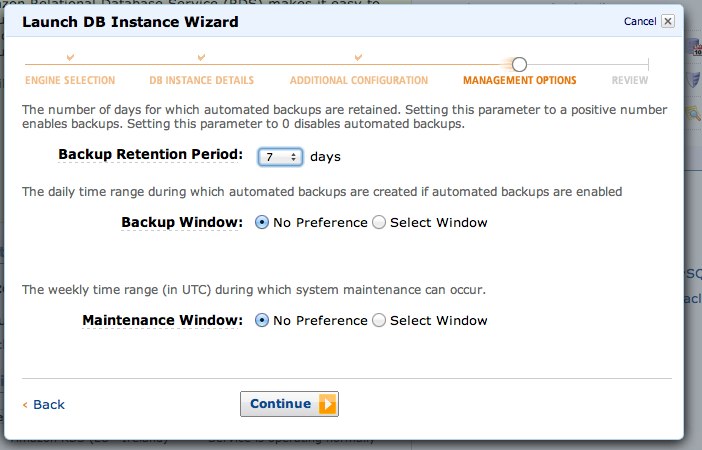
During instance creation, you specify a backup retention period between 0 and 30 days. You can also specify your backup window and maintenance window – just in case you want to specify quiet hours when maintenance should occur. Point in time restore is available via a GUI, command line tools, and that’s it. Keep in mind that these aren’t database level restores,these are instance level restores – during the backup, writes will be quiesced, the storage will be snapshotted, and then writes will resume again. Point in time recovery is also available and transaction logs are backed up every 5 minutes. There’s more information and details in the AWS RDS documentation.

And A Gotcha

When you create a user, they’re automatically given access to the rdsadmin database. This is a database that the RDS team have created to provide access to some of the low level functionality, like reading trace files and other actions that you normally must be a sys admin to perform. The big gotcha here is that any user who can access the SQL server can, by default, access the rdsadmin database and execute the stored procedures in the database. Admittedly, the stored procedures that could potentially cause any harm aren’t accessible, but the unprivileged user can still see them.

Running sp_helprotect shows that guest has privileges to execute these stored procedures. Although guest can run the stored procedures, the procedures that can potentially cause changes will fail with errors like Login needs CREATE ANY DATABASE permission. So while a malicious user could determine that you’re running your system on RDS, there’s only a limited amount they could do from that point.

When Would You Use This?

Let’s be fair, it isn’t apparent to everyone when they might want to use a hosted SQL Server. There are a lot of reasons why you would want to stand up a brand new SQL Server quickly.You may want to create multiple backend servers as you scale out your application – maybe you create one instance per customer to make billing easier. Developers can spin up a full copy of the application stack to test how changes will work – they no longer need to maintain a copy of the database locally, instead a clone of the production system can be restored and made available in a matter of minutes.

How Does It Perform?

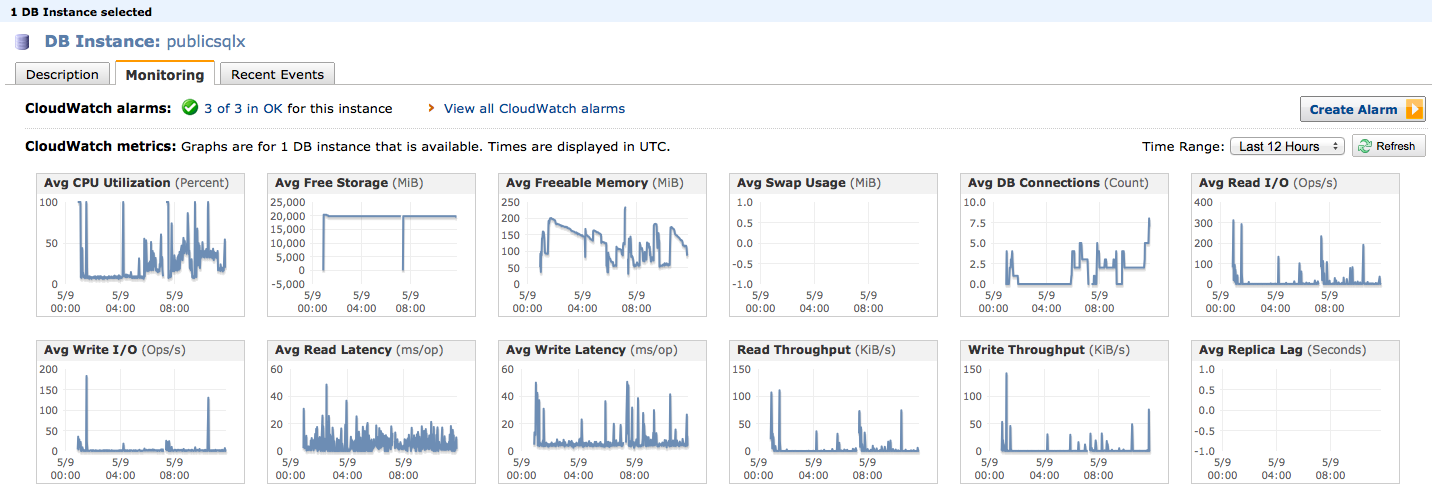
SQL Server RDS performs admirably. I ran a variety of different benchmarks against my test instances and I maxed out the CPU of the RDS instance at 42% while running around 710 transactions per section and sustaining a decent rate of throughput. The biggest bottleneck was the CPU and network connection on the clients running the benchmarking tools. Obviously, benchmarks aren’t a real measure of anything apart from the benchmark’s performance, so test your application appropriately.

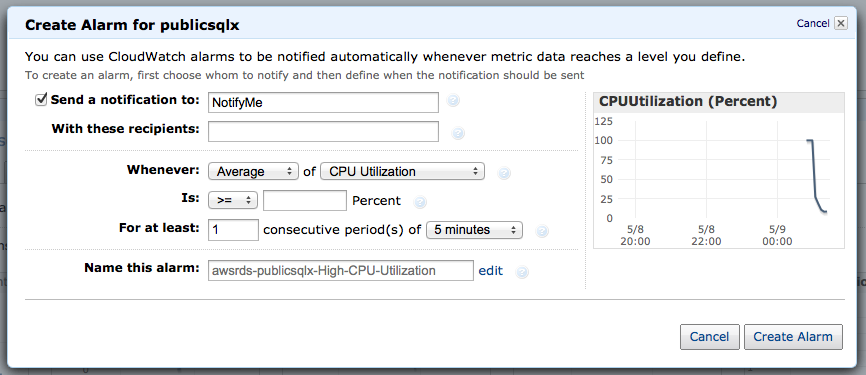
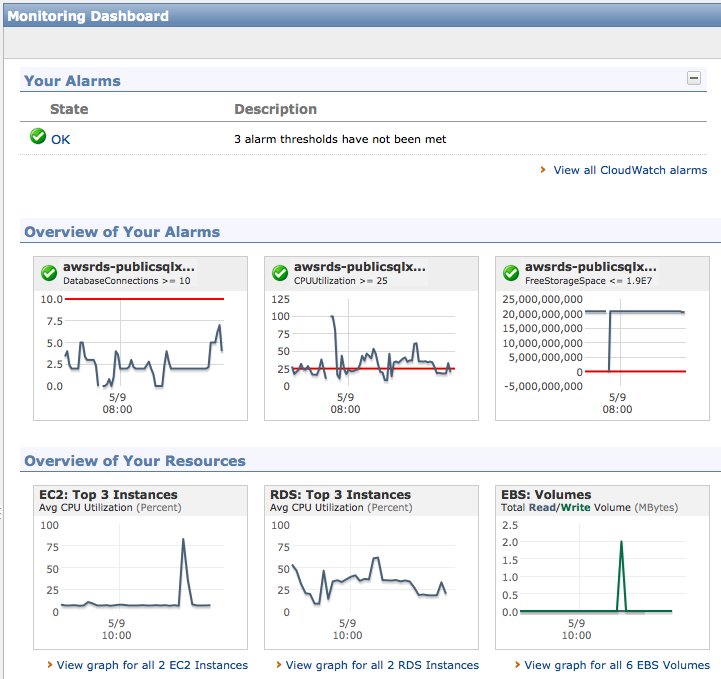
Alerting and Monitoring

Amazon haven’t forgotten about setting up alerts and monitoring. Every piece of AWS comes with instrumentation in the form of Amazon CloudWatch. CloudWatch is a set of metrics that are collected from underlying OS or application server. Even though you have no access to the underlying OS, SQL Server RDS exposes many metrics that can help you determine whether you need to move to a larger instance, monitor CPU, tune for memory, or purchase more storage. It’s even possible to stack graphs to see how two instances compare to each other.

Monitoring in the AWS Management Console

Beyond that, it’s easy to make alarms on your instances that will alert you when your instance goes beyond specific performance metrics.

Creating an Alert

Once you’ve configured your alerts, you can even see how current instance performance compares to the alerts you’ve set up. All of your alerts for all AWS services are located in the same place, so you’ll be able to see just how your entire virtual infrastructure is performing.

The AWS Alerts Dashboard

How’s RDS Different From SQL Azure?

Microsoft’s database-in-the-cloud solution has a subset of SQL Server’s capabilities. It supports less SQL Server features, less datatypes, and smaller databases. Don’t get me wrong – it’s still a solid product – but it’s half the man that SQL Server is.

Amazon SQL Server RDS is full-blown SQL Server. You don’t have to change anything whatsoever about your apps – if it runs on-premise, it likely runs in Amazon RDS. Your tools like SSMS won’t know they’re talking to anything but a regular SQL Server instance.

However, neither SQL Azure nor RDS will act as a log shipping target or a database mirror: you won’t be restoring databases directly. Both Microsoft and Amazon try to automate routine maintenance for you, but as a result, routine maintenance tasks aren’t available to you. This limitation on database restores means Amazon RDS won’t replace every SQL Server running in Amazon EC2 today.

What’s an RDS SQL Server Cost?

The Amazon RDS pricing page has tabs for MySQL, Oracle, and SQL Server, and unlike SQL Azure, it gets complicated fast. Pricing depends on:

  • The SQL Server Edition – Express, Web, Standard, or bring-your-own
  • The hardware size – from micro (630mb RAM) to quadruple-extra-large (68GB memory)
  • The storage size – from 20GB to 1TB
  • The datacenter you choose – Oregon is cheaper than Tokyo, for example
  • How much bandwidth you use

And more. To get started, a micro instance with 20GB of storage running SQL Server Express Edition is just $.035 per hour, or about $306.60 per year. A Standard Edition, quad core, 15GB memory instance is $1.22 per hour, or $10,687.20 per year, but it drops to $6,219.60 if you bring your own licensing or $6,482.40 if you use Web Edition. Reserved instances become even cheaper by the hour in exchange for a one time upfront payment. The break even point typically comes at the three month mark – after three months you were better off buying a reserved instance. That quad core 15GB instance drops down to $3206.16 per year, plus a one time payment of $5730 for a 3-year reserved instance.

Learn more about our SQL Server in Amazon cloud resources page.


Today BrentOzar.com Turns 10 Years Old

Blogging
27 Comments

Happy birthday to my first post from May 7, 2002.

BrentOzar.com circa 2001

1,782 posts and over 12,000 comments later, I feel like I’m still winging it, but it’s time to stop and think about the lessons I’ve learned over the last decade.  This web site has turned into a consulting company that supports three of us, and tomorrow we add our first full-time employee, Jes Schultz Borland.

Here’s what I’ve learned so far:

Blogging is either your passion, your hobby, your job, or your chore. Guess which blogs will succeed and which will fail. I’ll be the first to tell you that it doesn’t feel like blogging is my passion – it’s just a hobby. I know folks who are truly passionate about blogging – they spend hours a day working on their blog, SEO, analytics, promotion, you name it. I think that’s awesome, but you don’t have to be that passionate for your blog to succeed and turn into a company. It just takes longer when it’s a hobby, and it ain’t gonna happen if you see your blog as a job or a chore. That’s okay – just find a different route to success that doesn’t involve blogging.

There are periods in my life where it’s a chore.  There have been months where you’ll be simply overwhelmed with work and unable to blog, and that’s okay.  Just know that you’re going to lose momentum in the form of stockpiled posts and eager readers.

BrentOzar.com circa 2004

Use your most comfortable writing voice.  When you sit down at the keyboard, you want the words to just come pouring out.  When you first get started, just start typing.  Don’t try to mimic someone else’s writing style.

Readers want to get to know you, not just the topic.  If you want to write personality-free content, don’t bother blogging – contribute to Wikipedia.  It’s a wild, thriving community that appreciates quality contributors.

As your interests shift over time, so will your blog.  I started out shoe-gazing, then wrote about turtles, then focused on computers when I got a column in HAL-PC Magazine.  (Funny glimpses into history – in 2003, I predicted Windows Tablet would be a failure, was already writing about virtualization, and enjoyed bathroom humor.)  In my How to Start a Blog guide, I emphasize how important it is not to tie your personal site to a product or topic: don’t brand yourself as SQLWhatever.  Five years from now, when your focus changes, you’ll thank me.

The look matters, but not as much as the content.  Nobody ever forwarded a post to a friend and said, “You’ve gotta read this!  Their WordPress theme looks amazing!”  People don’t return for beauty – they return for content (although your content can be beauty, too.)  On the other hand, readers definitely do say, “I can’t read this – the theme is driving me crazy.”

BrentOzar.com circa 2006

The Underpants Gnomes were right.  Here’s how blogging works: Step 1: Collect Followers. Step 2: ? Step 3: Profit!  Step 2 isn’t impossible – it’s just unpredictable.  Check out how a few popular bloggers turned their hobbies into a living:

  • Jeff Atwood wrote CodingHorror, a killer blog for programmers, and turned his following into a fast user base for StackOverflow.com, a killer QA site for programmers.
  • Jenny Lawson wrote The Bloggess, a hilariously offensive blog, and made money off endorsements for Chipotle turned her following into a book deal.
  • Justin Halpern just tweeted – TWEETED, mind you – hilarious stuff as @ShitMyDadSays, and within 60 days he’d been mentioned on every talk show around.  He then turned his following into multiple book deals and a TV show.
  • Just in the SQL Server world alone, Aaron Bertrand, Brad McGehee, Grant Fritchey, Steve Jones, Tom LaRock, and most recently, Robert Davis have all turned their online followings into evangelist-type jobs where they’re not on call.
  • Little old me started a blog, and now we get so many requests for consulting services that it keeps three of us busy full time.

If sharing your knowledge online is a hobby (or a passion) for you, the profit will come sooner or later.

I’m even happier having partners.  Turning this blog into a company and partnering up with Jeremiah and Kendra has been incredibly fulfilling.  We all push each other to up our game by offering feedback on our work.  I know I do a better job of blogging knowing that Jeremiah and Kendra also have their skin in the game here, and I don’t want to let them down.  I love making them proud.

You, the reader, make everything worthwhile.  Sure, I get lots of comments that say “Please send me how to be a DBA fast” or “You’re stupid” but those pale in comparison to the thank-you emails I get.  I love hearing about someone who solved their problems or got a better job through what they read here.

Here’s to another ten years.