Get ChatGPT’s Advice On Your Queries with sp_BlitzCache.
31 Comments
First off, I understand if you read the headline and you have a knee-jerk reaction. I totally understand that there are a lot of people out there who hate AI, and believe me, I hate most uses of it. Lots of its advice can be misleading at best, and absolute garbage at worst.
However, if you do wanna use AI in appropriate ways – like a developer getting a second opinion about a slow query – then I’ve got something you might like. Our free query analysis tool sp_BlitzCache has a new parameter:
|
1 |
sp_BlitzCache @AI = 2; |
It adds a new AI Prompt column in the result set:

Click on that, and you get a copy/paste prompt to put into your favorite AI tool. The prompt includes query performance metrics, the query text, and the query plan, all in a copy/paste-friendly wall of plain text:

The query plan’s there if you scroll down – you can see the scroll bar at right.
That feature works on any currently supported version of SQL Server, Azure SQL DB, Amazon RDS, Google Cloud SQL, etc. It doesn’t require any special ChatGPT or JSON functionality – I’m just building a string that you can copy/paste into your LLM of choice.
It Can Even Call Your AI API For You.
If you’re one of the lucky folks on SQL Server 2025 or Azure SQL DB, buckle up, because this is where it gets wild. If you call it with @AI = 1, we’ll use the new sp_invoke_external_rest_endpoint to call ChatGPT or Google Gemini for you. Your sp_BlitzCache results will have a new ai_advice column:

Click on a row to see the advice for that query:

You can choose your AI provider and model, and right now we support OpenAI ChatGPT and Google Gemini. I’d definitely welcome pull requests to support other models.
Before You Get Started
It’s probably going to cost you some money. My documentation is going to assume that you’ve handed your credit card over to OpenAI ChatGPT or Google Gemini in order to get a paid API key. I totally understand that people are going to want to use it for free, and there are definitely ways to do it, but I’m not going to try to keep the documentation up to date on that. The free options for AI providers are constantly changing. If you want to contribute pull requests to the documentation to include notes about free plans, that’s welcome, as long as there aren’t some kind of referral codes involved.

The longer your queries are, and the larger their execution plans are, the more you’ll end up paying. I’ve had months with heavy client work where I’ve spent $300-$400 on AI – but believe me when I say during those months, AI saved me hundreds of hours of labor and enabled me to do things I wouldn’t have been able to do without hiring multiple people. I vividly remember one gig where a client had been struggling with memory starvation for months, and on the call together, we identified the query with sp_BlitzCache, then pasted the query into ChatGPT. It found the query’s problem in minutes, rewrote the query to work around the problem, and then we got started testing the changes to make sure they worked the way we needed ’em to work. (That’s the big challenge with AI right now – the hallucinations.)
If you want to point sp_BlitzCache at a free locally hosted model, like with LMStudio, that’s also left as an exercise for the reader for now. I’ll write that up at some point because I’m a big fan of that kind of thing, especially with corporate code bases. It’s just tricky to write generic beginner instructions for that because SQL Server (NOT SSMS) needs to contact the model. I know that seems counterintuitive because you think, “Oh hey, SSMS is on my laptop, and LMStudio is on my laptop, can’t they all just get along?” But remember, we’re calling sp_invoke_external_rest_endpoint on the SQL Server itself, and in many production situations, it’s unlikely that the SQL Server is going to have direct unfettered network access to phone out to LMStudio running on your laptop.
Calling an API directly requires SQL Server 2025 or Azure SQL DB because it uses the new sp_invoke_external_rest_endpoint stored procedure. Crafty people could write their own stored procedure that accepts the same parameters and outputs the same results, and name it the same thing, and then they’d be able to use it on earlier SQL Server versions. That’s left as an exercise for the reader.
Your database context will suddenly matter, because Microsoft requires you to store your AI API key in a database-scoped credential, and the master database isn’t allowed. If you want to call @AI = 1, you’ll need to be in a database where you stored your credentials. That doesn’t mean you can only analyze queries and plans from that one database – sp_BlitzCache is still server-wide. It just means you have to be in the right database when you call sp_BlitzCache.
It’s going to involve security choices and concerns in a few different ways. First, if you use a hosted model like ChatGPT or Gemini, your queries and execution plans will be going up to the cloud, and that’s how personally identifiable data gets around. Next, it’s going to involve storing your API keys as database-scoped credentials, which means if your credential password gets out, other people can run up API charges on your credit card.
Still with me? Alright, let’s set it up.
How to Set Up AI Advice in sp_BlitzCache
First, let’s do some background setup:
|
1 2 3 4 5 6 7 8 9 10 11 12 13 14 15 16 17 18 19 |
/* Run in master once to enable API calls: */ EXEC sp_configure 'external rest endpoint enabled', 1; RECONFIGURE WITH OVERRIDE; GO /* We have to put the credentials in a user database, not the master database, so use whatever DBA utility database where you might store stuff: */ USE DBAtools; GO /* Database credentials have to be encrypted, so we'll need a master key. If you already have one, open it: */ OPEN MASTER KEY DECRYPTION BY PASSWORD = 'SomeStrongPassword!123'; /* If you don't have one yet, create one, and save the password somewhere. I'm a big fan of the app 1Password. */ CREATE MASTER KEY ENCRYPTION BY PASSWORD = 'SomeStrongPassword!123'; GO |
That master key is at the entire SQL Server level. Whenever you wanna use database-scoped credentials, you’re gonna need to type that password in (or paste it from your password manager.)
Now, switch into the user database where you’ll be running sp_BlitzCache. It doesn’t have to be the same database where you create sp_BlitzCache: I like to put sp_BlitzCache in the master database so that I can call it from anywhere. However, since I have to save my API keys in a database-scoped credential, I put that in my DBAtools database. When I wanna run sp_BlitzCache with @AI enabled, I switch into the DBAtools database, so that’s where the keys go.
|
1 2 |
USE DBAtools; GO |
Next, you’ll need to create a ChatGPT API key or a Google Gemini API key, and then save the key text as a database-scoped credential. (You can’t use Github Copilot for this – they don’t allow API access.) You’ll never need to type these in again, and indeed, you probably don’t even wanna store ’em anywhere when you create them. It’s trivially easy to create additional keys in those vendor portals. You can do either one of these, or both, whichever provider you wanna use:
|
1 2 3 4 5 6 7 8 9 10 |
--DROP DATABASE SCOPED CREDENTIAL [https://api.openai.com/]; CREATE DATABASE SCOPED CREDENTIAL [https://api.openai.com/] WITH IDENTITY = 'HTTPEndpointHeaders', SECRET = '{"Authorization":"Bearer YourChatGPTKeyGoesHere"}'; GO --DROP DATABASE SCOPED CREDENTIAL [https://generativelanguage.googleapis.com/]; CREATE DATABASE SCOPED CREDENTIAL [https://generativelanguage.googleapis.com/] WITH IDENTITY = 'HTTPEndpointHeaders', SECRET = N'{"x-goog-api-key":"YourGeminiKeyGoesHere"}'; GO |
The database scoped credentials have name rules. I’mma be honest with you, dear reader, these rules suck hard:
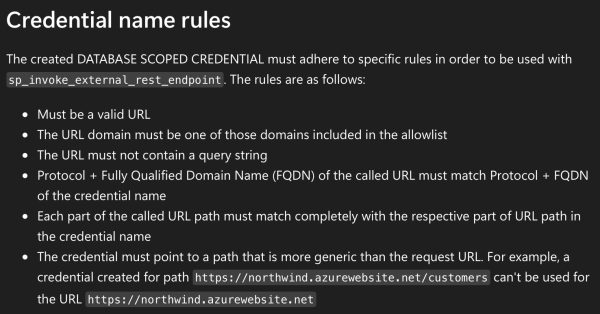
This sucks so bad because I really want different credentials for different teams. I don’t want everybody sharing the same API keys (and therefore, credit card) for all calls to ChatGPT. Because of that, you probably only wanna put your keys in your DBAtools database, and guard that database pretty heavily.
So that’s why your database-scoped credentials have to be named https://api.openai.com/ or https://generativelanguage.googleapis.com/, and can’t be “https://api.openai.com-DBA_Team” or something like that.
If you’d like to share these keys with your fellow team members, ideally you’ve already got a role already set up, and you can use that. If not, you can create a new role, add people or groups to it, and grant the role permissions to the credentials. You’ll also need to share the master key password with them so they can open the credentials.
|
1 2 3 4 5 6 7 8 9 10 11 12 13 14 15 |
/* Grant permissions for that credential to your DBA group, or developers, or whoever you want to grant it to. I'm going to create a new database role: */ CREATE ROLE [DBA_AI]; GO /* Add users to that role if necessary - you're in it already: */ ALTER ROLE [DBA_AI] ADD MEMBER [MyBestFriend]; GO /* Let the role use the credential, so only our friends can run up charges on our API key: */ GRANT REFERENCES ON DATABASE SCOPED CREDENTIAL::[https://api.openai.com/] TO [DBA_AI]; GO GRANT REFERENCES ON DATABASE SCOPED CREDENTIAL::[https://generativelanguage.googleapis.com/] TO [DBA_AI]; GO |
Test sp_BlitzCache with Your First AI Call
Here are sample calls for ChatGPT and for Gemini. The ChatGPT one is shorter because we default to ChatGPT’s 5 Nano model, and if you wanna call Gemini, we need a little more info:
|
1 2 3 4 5 6 |
/* ChatGPT */ sp_BlitzCache @Top = 1, @AI = 1 /* Gemini: */ sp_BlitzCache @Top = 1, @AI = 1, @AIModel = N'gemini-2.5-flash-lite', @AIURL = N'https://generativelanguage.googleapis.com/v1beta/models/gemini-2.5-flash-lite:generateContent' |
In both of these calls, I’m only asking for the top 1 query plan so that the results come back quickly. Even the lightest weight AI models can take 15 seconds or more depending on your query complexity. If you’ve been livin’ right, you should see an ai_advice column in your sp_BlitzCache output.
If the query fails and SSMS kicks you over to the Messages tab with a red error… read the error. Some of ’em are pretty descriptive, like if you don’t have your database scoped credentials set up or opened.
If the query succeeds but the ai_advice column shows an error, scroll across to the ai_raw_response column and read that. It usually means the AI service was successfully called, but there was a problem with your API key, account payment, or with the AI payload we assembled. I only wanna hear about the latter.
Once you’ve gotten these quick & easy versions over, you can remove the @Top = 1 parameter to process the default 10 rows instead of just 1, or call it for a particular stored procedure, plan handle, or query plan hash that you’ve been struggling with.
How AI Advice Works on Multi-Statement Queries
When the sp_BlitzCache result set has multiple rows, like if you get the most resource-intensive queries by CPU usage, the result set might have a mix of statements, multi-statement batches, functions, stored procedures, and the like. Here’s an example screenshot:

In this example, going from the top lines down:
- usp_VoteInsert – the stored proc itself has no AI advice because some of its child statements show up in the result set. You’ll want to focus on the advice on each individual statement. (In the future, I wanna consolidate all of the advice into a single “big picture” advice for the parent proc.)
- Statements (parent usp_VoteInsert) – each of these has its own unique advice. The AI has been instructed to focus its advice on just this one statement, but on lower-powered AI models, you’ll see some bleed-over advice from other statements because the query plan contains other statements in the batch.
- usp_Report2 – line 4 – this stored procedure’s child statements do not show up in the top 10. This happens when a proc has lots of lines in it which individually aren’t a big deal, but when you add them up, the cumulative effect hoists this proc up into the top 10. In this case, AI is called on to give overall advice across the entire plan with all its statements.
- usp_CommentsByUserDisplayName and usp_Q975 – the procs don’t have advice, because one of their statements is in the list below
And of course, non-proc queries (app queries, dynamic SQL, linked server queries, etc) will show up in the list too, but my particular workload here happens to be all stored procedures.
If you find the proc useful at this point in your environment, then you’ll want to keep going to enable more complex workflows.
Setting Up a Shortcuts Config Table
When you work with AI, you’ll get accustomed to calling different models at different times. Most of the time, I just want quick, cheap advice. Remember, if each API call takes 30 seconds, and you’re dealing with the default sp_BlitzCache result set with 10 rows, that would be a 5-minute runtime! Speed matters a lot here. However, sometimes I want the AI to take a lot more time, and feed it a lot less results – like just pass it a single stored procedure to analyze.
To make this easier, set up a config table with a list of AI providers, and put it in the same database where you put sp_BlitzCache. There’s no real credential in here, just the name of the credential, so there’s no security risk here.
Here’s the create table script, plus the most common 3 models for ChatGPT and Google:
|
1 2 3 4 5 6 7 8 9 10 11 12 13 14 15 16 17 18 19 20 21 22 23 24 25 26 27 28 29 30 31 32 33 34 35 36 37 38 39 40 41 42 43 44 45 46 47 48 49 50 51 52 53 54 55 56 57 58 59 60 61 62 63 64 65 66 67 68 69 70 71 72 73 74 75 |
USE master; GO DROP TABLE IF EXISTS dbo.Blitz_AI; GO CREATE TABLE dbo.Blitz_AI (Id INT IDENTITY(1,1) PRIMARY KEY CLUSTERED, Nickname NVARCHAR(100), AI_Model NVARCHAR(100) INDEX AI_Model, AI_URL NVARCHAR(500), AI_Database_Scoped_Credential_Name NVARCHAR(500), AI_System_Prompt_Override NVARCHAR(4000), AI_Parameters NVARCHAR(4000), Payload_Template_Override NVARCHAR(4000), Timeout_Seconds TINYINT, Context INT, DefaultModel BIT DEFAULT 0); /* This is the default model we use in sp_BlitzCache as of 2025-11. You don't have to insert this model - it's already defined in code, but I'm showing it here as an example. */ INSERT INTO dbo.Blitz_AI (Nickname, AI_Model, AI_URL, AI_Database_Scoped_Credential_Name, DefaultModel, Timeout_Seconds) SELECT N'small', N'gpt-5-nano', N'https://api.openai.com/v1/chat/completions', N'https://api.openai.com/', 1, 30; /* Add a newer one as a default: */ INSERT INTO dbo.Blitz_AI (Nickname, AI_Model, AI_URL, AI_Database_Scoped_Credential_Name, DefaultModel, Timeout_Seconds) SELECT N'medium', N'gpt-5-mini', N'https://api.openai.com/v1/chat/completions', N'https://api.openai.com/', 0, 230; /* Add the latest and greatest, but with a long timeout because it takes a while: */ INSERT INTO dbo.Blitz_AI (Nickname, AI_Model, AI_URL, AI_Database_Scoped_Credential_Name, DefaultModel, Timeout_Seconds) SELECT N'large', N'gpt-5.1', N'https://api.openai.com/v1/chat/completions', N'https://api.openai.com/', 0, 230; /* Google Gemini requires a different input payload format: */ INSERT INTO dbo.Blitz_AI (Nickname, AI_Model, AI_URL, AI_Database_Scoped_Credential_Name, DefaultModel, Timeout_Seconds, Payload_Template_Override) SELECT N'google small', N'gemini-2.5-flash-lite', N'https://generativelanguage.googleapis.com/v1beta/models/gemini-2.5-flash-lite:generateContent', N'https://generativelanguage.googleapis.com/', 0, 30, N'{ "contents": [ { "parts": [ {"text": "@AISystemPrompt @CurrentAIPrompt"} ] } ] }'; INSERT INTO dbo.Blitz_AI (Nickname, AI_Model, AI_URL, AI_Database_Scoped_Credential_Name, DefaultModel, Timeout_Seconds, Payload_Template_Override) SELECT N'google medium', N'gemini-2.5-flash', N'https://generativelanguage.googleapis.com/v1beta/models/gemini-2.5-flash:generateContent', N'https://generativelanguage.googleapis.com/', 0, 230, N'{ "contents": [ { "parts": [ {"text": "@AISystemPrompt @CurrentAIPrompt"} ] } ] }'; INSERT INTO dbo.Blitz_AI (Nickname, AI_Model, AI_URL, AI_Database_Scoped_Credential_Name, DefaultModel, Timeout_Seconds, Payload_Template_Override) SELECT N'google large', N'gemini-3-pro-preview', N'https://generativelanguage.googleapis.com/v1beta/models/gemini-3-pro-preview:generateContent', N'https://generativelanguage.googleapis.com/', 0, 230, N'{ "contents": [ { "parts": [ {"text": "@AISystemPrompt @CurrentAIPrompt"} ] } ] }'; |
The results:

So now, you can switch back end providers a little easier, like this:
|
1 2 3 4 5 6 7 8 9 10 11 |
/* Use the default setup from the config table: */ sp_BlitzCache @Top = 1, @AI = 1, @AIConfig = 'master.dbo.Blitz_AI' /* Call a provider by name: */ sp_BlitzCache @Top = 1, @AI = 1, @AIConfig = 'master.dbo.Blitz_AI', @AIModel = 'gpt-5.1' /* Or by nickname */ sp_BlitzCache @Top = 1, @AI = 1, @AIConfig = 'master.dbo.Blitz_AI', @AIModel = 'small' /* And switch AI providers altogether: */ sp_BlitzCache @Top = 1, @AI = 1, @AIConfig = 'master.dbo.Blitz_AI', @AIModel = 'google large' |
In the examples so far, I’ve just been saying @Top = 1 to get you started calling the API quickly, but in real life usage, you’ll likely be using parameters like these:
- @StoredProcName = ‘usp_MyProc’
- @OnlyQueryHashes = ‘…’
- @OnlySqlHandles = ‘…’
- @DatabaseName = ‘MySlowDB’
- @SortOrder = cpu, reads, writes, duration, spills, etc
- @MinutesBack = 60 – only show me queries that have run in the last 60 minutes
And so forth.
Power User Tips for the Config Table
Set DefaultModel = 1 for the row you want to use by default. sp_BlitzCache’s built-in default is gpt-5-nano, but you can override that with the config table. It’ll only pull the first row with DefaultModel = 1, sorted by Id.
Picking a default model is a balancing act between how much money you want to spend, how long you’re willing to wait for the advice to return, and the quality of advice you’re looking for. Generally speaking, the more you pay and the longer it takes, the better advice you’ll get. I wouldn’t use the AI parameters when I’m normally calling sp_BlitzCache to get an idea of the top resource-intensive queries! I would only use the AI parameters when I’m tuning a specific query, like a stored procedure or statement that I’ve narrowed down by its name, plan handle, or query plan hash. And at that point, when I’m tuning just one query, I’m fine with the analysis taking 3-4 minutes – because at the same time I’m asking AI for advice, I’m also reviewing the plan and query manually.
If there’s one thing I’ve learned about AI, it’s that the quality of the advice you get is directly proportional to the amount of work you put into writing the prompt. I’mma be honest with you, dear reader, the default prompt I’ve got in there right now isn’t my best work, but I’m using it as a starting point because it works well across a lot of AI models.
Right now, the default system prompt is:
You are a very senior database developer working with Microsoft SQL Server and Azure SQL DB. You focus on real-world, actionable advice that will make a big difference, quickly. You value everyone’s time, and while you are friendly and courteous, you do not waste time with pleasantries or emoji because you work in a fast-paced corporate environment.
You have a query that isn”t performing to end user expectations. You have been tasked with making serious improvements to it, quickly. You are not allowed to change server-level settings or make frivolous suggestions like updating statistics. Instead, you need to focus on query changes or index changes.
Do not offer followup options: the customer can only contact you once, so include all necessary information, tasks, and scripts in your initial reply. Render your output in Markdown, as it will be shown in plain text to the customer.
When I work with AI, I like to have a lot of different prompts at my fingertips, so I designed sp_BlitzCache’s config table to be able to switch personalities easily using the AI_System_Prompt_Override column. I did this on a per-provider basis because I like to have several different personalities, even for the same AI provider. I have personalities for:
- Index tuning only – as in, here’s the query, but you’re not allowed to change it, you’re only allowed to make index recommendations
- Query tuning only – no changes allowed to indexes, stats, database-level or server-level settings, etc.
- Both allowed
- Code review only – for when we’re not really concerned about performance, but we wanna know if there are any bad T-SQL smells in here
- Reduce blocking and deadlocking – for when I’m specifically facing those problems with a query
- Refactoring – when I’d like help rewriting a multi-step query or row-by-row query into a more efficient process
So that way, I can do stuff like this:
|
1 2 3 4 5 |
sp_BlitzCache @StoredProcName = 'MyNewProc', @AIModel = 'code review', @AI = 1, @AIConfig = 'master.dbo.Blitz_AI'; sp_BlitzCache @StoredProcName = 'MyNewProc', @AIModel = 'query tuning', @AI = 1, @AIConfig = 'master.dbo.Blitz_AI'; |
I know you’re gonna be excited about that and you’ll be eager to grab those prompts, but hold that thought for now. Today’s announcement is about helping you get the sp_BlitzCache-calling-AI plumbing up and running so that you can test it and give feedback on that. We’ll talk through fancier system prompts in subsequent blog posts.
If You’d Like to Read the Code
In the sp_BlitzCache script itself, do a search for “Artificial Intelligence”.
sp_BlitzCache’s interim results are stored in the global temp table ##BlitzCacheProcs, and there’s a spid column to denote which set of queries you’re working with, since multiple people can call sp_BlitzCache simultaneously.
The first thing that happens is an update statement to update all of your ##BlitzCacheProcs rows to populate the ai_prompt column with the query’s metrics, query text (from the plan cache), and query plan. (At some point in the future, I’d like to pull the full unabridged query text for stored procs & functions from their definitions, but I’m not doing that today.)
Then if @AI = 1, we set up a cursor to loop through your ##BlitzCacheProcs rows, call sp_invoke_external_rest_endpoint for each one, parse the results, and then update the global temp table’s columns for:
- ai_advice – the parsed results from your LLM
- ai_payload – the data we sent your LLM, for diagnostic purposes
- ai_raw_results – the raw data we got back, again for diagnostics and debugging
If you’d like to contribute code to handle other LLM prompt & result formats (like Anthropic Claude, Z.ai, OpenRouter, etc), I’d love a pull request for it. I do wish we could support Github Copilot, but they don’t allow direct API access to their chat/response completion models. They have a REST API, but it’s only for monitoring and managing Copilot. There are hacky workarounds, but I don’t wanna deal with supporting those, especially given that Github will be actively trying to hunt down and stop those workarounds.
If you want to contribute code, I just have to set expectations that I can’t do collaborative real time discussions – I’m usually working with clients or on the road. Folks who want to bang on it, can, though, and submit pull requests.
When You Have Questions or Feedback
If you’re getting an error, post a message in the #FirstResponderKit Slack channel or start a Github issue. If it’s your first time in the community Slack, get started here. Your message or Github issue should include:
- The exact query you’re running – copy/pasted straight out of SSMS, no changes please
- If the query succeeds and you get an AI response, copy/paste the contents of the ai_raw_response column – just the rows having problems is fine
- The output from the Messages tab in SSMS – copy/paste out of there, but feel free to sanitize stuff out of there like your company queries
- Then try running it again with the @Debug = 2 parameter, and copy/paste the Messages results again, with your company’s stuff sanitized out
If you can’t include the exact query you’re running and the out put of the Messages tab, do not post a message. I need that stuff to do troubleshooting, period, full stop.
Please don’t email me errors directly. I’ve learned over time that when there’s a problem, I’ll get 100 emails saying the same thing, but if we work together through Slack, I can leave messages in there telling people what’s a known issue and what’s fixed, and that makes my life way easier.
Finally, I Just Wanna Say Thank You.
 Readers like you are what make it possible for me to spend so much time giving back to the community, building tools like this and giving ’em away for free.
When you buy my classes & apps, you’re not only paying for your own training, but you’re effectively sponsoring my work. YOU are the ones who make it possible for me to dedicate the time to publish 3 blog posts a week, maintain the First Responder Kit, give away free training classes, and record my Office Hours videos. You’re the ones who make me confident enough to say, “Hell yeah, I’ll put more time into sp_BlitzCache and share my killer AI prompts for free, because these people make my lifestyle possible. And in 2026, I’ll add AI advice into sp_BlitzIndex, too.”
Thank you, dear reader. Here’s to a great 2026, and using AI to not just keep our jobs safe, but make us even more successful in the new year.





 SQL Server 2025 and .NET 10 bring several new improvements to storing JSON natively in the database and querying it quickly.





 You’re jaded. You’re confident. You’re pretty sure you know what you’re doing. You’ve never taken my Mastering classes because you’ve been reading my blogs and watching my live streams, and you think you’ve put the pieces together yourself. You can’t imagine there’s anything left for you to learn, any surprises left in the box.