Blog

SQLBits Attendees: Here Are Your Prerequisites for Mastering Index Tuning.

Indexing
6 Comments

Howdy folks. It’s time for SQLBits!

This year, I’m teaching a one-day Mastering Index Tuning workshop from 9AM-5PM London time, and you can join in online. Pricing is £300 for the one-day workshop, or £800 for a full conference pass. You can register here.

Once you’re registered, here’s what you need to do:

What’s that, you say? You can’t buy my Fundamentals class because you’re in the EU, and we have that whole pesky GDPR problem? Okay, here’s what we’ll do: I’ve opened that class up for free until SQLBits. Go watch now, no registration required.

See you in the workshop!

SQL ConstantCare® Population Report: Summer 2020

Ever wonder how fast people are adopting new versions of SQL Server, or what’s “normal” out there for SQL Server adoption rates, hardware sizes, or numbers of databases? Let’s find out in the summer 2020 version of our SQL ConstantCare® population report.

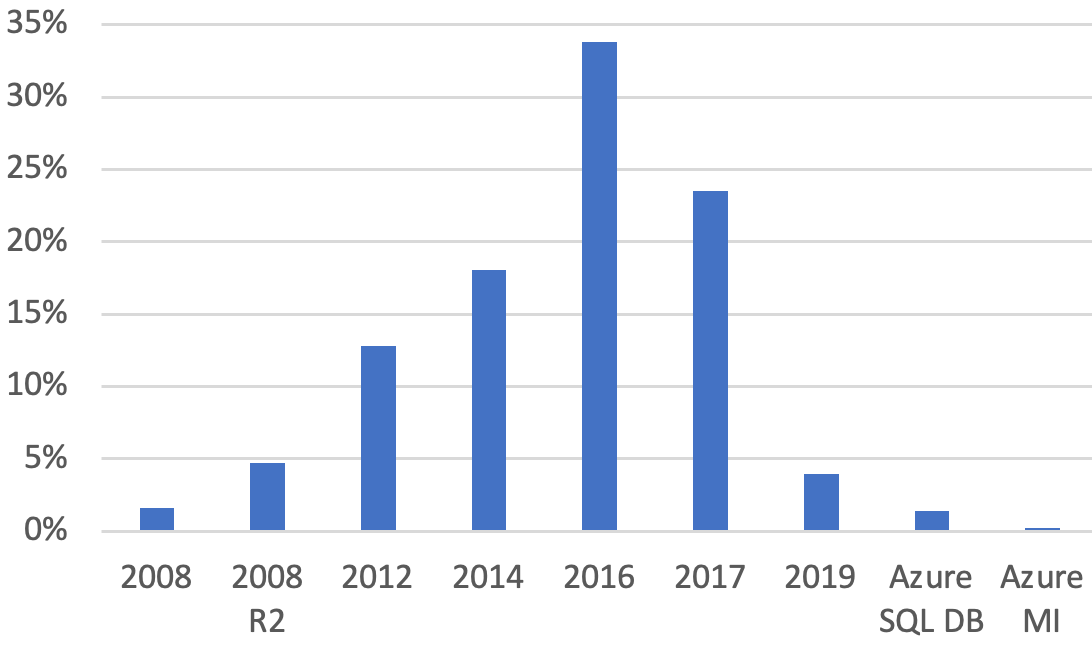
The most popular version of SQL Server is 2016. The combination of 2014, 2016, and 2017 make up 75% of market share right now:

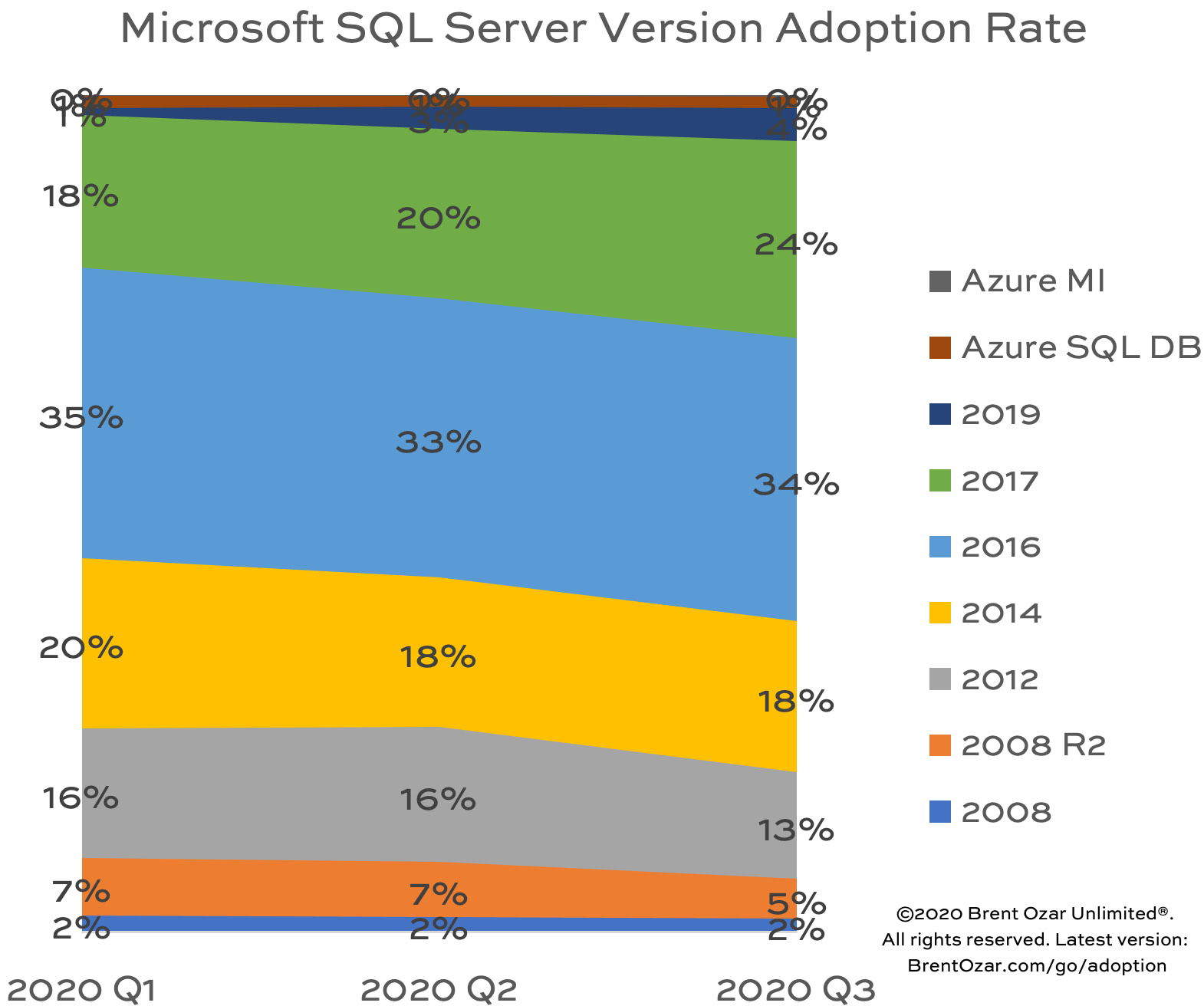
But companies are gradually adopting newer versions and replacing their older servers. Here’s how market share changed over the last 6 months:

SQL Server Version Adoption Rate

This quarter, shops continued to gradually replace their older versions:

  • SQL Server 2019: 4% of the market, up from 1% 6 months ago
  • SQL Server 2017: 24% of the market, up from 18% from 6 months ago
  • SQL Server 2016: fairly static at 34%
  • SQL Server 2014, 2012, and 2008R2 all declined at the expense of 2017 & 2019
  • Azure SQL DB and Managed Instances didn’t make any headway, still at 1% of the total population

My thoughts:

  • SQL Server 2016 is still the juggernaut, with 1 in 3 instances overall.
  • SQL Server 2019 still has less market adoption than SQL Server 2008R2.

So why is Azure SQL DB making so little headway here?

In this data, Azure SQL DB & MI still have less market adoption than SQL Server 2008, a 12-year-old and wildly unsupported version, let alone 2008R2.

SQL ConstantCareI’ll be the first to point out that there’s a natural bias in the source of the data. Our SQL ConstantCare® service lets users send data in about their databases and get health & performance advice via email. SQL ConstantCare® isn’t a full picture of the SQL Server ecosystem: it’s marketed to you, my readers, and specifically the subset of readers who want an inexpensive second opinion about their database performance & health. Conceivably, people running in Azure SQL DB don’t need a second opinion about their database’s health: the patching, uptime, and backups are all handled by Microsoft, and you can’t get much better than that.

However, Azure SQL DB performance – just like any database’s performance – is still a real problem, and I know that from the consulting side of the business. You can scale a long way just by throwing money at it, but eventually your wallet starts to buckle, and you need to fix the queries and/or the indexes.

If I’m wrong – and I certainly could be, I just don’t know – Microsoft could fix this perception by publishing adoption data. SQL Server phones home by default, so they could easily publish adoption rates for different versions. (If they just published download numbers, that wouldn’t really mean anything – lots of folks download stuff they never use.) The fact that they don’t publish metrics makes me suspect that my report’s numbers do give a rough idea of the wider population: 2016 is the big behemoth right now, and the adoption rates for 2019 and Azure SQL DB just don’t hold a candle to it.

I still think platform-as-a-service databases like Azure SQL DB and AWS Aurora are the future king of the market – but just emphasis on future. And at this adoption rate, the future is still at least 5-10 years away.

I’ll ask you, dear reader: why aren’t you migrating to Azure SQL DB?


Watch Brent Tune Queries at SQLSaturday Oslo

Execution Plans, Videos
8 Comments

This morning, I had the honor of presenting virtually at SQLSaturday Oslo. The session title, Watch Brent Tune Queries, explains it all. Enjoy!

In the session, I used the 2018-06 Stack Overflow database, but any recent full-sized copy (not the 2010-2013 copies) will work. Here’s the query I worked with:

And for more sessions like this, check out the Watch Brent Tune Queries series page.


3 Ways to Run DBCC CHECKDB Faster

In my last post, I talked about how you can get 43%-67% faster backups. Today, I’m using that same SQL Server setup to discuss how throwing more CPU cores might help you check for corruption faster if you’ve already got modern fast storage. I don’t expect everyone to go to this level of detail by any means, but it’s the kind of tuning you can do when you’re facing multiple terabytes of production data per server and shrinking maintenance windows.

You need to check for corruption regularly because SQL Server isn’t doing it for you (although I’ve asked Microsoft to do that, and you can vote for it.) All kinds of things can cause corruption: storage issues, storage networking issues, and even SQL Server bugs like this or this or this or this or this.

However, folks are often hesitant to run DBCC CHECKDB because it has a reputation for being resource-intensive. Good news, though: there are a few easy ways to influence CHECKDB’s impact.

Performance tweak #1:
run it across more cores.

In Standard Edition, CHECKDB is single-threaded. That’s because you don’t need fast corruption checking in Standard Edition because it doesn’t have any corruption bugs at all. Nope, none whatsoever. Those of you on Standard Edition can just ignore this tweak and move right on to the next one.

Enterprise Edition has parallel corruption checking because it’s so much more vulnerable to corruption bugs (is that right? that must be what it is – surely it can’t be a money grab) and since SQL Server 2016, CHECKDB has accepted a MAXDOP parameter that lets you set the number of CPU cores involved. You can also hint it upwards, higher than the server-level MAXDOP, so that it can use more threads even on servers hosting single-threaded apps.

The more you use, the more you save, but the story here is a little trickier than the multi-file backup post. Here, I not only examined CHECKDB’s runtime, but also the amount of wait time generated by the command, and the wait time ratio. Wait time ratio means for every minute on the clock, how many minutes did SQL Server spend waiting? The higher that number goes, the uglier your performance is.

MAXDOP Minutes Wait Time, Minutes Wait Time Ratio
1 53 4 0
2 37 121 3
4 26 155 6
8 18 212 12
12 14 234 16
16 14 332 23
24 12 354 30
32 11 462 41
48 9 494 56
56 8 564 65
64 7 579 75
72 13 1,052 79
80 17 1,409 84
96 19 1,879 99

Keep in mind that this particular SQL Server has 48 physical cores, 96 with hyperthreading turned on.

At MAXDOP 64, we’re checking 56GB of data per minute, and:

  • CHECKDB runs 86% faster than when it’s single-threaded
  • 59% faster than MAXDOP 8 (which is what a lot of folks would be at if they set server-level MAXDOP here)
  • 48% faster than MAXDOP 16
  • Wait time ratio is 75, meaning for every minute on the clock, we’re generating 75 minutes of wait time, most of which is CXPACKET and CXCONSUMER
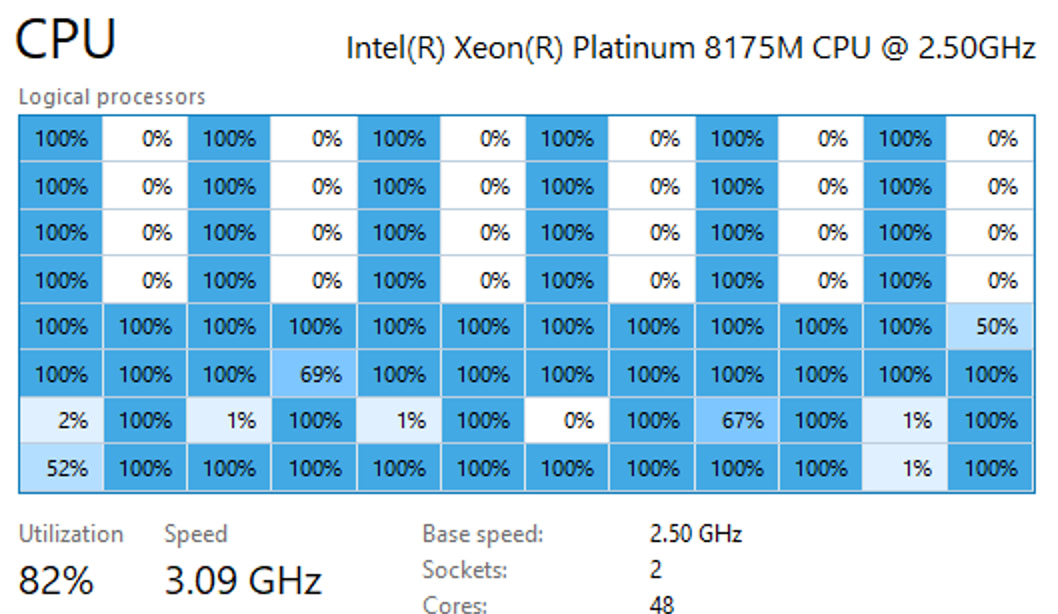
  • The 64 CPU cores involved stick at 100% for most of the duration (thanks to our awesome hardware provisioning)

I’m certainly not saying MAXDOP 64 makes the most sense for all hardware, but in this scenario, it would let us keep the maintenance window as short as possible, assuming we have 7-10 minutes each night where we can sustain heavy loads.

MAXDOP 96 runs slower, not faster, and the CPU usage makes the box feel pretty unusable:

Performance tweak #2:
check for less (or more) corruption problems.

By default, CHECKDB checks for the most common issues, but you can make it go way faster if you just ask it to check the checksums on each page. This doesn’t catch logical issues, like corrupt statistics, but it at least gets you the earliest warning signs of storage corruption.

To do this, use the WITH PHYSICAL_ONLY switch – which doesn’t do nearly as much CPU work, so we also see different performance results here:

MAXDOP Minutes Wait Time, Minutes Wait Time Ratio
1 17 1 0
2 12 35 3
4 8 41 5
8 6 47 8
12 5 61 12
16 5 74 15
24 5 113 24

For this particular server, as I threw more cores at it, the only things that went up were my parallelism waits. The sweet spot here was around 8-12 cores.

But this leads to an interesting comparison:

  • PHYSICAL_ONLY with 12 cores: takes 5 minutes, only checks page checksums
  • FULL CHECKDB with 64 cores: takes 7 minutes, checks everything

On this particular server, as long as I’m running Expensive Edition, I just don’t think it would make sense to use the PHYSICAL_ONLY setting because as long as I’m taking a 7-minute slowdown, if I’ve got the CPU cores available (and they’re not working otherwise), then might as well just check everything. If this was truly a 24/7 environment where I couldn’t handle a 7-minute slowdown, then…I’m probably offloading CHECKDB to another AG replica anyway, especially given the wonderful 2019 licensing changes that make it free.

Furthermore, I might even want to use the EXTENDED_LOGICAL_CHECKS parameter. It catches even more corruption culprits, albeit at the cost of higher runtimes:

MAXDOP Minutes Wait Time, Minutes Wait Time Ratio
1 53 4 0
2 40 130 3
4 29 175 6
8 17 198 11
12 16 292 17
16 14 321 22
24 10 327 31
48 9 492 57
56 11 731 60
64 15 1,047 69
96 19 1,880 99

It’s interesting to note that the CPU sweet spot for this particular box was 64 cores for the regular CHECKDB, but around 24 cores for EXTENDED_LOGICAL_CHECKS, producing the nicest balance between short runtimes and an overloaded, unresponsive server. (I’m abbreviating some of the results here.) That sweet spot is going to depend on not just your hardware, but also the contents of your database and which SQL Server features you’re using, which brings me to…

Performance tweak #3:
make your database smaller.

The number of tables you have AND the number of indexes on ’em both affect CHECKDB’s speed. All of the tests above involved the 390GB 2020-06 Stack Overflow database, which ships with no nonclustered indexes whatsoever.

To make the database more complex, I added:

  • 80 3-column indexes
  • 2 indexed views
  • 2 nonclustered columnstore indexes
  • Bringing the database from 390GB to 560GB (up about 44%)

And then ran a few of the tests again:

  • Physical_only, 16 cores: 7.2 minutes – up ~60% from 4.5 minutes, bigger than the 44% database size growth, but I wouldn’t read too much into one-off tests – I wouldn’t use these results to say definitively that physical_only performance doesn’t scale linearly with database size.
  • Regular CHECKDB, 64 cores: 30.4 minutes – up dramatically from 7.5 minutes with no indexes, and wait time ratio remained around 75, so the server was really hustling the whole time.
  • Extended logical checks, 64 cores: 35.3 minutes – up from 14.9 minutes, but the extended checks runtime penalty (compared to regular CHECKDB at 30.4 minutes) wasn’t as big here as it was for the test with no nonclustered indexes at all. This lines up with what I see out in the field: extended logical checks aren’t that big of a deal on real-life databases with indexes, and they’re totally worth it if you’re taking the gamble on indexed views.

These timings are why it often makes sense to run CHECKDB with the PHYSICAL_ONLY switch during the week in order to get that blazing fast runtime with hardly any CPU usage, and then upgrade to the resource-intensive full CHECKDB with EXTENDED_LOGICAL_CHECKS on the weekend, throwing lots of CPU cores at it to get the work over as quickly as possible.

Didn’t know about this? You might have missed out on some of the other things we talk about in our Fundamentals of Database Administration class.


Back Up SQL Server 43%-67% Faster by Writing to Multiple Files.

Backup and Recovery
38 Comments

Even if you’re not writing to different physical drives, you can get faster backups with Microsoft SQL Server when you back up to multiple files. Your exact numbers are going to vary based on your server and your utter inability to rub two sticks together to make fire, but let’s see how I do.

Here’s the hardware I’m using:

The i3en.metal has 8 7.5TB NVMe SSDs. The Stack Overflow database ships on 4 data files and 1 log file, so I’m putting each of the data files on a separate NVMe SSD. That means the database in this post probably isn’t configured exactly the same as yours, but the results are still relevant. I’ve seen similar performance gains for larger databases that have just one data file in ’em.

During the tests, I use between 1 and 4 backup files, and in each test, I explain whether all of the backup files are on the same drive, or a different one – but in all cases, they’re in different drives from the data & log files.

Each of the NVMe drives are pretty quick by themselves:

CrystalDiskMark

I wanted to use this monstrously big hardware (especially relative to the database size) to illustrate that we’re not talking about hardware limitations here. Even if you’re on big metal, multiple backup files can help. Also, all of these tests use backup compression turned on, and I wanted to remove any hint of a CPU bottleneck.

You, dear reader, are going to ask all kinds of “but what about” questions. My role here is not to do your own backup testing for you: my role is to inspire you to do your own testing in your own environment so you can find the right answers to your own questions.

Test round 1:
Backing up to multiple files on one volume

In this test, the backup files were on one of the local NVMe SSDs, but not the same volume that the database’s data & log files lived on.

  • 1 backup file: 9.1 minutes
  • 2 backup files: 7.9 minutes (13% faster)
  • 4 backup files: 5.1 minutes (43% faster)
  • 8 backup files: 6.2 minutes (32% faster)

This isn’t meant to be a definitive, “Always use 4 backup files” kind of post, but just a starting point as to how much quicker your backups can get with this one easy change. As with all of the metrics in this post, the idea is to get you started on the road of testing your backups for quick wins on large servers.

Test round 2:
Backing up to files on different volumes

In this round, each backup file was on its own local NVMe SSD – until we got to 8 files, since I’ve only got 4 extra NVMe drives on the i3en.metal:

  • 1 backup file: 9.1 minutes
  • 2 files, 2 volumes: 6.9 minutes (24% faster)
  • 4 files, 4 volumes: 4.3 minutes (53% faster)
  • 8 files, 4 volumes: 3.0 minutes (67% faster)

Spreading the load over different backup volumes gave me double the speed improvements that I got when writing to a single volume. In this impractical example, I’m using local NVMe, and your server probably isn’t going to have that. However, you can get similar results by writing your backup files to different storage targets that have their own individual throughput that isn’t collectively throttled.

In the prairie days when your grandmother backed up her SQL Server, she hesitated to write her backups over the network because her network consisted of two tin cans connected with string. Today, thanks to the simple ec2instances.info, you can see the network bandwidth available to your instance type, and it ain’t no string:

Nice cans

This is why I love the i3 series: tons of local solid state, plus great network throughput. The network bandwidth alone isn’t enough, of course: you also have to provision fast storage targets on the other side if you need to back up a multi-terabyte backup. Some shops use i3en servers as staging area file servers – landing their backups there to get ’em written quickly, and then migrating the backups to more cost-effective and redundant storage for the longer term. (There are more cost-effective instance types if your backup needs are smaller, of course.)

Test round 3:
Backing up to NUL:

When you’re doing backup speed testing, you can back up to DISK=’NUL:’ and SQL Server doesn’t actually write the backup file to disk – it just discards the data. This helps measure how fast SQL Server’s backup processes can read the data from disk and compress it on this particular server.

  • 1 NUL file: 9.4 minutes
  • 2 NUL files: 6.8 minutes (28% faster)
  • 4 NUL files: 4.3 minutes (54% faster)
  • 8 NUL files: 2.9 minutes  (70% faster)

The numbers here are useful in comparison to test 2’s numbers: when writing to very fast backup volumes, you can actually approach the speed of simply discarding the data! In the 8-file example, if I just throw the data away by backing up to NUL, I finished in 2.9 minutes. Actually writing the data out to local NVMe SSDs got me there in 3.0 minutes. I’ll take it.

This is performance testing,
not configuration advice.

When your databases are just 50-250GB, and when your company is only active 9AM-5PM, this kind of thing doesn’t matter much. As your databases grow, and as your company demands constant uptime with short recovery times, this stuff matters a lot. It’s awesome that with just a little effort, you can dig in and start optimizing your backups for quicker recovery and less impact to your end users.

To start your own backup tuning project, check out Nic Cain’s automated backup tuning scripts. He automates the process of running dozens of backups with different settings – way more than just file count – in order to find the combination of parameters that works best given your database contents, where your data & log files live, and where you want your backups to be written.

In shops with ambitious RPO/RTO goals, you can use this same level of tuning for your restores, too. I wrote about that in my Choosing and Testing a Cloud Vendor post when I helped a company analyze the best VM architecture for their SaaS hosting needs.

Didn’t know about this? You might have missed out on some of the other things we talk about in our Fundamentals of Database Administration class.


Updated Fundamentals of Database Administration Class: Just $39

You’re a systems administrator or developer who’s been stuck in charge of the SQL Server. You have a couple of production SQL Servers, no high availability or disaster recovery, and around 100GB of data or less on each server.

You’ve never been to a “real” SQL Server training class, and you’ve been Googling your way through problems alright, but you’re starting to realize that this SQL Server thing is kinda complicated.

Let’s get you up to speed, quickly, with the most important things to learn before they catch you by surprise and ruin your day. No theory here, only the real deal production stuff, pronto.

You’ll learn:

  • How to configure your backups
  • How data gets corrupted, and how to detect corruption before your users do
  • How to apply patches (and which ones to apply)
  • How to configure a new SQL Server
  • How to use Agent jobs, and why you should probably push back when your users ask for one

This class is opinionated. I’m not reading you the documentation out loud: I’m telling you the things that have burned me over the years, just like a senior database administrator taking you under their wing.

This is a recorded class, and you can start streaming the recordings as soon as you check out. Recorded Class Season Pass and Live Class Season Pass holders can start watching it right away, too.

The class is normally $89, but to celebrate the relaunch, it’s just $39 this month. Enjoy!


Half Of You Don’t Understand Variables and Transactions.

T-SQL
32 Comments

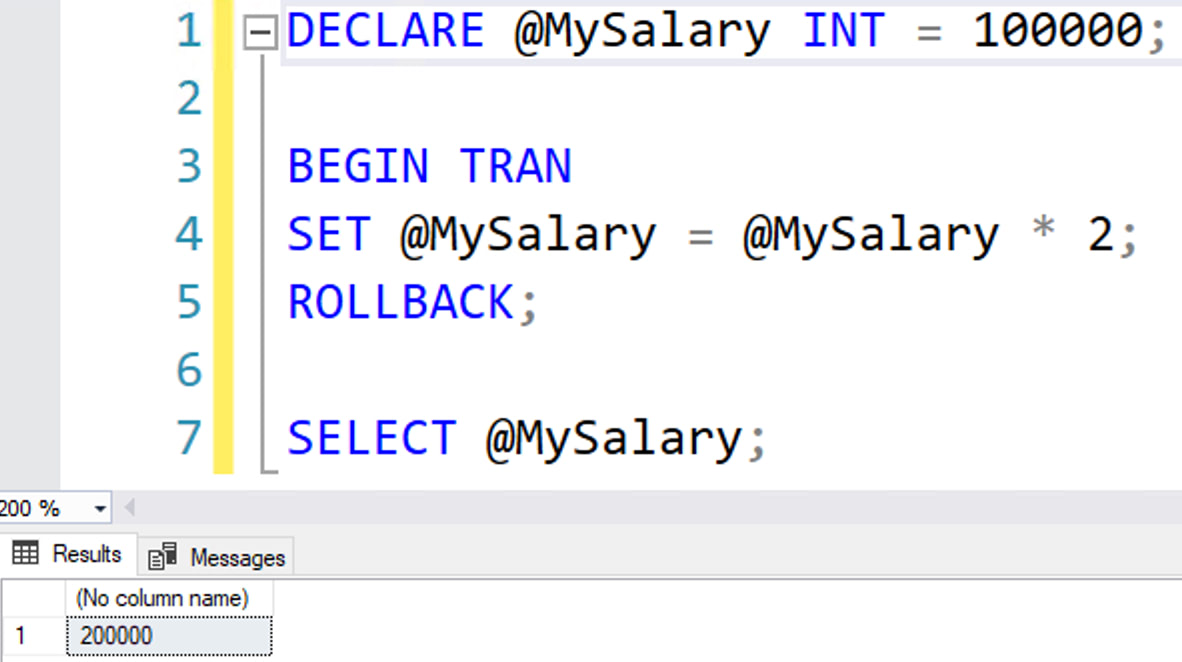
Do table variables and variables respect transactions? If I set the value of a variable during a transaction, and I roll it back, what happens?

I polled y’all on Twitter:

Cory Booker is concerned about your transactions

I can’t bring myself to make a joke about the popular vote, so let’s move on and just point out that the correct answer is 200,000.

What about table variables?

When I run this query, how many rows will the SELECT return?

I polled y’all on Twitter, and here were the results:

Even less of you knew that the correct answer is 3 rows:

Variables ignore transactions.

I can understand why so many of y’all don’t know because none of this is on the variables documentation page. I’m kidding, of course. We both know you don’t read the documentation, either.

This is why I teach training classes. You should probably take one.


sp_Blitz Pro Tips for Managing Multiple Servers Centrally

sp_Blitz
15 Comments

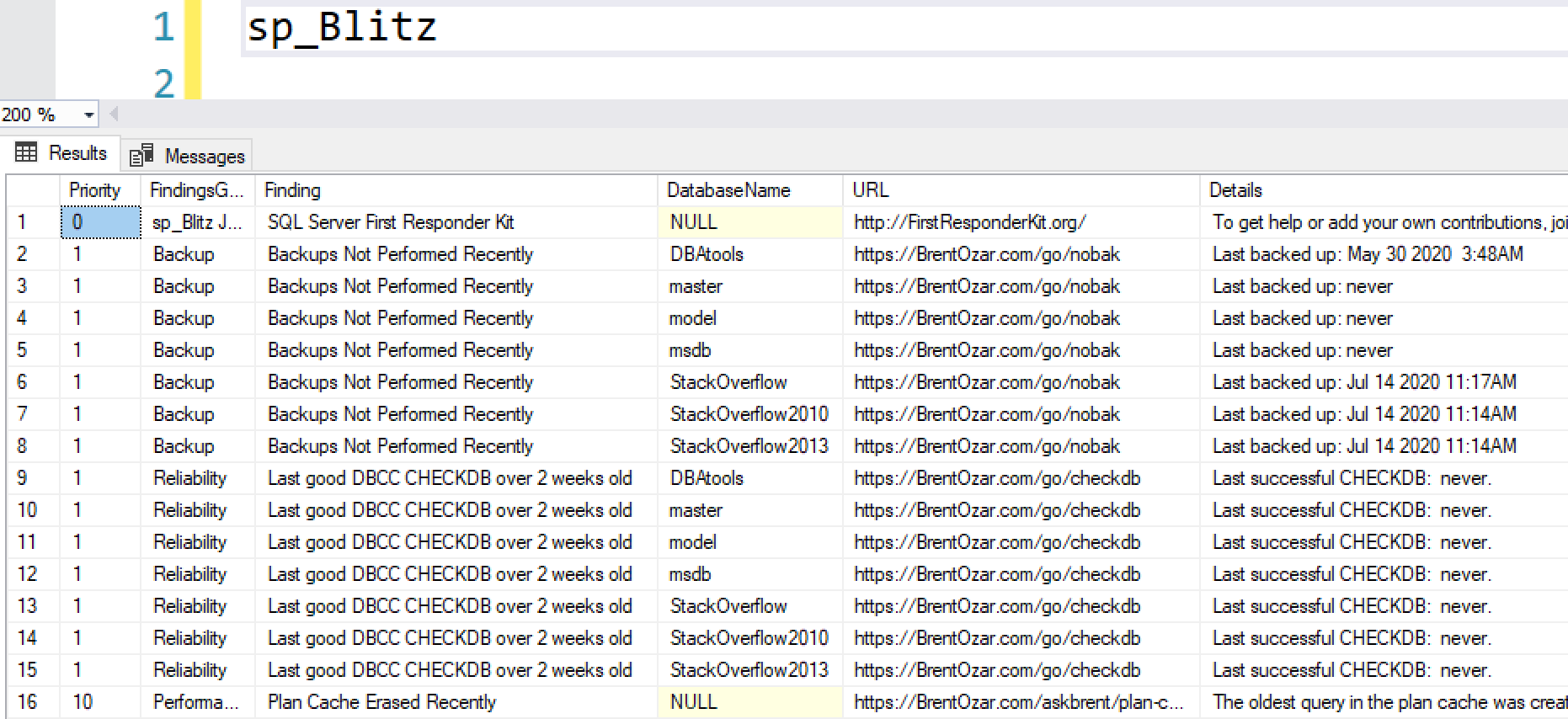
sp_Blitz is a free health check script that gives you a prioritized list of things to fix on your SQL Server. Here’s what the output looks like:

Most of the time, you’ll want to work through the warnings in the order that they show up in the results, in priority order.

How to Skip Checks Across Your Estate

But sometimes, there are checks or databases that you want to skip. For example, say this server that we’re working with here is an Availability Group primary, but I’ve chosen to offload my backups to the AG secondary. Since sp_Blitz can’t necessarily connect to all your AG replicas and figure out where you’re doing your backups, you may want to skip the backup checks on this server.

To do that, create a table to hold the list of checks you want to skip, and put rows into it:

The CheckID column refers to the list of sp_Blitz checks by priority. You can also scroll to the right in sp_Blitz’s results and look at the CheckID column to see the number of the one you want to skip.

  • If you want to skip a check on all servers, all databases, then leave the ServerName & DatabaseName null.
  • If you want to skip a check on one server, but all the databases on it, put in its ServerName, but leave DatabaseName null.
  • If you want to skip a check on a particular database name, but all of your servers, populate the DatabaseName, but leave the ServerName null. (Like if you want to skip checks on all of your ReportServer databases.)
  • If you want to skip ALL checks on a particular database, populate the DatabaseName (and/or ServerName), but leave CheckID null.

Then, when you run sp_Blitz, point to your skip-checks table:

And presto, no more backup warnings:

As of the August 2020 release, you can also centralize this skip checks table by putting it in a central location, setting up a linked server pointing to your central location, and then using the @SkipChecksServer parameter:

How to Centralize Results Across Your Estate

As long as you’re centralizing your management of checks to skip, you can also centralize the results. sp_Blitz has parameters to write the output to a database, and it works across linked servers, too:

sp_Blitz will create the table if it doesn’t already exist (but the linked server, database, and schema have to already exist.)

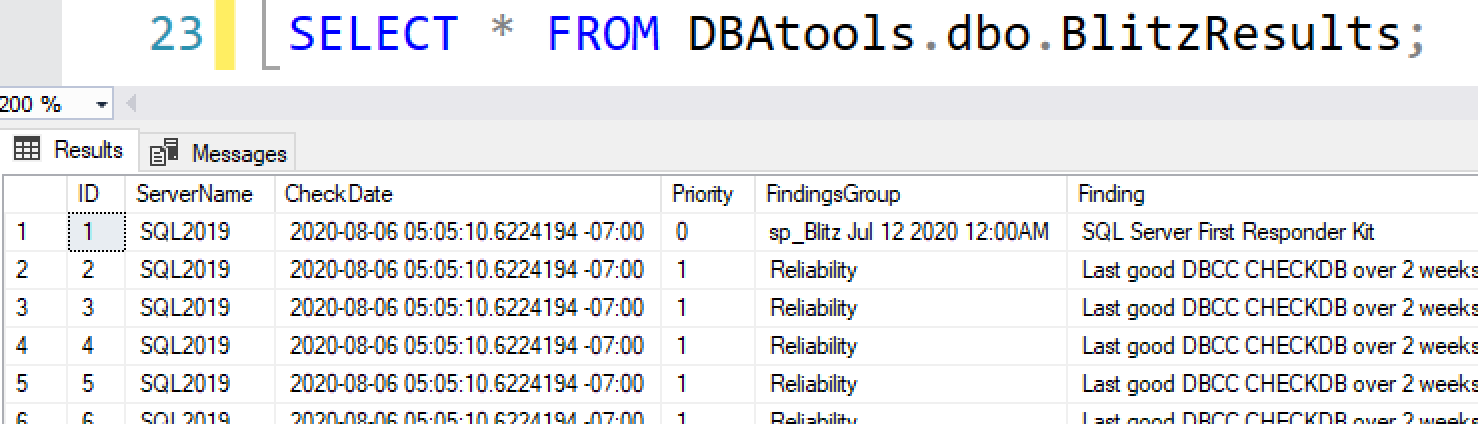
Set that up in a daily Agent job or run it centrally from PowerShell, and you can have all your servers phoning home into one table on a regular basis. You can query the results to slice & dice ’em by priority, or find out what problems are new in your environment today as opposed to yesterday:

The output table has the same results as sp_Blitz, but adds two columns: ServerName and CheckDate, so you can query data by server or by most recent check dates.


sp_BlitzIndex Pro Tips for Consultants & Contractors

sp_BlitzIndex
19 Comments

sp_BlitzIndex analyzes the design & health of your clustered & nonclustered rowstore indexes and gives you suggestions on how to get higher performance without changing your queries.

If you run it with no parameters, you get advice on the indexes in the current database:

Click to zoom

You get warnings like:

  • High value missing index – it tells you what table & columns to consider indexing, how many times the index would have been used, and how many indexes already exist on the table. That’s useful for quickly deciding whether you should consider adding that index as-is, or whether you might need to review the other indexes that exist on the table already, and maybe de-duplicate them.
  • Borderline duplicate indexes: in that screenshot, the Badges table has two indexes that both start with UserId. One of them can be flat out dropped because it’s a narrower subset of the wider index, and it’s not getting any reads anyway. Dropping it will cut 27M rows and 380MB from the database, making your maintenance jobs faster, too.

The defaults are a great start, but if you’re a consultant or contractor, you can do way better with a few parameters.

How to list all of the indexes in all databases:
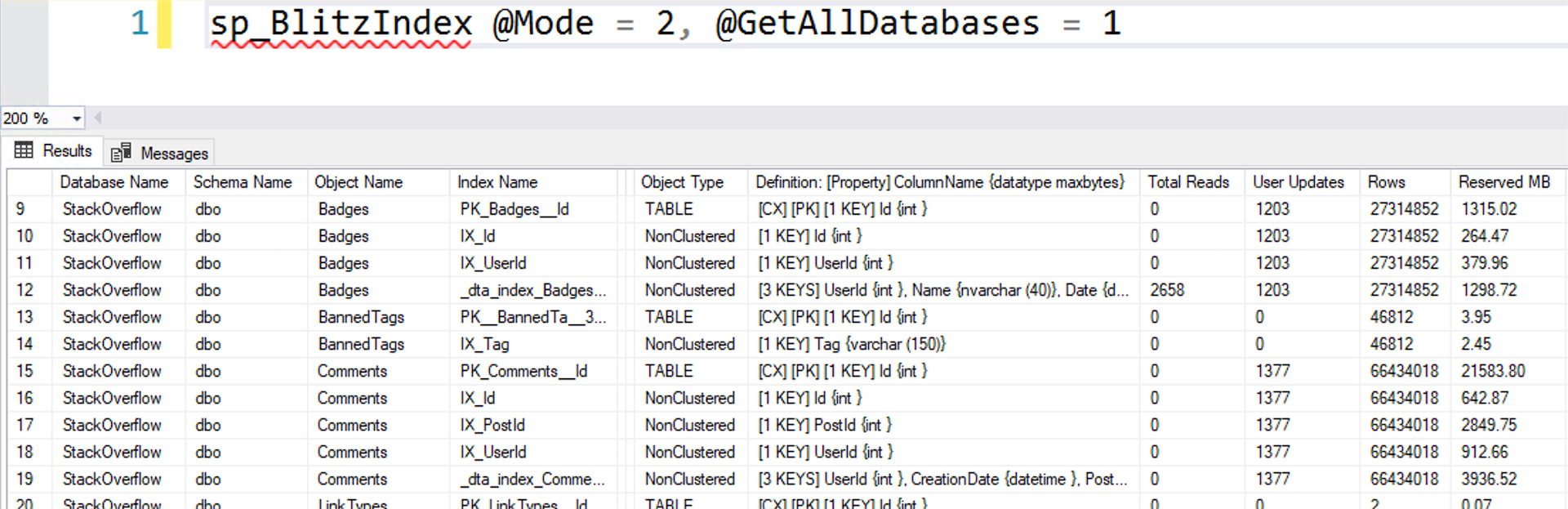
sp_BlitzIndex @Mode = 2, @GetAllDatabases = 1

When I want to work on a client’s indexes, but I don’t want to be connected directly to their server, this is a lifesaver. I can dump a complete inventory of their indexes out into a spreadsheet, and then I have all kinds of details about the indexes that already exist:

Click to embiggen

Earlier, when I said the “high value missing index” warnings meant I may need to add a new index to a table – well, I need to find out what indexes already exist on that table. Armed with the contents of this inventory, I can answer that question without being connected to the client’s server.

There are dozens of columns in this, but here are some of my favorites:

  • Rows, Reserved MB – I sort these in descending order and ask the client, “Were you aware that you’ve got 75GB in this table called Sales_Backup, and 50GB in a table called WebSiteClickLog? Should we maybe clean those out and cut our backup & restore times?” Every single time, folks are just shocked about what they’ve got left lying around in the database.
  • Total Reads, User Updates – when I put this into Excel, I’ll filter for Total Reads = 0, and then sort by User Updates descending. This helps me identify the indexes I need to drop quickly in order to reduce blocking problems. Speaking of which…
  • Row Lock Wait ms, Page Lock Wait ms – along with averages on these, too, which makes it really easy to spot where my blocking is happening. When combined with the Aggressive Indexes warning, it’s a piece of cake to solve a client’s blocking issues just armed with the contents of this sp_BlitzIndex output.
  • Page IO Latch Wait ms – ever wonder which tables are getting scanned on disk and not cached in RAM? Well, now you know.
  • Drop TSQL, Create TSQL – when you need to build a list of commands to run at the client, this gets you a head start, plus helps you build the undo script to back out your changes.

You can also use the @OutputDatabaseName, @OutputSchemaName, and @OutputTableName to write the @Mode = 2 results into a table. This is useful if you need to track index utilization over time to see whether an index is really getting used, or whether it should be dropped. (For example, some of my clients run this daily in an Agent job, and that way they can check index usage even if a server has been rebooted.)

How to get all missing indexes in all databases:
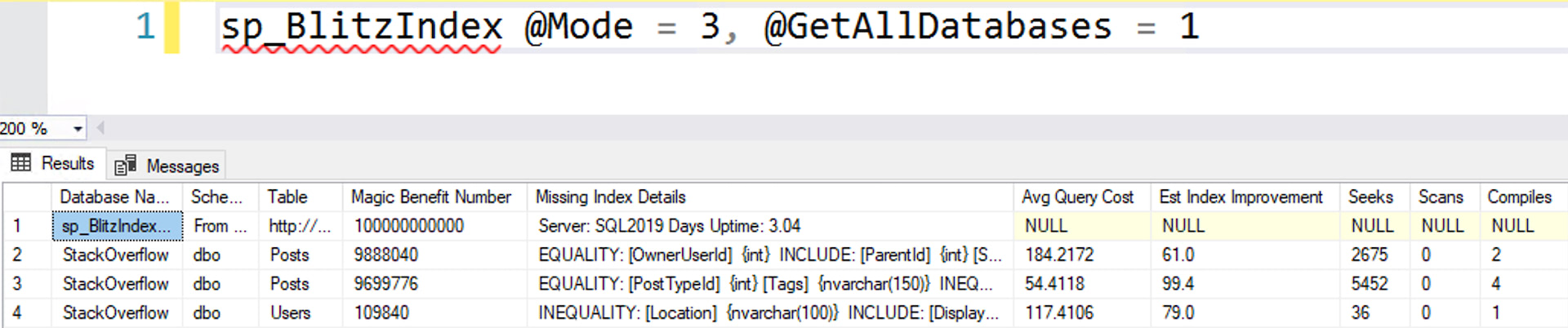
sp_BlitzIndex @Mode = 3, @GetAllDatabases = 1

Clippy’s missing index suggestions aren’t great, but they’re sure better than trying to come up with ideas yourself when you’re on a time crunch. Exporting them all out makes it easier for you to do performance tuning disconnected, too:

Click to anti-shrink

Note that at the top, you also get the server’s days of uptime. This way, you can be sure that what you’re looking at is safe: you wouldn’t want to base your missing index recommendations on a server that’s only been up briefly, or one that’s been up too long (since the queries might have only run weeks ago, not in the current app build.)

Brent Ozar's Consultant Toolkit

How to get all this in Excel:
The Consultant Toolkit

I don’t have time to connect to a client’s server, run a bunch of diagnostic scripts, and copy/paste the data into Excel. That’s why we built The Consultant Toolkit: it does all that for you.

I simply have my clients run it – client-friendly instructions are included – and then send me the output zip file that it creates. (You can even have it automatically upload the zip file to your Amazon S3 bucket if you like.) Then, I’ve got:

  • An Excel file with all kinds of diagnostics, including sp_Blitz, sp_BlitzCache, sp_Blitz, wait stats, deadlocks, and more
  • Execution plans
  • Deadlock graphs

And I can start getting to work making their server faster without even connecting to it. This helps me deliver more value to clients, more quickly. Here’s how it works:

And you can buy The Consultant Toolkit here.


Updated First Responder Kit and Consultant Toolkit for August 2020

First Responder Kit Updates
0

A couple of big new features this month: sp_Blitz’s @SkipChecksServer parameter lets you centralize a list of checks that you want to skip across different servers, and sp_BlitzIndex’s missing index recommendation list now includes the datatypes, making it easier to do index analysis for clients even when you’re not connected to their servers. I have two blog posts queued up for next week to get you up to speed.

Known issue: sp_Blitz does not work in Amazon RDS in this version. It’s been corrected in the dev branch and will be in the September release.

Brent Ozar's Consultant ToolkitTo get the new version:

Consultant Toolkit Changes

I updated it to this month’s First Responder Kit, but no changes to querymanifest.json or the spreadsheet. If you’ve customized those, no changes are necessary this month: just copy the /Resources/SQLServerSetup checklist folder over your existing files to replace the SQL scripts.

sp_AllNightLog Changes

  • Fix: if @BackupPath is set to null during installation, throws an error and stops now rather than failing silently. (#2474, thanks Curtis Browne.)

sp_Blitz Changes

  • Improvement: @SkipChecksServer is now implemented, so you can have sp_Blitz check a centralized SkipChecks table for a list of checks, databases, and servers to skip across your entire estate. (#2496, thanks Pierre Letter.)
  • Fix: reprioritize a few of the checks so that I can say with a straight face that you should drop everything and focus if you have alerts between priorities 1-50. (#2492)

sp_BlitzCache Changes

  • Improvement: add plan_generation_num to ExpertMode output and to the logged table results. Adds the column to existing tables if necessary. (#2514)
  • Improvement: add query_hash to the default output. Been using this a lot lately during my parameter sniffing classes. (#2513)
  • Fix: @SortOrder = ‘query hash’ wasn’t working on case-sensitive servers. (#2482, thanks Adrian Buckman.)
  • Fix: USERSTORE_TOKENPERM calculation was incorrect for pages_kb. (#2487, thanks Mike Vernon.)
  • Fix: Single-use plans were reporting over 100%. (#2480, thanks Simon Yeats.)

sp_BlitzIndex Changes

  • Improvement: added new @ShowAllMissingIndexRequests parameter to show ’em even if the query was only run a few times, or had low impact. (#2498, thanks valued customer Greg Dodd.)
  • Improvement: added data types to missing index requests. (#2227 and #2512, thanks Greg Dodd and Oleg Strutinskii.)

sp_BlitzLock Changes

  • Fix: databases & tables with periods in the name wouldn’t show correctly in the detail results. (#2452, thanks Filip Cornelissen.)

sp_BlitzWho Changes

  • Fix: sleeping sessions no longer show as accruing wait time. (#2465, thanks Adrian Buckman.)
  • Fix: parallel blocked sessions weren’t showing the blocking spid. (#2489, thanks Adrian Buckman.)

sp_ineachdb Changes

SqlServerVersions Changes

  • Fix: The SqlServerVersions table has been updated with a few SQL Server 2012 security patches. Not new, just missed ’em in the original table. (#2481, thanks TheVladdestVlad.)
  • Fix: Uninstall now removes the SqlServerVersions table. (#2502, thanks rebambus, and congrats on your first Github pull request ever!)

For Support

When you have questions about how the tools work, talk with the community in the #FirstResponderKit Slack channel. If you need a free invite, hit SQLslack.com. Be patient – it’s staffed with volunteers who have day jobs.

When you find a bug or want something changed, read the contributing.md file.

When you have a question about what the scripts found, first make sure you read the “More Details” URL for any warning you find. We put a lot of work into documentation, and we wouldn’t want someone to yell at you to go read the fine manual. After that, when you’ve still got questions about how something works in SQL Server, post a question at DBA.StackExchange.com and the community (that includes me!) will help. Include exact errors and any applicable screenshots, your SQL Server version number (including the build #), and the version of the tool you’re working with.

Watch Me Working On It

If you’d like to see me working on a few of this month’s issues, you can check out my live streams every Saturday & Sunday morning from 9AM-11AM Eastern (iCal) on my TwitchYouTube, or Facebook channels.


How Do I Know If My Query Is Good Enough for Production?

Development
17 Comments

When I ask that question, here are some of the things I think about:

  • How many times am I going to run it? Is it a one-off task, or is it going to run thousands of times per second on the front page of a popular web site?
  • What time of the day/week will it run? Are we under peak loads then, or is it an after-hours thing?
  • Does this server usually do small transactional work, or is it a reporting server?
  • Is my query going to hold locks while it runs?

Then, armed with those things, I measure my query in terms of:

  • Duration – not just time, but also parallelism: how many cores am I tying up, and for how long?
  • Reads – how much data it’s reading
  • Memory grant – which can dramatically affect other running queries

To show you what I mean, I’m going to write a query in the Stack Overflow database, measure it, and decide whether it’s good enough – or whether I need to tune it to go faster.

Here’s my query.

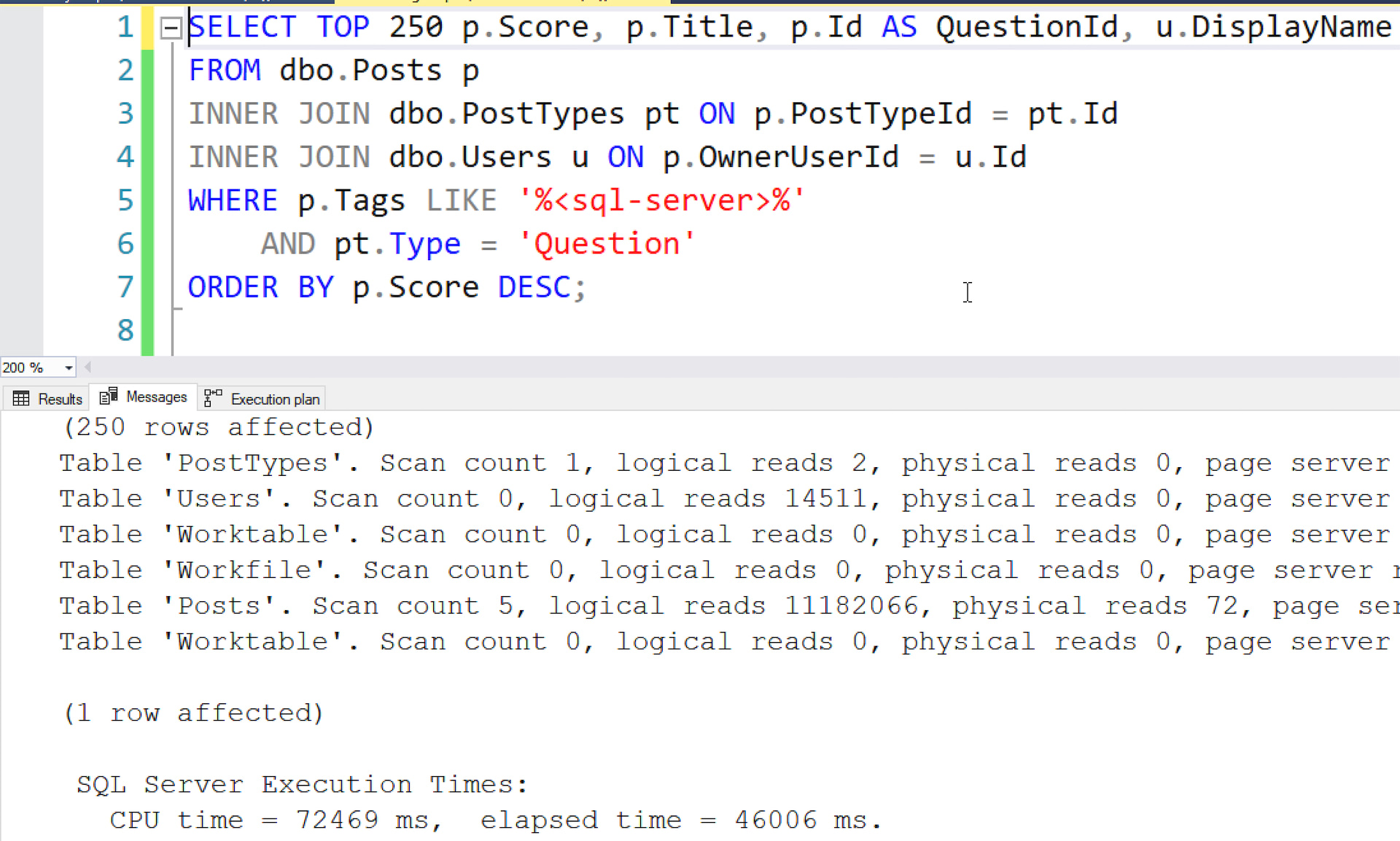
I want to show the top 250 questions tagged SQL Server:

In order to find out if it’s good enough for production, I start by running this:

When I run that, it enables a new set of messages in my query’s output. This is totally safe to run, even in production, and it doesn’t affect anybody else’s queries – just my own.

Then I click Query, Include Actual Execution Plan. That enables a visual representation of what SQL Server’s doing to execute the query. If you’re coming from other database platforms, you might have referred to that as a showplan or a query plan. Then, run the query.

First, look at the query’s time statistics.

When it finishes, look at the Messages tab:

See the execution times down at the bottom of that screenshot:

If you’re tuning a stored proc or batch with multiple queries in it, the last set of execution times will be the total across the entire batch.

I don’t usually tune using time because it’s so unpredictable. It can vary based on:

  • What else the SQL Server is doing at the time
  • How much is in cache versus fetched from disk
  • What else the storage is doing at the time

Plus, time numbers can vary a lot from server to server. Things to think about:

  • Is your server the same size as production?
  • Is your database the same size as production?
  • Does your server have other differences from production, like different settings, version number, or patch level?

Because these can vary so much, I don’t care too much about exact query runtimes. When I’m looking at times, I just ask myself:

  • Am I in the right ballpark? For example, if I’m writing a transactional query that accesses a small amount of data, it probably needs to finish within a second or two. If I’m writing a report, it might need to finish in 10-30 seconds.
  • Is CPU time higher than elapsed time? If so, that indicates that my query went parallel across multiple CPU cores. A 5-second query that hardly does any CPU time may not be a big deal, but if it’s 5 seconds, and CPU time is 40 seconds, that indicates that my query maxed out 8 CPU cores across all 5 seconds. I’m not going to be able to run a lot of those queries, so I’m probably going to need to tune that.

Next, look at the query’s logical reads.

Closer to the top of that screenshot, SQL Server returned a row of messages for each table that we touched:

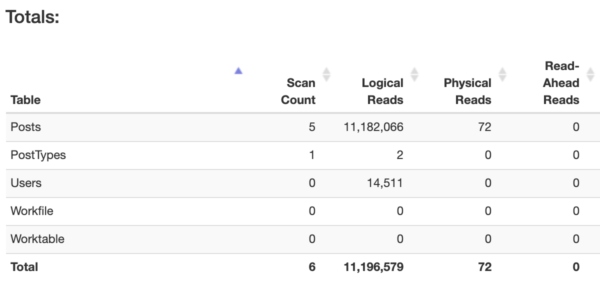
Highlight that stuff, copy it, go over to StatisticsParser.com, and paste it. You’ll get a nice grid with totals across the entire query:

Focus on the “Logical Reads” column: that’s the number of 8KB pages that your query read – regardless of whether those pages were in memory or fetched from storage. (If you’re using columnstore indexes, you’ll also want to look at LOB Logical Reads, because columnstore indexes store their data a little differently.)

Generally speaking, the more pages your query reads, the slower it’ll go.

The more you know your own server’s workload, you’ll get a feel for the kinds of reads your server can sustain without users screaming in agony. When you’re just getting started, you might say that transactional queries doing 100,000 reads or more are probably going to be a problem. Even at way lower, they can be a problem – but if you see six-digit reads, it’s probably time to hit the brakes and do some query or index tuning. 128,000 pages is 1GB of data, and if you find yourself reading 1GB of data just to accomplish a short transaction, then it’s likely to be a problem.

For bonus points, look at the plan itself.

The more comfortable you become with query tuning, the more you can spot behaviors that you may not be comfortable with:

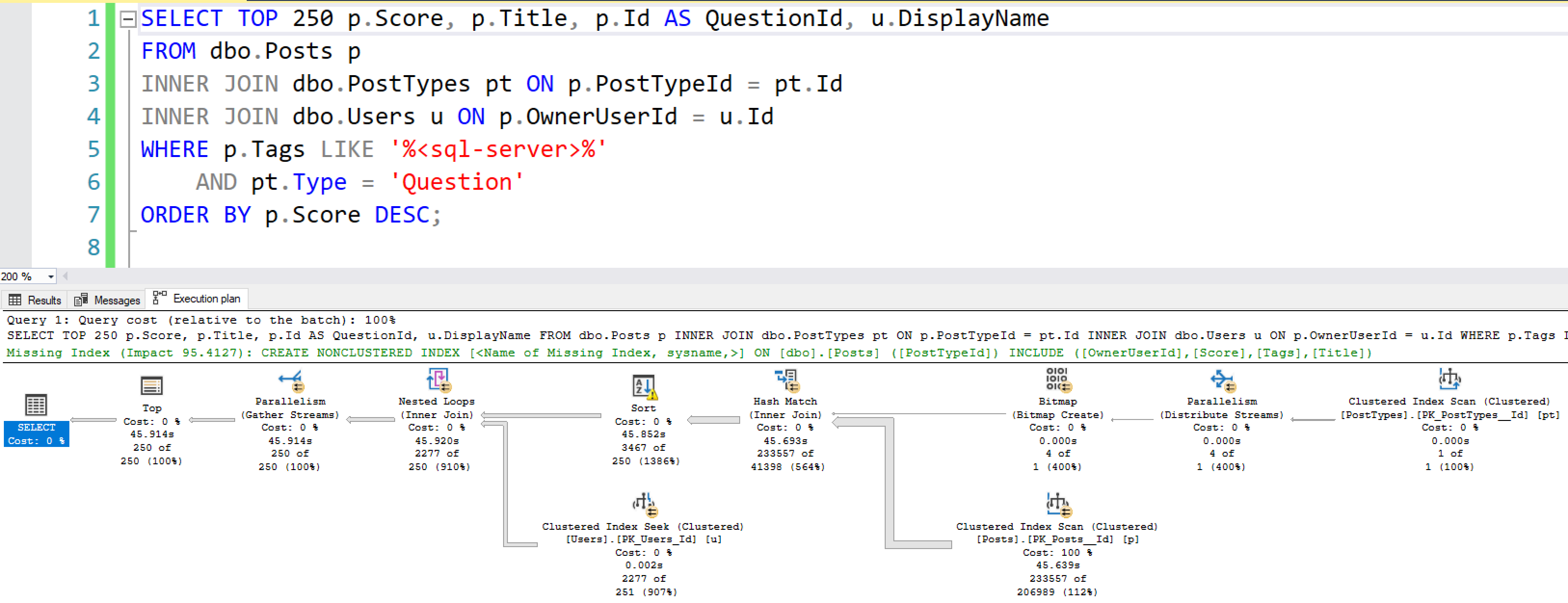
For example, in my query’s plan:

  • There’s a yellow bang on the Sort operator, which indicates that my query ran out of memory and had to sort stuff in TempDB.
  • There are parallelism icons on a lot of the operators, indicating that SQL Server believed it was going to be doing a lot of work, so it allocated multiple CPU cores to the task. That’s not necessarily a problem in and of itself – that might be fine on a big reporting query – but if I’m working in a transactional system where queries are expected to finish in 1-2 seconds, then I may need to tune the query or the indexes to reduce the work required.
  • There are timestamps on each operator, helping to indicate which operators took the longest time. The metrics don’t mean what you think, though: Erik Darling explains that row mode and batch mode operators track time differently.

But whatever you do, don’t look at the times in the query plan.

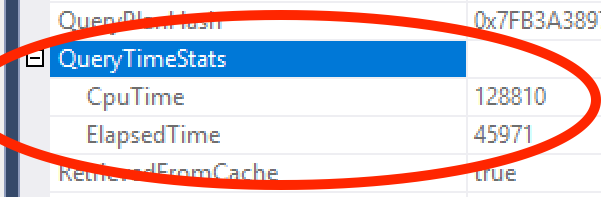
If you right-click on the SELECT icon in the plan, then click Properties, then you’ll notice a section called QueryTimeStats, circled here:

Whatever you do, DO NOT ZOOM IN AND LOOK AT THAT:

Because if you do, you’re going to start asking questions like, “Why don’t these CPU & elapsed time statistics match what I saw over on the Messages tab?”

And then you’re going to realize that all this data is built on a throne of lies, and none of us are really sure that any of these numbers are right. Just keep it simple, focus on logical reads. (They’re not technically accurate either: those don’t show reads done by most user-defined functions, for example, but there’s just only so much I can teach you in a single blog post.)


How to Find Out Whose Queries are Using The Most CPU

Monitoring
6 Comments

You’ve got a bunch of users on the same SQL Server, and you wanna know who’s using the most resources. SQL Server doesn’t make this easy. You can query some management views to see which queries or databases have been using the most resources, but you can’t intuitively tell which USERS are.

To solve this problem, we’re going to use Resource Governor.

Wait. Come back.

When Resource Governor first came out, it didn’t get a lot of adoption. It’s an Enterprise Edition only feature, and its main job is to make queries slower. That’s rather unfortunate, since I don’t have a lot of folks coming to me saying, “Hey Brent, can you make my queries slower?” They don’t need to hire me for that – they have their own business intelligence department to take care of that.

We’re going to use just part of Resource Governor’s functionality:

  1. Create workload pools as if we were going to cap/limit people’s CPU power
  2. Create a classifier function so that when they log in, we can put them into different pools
  3. Set limits on each workload pool’s CPU
  4. Use Resource Governor’s reporting DMVs to query who’s been burning up our processors

You can watch me write this blog post, or keep reading for the script and demo version:

Configure Resource Governor to put people into groups.

What you’re about to read is by no means any kind of good practice. Here, I’m just showing you how to quickly configure Resource Governor as a proof of concept. Any database person worth their weight in Query Bucks would read the Resource Governor documentation before actually implementing this in real life. You, dear reader, are not actually worth your weight in Query Bucks, so you’re probably going to just copy/paste this into production. That’s why I like you.

Eagle-eyed readers like yourself will notice that I commented out the RECONFIGURE at the end. Resource Governor can be pretty dangerous: you can get yourself into a situation where people have trouble running queries because of goofs in the classifier function. Only run that final RECONFIGURE in a dev environment first and make sure you’re getting the results you’re aiming for.

Measure which groups of users are using the most CPU.

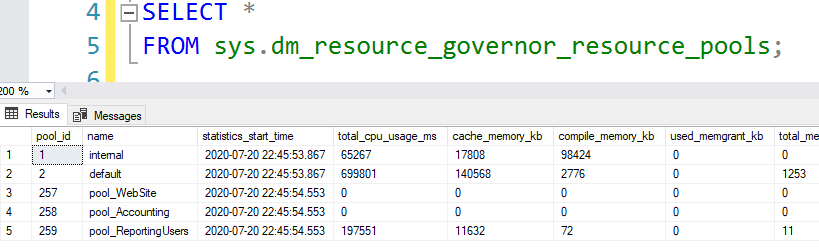
To do that, check out the DMV sys.dm_resource_governor_resource_pools:

The result shows you how much CPU each group has consumed:

When you start examining this data, you might find that your first pass of creating pools & groups ends up with not-very-granular reporting data. Maybe 80% of the server’s CPU is burned up by a single group – that’s not very actionable. From there, you want to continue creating smaller and smaller groups until you can figure out exactly who or what application is burning up the most CPU power.

This DMV’s contents reset when the SQL Server service restarts. You’re going to be tempted to hoard this data by logging it every day into a table, and I think that’s a bad idea. Just like you made a lot of bad decisions in your youth when you were young and you needed the money, so did the rest of the people on your team. Every time the SQL Server instance starts up, think of it as a brand new day. The folks writing terrible queries may have learned the errors of their ways and turned over a fresh new leaf, read themselves a good Itzik Ben Gan book on T-SQL, and only written magically well-tuned queries since then.

Ah, probably not.


European Union Folks: Wanna Attend Mastering Index Tuning?

SQLBits
10 Comments

Mastering Index TuningYou need to speed up a SQL Server app, but you only want to make index changes. You don’t want to buy hardware, change SQL Server, or change the code. I’ll teach you the most important advanced lessons in one day.
In my one-day Mastering Index Tuning online workshop at SQLbits, you’ll learn:

  • My D.E.A.T.H. Method to quickly redesign indexes in an existing database
  • How to use sp_BlitzIndex to Deduplicate & Eliminate indexes that need to get out
  • How to use sp_BlitzCache to Add & Tune indexes based on your query workloads
  • When to resort to Hand-crafted indexes like filtered indexes, indexed views, and indexed computed columns

The day will be 25% slides, 75% demos, and 100% useful for both cloud and on-premises installations. I’ll be using the Stack Overflow 2013 database, and you’re welcome to follow along: just have a laptop with SQL Server 2016 or newer, or have an Azure SQL DB instance with the Stack Overflow 2013 database already installed.

And because it’s being sold through SQLBits, everyone can attend!

  • SQLBits.com – with dates, logistics info
  • SQLBits pricing – it’s £300 for my workshop (available either Tues or Weds, 29-30 Sept), or £800 for the full conference with 2 workshops, plus all-day training on Thursday, Friday, and Saturday
  • Register here – see you in class!

SQL Server Cumulative Update Documentation Is Going Downhill, Fast

SQL Server 2019
67 Comments

Microsoft appears to have given up on patch documentation, and that’s kinda scary for a product that costs thousands of dollars per core.

Yesterday’s SQL Server 2019 Cumulative Update 6 launched with the worst documentation I’ve seen yet. It’s been steadily going downhill, but CU6 represents a new low.

For years, we’d complained that the hotfix articles weren’t documented enough, and they “fixed” that problem by giving up on the articles altogether, and just publishing a short summary:

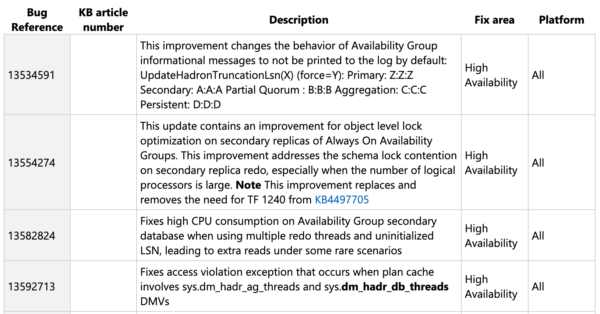
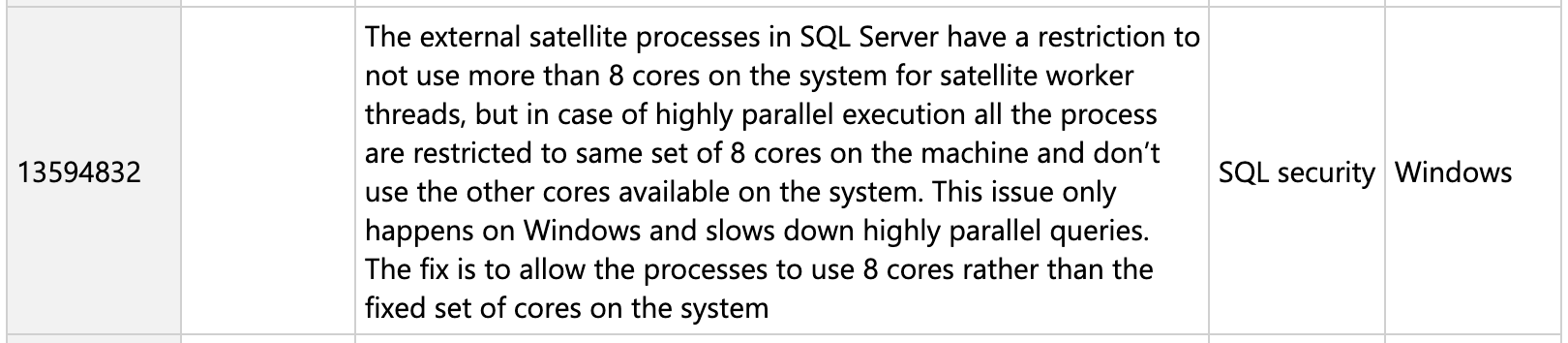
For some bugs, these short descriptions are probably fine. However, some of them post more questions than answers:

This sounds an awful lot like a performance issue, not a security issue, and it doesn’t have nearly enough details. What features does it pertain to? Should all users be concerned, like folks who just run parallel queries? Or is it only relevant to a specific feature that isn’t installed by default? How can people know if this fix is relevant to them?

Sure, maybe short notes are okay for some updates, but if they are, they sure as hell gotta be correct. We’re now at the point where not only are we getting 3-sentence notes, but the notes aren’t even right.

To make matters worse, CUs have been having showstopper issues – but those showstoppers are buried down in the tiny print at the end of the CU, far after someone clicks on the download link, like this Cumulative Update 4 bug that talks about SQL Server not being able to start up:

To put this in perspective, Azure Data Studio’s closed issues and commits have way more details, and that product is free. Customers paying $7,000 per core for SQL Server Enterprise Edition are supposed to just take down production every 30 days and apply barely-documented updates without a clear reason.

I don’t think that’s okay. What do you think? Are you still patching every 30 days like Microsoft wants you to, or are you less likely to frequently patch given the lack of documentation?


SQL Server Problems We Don’t Have Anymore

We have completely new problems today.

I was cleaning out a folder of presentations and I realized there are a whole slew of problems that we had to worry about ten years ago, and they just hardly ever come up today.

  • Virtual Log Files (VLFs) – it’s been years since I’ve run across a server where this was an issue. I don’t know if people are just doing a better job of taking care of this, or if the widespread adoption of tools like sp_Blitz means that people know about it earlier, and fixing it before they call me. Either way, great!
  • Partition Alignment – remember when you had to pay attention to how drives were formatted? Remember when you even knew what kind of storage you were running on? These days, between virtualization and the cloud, the underlying storage architecture could change several times over after you install the server.
  • PFS/SGAM contention – between the better newer SQL Server installers creating a few TempDB files by default, and the widespread user education about 1 data file not being enough, it’s easily been 2-3 years since I’ve solved a problem by adding TempDB data files.

Hallelujah! Here’s to those problems never coming back.

On one hand, it’s not like our jobs are getting easier, either: there’s just a whole new class of challenges to deal with, whole new layers of abstraction.

But on the other hand, it is kinda disappointing what old problems we still have, and I’m going to link to the feature feedback requests to fix ’em:

  • Cost Threshold for Parallelism – it’s still 5, which leads to problems with CXPACKET waits for tiny queries. Just last month, I was dealing with a customer’s 32-core server where they’d neglected to change this default setting. Just that one change alone dramatically cleaned up their performance problems.
  • Configure backups during installation – you, dear reader, are a trained (maybe) professional (look, I’m being generous) who takes great care (I know, it’s getting hard to suspend your disbelief) in setting up backups to match your RPO and RTO. Many shops don’t have the luxury of employing a good-looking data person like yourself, though, and they struggle setting up their backups. It’s time to make that easier.
  • Proactively look for corruption in the background. Out in the real world, far too many folks just don’t take the time to set up DBCC CHECKDB jobs, and even when they do, they don’t know when to schedule ’em because they’re afraid of taking their servers down. SQL Server knows when it’s idle, and can track the progress of CHECKDB. It needs to regularly scan for corruption just like RAID controllers do.

Date Tables are Great for Users, but Not So Great for Performance

Execution Plans, Videos
34 Comments

Date tables help users filter data based on day of week, holiday, this year vs last year, and other kinds of filters that business users usually wanna add to their reports. If you haven’t used a date table before, here are a couple of primers on how to create one and use it:

And for the purposes of this post, I’m going to use the date_calendar table created in the second bullet point above. Here’s what it looks like:

Typically when people use date tables, they join from their real tables over to the date table, and they do their date calculations & filtering by just specifying columns in the date table.

For example, if you wanted to find out what day of the week people usually sign up for Stack Overflow accounts (database), you might write a query like this:

The results look like this:

Pretty cool! But…does it perform well? To find out, let’s write an old-school version of the query that doesn’t use a date table, and we’ll compare the two using SET STATISTICS IO, TIME ON to measure CPU, duration, and logical reads:

The metrics tell an interesting story:

  • Date table method: 100,074 logical reads, CPU time 3,422 ms, elapsed time 3,425 ms
  • Old school method: 20,095 logical reads, CPU time 3,671 ms, elapsed time 1,467 ms

The actual execution plans are obviously different:

So why did the date table not perform as well as the old-school way?

SQL Server doesn’t understand the relationship between these two tables. It simply doesn’t know that all of the rows in the Users table will match up with rows in the calendar table. It assumes that the calendar table is doing some kind of filtering, especially given our CAST on the date. It doesn’t expect all of the rows to match.

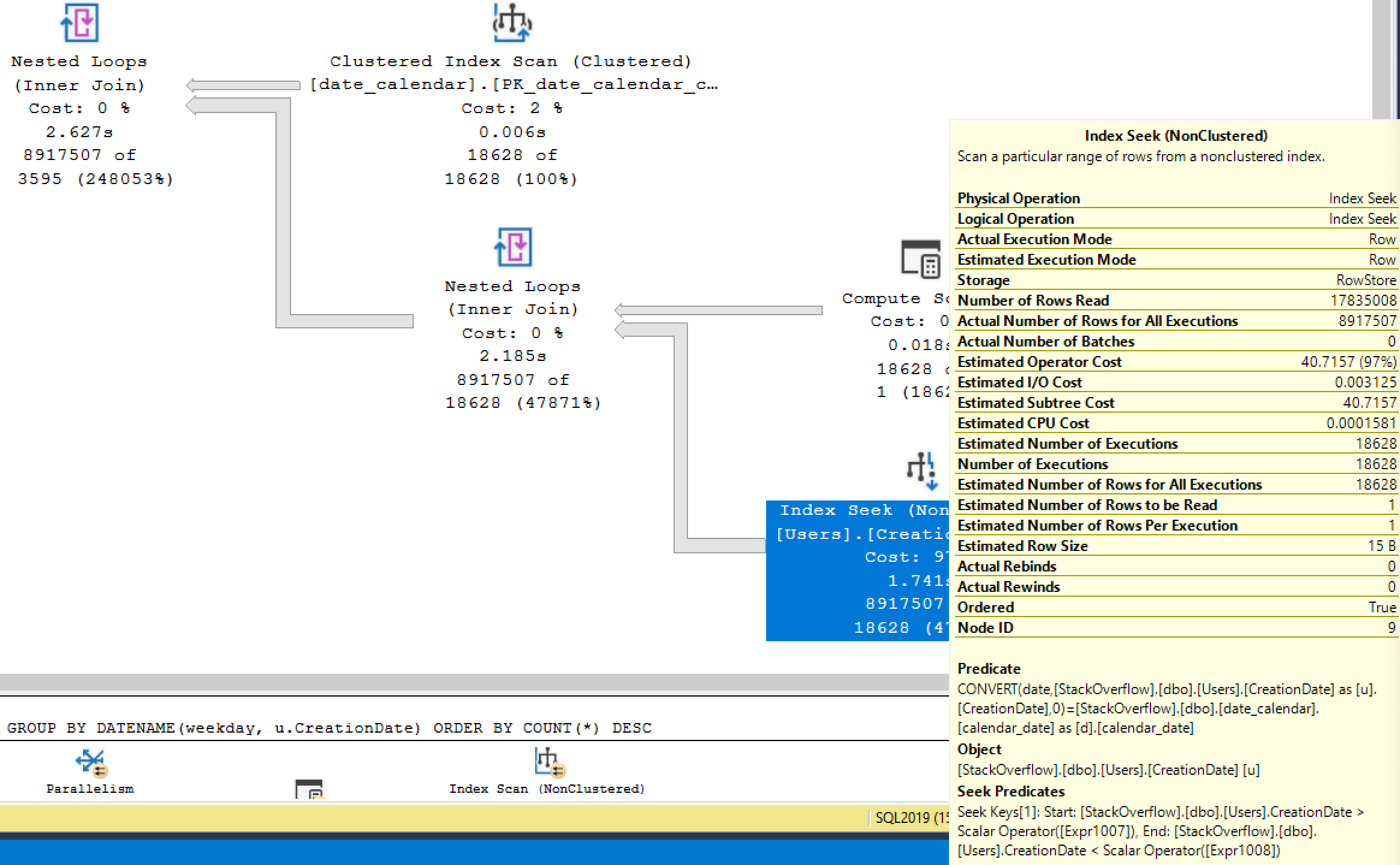
SQL Server decides it’s going to scan the date_calendar table first, and then for each date that it finds, it does an index seek into the Users index on CreationDate:

If you hover your mouse over that index seek on CreationDate, the number of executions are worth a laugh:

This index seek was done over 18,000 times – once for every day in our calendar table.

Because SQL Server thought the date table would do some filtering, it also underestimated the number of rows it’d find in Users, so it also underestimated the CPU work required, so the date table approach only went single-threaded. The old school way understood that lots of rows would be involved, so the work was parallelized across multiple threads.

That’s a simple query where I’m not even doing filtering – but query plans get even more predictable as you build atop this, adding filters on the date table looking for weekdays, specific days of the month, or ranges. SQL Server just has a hard time guessing how many rows are going to come out of the related tables. The more complex your filtering becomes, the crazier the estimates become.

So if I have date tables, what should I do next?

This quick experiment doesn’t mean that you should abandon your date tables and force everyone to do calculations against the base tables. Date tables are WONDERFUL, and I recommend them highly.

However, you just need to be aware that:

  • If you filter on the date table rather than the base tables, you’ll likely get inaccurate estimates
  • The more you rely on functions or ranges of data in the date tables, the more likely you are to get increasingly bad estimates
  • To fix these estimates, you may need to add relational columns on your base tables that define exactly which rows in the calendar table match which rows in your base table
  • When doing performance tuning on a query that uses a date table, consider briefly tweaking the query to not use the date table, and see how much better the execution plan gets. If it’s a night and day difference, you may need to work on the date table’s relationships or switch this one particular query to filter directly on the base tables rather than the date tables.

Got questions? Want to try different approaches to my queries above? Grab the Stack Overflow database and try running your own experiments. That’s why I love using the Stack Overflow database as a sample: it contains real-world distribution on stuff like dates so you can prove your own ideas or disprove mine.

Watch me write this post

I streamed this post live on Sunday, July 19:


[Video] The Top 10 Developer Mistakes That Won’t Scale on Microsoft SQL Server

Development, Videos
3 Comments

You’re a C# or Java developer building an application that stores data in Microsoft SQL Server, and you want to avoid common pitfalls that will cause you scalability problems down the road.

In this session from my live stream, you’ll learn why you probably want to avoid triggers, SELECT *, user-defined functions, dynamic SQL, big datatypes, heaps, storing binaries in the database, old indexes, TempDB, and SQL Server’s v1 features:

This slide deck is a decade old: I wrote it back in 2010, but I’m revisiting it now to see what’s changed. I’m kinda surprised at how much I still agree with a decade later! My feelings have changed about a lot of SQL Server tactics, but 9 out of 10 of these are still a problem.

Wanna see more of this? Every Saturday & Sunday morning from 9AM-11AM Eastern (iCal), you can catch me on my TwitchYouTube, or Facebook channels.


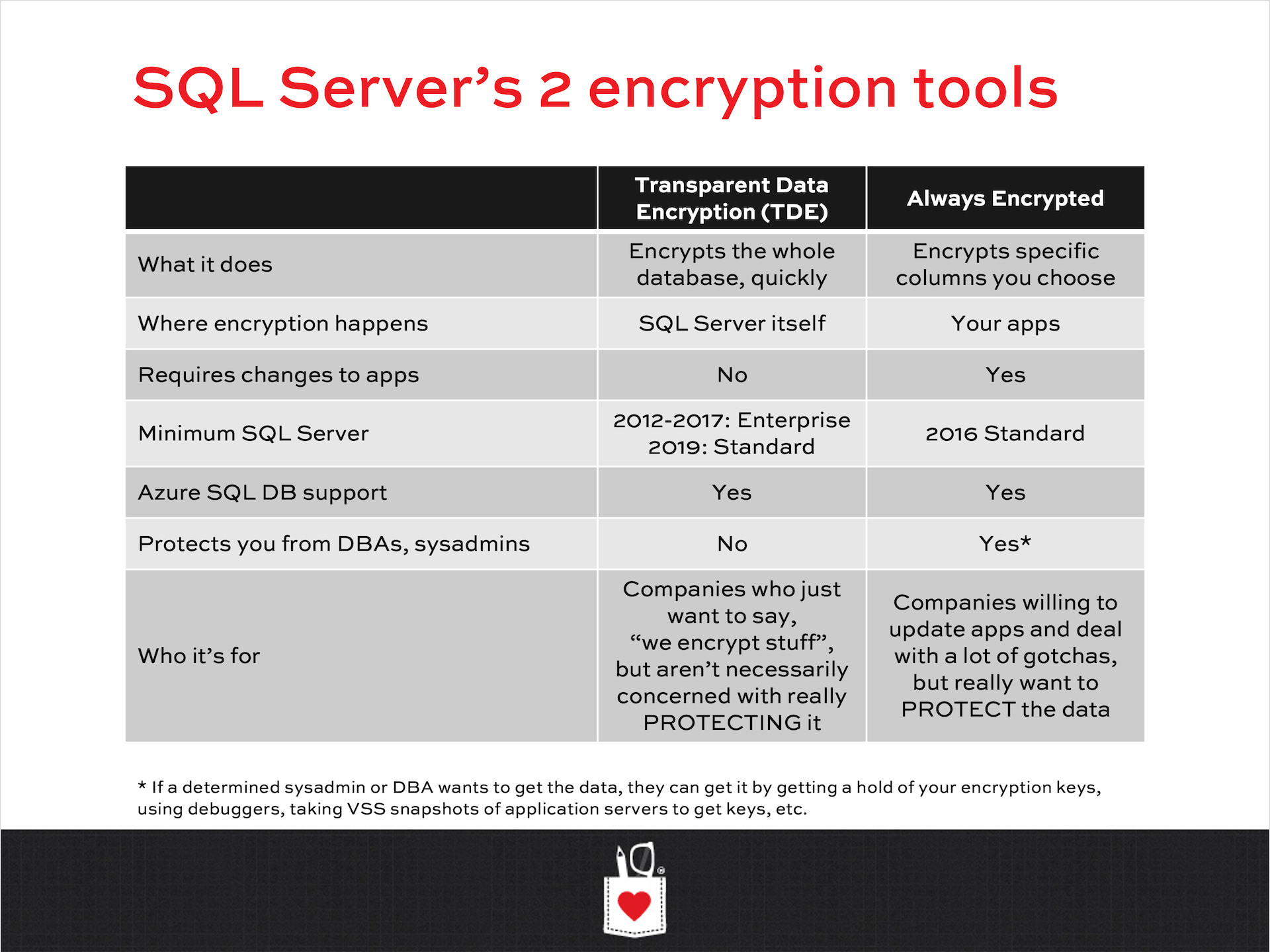
A One-Slide Summary of the Differences Between TDE and Always Encrypted

Development
14 Comments

The folks on Twitter liked this, so sharing it here:

It’s a one-slide summary from a SQL Critical Care client’s deck, so obviously it’s abridged, but I think it does a pretty good job of summing things up.

Some highlights of the conversation:

That’s it. That’s the post. If you want more words and pictures, follow @BrentO on Twitter.


Remember “Nothing Stops a Hekaton Transaction?” Yeah, About That.

When In-Memory OLTP first came out, Microsoft liked to go around bragging at conferences that “Nothing stops a Hekaton transaction.” I remember hearing that and kinda chuckling at the time, and I was reminded of it by a recent client who was running into blocking issues with…yep, Hekaton.

To reproduce it:

  1. Do a large insert into an in-memory OLTP table
  2. In another window, try to truncate that table (which gets blocked by query #1)
  3. In another window, try to another insert into that table (which gets blocked by query #2)

The results of sp_WhoIsActive show blocking:

The reason is rather amusing: In-Memory OLTP tables don’t actually support TRUNCATE TABLE. If you try it, you hit an error:

But SQL Server doesn’t check for that until after the TRUNCATE TABLE command gets a schema modification lock. In order to get that, the first query has to finish – and until he does, query #3 can’t run. Presto, good ol’ blocking. (I can’t call that a SQL Server bug with a straight face, either.)

The solutions:

  • When your code throws errors, don’t swallow ’em. Log them somewhere, and actively track them down. In this case, the TRUNCATE TABLE was a leftover from before the table was migrated to In-Memory OLTP.
  • Before you migrate, read the T-SQL limitations of In-Memory OLTP and unsupported features.
  • If you need to quickly delete the contents of an entire In-Memory OLTP table, don’t bother trying swapping back and forth between different In-Memory OLTP tables for staging and production, either. sp_rename is supported as of SQL Server 2017, but it faces the same schema mod lock problem as TRUNCATE TABLE.

Shout out to the client manager who said, “You have to blog about that to show that we were ambitious but rubbish.” Cheers, Tiny Irish: y’all were smart enough to hire me, so there’s always that.