Blog

SQL Performance Tuning: Estimating Percentage Improvements

1 Comment

When I’m doing performance tuning on an application in the early stages of its lifecycle (or any app that’s never had DBA attention before), I end up with a ton of recommendations within the first day of performance tuning.  The resulting to-do list can seem overwhelming to project managers and developers, so I include one of the following two sentences as a part of each recommendation:

  • This change will improve performance by a percentage, or
  • This change will improve performance by an order of magnitude

I know, I know, that phrase doesn’t come up too often, so it helps to check out Wikipedia’s definition of order of magnitude:

“Orders of magnitude are generally used to make very approximate comparisons. If two numbers differ by one order of magnitude, one is about ten times larger than the other.”

So the two sentences translate into:

  • This change will improve performance by 10-90%, or
  • This change will improve performance by 10-100x

I could use those latter two sentences instead of the “percentage versus order of magnitude” sentences, but those latter sentences make me sound like I’m taking wild, uneducated guesses.  In reality, sure, I am taking wild, uneducated guesses, but on an informed basis – I’m just not putting a lot of time into categorizing the improvements.

Jeff Atwood’s excellent Coding Horror blog has a two-part post about estimation that should be required reading for every DBA.  Part 1 is a quiz, and Part 2 explains the answers.

So why am I leaving so much gray area in my recommendations?  Why break suggestions into such widely varied categories?  Is it smart to lump a 10% improvement in with an 80% improvement?  In the early stages of performance tuning, yes, because the DBA can’t necessarily predict which changes will be the easiest to implement, or the order in which they’ll be implemented.  When a database administrator first looks at an application, queries, stored procedures and database schema, some things pop out right away as massive opportunities for performance gains.  These recommendations are so instrumental to application performance that they often have wide-ranging impacts across the entire app.  After those changes are made, everything speeds up so much that the other recommendations have even less of an impact than they might have originally had.

For example, in a project I’m currently tuning, I found that the three largest tables in a database (which had ten times more records than all of the remaining tables combined) were constantly queried by a single field, the equivalent of a DivisionID integer field.  All of the queries hitting those tables included the DivisionID, and the application frequently did huge update statements that affected all records with a single DivisionID number.  Partitioning those three tables by DivisionID and putting each DivisionID on its own set of disks would result in a staggering performance improvement and a tremendous increase in concurrent nightly ETL processing, since more divisions could run simultaneously.

I made other performance recommendations as well, but frankly, if the developers implemented every other recommendation except the partitioning, they would still have been struggling with their nightly windows, and the implementation time would have put the project way behind on their deadlines.  On the other hand, if they just implemented the partitioning, they would sail through their nightly windows and make their project delivery deadline.  That’s the definition of an “order of magnitude improvement.”


Sunday Buffet at The Lady & Sons

2 Comments

As part of our road trip this week to Oklahoma City, we stopped at Paula Deen’s The Lady and Sons in Savannah. For those of you unfamiliar with The Food Network, Paula Deen and her two sons are food celebrities, great people with a great story.

The restaurant doesn’t take advance reservations: instead, hopeful diners start lining up in front of the restaurant, waiting for the hostess to arrive and begin taking names for the day’s seatings. On Sundays, the hostess arrives at 9:30 AM, and the buffet opens at 11 AM. We took our place in line around 8 AM, and we were sixth in line. By 9 AM, the line stretched down the block, and by 9:30, it was down to the next block. We gave the hostess our name, and left to do some window shopping and photography.

At 11 AM, an unbelievably loud woman came out with a clipboard and yelled instructions to the crowd of maybe a hundred people. No bullhorn, no drama, just huge pipes. She explained that the restaurant had seating on the first and third floors (with steam tables on both floors), but that the elevators only carried 15 people at a time, so we should be patient while she called out a few names out at a time. That process might sound unfriendly, but the environment was so jovial and amusing, and everybody had a great time.

The Lady And SonsErika and I took our seats at a the third floor table, placed our drink orders, and headed for the buffet. The steam tables were much smaller than I’d expected, with maybe a dozen choices in all, but the staff kept all of the foods replenished quickly. I’ll cover the items one at a time.

Macaroni and cheese – this was, hands down, the very best macaroni and cheese I’ve ever put in my mouth. In fact, this shouldn’t even be called macaroni and cheese. There should be a different culinary term for this masterpiece, because it’s in a league of its own. I think they thicken it with eggs, because it has a bit of a loose-egg feel to it like the eggs in Pad Thai. When I went back for my second plate at the buffet, there was only one thing on it. That’s right – macaroni and cheese. I have resolved to track down this recipe and reproduce it, and then eat it every day for the rest of my life. Okay, maybe not.

Fried chicken – I’ve read reviews of The Lady and Sons fried chicken before, and they were right – it’s good. It’s not the life-changing experience of the macaroni, but it’s good. I will say that it’s the best fried chicken I’ve had off a steam table.

Mashed potatoes – Erika said it best when she said, “I’ve never tasted butter before in cooking, but I taste the butter in this.” Creamy texture, perfect spices, great stuff. I wasn’t as impressed with the gravy.

Roast beef – mmmm, juicy.

Everything was ever-so-slightly salty. If I didn’t tell you, you wouldn’t recognize it, and I probably only caught it because I’d read other reviews prior to our arrival. They could back off the salt just a tiny, teeny, wee bit, but it didn’t detract from the food. I don’t think Erika caught it.

Biscuit & hoe cake – the hoe cake is basically a pancake, but denser and with a more mealy texture. Good, but I gotta be honest – these take up space in a stomach, and that precious space should be saved for macaroni and cheese.

I didn’t try the greens, the grilled chicken, salads, or desserts. I wanted to, but I couldn’t do it in good faith. I’m still training for the Disney marathon in January, and it’s hard to gorge myself when I’ve got ten mile runs on the weekends.

Some of the reviews I’ve read said that Paula’s buffet is just a buffet, just like any other Southern buffet. I beg to differ, and I know how to illustrate it. Erika and I stopped several times at Cracker Barrels during the course of our road trip, and we went there for dinner the same day that we visited The Lady & Sons. Just to check, I ordered some of the same foods we’d had at Paula’s, and wow, what a difference. Paula’s food is famous for a reason – she makes ordinary food amazing.

I resisted the urge to pick up a t-shirt from the Paula Deen store, but its tagline deserves repeating here: “I’m Your Cook, Not Your Doctor.”


SQL Server load testing: synchronized tests versus random ones

Load Testing
7 Comments

Our QA department uses Mercury TestDirector to do load testing of our .NET web apps.  The basic idea is that TestDirector runs through a set of URLs to load test an application, and it can gradually scale up the number of simultaneous sessions until the datacenter is filled with smoke.  When the fire alarms go off, subtract one from the number of sessions, and that’s the maximum load the application can sustain.  (Okay, not really, but you get the idea.)

I don’t know the internals of how TestDirector does its thing, but while the QA department does their load testing, I capture my own Perfmon statistics and gather a SQL trace of all queries with duration > 1500 milliseconds.  Granted, the maximum application performance would be higher if I wasn’t running the trace, but I like being able to see behind the scenes to know what queries are causing the worst load.

In the trace, I noticed that different QA testers set up their tests differently.  Most of the time, the users were randomized: all of the sessions were active simultaneously, but they weren’t all doing exactly the same thing at exactly the same time.  While some users were logging in, other users would be printing a report, and other users would be doing data entry.  At first, I thought that was a good way to do load testing because it gave a picture of what the user activity levels would look like in real life.

Later (and I suspect, accidentally) they set up a test so that each simultaneous user was doing exactly the same thing at exactly the same time.  Ten users would hit the login page simultaneously, then they would all hit the menu page, then they would all do the same function at the same millisecond.

The load test results from that synchronized testing were dramatically slower in parts.  The synchronized tests pointed out which parts of the app had concurrency problems, which ones caused high CPU loads on the web server, which ones hit the SQL Server hardest, etc.

When I analyzed the load test results, I looked at the following metrics from Perfmon side by side with my SQL trace results, both sorted by date/time order:

High CPU use on the web server – during periods of very high CPU use on the web front end, I looked at the queries in the trace.  I noticed that a login stored procedure showed up with a low number of reads, low number of writes, and low CPU load, but the duration was very long, usually over 30 seconds.  When I ran that same stored procedure from Management Studio, it always finished in under a second.  I even tried running it over and over in several loops in different sessions, and it still always finished fast.  I looked at the results of the stored proc, and it was returning 7,000 lines of XML.  I deduced that the web front end was having difficulty parsing and processing that XML, and it wasn’t able to digest the results fast enough.  When I pointed this out to the app team, they researched and discovered that the test user’s access wasn’t configured correctly.

Heavy blocking on the SQL Server – when SQL reported lots of locks, I correlated that to the queries that were running at the time.  A stored procedure was doing “while” loops to find unused ID numbers in a table, and was doing the whole thing inside a transaction.  I showed them how to rewrite the query with a single update statement, thereby avoiding the loops and transaction.

High CPU use on the SQL Server – for a brief time in the load test, SQL was maxing out CPU power.  SQL CPU use is always my first concern, because if a program goes live with high CPU use, then the only way to fix it once it goes live is to throw very expensive hardware and licensing at it.  I checked what queries were running at the time, and it turned out that a stored procedure was building dynamic SQL and not caching execution plans.  Because the query was pretty complex, it was taking a lot of time to recompile.  I explained how to write it in a way that the execution plans could be cached.

In summary: I didn’t notice these things when the tests were randomized, because when they weren’t happening in clusters, they disappeared into the background noise.  When they ran simultaneously in large quantities, it was much easier to point out concurrency and scaling problems.  Database administrators that work with a QA team should ask QA to run their tests both ways.  (The QA folks seem to appreciate it, just knowing that someone is analyzing the results this closely.)


SQL Server Backup Best Practices

I’ve been backing up SQL Servers for almost a decade now, and it’s time to share the lessons I’ve learned. All of this is my own opinion – your mileage may vary – but I’ll try to explain the reasoning behind the choices I make. I won’t address log shipping or snapshots this time around.

Never back up databases to local disk.

If the SQL Server crashes, especially due to a hardware problem or a severe OS problem, the local drives may not be available. In the event of a hardware disaster, I’ve been able to point to my junior guy and say, “Go build a new server and start doing restores from the network share while I try to resuscitate this server.”

Back up databases to a fileshare, then back the share up to tape.

Tape drives these days are fast enough that the vendors like to say DBAs should go straight to tape, and they’re technically right: tape backup & restore speed is not a bottleneck. However, there’s a limited number of drives available. When the DBA needs a restore right away, the tape drives aren’t necessarily sitting idle. At our shop, if multiple people need to do simultaneous restores or backups, there can be a lag time of hours. Disk backups, on the other hand, are always available.

Cost justify the network share with lower licensing costs & simpler backups.

The SAN & backup admins will need cost justification for a new dedicated array just for SQL backups. Tell them that it pays for itself by eliminating the need for backup agents on each SQL Server, plus it simplifies their lives because they can just have one backup policy. Back up everything on that network share once a day, and get it offsite ASAP. They don’t have to worry about what servers are on what schedules or when the peak loads are – they just have one easy task to back up that network share.

Back up to a different SAN if possible.

This one’s not a reality for all shops, but it’s saved my bacon, so I have to mention it. We had our production SAN go down for an entire weekend. I was able to build new database servers using local disk & another SAN, and then restore databases & transaction logs from the network share. The one reason it succeeded was because my backup array was on a different SAN than the production SAN.

My sweet spot for the backup array is raid 10 SATA.

Depending on the backup windows, multiple database servers may be writing backups to that same share simultaneously. Raid 10 gives better write performance than raid 5, and while I’d love to have fiber channel backup drives, it’s cost-prohibitive. Raid 10 on SATA gets me the best balance of cost versus backup throughput. I’ll write a separate article about how to monitor performance metrics during backups to determine where the bottleneck is. Before I started benchmarking, I’d expected my bottleneck to be my gig network cards, but it turned out to be a raid 5 SATA array.

Backup agents like NetBackup and Backup Exec mean giving up scheduling control.

I steer clear of backup agents like Backup Exec, NetBackup and TSM because the schedules are generally dictated by the backup guys instead of the database administrators. I like having the control in the hands of the DBAs because they’re quicker to react to SQL Server problems. For example, if the nightly ETL jobs fail on a data warehouse, the DBAs can quickly pause the backup schedule or restore the databases without input from anybody else. I want my backup guys to concentrate on getting the data to tape and getting it offsite rather than worrying about application problems.

Do regular fire drill rebuilds and restores.

At least once a quarter, do a restore from tape. When the DBA team is separate from the backup administrator, just tell the backup admin that it’s a real restore need, like a developer lost something and needs it back from tape. Restore it.

Build a standalone restore testbed.

Stay buddies with the system administrators. Ask them to keep an eye out for leftover end-of-life servers in the shop that have enough internal drive space to do fire drill restores. I acquired a pretty slow server with a huge number of internal drive bays, picked up a bunch of big drives off Ebay, and presto, I have a restore testbed. One of these days, I’ll automate the fire drill restore process so that each week it restores off the network share, but I haven’t quite gotten that ambitious yet. For now, I do the restores manually.

Keep management informed on restore time estimates.

Every quarter, I look at the backup sizes & speeds, and estimate how long it will take to restore a server from tape. I turn that into a written report to management, and for each server, I give cost estimates to decrease that outage window. Sometimes the answer is third-party backup compression software, sometimes it’s more CPU power for the server, sometimes it’s adding memory, etc. The primary goal is to give them enough information to make a good business decision about whether it’s worth the money. The secondary goal is to CYA: when a server is down, and a restore is taking longer than the business owners would like, then it’s a great time to pull out last quarter’s report and say, “See, I told you this would take an hour to restore, and you said it wasn’t worth the $5,000 to shrink down. Should we reconsider that decision now?”

Trust no one.

Get an external FireWire or USB drive. Once a month, bring it into the office, hook it up to the server hosting the network share, and copy the entire backup share to that drive. It’ll take hours, and that’s OK. Take it home, or in today’s security-conscious world, take it to the bank and put it in a safe deposit box. Nobody should ever need to do this, but sometimes even the best backup administrators make mistakes.


PASS Summit 2007: Day Three Notes

#SQLPass
2 Comments

Bill Baker: Keynote on Office PerformancePoint 2007

Bill’s a fantastic speaker, and this is an interesting product, but our organization’s BI isn’t mature enough to take on this product yet. The product has a lot of potential; in a nutshell, it combines the flexibility and agility of Excel with the data safety & consistency of SQL Server BI.

Sitting in seminars the last few days, though, has gotten me really excited about the direction of the Microsoft BI stack. When our company is ready to take it to the next level, Microsoft has some great tools to help us get there. First I gotta get Analysis Services in place.

Linchi Shea: SQL Server on SANs

I picked this seminar before I realized I’m already subscribed to Linchi’s blog. He does a great job in the blog of illustrating SAN performance issues with charts and tests, and this seminar was like his blog’s greatest hits. His recommendations included:

Measure the performance of each piece of the storage I/O path using MBps, IOps, and latency. That will make it easier to identify the bottlenecks. Use IOMeter or SQLIO.exe to quantify each I/O path with those metrics. Then follow up with repeated measurements over time to watch for shifting SAN performance.

Linchi’s slide on “Create a balanced storage I/O path (6)” clearly showed how I/O bottlenecks can occur at each point of the SAN infrastructure. 2Gb cards mean 256MB/sec throughput max.

Linchi likes synchronous storage-based replication simply because it’s easier to manage large scale replication jobs than it is to manage large scale database mirroring. Heavy I/O servers may not work out because of the added latency, but for most servers he likes it. Note that he’s using fiber to connect the datacenters, which keeps latency low.

A lot of the data applied to EMC, but did not apply as much to IBM, whose SANs carve out LUNs differently. I can’t say how much it applied to other SANs, though.

He recommended sticking with basic disks instead of dynamic disks, and noted that dynamic disks are not supported in a MS failover cluster. He hasn’t seen a performance differentiation, and that in-place LUN growth is not quite there yet.

He explained performance tuning as a continual, iterative process cycle: measure I/O, identify the bottleneck, improve or remove the bottleneck, and start the process again.

An EMC guy in the audience kept interrupting and clarifying things. Note to seminar attendees employed by a vendor: if you would like to talk, get your own vendor seminar. Note to other seminar attendees: when someone talks, look at their badge, because they’re not always innocent bystanders.

Phil Hildebrand: Hash Partitioning and Scaling the OLTP Database

Phil spent the first 45 minutes walking through the basics of how SQL 2005 automated partitioning works and how to implement it. This was a snoozer for me because I’ve got partitioning in production already, but I was clearly in the minority. The rest of the attendees asked lots of basic partitioning questions, and they asked the kinds of questions that showed they were grasping the concept.

One of them caught on quickly that in select statements, SQL 2005 only eliminates partitions when the partition key is used as a part of the WHERE clause. Otherwise, it always scans every partition. Phil sighed and agreed that this is a huge problem, and he hopes SQL 2008 does a better job of partition elimination. I wholeheartedly agree there. He pointed out that you still get a performance gain on insert/update/delete statements, since they only lock a single partition.

The best part for me was the last 15 minutes, where he walked through hash partitioning, and I got this huge “AH!” look on my face.

Imagine a Customer table with an identity field for CustomerID. You don’t want to pre-create partitions ahead of time for all of the possible customer ranges. Instead, you just want to reduce load by lumping customers into, say, 10 partitions.

The solution: add a persisted computed column that contains your own hash function like modulus 10 (CustomerID % 10). Every customer will fall into one of ten buckets (0-9), instantly slicing your table volume by 10. Wow. I wish I’d have thought of that! This reduces insert/update contention because you can load balance the data across 10 partition, preferably on 10 different LUNs.

The biggest drawback is the partition elimination problem here too: SQL will continue to scan all of the partitions unless your where clause specifically states the persisted computed column value. Makes me want to go play with 2008 just to see if the partition elimination is better.

Another drawback would be the difficulty of changing the partition scheme later. Changes would require modifying the persisted computed field, recalculating the data for all of the customers, and moving their records onto the new filegroups. Ouch. Regardless, it’s a neat idea with interesting applications.

And there you have it!

Now for the tough part: poring over all of the notes from the sessions I attended, figuring out what to implement first, and even worse, examining the slides from the sessions I couldn’t attend due to conflicts!  What a great experience.


PASS Summit 2007: Day Two Notes

#SQLPass
4 Comments

Tom Casey: Keynote

Tom covered basic SQL Server marketing slides about the BI stack. Yawn. Good presenter, but couldn’t overcome the dry material. Then he handed it off to a Dell woman to announce that they’ll be selling packaged BI solutions with hardware, software, storage, etc all in one bundle. They’re targeting customers in the 1-4 terabyte range with pricing around $100k per terabyte.

I don’t understand the target customer for Dell’s packaged BI systems. I think of the decision tree like this: if a company is large enough to spend $100k per terabyte on a BI solution, aren’t they large enough to already have a preferred x86 hardware vendor, and probably a SAN? Why not just buy hardware from your existing preferred vendors? Surely you wouldn’t choose Dell because of their BI services expertise….

Russell Christopher suggests that companies will be attracted because Dell’s answered the question of what hardware configuration is required for a 1/2/4tb BI project. I’m not so sure – I haven’t seen two 1tb BI projects go the same way.

Anyway, regardless of my dim-witted analysis, this package would have been a hard sell coming out of anybody’s mouth, but it was an especially tough sell from this particular presenter. She was a nervous wreck: she kept constantly rehashing the same “I came from the dark side, not SQL Server” joke, and her slides didn’t match her speech. She would advance a slide only to say, “Oh, yeah, I already mentioned that.” Argh. Evidently Dell saves money on their marketing staff and passes that savings on to us.

Keynotes should be reserved for the very best speakers. Tom was fine, but it all went south when she picked up the mike. I bailed just before her presentation finished, and I heard bad things from other attendees as well.

Jerry Foster: Plan Cache Analysis in SQL Server 2005

In contrast to the Dell presenter, Jerry lit up the room as soon as he got started. This guy was born to teach. This was the first SQL seminar I’ve seen where people burst into spontaneous applause during one of his demos, even before he got to a conclusion.

Jerry and the crew at Plexus Online built a slick system to interpret the dynamic management views for the query plan cache. In a nutshell, his queries make it easy to see where load is coming from down to the batch and statement level, all without running a resource-expensive trace on the production servers.

About five minutes into the session, I knew I wouldn’t bother taking notes because I’d print out the slides and pore over them anyway. I downloaded his code the minute he put the URL up on the projector, and I’m going to spend a week going through it. He didn’t give out the source code for his front end, and I’m torn between building my own in classic ASP (miserable language, but I know it well enough to be dangerous) versus SSRS 2008 (which I don’t know at all, but might do well to learn.)

I’m not even going to try to touch base on everything Jerry discussed. Hard-core database engine DBAs owe it to themselves to go get his samples and pore over them.

I got chuckles out of some of the audience members’ questions, though. One of them started picking out differences between memory allocations on 32-bit versus 64-bit servers, trying to find out how much memory over 4gb his 32-bit servers could use for the plan cache. Hey, buddy, if you have to ask that question, then you need to upgrade to 64-bit. And if your database server isn’t capable of upgrading to 64-bit SQL, but you’re sitting in a seminar about caching, then you’ve got your priorities all wrong.

SQL Customer Advisory Team: Building Highly Available SQL Server Implementations

Going in, I thought this would be more technical, but it turned out to be a fairly high-level comparison of the newer HA technologies: database mirroring, peer-to-peer replication, log shipping and just a tiny bit on clustering. I didn’t learn much because I’d already researched the bejeezus out of these options, but their lessons-learned stuff bears some repeating here for people who haven’t done the homework.

Peer to peer replication and database mirroring have one good advantage over log shipping: the backup server (replication partner or mirror) can have a read-only copy of the database for query purposes. The CAT guys didn’t mention that the act of doing this means you have to pay licensing on the backup server; if you use it for purely disaster recovery reasons, you don’t have to license it.

Mirroring & log shipping should be done with Active Directory group security instead of SQL logins. Companies that frequently create SQL logins and modify their passwords will run into problems during disaster recovery, because the SQL logins aren’t synced between servers using mirroring or log shipping. If you strictly use AD groups for access permissions, then no user info is stored in the system databases, and you won’t have to worry about syncing the individual users.

Syncing SQL agent jobs, alerts, SSIS packages and maintenance plans is also a headache when doing disaster recovery planning, because those aren’t synced automatically either.

When doing database mirroring, remember that databases fail over individually, not the whole server at once. If your application uses multiple databases, you don’t want to have the failovers occur automatically, because a single database might fail over without the others, and timing would be important.

Monitor resources when mirroring more than 10 databases on an instance. That 10 number is flexible, just a rough guesstimate. (That scared me because I mirror more than 10 already.) Due to the way the mirror server handles writes, it may incur significantly higher I/O than the principal server.

In the event of a disaster, break mirroring quickly if there’s a chance the log files may fill up before the principal server comes back online.

When planning database mirroring, carefully analyze the log backup volume over time. The maintenance process of rebuilding indexes will add a lot of log volume, and you want that to happen during a very low activity window so that the mirroring logs don’t get too far behind. They’ve seen index rebuilds cause asynchronous mirroring to get over 2gb behind in less than 10 minutes.

They talked through a rather esoteric DR setup: two servers in the primary database doing synchronous database mirroring between each other, and then a third server in the disaster recovery datacenter with log shipping. That struck me as ridiculous because I’d have three possible database server names, which would be a configuration nightmare on the client side. Anyway, to get that scenario working requires manual setup and scripting, because log shipping has to be set up on both mirrored servers, and it can’t be done with the GUI.

Jason Carlson: Rich Report Design with SSRS 2008

I don’t know Jack about SSRS, but I figured I’d better sit in on this seminar after a midday conference call suggested that we might be doing it in-house.

The SSRS report design process is pretty much all new from the ground up with SSRS 2008, which makes me glad I didn’t put time into learning SSRS 2005. (Yay, procrastination!) The new design tool will be completely integrated into Visual Studio after CTP5, with a second non-VS designer with a Vista/Office 12 feel inspired by PowerPoint. The non-VS designer will support server mode (instead of just working locally), whereas the VS designer will only work when paired with an SSRS server.

Microsoft acquired the rights to a lot of Dundas chart code a few months ago. Dundas circular and linear gauges are coming in CTP6, but maps may not make it to RTM.

The chart setup is much more drag & drop than it’s been in previous releases (they say, and the crowd oohed in approval). Coders can click right in the chart to change the legend, title, locations, etc., much like Excel. As you’re doing chart setup in pop-up dialogs, the charts update in the background instantly. As a user of Excel for over ten years, I wasn’t quite as impressed as the developer members in the audience, but that’s okay – it just means I picked the right time to start poking around in SSRS.

I left about halfway through this presentation because I got some bummer news via email about a project, and wanted to do some damage control.

Tomorrow’s going to be tough – I’m stymied as to which sessions to attend. There’s some pretty good stuff out there with scheduling conflicts. I’m staying overnight on Friday, so I’ll be able to stay through the last session: troubleshooting connectivity errors. Sounds boring, but we’re having those issues at work, so I’ll be tuned in.

On to my Day Three notes.


PASS Summit 2007: Day One Notes

#SQLPass
2 Comments

My notes on the sessions I’ve attended so far:

Ted Kummert: Keynote on SQL 2008

I’d already seen most of this PowerPoint deck during a South Florida SQL meeting at Microsoft, but the demos kicked butt.  Finally, we have Intellisense in Management Studio!  Woohoo!  There was other fun stuff, but I’ve already forgotten it.

One odd note – they slipped in a slide that said the easiest transition to SQL 2008 will be to move to SQL 2005 now.  The exact wording strongly hinted to SQL 2000 users that they need to get with the program, or that maybe we won’t be able to migrate directly to SQL 2008.  That could be a problem – I’d planned on skipping SQL 2005 for the majority of our third party apps like Project, Sharepoint, Mercury Quality Center, etc.  SQL 2008’s transparent database mirroring is a big selling point, and I’ll put the time into migrating programs to it just for that alone, but it’s a tougher sell on 2005’s not-so-transparent mirroring that requires application changes.

Kalen Delaney: The Hidden Costs of Concurrency

Kalen explained the differences between optimistic & pessimistic concurrency: in a nutshell, pessimistic concurrency’s problem is that it blocks other queries that try to read what you’re updating. Both optimistic and pessimistic concurrency modes will hold locks on what they’re trying to update, but pessimistic will cause blocks to select statements as well.

The solution, switching from the default pessimistic concurrency to optimistic concurrency, means that snapshot isolation must be enabled. That causes SQL Server to store versions of updated/inserted rows in TempDB, so every update/insert incurs a lot more I/O. Reads are slower too, because if a process needs to read an older version of a record, that version will be fetched out of TempDB.

The sudden increased use of TempDB means that a database administrator’s job becomes much more difficult: they have to carefully watch the row versioning storage amounts in TempDB and size their files appropriately. Run out of space in TempDB for versions, and everything will grind to a halt. Perfmon counters are available under SQLServer:Transactions for the version store load, like checking to see how much space is being used for the version store as opposed to user TempDB objects.

She made the case for using Read Committed Snapshot Isolation instead of what she calls “full” Snapshot Isolation because it requires less overhead.

I’d love to enable RCSI on my data warehouse, but I’d need to put some time and testing into validating the TempDB speed & size first. Not a low-hanging fruit.

Kalen did a great job of conveying difficult concepts with simple demos, and I would recommend her sessions and her books to highly technical DBAs. This was one of those sessions that I really wanted to come to PASS to see, because this stuff is pretty esoteric.

SQL CAT: Optimizing OLTP: Lessons Learned from MySpace.com

This one was a bit of a surprise, because Hala Al-Adwan from MySpace showed up to talk about the challenges she’s had with SQL 2005. She’s worked closely with the Microsoft SQL Customer Advisory Team on managing her 275+ SQL Servers. That’s right, 275 HP DL585 4-way dual-cores with 32-64gb of ram. They’re adding 3 SQL Servers a day. Humina humina. And you think you have replication problems.

They use SQL2005 Standard Edition x64, and the drawback of Standard Edition x64 is that it won’t lock pages in memory. Enterprise does, and Standard 32-bit does, but Standard x64 doesn’t.

MySpace ran into connection denials because the same bits of code that manage IO also manage connections. This was an eye-opener for me, because I’ve heard rumblings from my data warehouse users that they’ve recently had connection denials during random times of the day. As soon as I get back to the office, I’ll be doing some in-depth performance monitoring.

As part of that problem, the SQL Customer Advisory Team recommended that transaction log writes need to happen in 2 milliseconds or less. It’s good to monitor wait queues, but for t-log drives, low wait queues isn’t enough.

They highly recommended having a clustered index on every single table regardless of size. They gave great charts and statistics about the impact of adding a clustered index: it improved speed under all circumstances, even inserts. I took a camera phone picture of that slide just to send to my BI manager because he still questions that one.

They’ve seen a problem with hotspots when inserting into tables with an identity field, but only with insert rates of >4500 inserts/second and >100 concurrent users. The fix is in the August cumulative update for SQL 2005, which I’ll be promptly applying on my dev & QA servers when I get back, because I’m pretty sure we’ve seen that issue with our ETL nightly loads. We run a lot of loads concurrently into the same tables.

The one shocker: the query optimizer will only do index seeks down to the level of the index where the user uses an inequality clause. That’s a mouthful, so lemme say it another way. Imagine a table with columns Col1, Col2, Col3 and Col4, all integers. It has an index on those columns, in order. A user writes this query:

SELECT * FROM MyTable WHERE Col1 = 100 AND Col2 > 350 AND Col3 = 135 AND Col4 = 151

The query optimizer will not look at all four fields on the index – only Col1 and Col2. Col2 has an inequality clause (less than, greater than, other than, etc) and that’s where the optimizer draws the line. Whoa. Gotta look into that.

Eric Hanson: Data Warehousing with SQL 2008

Eric specializes in the database engine, so he focused on the engine improvements for warehousing. I was most interested in the star join query plan improvements, and those alone would be worth the upgrade process. We use a lot of star join queries, and the query plans he showed looked exactly like the kinds of problems we’re having: inability to section out partitions, inability to filter down large subsets of data, etc.

He mentioned a new MERGE syntax for T-SQL that will do “upserts” – automatic insert/update/deletes, perfect for nightly ETL work.

He also covered a benefit of using indexed views for aggregates. Data warehouses use aggregate tables either by populating them manually as a part of the nightly ETL process, or by using indexed views. Indexed views have an advantage I hadn’t thought of: they will automatically be used in query plans whenever the engine detects that they’d speed up a query. That’s not the case with the aggregate tables we build manually, because the engine has no idea that those tables relate to our fact tables.

SQL 2008 will include database compression and backup compression, two things I’d heard previously but I’ll mention here in case anybody hasn’t heard it. An attendee asked Eric if this would phase out third party compression utilities like Quest Litespeed and Idera SQLsafe, and Eric danced around it well. He said SQL 2008’s compression will be a first version, and the third party utilities may be more mature with more features, so they may still be worth the money. Good answer.

Bill Ramos: Performance Monitoring Using Management Studio

SQL Server 2008 also steps on the toes of third-party performance monitoring products by collecting the same types of runtime statistics DBAs pay extra for now. Bill demoed a very-very-green version of the code, and it has a long way to go but it shows potential.

I was surprised that Microsoft would let this part of the product start up at this point in the SQL lifecycle. Microsoft just got done sticking a fork in Microsoft Operations Manager 2005, and the whole tagline around System Center 2007 is that admins should be monitoring whole applications, not just single servers. For example, I don’t just want to know that my SQL Server is having problems – I want to know what applications are affected, and how that affects the uptime of my entire application.

Performance Studio, on the other hand, was very server-centric and application-ignorant.

Plus, why implement this whole thing in the SQL stack? Why not include this inside of System Center? I don’t get it.

This was the one seminar I actually left early. I just didn’t see a long-term future for this piece of the product, at least not in its current incarnation. I was a little disappointed because I’d expected something else – not quite sure what.

At that point, I went back to the hotel room for dinner (Quizno’s, blah) and an early bedtime.  Lots of great stuff on the agenda tomorrow.

On to my Day Two Notes


In Denver for SQLpass 2007 Summit

#SQLPass
0

I splurged and forked over $180 for a first class upgrade for my flight from Miami to Denver. It’s been years since I’ve flown, and it was scheduled to be a four hour flight, so it seemed like a good – albeit decadent – option. Turned out to be a lucky gamble: the plane was stuck on the runway for an hour while the crew worked on a communications problem, and I relaxed in my big leather seat. The only drawback: the worn-out recliner insisted on gradually, slowly, imperceptibly leaning itself back. Every ten minutes, I had to reset it back up to the upright position. Maybe it’s trying to tell me something, but I’m not an easy sleeper on flights, even in the expensive seats.By the time we were at cruising altitude and the flight attendant came around with the champagne and warm nuts, I’d forgotten that the five hours of comfort worked out to about the same cost as a new iPod Nano.

Speaking of Apple products, this was also the first time that I’d turned off my iPhone since I bought it. Nice. That thing is just rock-solid stable, especially compared to my old Cingular 8125 (HTC Wizard) that required constant reboots.

Once in Denver in my rental Nissan Xterra (free upgrade, woohoo!), I remembered two things about the West: height and distance. Even in the dark, it’s obvious how much vast, undeveloped open space looms around Denver. Being in Miami for a couple of years made me forget what that looks like.

For updates and eye candy, keep an eye on my Flickr photos.


Registered for the SQLpass Summit

#SQLPass
0

I’ll be attending the SQLpass Summit 2007 in Denver in a couple of weeks.  It’s an annual conference for Microsoft SQL Server database administrators with seminars like “Managing Large Data Warehouses” and “Plan Cache Analysis in SQL Server 2005.”  I’m excited because this is the first national SQL conference I’ve been able to attend.

I’m also excited just to get away from the daily grind at work for a few days.  The last two and a half months were brutal, and things have finally slowed down to a normal pace again.  Not everything is back to normal – we’ve still got a couple of SANs that I’m afraid to touch – but for the most part, things are up and running.

I’ve got a new junior DBA starting the same week I’m heading out of town for SQLpass, too.  I needed the help, although I gotta say that the new guy probably isn’t going to get much SQL for the next few weeks.  After doing only SAN and VMware management for months, I’m eager to get back to SQL again.


Ugly month of outages

Hardware, Storage, Virtualization
9 Comments

The past month has been a real challenge, filled with 70-80 hour weeks and clawing back from one disaster after another.

In late June, IBM recommended that we upgrade the firmware on our DS4800 SAN controllers to fix some problems. We obliged, and two days later, our Exchange cluster rebooted without warning. We’d been having some other problems with those servers anyway, so we didn’t connect the dots. A few days later, the reboot happened again, and then again.

Meanwhile, in DBAville, my brand new SQL cluster started failing over from the active node to the passive node for no apparent reason. The servers didn’t reboot, just simply failed SQL over from one node to the other, and it appeared that my stuff was having different symptoms than the Exchange cluster. I worked the issue on my own, and just as I started tracing it back to disk problems…

One of our VMware LUNs got corrupted, taking down 19 servers at once. We pulled an all-weekender to rebuild and restore all of the servers before the next business day. We started working that issue with VMware, and they came up with a good action plan. We were midway through implementing it when it happened again, albeit with slightly different symptoms. There went another weekend rebuilding and restoring servers.

By this time, we had a pretty good idea that all three problems were related to clustered stuff on the DS4800 SAN controller, but it was too late. I built a new standalone SQL server (without clustering) and hooked it up to a different SAN, the DS4500. It was immediately stable, and I breathed a sigh of relief because I had time to troubleshoot the DS4800 problem.

We brought in IBM, and they recommended that we upgrade the firmware on our IBM SAN switches and another SAN – the DS4500 where I’d just moved my SQL stuff. The switch firmware upgrade went fine, but the DS4500 firmware upgrade went straight to hell – the SAN was unusable. That took down dozens of servers and brought IBM engineers into our office on a weekend to figure out how to fix it. In the mess, I lost my SQL box. Thankfully, it was a quick rebuild and I had good backups, but the SAN was unusable for a day, and we lost a lot of time troubleshooting with IBM and LSI.

Thursday, LSI engineers showed up due to a lucky coincidence. About a month ago, when our problems started, IBM had the foresight to schedule a health check. It almost turned into an autopsy. LSI’s staff fixed a lot of the problems quickly, and they have a pretty good answer on the Exchange reboots. They’re recommending a software tweak and IBM is replacing the 4800 controller cards, and if these two things don’t work, IBM is giving us another DS4800 and new servers to build a new Exchange cluster on a new SAN from scratch to see if that fixes the problem.

Unfortunately, that means my weekends at the office haven’t ended yet. This weekend we’re doing the controller cards and the software changes.

Today, I’m taking my first full day off in weeks.  I already felt much better last night, just hanging out and eating dinner with Erika and Ernie.


Bought a new Honda Mini-Minivan

0


Honda Fit at Miami Ink

After the Jeep developed a transmission problem last weekend, Erika and I decided to take the plunge. We traded in the Saturn for a new Honda Fit. Our plan had always been to have one really reliable car and one fun car, and for a couple of years, the Jeep was both. Now the Jeep just plays the part of the fun car, and the Honda is the reliable one. Knock on wood, anyway.

The Fit looks like a minivan that went through a copier at 50% reduction. I would have preferred something with two doors, but my coworkers seem to appreciate not having to climb into back seats when we go to lunch. It’s fun to drive, and it feels much more expensive than its $17k price would indicate.

During the research & buying process, Erika kept noting that I wasn’t really excited. She was more excited than I was, mostly due to the fact that it came with a 5-day Carnival cruise for two. I figured out that I wasn’t peppy about it because this was the first 100% rational car purchase I’ve made in years. I bought our Volvo C70 out of lust, bought the Jeep out of lust, and then bought this one out of practicality. Sure, I’d love to just own awesome cars, but there’s something to say for being mature and getting something reliable, cheap to maintain, and cheap to operate.

Argh. We’re getting old. The next one will be a power hardtop convertible.


The Jeep takes a road trip – without us

0

My Jeep on a tow truck The Jeep is going on its own Memorial Day weekend road trip – to the dealer. Last night, Erika and I tried to take it to P. F. Chang’s for our payday Friday ritual only to find the shifter wasn’t connected to anything. I could slide it around freely between R, N, D, 3, 2, 1, Contact.


Of course, this brought back our thoughts of buying a second Jeep, especially now that we have a Saturn with a dying starter and a disabled Jeep.  I’ll take the Saturn to get the starter fixed on Tuesday, and I’m fighting the temptation to go pick up a lease on a Civic or something similarly inexpensive and reliable.

I still love my Jeep dearly.  I plan on keeping it for the rest of my life, albeit as a second car as it gets older.


My experience at the Apple Genius Bar

0

Apple retail stores have a Genius Bar where you can get tech support.  I walked over to the Apple Store on Lincoln Road (damn, I love living in Miami Beach) and bellied up to the bar.  The bartender, wearing a black t-shirt with the label “Genius” on the front, helped out a couple of customers.  While I waited, another Apple employee noticed me waiting, asked if I had a reservation, and then helped me make one with a nearby iMac.  Wow.

I sat watching the Genius tend to his customers.  He was helpful, patient, and fair.  One of the laptops needed serious repair, and he explained the customer’s options as to how to back up their data before sending in the laptop for service.  The customer was clearly in over his head, but the Genius helped him make the right decision without trying to fleece the guy for the $50 backup charge.

When my turn came up about ten minutes later, the Genius looked at my Macbook Pro for less than sixty seconds, agreed that the battery was hosed, and went into the back to fetch me a new battery – free under warranty.  He installed it, made sure the system recognized the additional charge capacity, and then sent me on my merry way.

Damn.  From here on out, I’m insisting that all of my relatives get Apples.


Take Your Kids To Work Day

0

Yesterday was Take Your Sons and Daughters To Work Day, and I got roped into leading sessions. I ran a presentation on desktops & servers: we opened up desktops, explained what the parts did, showed off a couple of servers, and finished things off with a round of LAN games. We were a big hit with the kids as well as the parents because evidently ours was the least boring and most interactive session, and I took pride out of that.

I learned some lessons, though, and I’m passing those along here in case anybody else needs to run one of these sessions for kids:

10 kids is a great group, 16 kids is too many. The 16-kid groups quickly devolved into screamfests, and we couldn‮t get everybody to stay quiet long enough to learn something. The 10-12-kid groups were more manageable – 2-3 kids per volunteer seemed about right. Remember, we‮re not professional teachers – it‮s harder for us to manage this number of kids.

Know how to get problem kids out fast. I had a kid try to slice his arm open with a stick of RAM, and then tried to jam a CPU into his skin to see if it would leave a mark. He was actively causing disruptions with other kids, trying to get them to do the same thing, and I had no idea what on earth to do. It was an unsafe situation for him as well as the other kids. Looking back, I wish I would have asked him to step into the back of the room and had the chaperone go drop him off with his dad, but since it all happened so fast, I didn‮t know what to do. Thank God he didn‮t break his skin, because I‮d have freaked out.

The chaperones need to be trained, and then be actively involved. We had some chaperones that sat in the back quietly while the kids yelled and screamed, and we had other chaperones who actively helped to keep the kids under control. We had much better results with the latter.

Don‮t let parents leave with the kids during breaks. During lunch and the snack break, the parents took kids off to various places, and they didn‮t all come back at the start time. As a result, we had to manage 10 bored kids for 15-20 minutes. We couldn‮t start the lessons because we had to wait for all of the kids. The kids got uncontrollable while they sat and waited for the latecomers. An alternative would be having the chaperones running some kind of activity until all of the kids got together again.

We need separate tracks for 8 year olds versus 12 year olds. 8‮s are old enough to get something out of it, but the material has to be completely different than what you present to a 12 year old. My 11-12 year old folks wanted to know more and more and more, but the 8-10 year olds needed shorter, more visual lessons.


Code Camp Fort Lauderdale

0

Me at Florida Code Camp

It’s 7:30 AM, and I’m sitting in an empty conference room. Why? Because Mike Culver from Amazon Web Services is about to present sessions on S3 and EC2, two of my favorite upcoming technologies. I’ve been getting more and more involved with virtualization over the last year – Southern is running 2/3 of their Windows servers under VMware – and Amazon Web Services attracts me for its tie-ins with scalability and virtualization. For the life of me, I can’t figure out how to use the technologies at Southern, but I’m still looking.

There’s actually a keynote starting shortly in another room, but I’m already camped out here in Mike’s conference room just to ensure a good seat in here.

Update after the sessions: Wow, this guy was great – funny, informative, and motivational.  Most of the attendees were interested right away, and asked great, pointed questions.  I didn’t learn much, but seeing EC2 in action made me abandon the rest of the day’s sessions and start playing with EC2 instead!  I’m curious to see if I can get it working as a low-powered DRP SQL Server using asynchronous database mirroring.


The Boutique Generation

1 Comment

Tara Hunt blogged about the Boutique Generation, saying:

“You may be a member of the Boutique Generation if you:

  1. Enjoy shopping at your local pharmacy, grocer, clothing store where
    you know the owners and feel yourself going out of your way to give
    them business even if their prices are higher because you prefer to
    have the personalized service over cost reduction
  2. Enjoy shopping at specialty stores, like Cheese Emporiums,
    Perfumeries, Tea Shops, Sephora (drooool), etc. that carry a single,
    narrow type of product…”

The list goes on, and as I read through it, everything really rang true. It rang so close to home that I had to stop myself and ask, “I thought everybody felt this way?” I guess not, though, because when I drive past Wal-Mart parking lots, they’re almost always packed. That place is a zoo, and I can’t stand to step foot in there because it’s so utterly impersonal, so bland, so assembly-line. It’s not that I’m financially loaded and I can afford to shop at Saks – I can’t – but at least I can choose Target, where they offer more products with the types of personal stories that Tara’s article touches on.

Tara’s article is a real thought-provoker. The only thing I would suggest is that the word “generation” probably doesn’t apply. For example, my mom exhibits these exact same personality traits, and by definition, she’s a member of a different generation. (Don’t take offense to that, Mom.)

Technorati Tags:


FAQ about working with an Apple Mac

6 Comments

Word is getting out at the office about me using a Mac, and at least once a week now, someone comes over to my cube to ask a few questions. Here are the most common ones:

Q: Is that your personal computer, or your work one?
It’s my work one, and it’s the only computer I use.

Q: Is that a normal Microsoft keyboard & mouse, and a normal Dell flat panel?
Yes. These days, Apples use the same peripherals as regular laptops.

Q: So how’s it different from a normal laptop?
Aside from OSX, the engineering of the laptop itself is just awesome. The DVD burner loads via slot – no gimmicky sliding plastic tray. The power adapter has a magnetic connection that just pops loose if it snags on something. The keyboard glows at night, so you can see each key and its corresponding letter/number. The tiny webcam above the monitor blows everybody away. Everything you want is built in, instead of being optional, and since it’s a standard piece of hardware, all of the drivers work perfectly from the get-go.

Q: How much did it cost?
Around 10-15% more than a similarly equipped Dell laptop on our corporate discount, with the exception of add-on memory. Apple marks up memory like crazy, so it makes sense to get that from Crucial.com or another high-quality memory vendor. We get our Microsoft licensing for Windows and Office through our Microsoft Enterprise Agreement, so there’s no extra cost for software licensing over and above what we’d pay on a Dell.

Q: It runs Windows and Office?
Yep, there’s a Mac version of Office and Outlook (called Entourage). Since it can run both Apple OS X and Microsoft Windows simultaneously using Parallels or VMware, it can do everything I need to do at the office.

Q: Are you on the domain?

My Windows virtual machine is, but my Mac isn’t. I could add it to the domain, but I didn’t see any advantages to that, so I’m an island for now. I can access everything on the domain, though – the Mac just prompts for my username & password once, and saves it in my keychain for reuse each time I try to access a domain resource again.

Q: Do you really use that many Mac programs?
Surprisingly, yes. When I first started to switch, I vowed to try to switch over to Mac entirely. I do my email, remote desktop, Word, Excel, presentations, network diagnostics (ping, traceroute, etc), instant messaging, iTunes, and more all in the Mac side of things. I do run Windows to use SQL Server 2005 Management Studio, VMware VirtualCenter,
and IBM Director, and I couldn’t do my job (or at least as good of a job) without those tools. On the weekends, though, I take my Macbook Pro home and I don’t even start Windows on it. There’s even a Mac client for our VPN.

Q: What about that iLife, iDVD, iPhoto, iWeb, GarageBand stuff?
I don’t actually use any of that stuff. I blog using the Performancing tools for Firefox, and I manage my photos with Flickr, but that’s about as close as I get to creativity. I admire those artsy folks, but I’m not one of them.

Q: How long did it take before you were productive?
What the hell are you talking about? I’ve been productive for years! Oh, wait, you mean with the Mac, sorry. It took about two weeks, and I couldn’t have done it without the excellent book Mac OS X Support Essentials. It answers a lot of tech support questions that you’ll experience along the way – things that seem obvious in Windows, but are just handled a little differently in OS X. Not saying OS X is better or worse, just a few things are different, like where your files are stored or how to set an IP address. This book is aimed at technical users who need to solve specific problems, not a how-do-I-get-started approach.

Q: How long is the battery life?
I turn the display brightness way down when I’m working off the grid, so I get around 3-3.5 hours.

Q: What are the drawbacks?

  • There’s no connector for a docking station, so I have to plug/unplug the same six cables every time I bring the machine into the office. (Power, audio, USB, ethernet, video, USB2 hard drive).
  • Microsoft Entourage (the Outlook equivalent) doesn’t do a very good job of detecting free/busy time in the company calendar, or scheduling meeting rooms as resources. Fortunately I don’t schedule many meetings myself.
  • Syncing with a handheld is easier than Windows – but only as long as you have a supported handheld. My Cingular 8125 isn’t supported, but thankfully I use Direct Push with our Exchange server anyway, so that doesn’t really matter to me. It might matter for some folks, though.
  • Since only 3 of the 10,000 employees use Macs, it’s much harder to get peer support. For example, the authentication on our Cisco wireless access points doesn’t seem to like Macs, and the network guys don’t have the time to find out why. I’m guessing I could figure it out if I spent enough time on it, but I don’t roam with my laptop anyway (I use my 8125 for meeting notes) so I haven’t taken the time either.

Q: Would you recommend buying one?
For home use – yes, absolutely. For office use – a qualified yes, but check your applications first. If you spend most of your day in a Windows app like, say, the SAP GUI, then it probably makes sense to stick with Windows.

Technorati Tags: , ,


SQL Server Perfmon (Performance Monitor) Best Practices

Monitoring, SQL Server

Database administrators need to know each SQL Server’s weakest link so we know where to focus their hardware budgets and time. On any given server, we need to know what the slowest component is, and where it’ll pay off to invest hours and dollars. This is performance tuning, and the first place to start is by using Performance Monitor.

Performance Monitor, or Perfmon, measures performance statistics on a regular interval, and saves those stats in a file. The database administrator picks the time interval, file format, and which statistics are monitored. After the stats are gathered over a period of time (hours or days), we can do analysis by opening the results in Excel and setting up some basic formulas.

Perfmon isn’t just for SQL Server tuning: system administrators use it to monitor performance on Windows itself, Exchange, file & print servers, and anything else that can run into bottlenecks. As a result, it’s easy to find Perfmon information online, but it’s not always specific to SQL Server. Since every application has its own set of statistics, it helps to get SQL-related tips.

Setting Up Perfmon for SQL Server Tuning

On your desktop or laptop (not the SQL Server itself), go into Control Panel, Administrative Tools, Performance. The first thing that comes up is a 1990’s-looking line chart with a few basic performance stats on your workstation itself. Interesting, but not what we’re after.

On the left side, expand Performance Logs and Alerts, and click on Counter Logs. Counter Logs let us pick a set of performance counters and log them to a file periodically. One counter log is listed by default, but we’re going to add a new one. Right-click on Counter Logs and click New Log Settings. Name it with the name of your database server, because each server should have its own log settings. We could theoretically build a single counter log for all of our database servers, but then anytime we want to run the counter log against one of our servers to test its performance, it will log data for ALL servers, and that’s not usually how we want to do performance tuning. After typing in a name, we can start setting up the counters we want to log.

The Basics of SQL Server Perfmon Counters

Click the Add Counters button, and change the computer name to point to the SQL Server name instead of your workstation’s name. (If you have multiple SQL Server instances on the machine, don’t worry about it, that doesn’t apply here.) After typing in the server name, hit Tab, and the workstation will pause for a few moments. It’s gathering the list of performance objects available on that server. Each server will have different lists of performance objects depending on what software is installed on that server: for example, SQL Server 2016 offers a different set of counters than SQL Server 2008.

In the Performance object dropdown, choose the “Memory” object. The list of counters will change. Select the “Pages/sec” counter, and click the Add button. It will seem like nothing happened, but try clicking the Add button again. You’ll get an error saying that the counter was already added. It’s not exactly an elegant user interface, but it works. Technically. Now scroll up to the “Available MBytes” counter, highlight it, and click Add. Those are the only two memory counters we’re going to monitor for now.

In the Performance object dropdown, choose the “Processor” object, and in the counters list, highlight the “% Processor Time” counter. Notice that in the right hand window, we now have more instances to choose from. We can track the % Processor Time statistic for each individual processor, or for all of them combined (_Total). Personally, I like to highlight each individual processor, and then click Add. I don’t find the _Total statistic useful because it’s simply an added number combined from all of the individual processors. On a 4-CPU box (single cores, no hyperthreading), that means our _Total statistic can be from 0 to 400. However, 100 can mean two different things: it could mean that each processor is running 25% utilization, or it could mean that one processor is pegged at 100% while the rest are twiddling their thumbs waiting for work. It could also mean any other number of combinations, like two processors at 50%. Therefore, the _Total number usually gives me more questions than answers, so I don’t bother logging it. Highlight all of the processor instances except _Total, and click the Add button.

In the Performance object dropdown, choose Physical Disk, and choose the “% Disk Time” counter. Notice that again on the right side window, we get multiple instances; this time, we get one per physical disk. In performance terms, physical disk means one disk shown in Computer Management’s Disk Management tool. One physical disk may have multiple partitions, each with its own drive letter, but for performance tuning, we want to know how hard that one physical disk is working.

This one “physical disk” may have a bunch of actual physical drives, like in RAID systems. However, Windows isn’t quite smart enough to know exactly how many drives are in the RAID array, so the term “physical disk” is a little misleading here.

Highlight all of the physical disks in the instance list (again, leave off the _Total instance) and click the Add button.

The Best SQL Server Performance Monitor Counters to Analyze

Now that you’ve got the hang of adding counters, here’s the full list we need to add, including the ones mentioned above:

  • These are listed OBJECT first, then COUNTER
  • Memory – Available MBytes
  • Physical Disk – Avg. Disk sec/Read
  • Physical Disk – Avg. Disk sec/Write
  • Physical Disk – Disk Reads/sec
  • Physical Disk – Disk Writes/sec
  • Processor – % Processor Time
  • SQLServer: General Statistics – User Connections
  • SQLServer: Memory Manager – Memory Grants Pending
  • SQLServer: SQL Statistics – Batch Requests/sec
  • SQLServer: SQL Statistics – Compilations/sec
  • SQLServer: SQL Statistics – Recompilations/sec
  • System – Processor Queue Length

After adding those, click the Close button, and we’re back to the counter log setup window. Under “Sample data every”, the default should be 15 seconds, and that’s fine. In the “Run As” entry, type in your domain username in the form domainname\username, and click the Set Password button to save your password. This lets the Perfmon service gather statistics using your domain permissions – otherwise, it tries to use its own credentials, and they probably won’t work on the remote server.

Click on the Log Files tab, and change the log file type to Text File (Comma delimited). This lets us import it into Excel easier. Click on the Configure button, and set the file path. I save mine in a file share called PerformanceLogs so that I can access it remotely via a mapped drive, and so that I can share it with other users who want to know how their server is performing. Click OK, and click OK again, and you’ll be back at the main Performance screen listing the counter logs.

If all went well, your counter log is now running. To make sure, right-click on your new counter log’s name, and the Start option should be grayed out. If it’s not, most likely there was a permissions problem with the username & password you used. Click Properties, and try setting the username & password again.

Let Perfmon run for a day or two to gather a good baseline of the server’s activity. It’s not that invasive on the SQL Server being monitored, and the in-depth results will pay off. The more data we have, the better job we can do on analyzing the Perfmon results.

Turning SQL Server Perfmon Logs Into Pretty Excel Spreadsheets

After Perfmon has run for a day or two, go back in and right-click on the counter log and click Stop. That will cease monitoring of the database server.

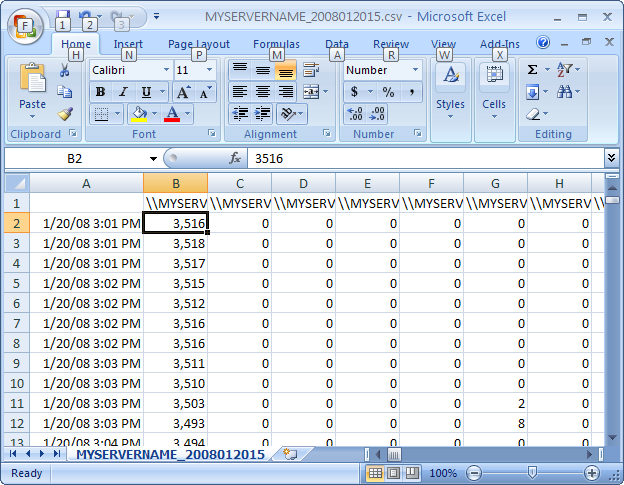
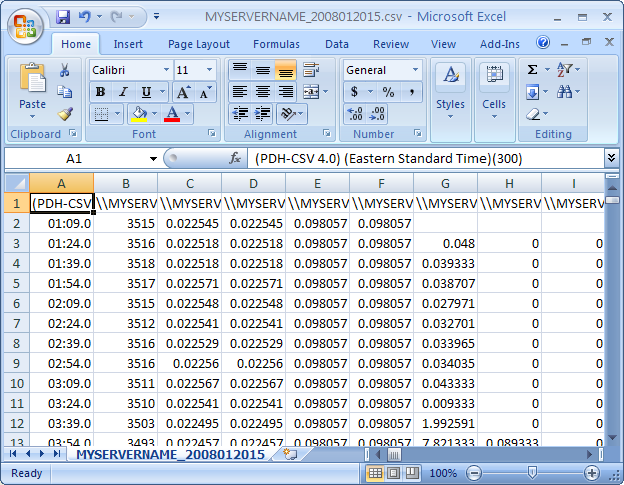
Open the results CSV in Excel. It’s going to look ugly at first:

Perfmon results in Excel
Perfmon Counters In Excel

This is the data from Perfmon. Each column represents one of the metrics, and each row represents one time period. It’s hard to see that with the way it’s currently formatted, but we’ll solve that. Time to put some lipstick on this pig. We’re going to:

  • Get rid of the half-empty row #2 and cell A1
  • Format the dates
  • Format the numbers
  • Clean up the headers
  • Add formulas across the top (my Secret Sauce part)

Excel pros can figure out how to do this, but for the folks who don’t spend too much time in spreadsheets, I’ll explain how:

Getting Rid of the Half-Empty Row and Cell A1
Row #2 in this screenshot only has numbers in the first few columns. That’s typical for Perfmon – when it first starts monitoring a server, it takes it a round of checks before it’ll gather all of the data. Highlight row 2 and hit the Delete key on your keyboard. (I figured we’d start easy.)

Then delete the contents of cell A1, which we don’t need.

Format the Dates in Column 1

Click on cell A2 and look at the formula bar, and you’ll see that it’s a date – it’s just that Excel picks the wrong format to display it. Highlight all of column A (by clicking on the “A” button at the top of the column). Right-click on that A button and click Format Cells. Pick a Date format that includes both the date and the time, and click OK.

At that point, the column will probably show all “#######” entries, which just means it’s not wide-enough. Double-click on the line between the A and B columns, and Excel will autosize the column.

Format the Numbers

In our spreadsheet, some of the numbers have tons of stuff after the decimal place and it’s hard to read. Highlight all of the columns except A (our dates), and right-click and Format Cells. Choose the Number format, zero decimals, and check the box for Use 1000 Separator.

Some of our numbers will have valid data less than zero, but we’ll fix that later. Right now we’re just getting the basics cleaned up.

At this point, your spreadsheet should look like this:

Perfmon results in Excel, a little cleaned up
Perfmon Results Formatted

Now let’s solve that mystery row of headers.

Cleaning Up the Headers

In row #1, notice how all of the cells in my screenshot start with \MYSERV. That’s because the server is called MYSERVERNAME. (Well, not really, but I faked it for this demo.) Click on one of those cells, and you’ll see the full text that Perfmon saves in the header, like “\MYSERVERNAMEMemoryAvailable MBytes”.

Do a find & replace by hitting Control-H. In the “Find What” box type your server name with two backslashes, like \MYSERVERNAME. In the “Replace with” box, erase everything. We want to just delete everywhere that says \MYSERVERNAME. Click Replace All, and Excel should tell you how many replacements it made.

Now do the same for these strings, but be careful to note which ones have spaces:

  • Memory
  • PhysicalDisk
  • Processor
  • SQLServer:Buffer Manager
  • SQLServer:General Statistics
  • SQLServer:Memory Manager
  • SQLServer:SQL Statistics
  • System

Now you’ll be able to tell a little more about what’s in each header, but to make it better, change the font size to 8 for that header row. Then highlight all of the columns and make them wider – not terribly wide, but just wide enough that you can see most of the headers for easier analysis. It’ll end up looking like this:

Perfmon results in Excel, now with cleaner headers
Perfmon Counter Names Now Visible

Getting better. Before the next step, go ahead and save the spreadsheet in Excel format, because the calculations will be slow.

Add Formulas Across the Top

Here comes the secret sauce: we want formulas across the top to quickly summarize our findings. It’ll be easier to understand by looking at the final desired result first:

Perfmon results in Excel, after their Extreme Makeover
Perfmon Results with Formulas

In this particular example, don’t be fooled by the zeroes in columns C through E – that’s because this server didn’t actually have any activity for those metrics.

Start by right-clicking on the Row 1 button at the far left of the screen and click Insert, and repeat that process seven times so that we’ve got seven empty rows at the top.

Then type in the labels in cells A2-A6 to match my screen shot.

In the B column, put in the formulas. In my typed examples below, I assume that your data goes from row 9 to row 100, but you’ll want to change that 100 number to wherever your last data row is.

  • B2 (Average) will be =AVERAGE(B9:B100)
  • B3 (Median) will be =MEDIAN(B9:B100)
  • B4 (Min) will be =MIN(B9:B100)
  • B5 (Max) will be =MAX(B9:B100)
  • B6 (Std Deviation) will be =STDEV(B9:B100)

Finally, the icing on the cake: hit Control-Home, then move your cursor to cell B9, which should be your first cell with data. Hit Alt-W-F-Enter, which should Freeze Panes. That way we can move around our spreadsheet while we still see the dates on the left and the formulas & headers across the top.

Now, we’ve got a gorgeous spreadsheet that’s easier to roam around and analyze.

Analyzing the Performance Monitor Results to Find SQL Server Bottlenecks

Now for the detective work! There are a lot of smart people out there who have some great ways of interpreting Perfmon results. My favorite is the Microsoft SQL Server Customer Advisory Team (SQLCAT), who published two fantastic blog posts that sum up what counters to look at, and what they mean:

So now that we’ve established how the smart people do it, I’ll tell you how I do it, ha ha ho ho.

Look for Obvious CPU Bottlenecks

First, look at the Processor Queue Length for CPU pressure. If this number is averaging 1 or higher (except during the SQL Server’s full backup window if you’re using backup compression), this means things are waiting on CPUs to become available.

I’m suspicious when this number is over 1, because it often means that people have installed other software on the SQL Server such as applications or web sites. That’s a problem. If you get pushback from management saying that they don’t want to buy new servers, point out that two CPUs of SQL Server Enterprise licensing cost around $50-60k – which would pay for a separate server for the web app. If you can eliminate applications from the SQL Server, then you don’t have to use as much CPU power, and less CPUs mean less licensing costs.

There are more in-depth Perfmon metrics that you can add to your capture if you see the Processor Queue Length showing up, but for junior DBAs, the first thing I would recommend is simply remote desktop into the SQL Server. Right-click on the taskbar, click Task Manager, and click on the Processes tab. Check the box that shows processes for all users, and then click on the CPU column to sort the CPU percentage from high to low. Sit and watch it for a minute or two. Which processes are using CPU power? If it’s SQLServer, then we need to do more research, but there’s a good chance it’s another application, and we need to get that app off this server.  Generally speaking, enabling hyperthreading on a SQL Server is not going to fix that kind of a problem.

Look for Obvious Memory Problems

On the Memory – Available MBytes statistic, look for fluctuations of a couple hundred megabytes or more. If that’s happening, then either the SQL Server’s memory is being adjusted dynamically (probably a bad idea for performance) or users are actively logging into the SQL Server via remote desktop and running software. Correlate these fluctuations with disk activity: when available memory drops, is disk activity also increasing? Is this disk activity affecting the page file drive? If so, use this as a demonstration to people using remote desktop – show them that this is why people shouldn’t remote desktop into database servers.

If the Memory – Available MBytes dips below 100mb, that’s an indication that the operating system may be getting starved for memory. Windows may be paging out your application to disk in order to keep some breathing room free for the OS.

Look at Disk Metrics Last

The reason we don’t look at disk performance metrics first is because memory problems can trigger disk problems. If a SQL Server doesn’t have enough memory, or if the SQL Server account doesn’t have the necessary permissions to lock pages in memory, then disk activity may be artificially high on the page file drive.

As we examine the disk numbers, make a mental note of which drive has the page file – and there may be multiple page files as well. Also, find out if one physical drive array is shared by multiple drive letters. This is especially important for servers that boot from SAN: the boot drive may contain the page file, and that boot drive may be on a shared set of spindles with several drive letters. Heavy page file activity will slow down access to all of the affected drive letters in Windows.

Another caveat: mount points. If the shop uses mount points, a drive letter may be broken up into several sets of physical drive arrays. If you don’t know what a mount point is, then you’re probably not using them, and you can ignore that advice.

Want help? Talk to Brent for free.

See sample findings now

If you haven’t got time for the pain, I can get you started faster using SQL Server’s built-in diagnostic tools plus awesomely powerful free scripts.

My SQL Critical Care® is a quick, easy process that gets to the root cause of your database health and performance pains.

Learn more, see sample deliverables, and book a free 30-minute call with Brent.