Blog

Updated “How to Think Like SQL Server” Videos

SQL Server
2 Comments

On my East Coast user group tour last month, I presented my How to Think Like the SQL Server Engine course to a few hundred folks. I’m always trying to learn and adapt my delivery, and I noted a lot of attendee questions this round, so I updated the course.

This is my favorite course I’ve ever done. In about an hour and a half, I cover:

  • Clustered and nonclustered indexes
  • Statistics, and how they influence query plans
  • How sargability isn’t just about indexes
  • T-SQL problems like table variables and implicit conversions
  • How SQL turns pages into storage requests

If you’ve always wanted to get started learning about SQL internals, but you just don’t have the time to read books, this course is the beginning of your journey.

Attendees give it rave reviews, but this one is one of my favorites:

Go check it out and let me know what you think.


Why Index Fragmentation and Bad Statistics Aren’t Always the Problem (Video)

Do you rely on index rebuilds to make queries run faster? Or do you always feel like statistics are “bad” and are the cause of your query problems? You’re not alone– it’s easy to fall into the trap of always blaming fragmentation or statistics. Learn why these two tools aren’t the answer to every problem in these two videos from Kendra Little.

Does Rebuilding Indexes Make Queries Faster in SQL Server?

Learn if rebuilding indexes is a good way to help queries run faster in SQL Server in this 13 minute video.

https://www.youtube.com/watch?v=qxQv0576iAU

Not convinced that fragmentation isn’t really your problem? Read Brent’s post, “Stop Worrying about Index Fragmentation“.

Why are Statistics Always the Problem? (Or ARE They?)

Once you’ve moved beyond an addiction to rebuilding indexes, you may find that you become an obsessive Statistics Blamer. Learn why you might mistakenly think your stats are “bad” when something else is really the problem in this 12 minute video.

https://www.youtube.com/watch?v=EYzgZGD2kRE

Want to learn more about statistics, parameter sniffing, and hints? Read “Optimize for… Mediocre?” and “Recompile Hints and Execution Plan Caching“.


SQL Server 2014 Licensing Changes

Licensing
159 Comments

With the release of SQL Server 2014, we get to learn all kinds of new licensing changes. While I don’t work for Microsoft legal, I do have a PDF reader and a web browser. You can follow along in the SQL Server 2014 Licensing Datasheet… if you dare.

Server + CAL Licensing is Still Around

It’s only for Standard Edition and BI Edition.

Microsoft are highly recommending that VMs be licensed as Server + CAL (rather than per core). This can make a lot of sense when there are small, single application SQL Servers that cannot be consolidated for security reasons. Having a number of Server + CAL license for 1 or 2 vCPU instances can be much more cost effective than having a large number of core based licensed.

Of course, it makes even more sense to just license the entire VM host…

How much money would it take to give you assurance?


Standby Servers Require Software Assurance

Prior to SQL Server 2014, many shops were able to deploy a single standby server without licensing SQL Server. Log shipping, mirroring, and even failover clustering allowed for an unlicensed passive node, provided that the passive node didn’t become the primary for more than 28 days.

That’s gone.

If you want to have a standby node, you’ve got to pony up and buy software assurance. Head over to the SQL Server 2014 Licensing Datasheet; at the bottom of page three, it reads “Beginning with SQL Server 2014, each active server licensed with SA coverage allows the installation of a single passive server used for fail-over support.” The passive secondary server doesn’t need to have a complete SQL Server license, but Software Assurance is a pricey pill to swallow. In short, Software Assurance (SA) is a yearly fee that customers pay to get access to the latest and greatest versions of products as well as unlock additional features that may have complex deployment scenarios.

In case you were confused, high availability is officially an enterprise feature. Note: I didn’t say Enterprise Edition. I mean enterprise with all of the cost and trouble that the word “enterprise” entails in our modern IT vernacular.

All Cores Must Be Licensed

You heard me.

To license a physical server, you have to license all of the cores. Don’t believe me? Check out this awesome screenshot:

License ALL THE CORES

It’s even more important to consider alternatives to having a number of SQL Servers spread throughout your environment. SQL Server consolidation and virtualization are going to become even more important as SQL Server licensing changes.

Finding new ways to analyze, tune, and consolidate existing workloads is going to be more important than ever before. Your ability to tune SQL Server workloads is going to be critical in successful SQL Server deployments. The days of worrying when the server hit 25% capacity are fading into history – as licensing costs increase, expect server density and utilization to increase, too.

Standard Edition has a new definition

“SQL Server 2014 Standard delivers core data management and business intelligence capabilities for non-critical workloads with minimal IT resources.” You can read between the lines a little bit on this one – SQL Server Standard Edition isn’t getting back mirroring or anything like it. In fact – SQL Server Standard Edition sounds an awful lot like the database that you use to run your non-critical ISV applications, SharePoint, and TFS servers.

Software Assurance Gives You Mobility

If you want to move your SQL Server around inside your VM farm, you need to buy Software Assurance. VM mobility lets teams take advantage of VMware DRS or SCOM VMM. This isn’t new for anyone who has been virtualizing SQL Servers for any amount of time. What is explicitly spelled out, though, is that each VM licensed with SA can be moved frequently within a server farm, or to a third-party hoster or cloud services provider, without the need to purchase additional SQL Server licenses.”

In other words – as long as you’re licensed for Software Assurance, those SQL Servers can go anywhere.

SQL Server 2014 Licensing Change Summary

Things are changing. DBAs need to take stock of their skills and help the business get more value from a smaller SQL Server licensing footprint. Realistically, these changes make sense as you look at the broader commercial IT landscape. Basic features continue to get cheaper. More resources are available in SQL Server 2014 Standard Edition, but complex features that may require a lot of implementation time, and Microsoft support time, come with a heavy price tag.


What happens to in-flight data compression in an emergency?

SQL Server
10 Comments

Data compression can have many uses and advantages, but it also has its drawbacks. It’s definitely not a one-size-fits-all strategy. One of the things to be aware of is that initial compression of a table or index can take quite some time, and will be resource-intensive. It also is an offline operation, so the object can’t be accessed while it’s being compressed or uncompressed. (Clarification: by default, an ALTER TABLE statement is an offline operation. You can declare it online, but, as David notes in the comments, “Although the operation is ONLINE, it’s not completely idiot-proof.”)

So what would happen if your SQL Server service or server restarted while you were in the middle of (or, as it usually goes, 90% of the way through) compressing an index? Let’s investigate.

I have a table that is 1.1 GB in size, with a 1.0 GB nonclustered index.

Table name Index name total_pages PagesMB
bigTransactionHistory pk_bigTransactionHistory 143667 1122
bigTransactionHistory IX_ProductId_TransactionDate 131836 1029

I need to reduce the size of the nonclustered index, so I decide to compress it. After using sp_estimate_data_compression_savings, I determine that I will benefit more from page compression.

I apply page compression, and allow my server to work.

Now, let’s say there is an emergency during this operation. Perhaps a component in the server breaks; maybe the data center loses power. (Or I restart the SQL Server service.) Uh-oh! What happened?

When the service is running, I check SSMS. I see the following error.

What happened to the data? Is compression all or nothing, or is it possible that some pages are compressed and others aren’t? I first check the index size.

Table name Index name total_pages PagesMB
bigTransactionHistory pk_bigTransactionHistory 143667 1122
bigTransactionHistory IX_ProductId_TransactionDate 131836 1029

Nothing has changed – the index is not one byte smaller. This tells me the operation was not successful.

I also check the error log to see what information it can provide.

error log rollback

There are 2 transactions that are rolled back. As I am the only person in this instance right now (the benefits of a test environment), I know those were my transactions.

SQL Server has treated my data compression operation as a transaction. If there is a restart at any point, the operation will be rolled back to maintain data integrity.


Are Table Variables as Good as Temporary Tables in SQL 2014?

There’s a couple of new features in SQL Server 2014 that provide options for how you work with temporary objects. Will inline index creation or memory optimized temporary tables forever change the way you code? Let’s take a look!

Inline Index Creation

SQL Server 2014 brings us a TSQL improvement called “inline specification of CLUSTERED and NONCLUSTERED indexes.” This feature works in Standard Edition and applies to many types of table. This improves the functionality of table variables. But does it make table variables as good as temp tables?

First, let’s take a look at the feature, then take it for a test drive.

Creating a table with an inline nonclustered index

Here’s a simple look at the new feature– when I create a table (nothing temporary about it), I can name and define an index on multiple columns. In this case, I’m creating a nonclustered index on the columns j and k:

I also have the option to put all my constraint and index create statements at the end of the table, like this:

What about temp tables?

The same syntax for inline index create listed above works just fine for me on temporary tables in my CTP of SQL Server 2014.

This is a good thing for some people! One of the issues with temporary tables in stored procedures is that creating an index on the temp table can prevent caching of the temporary item. For most people, this is no big deal, but for some frequently run stored procedures, it might make a difference.

Creating the nonclustered indexes on the temp table at creation time (instead of afterward) can improve temp table caching in stored procedures.

Before you rejoice, there’s some fine print. If you change your temp table syntax to use inline index creation and it enables caching, you might run into issues where statistics aren’t updated on your temporary tables when you think they would be. (The short version: Statistics are also cached for temp tables, and Gremlins keep from updating very frequently.) Just test carefully if you’ve got very frequently run stored procedures you’re modifying.

Inline index creation on table variables

The new syntax works on table variables, too! This means that with SQL Server 2014 and higher, you can create non-unique nonclustered indexes on table variables. You can even set the fillfactor option. (Note: I’m not saying you should use a lower fillfactor– I was just surprised that option was available for table variables.)

With the new SQL 2014 syntax, you will also have the option to create a non-unique clustered index on a table variable:

So, are table variables as good as temp tables now?

Well, sorry, not generally.

First, there’s some limitations to the “inline index create” feature. You can’t inline every kind of index you might want — you can’t add included columns or filters to indexes created with an inline create statement. Since you can add indexes with those to a temporary table after it’s created (and you CANNOT do that with a table variable), it has an advantage.

But temporary tables still have another advantage.

Statistics help temporary tables

When looking at the new feature, I wondered if these new indexes declared inline might secretly allow some sort of populated statistic on table variables– which hasn’t worked before.

But, unfortunately no. Even using the inline indexes, table variables do NOT get statistics to help the optimizer psychically predict how many rows will come back based on a specific predicate value. That can cause you to get less efficient execution plans. Let’s look at an example.

First up, the temp table:

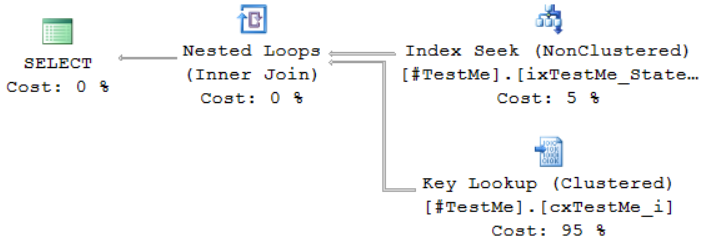
For the temporary table, SQL Server uses statistics associated with the nonclustered index to estimate that it will get 25 rows back (which is right on). Based on this it decides to seek to the rows in the nonclustered index, then do a nested loop lookup to fetch the City column from the clustered index. It does 52 logical reads:

Key Lookup

Now let’s run the same code, but with a table variable with an inline index:

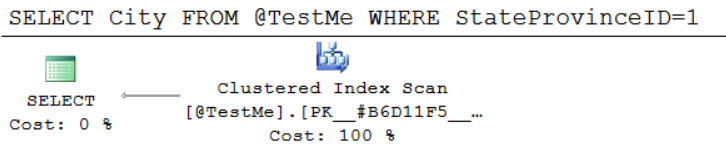
Oddly enough, it gets a clustered index scan. It estimates that only one row will be found — that’s because for table variables, statistics associated with the nonclustered index still can’t be populated. So it doesn’t know to estimate the 25 rows, and it just guesses one.

With a one row estimate, I thought the optimizer would surely go for the nested loop lookup. Looking up just one row is easy, right? But instead it decided to scan the clustered index. (Note: The nonclustered index is functional– it will use it if I omit the City column from the query. But it does not seem to want to do a key lookup from it in my testing here. Wacky!)

Clustered Index Scan

Finding: Inline Index creation is the most awesome for temp tables

I like the new syntax for its added flexibility. I do wish it allowed included columns, but for indexes with just key columns it can make for tidier, more compact code.

This feature doesn’t fix all the flaws of table variables– it’s interesting that I didn’t get a nested loop lookup in my testing, which makes me wonder if the optimizer has as many options with the indexes on table variables.

The ability of temporary tables to have column and index related statistics still gives them a great advantage in most situations. Using the inline index creation script on temporary tables in stored procedure to improve caching is a nice little bonus. Even with the gotcha I linked to above about statistics updates on temp tables, I think this feature makes the case for temporary tables even stronger.

What about Memory Optimized Table Variables?

First off, this feature is more expensive. SQL Server 2014 adds in new “memory optimized” tables, AKA “Project Hekaton”. This feature is only available in Enterprise Edition. I won’t come close to covering the whole feature here– I’ll just scratch the surface of one of its uses: the “Memory Optimized Table Variable”.

The first thing of note is that memory optimized tables DO support statistics— so does that mean that a Memory Optimized Table Variable might have them? Let’s take a look!

First, let’s enable memory optimized objects

To test this feature out, I need to make some changes to my test database:

Memory_Optimized = ON !

Now I can start creating my memory optimized table variable. First, I must create a table type with the table variable’s definition. I’m not going to test this in a natively compiled stored procedure just yet, so I’m leaving off the identity (it’s not supported in this scenario). I also use some special collations and don’t allow nullability on some columns to get the whole thing to work.

All right, now that our table type exists, we can put it to use! Let’s populate it and query it and check out what plan we get:

There’s a little surprise in the execution plan:

Index Seek on Memory Optimized Index

Estimated rows is still 1– statistics still aren’t working here. But magically we get an index seek on the nonclustered index instead of a scan on the clustered index. This is remarkable because back in the normal world of non-memory-optimized indexes, the City column would not be in that nonclustered index– we only asked for it to contain StateProvinceID!

Memory Optimized Indexes are Always Covering

In the brave new world of Memory Optimized tables, indexes have a motto: Always Be Covering. We’re not in Kansas any more Toto, and there’s no such thing as a Key Lookup or Bookmark Lookup anymore.

This means a couple of things: for these tables, it really doesn’t matter that you don’t have the INCLUDE syntax on inline index creation. Nonclustered indexes will always have all the columns, so why bother with an INCLUDE clause? (I’m guessing that’s why it’s not possible in the new syntax!) Also, memory optimized indexes may be larger than you’d assume because they cover everything.

Summing Up

For 99% of the use cases I see in the wild these days, temporary tables beat table variables easily because their ability to have statistics improves query optimization dramatically. That remains true with the enhancements in SQL Server 2014.

For the 1% of cases where stored procedures using temporary objects are run at high rates of frequency, there are a few new choices that are attractive. They both have gotchas and require testing, but they could both turn out pretty well:

Option 1: Inline Nonclustered Indexes on Temp Tables: This works in Standard Edition, so I think this will be the most widely adopted. Instead of creating a nonclustered index after the temp table exists, you can improve caching of your temp tables by creating nonclustered indexes with the temp table itself. Just make sure you don’t get into trouble with out of date statistics.

Option 2: Memory Optimized Table Variables: For you lucky people with Enterprise Edition, you can test these out. You won’t want to do exactly what I did above — you’ll probably want to use natively compiled stored procedures. You’ll definitely want to test at scale and make sure you can monitor performance of these new structures at load. That may be a little tricky: you don’t get actual execution plan or cost information for natively compiled procedures. Given the fact that the memory optimized table variables didn’t show any statistics in my testing, in complex implementations you could end up with some strange execution plans. (This post hasn’t covered questions like “How much memory are these structures using?” “How much memory do you have left?” “What happens if you run out?”) In short: there’s much to learn here– don’t rush in without making sure you can support it.


Microsoft Cloud Rebranded as Microsoft Pale Blue

SQL Server
15 Comments

It’s time to learn another new set of acronyms.

Effective today, Microsoft’s as-a-service brand is changing names again. As recently as last week, the product’s name had been changed from Windows Azure to Microsoft Azure, but industry observers noted that Microsoft’s web pages actually referred to a different name – Microsoft Cloud.

“Our research found that the primary barrier to Azz..As..Accu..cloud adoption was pronounciation,” said an inside source. “No one could say the damn word correctly, and nobody wanted to look stupid, so they just recommended Amazon Web Services instead.”

Thus the new name, Microsoft Cloud – but it ran into more branding problems right away, said the source. “We tried to trademark our virtual machines and databases, but you-know-who had a problem with our names, MC-Compute and MC-Database. People kept calling them McCompute and McDatabase. It probably didn’t help that our combination program was called the Value Menu.”

Enter the New Brand: Microsoft Pale Blue

The new Microsoft Pale Blue logo

Satya Nadella, Microsoft’s new CEO, picked the name himself. “Microsoft Pale Blue captures the wide-open possibilities of the empty sky. Everybody knows that blue is the best color for logos, so why not take it to the next level? Let’s use the color name as our brand.”

“Microsoft has learned to play to their core strength – product rebranding,” said industry analyst Anita Bath. “Nobody goes through product names like they do. Metro, Vista, Zune, PowerWhatever, Xbone, you name it, this is a company that understands brands are meaningless.”

Nadella has realigned Microsoft’s organizational structure to support the new mission. “Developers are building more and more applications with cloud-based services and Javascript. We have to understand that it’s the right combination for today’s agile startups.” The new Pale Blue & Javascript division will be led by John Whitebread, a developer widely known in the community as the beginning and end of this kind of work.

“We’re also announcing new datacenters – or as we call them, Pale Blue Regions – in China, North Korea, and Iran,” said Microsoft spokesperson Pat McCann. “We don’t believe politics should stop people from having access to the best technology, and we’re committed to aggressively growing our regions. Anytime we see new cloud demand, we’ll open a PBR.”

Today’s announcements did not include any numbers about customers or revenues, however, and questions remain. A few European reporters at today’s announcement asked Nadella if he thought security concerns around Microsoft reading customer data or NSA back doors might be barriers to cloud adoption. Nadella paused for a moment, then said, “No, no way. That can’t be it. It’s gotta be the brand name.”


Refactoring T-SQL with Windowing Functions

SQL Server, T-SQL, Videos
6 Comments

You’ve been querying comparative numbers like Year To Date and Same Period Last Year by using tedious CTEs and subqueries. Beginning with SQL Server 2012, getting these numbers is easier than ever! Join Doug for a 30-minute T-SQL tune-up using window functions that will cut down dramatically on the amount of code you need to write.

Looking for the scripts? Grab them below the video!

https://www.youtube.com/watch?v=CnQyH1b8-Xk

Script 1: Create Windowing View

Script 2: The Old Way of Querying

Script 3: The New Way of Querying


How to Add Nonclustered Indexes to Clustered Columnstore Indexes

SQL Server 2012 introduced nonclustered columnstore indexes, but I never saw them used in the wild simply because once created, they made the underlying table read-only. Not a lot of folks like read-only tables. (Bad news, by the way – that limitation hasn’t disappeared in 2014.)

SQL Server 2014 brings clustered columnstore indexes, and they’re totally writeable – you can insert, update, or delete into them. They’re best suited for wide data warehouse fact tables that have lots of columns, but your queries might only want a few of those columns, and they might pick any of the columns for filtering. These types of tables are notoriously difficult to index, and columnstore indexes can give you dramatic performance improvements here.

Inventor of The Locke Technique
Books Online says you’d better be sure your access patterns all benefit from columnstore indexes, because you can’t add any nonclustered indexes to your columnstore tables. The CREATE CLUSTERED COLUMNSTORE INDEX syntax page explains that the clustered columnstore “is the only allowable index on the table,” meaning you can’t add non-clustered indexes.

Or can you?

Allow me to demonstrate what I call the Locke Technique:

Presto – you can have as many nonclustered indexes as you need – and technically, in a strange twist, the clustered index on the view is a nonclustered index on the table as well.

These have the same drawbacks as any other nonclustered index: slower inserts/updates/deletes on the underlying table, more complex query tuning, more space requirements, and so on. They also have even more drawbacks because the schema-binding view means you can’t alter the columnstore table without first dropping the nonclustered indexes and the view.


After You’ve Been a DBA, What Do You Do?

You’ve been managing database servers for a few years.

Now what?

Get more technical – every time a new project comes in, sharpen your skills. Get more involved in failover clustering, storage, virtualization, or the cloud. Write technical presentations to teach your own company’s staff, and then the public.

Business intelligence – if you’re constantly surrounded by valuable data, and you’ve got a creative eye, you can help make sense out of all those letters and numbers. There’s never been a better time to help people get actionable insight out of your tables. It’s a wildly different career path than DBA – it involves more time with people, and less time with maintenance plans.

Consult – get technical enough, and develop a reputation for solving tough problems quickly, and you can change gears entirely. Instead of working for a single company, you can move around from company to company, giving guidance on how to put out more fires faster.

Contract – in some markets, you can keep doing what an employee does, but as an outsider. Consultants tell companies what to do, and contractors do what they’re told. If you enjoy the job duties and don’t really care for the big picture, contracting can be more lucrative.

Management – if you have enough IT pros around you, and you’ve got a knack for people skills, you can really shift gears and manage people instead of servers. Caution, though: this is nothing to do with databases whatsoever. The skills that served you so well troubleshooting a cluster may not help you motivate an employee you don’t like to do a task they hate.

Architecture – your constant interactions with developers teach you more and more about building large systems. Because you’re more senior than other folks in the shop, you end up giving design guidance. Eventually you spend more time doing guidance than managing databases, or they hire a junior DBA in to backfill your production duties.

Stagnate – keep doing exactly the same thing. You’re going to get all of the servers into pretty good shape – not perfect, but good enough that your phone isn’t ringing every night. You’ll have more time to spend playing 2048 at work, but you’re not going to make dramatically more money if you’re not doing dramatically better work.

So what’s your plan?


Finding One Problem Query With Extended Events

It’s easy to find problem queries on your SQL Server after they’ve happened. You can open your favorite monitoring tool or look in the plan cache. Those options are great for finding things after they’ve happened, but what if you want to find problems as they happen?

Server Side Trace

You could set up a SQL Server Server Side Trace. This is an acceptable solution if you’re using SQL Server 2008 or earlier. There are a few problems with this approach.

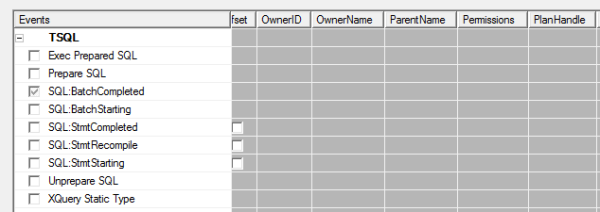
Problem the first – the SQL Server Profiler UI is less than beautiful. The GUI interface is somewhat cumbersome and the scripting interface is hilariously bad. To make matters worse – to only capture a single query requires string based filtering. There’s a plan handle property available in profiler, but it’s not available for TSQL or stored procedures.

Something appears to be missing

As much as I like string matching in T-SQL (hint: I don’t), I think it’s fair to say that Profiler/Server Side Trace are best avoided unless you’re using SQL Server 2008 or earlier.

Extended Events

Extended events are nowhere near as hard as you’d think. Trust me on this. How do I know? I set up an Extended Events session to grab a particular query.

Here’s what you do:

  1. Create a crappy stored procedure. Use your imagination.
  2. Run the stored procedure a lot.
  3. Grab the query_hash for that stored procedure. The easiest way
    I’ve found to do this is to use our plan cache query to identify it. My query_hash is 0x2B42702322C10821. What’s yours?
  4. Create an extended events session to capture that specific query hash.

Step 4 isn’t as easy as it sounds. Astute readers will note that I never said this was easy, just that it’s not as hard as you would think.

Even though the query_hash is stored as a hexadecimal in SQL Server, Extended Events would prefer to see an unsigned 64-bit integer. To get this magic number, take your query_hash and cast it as either a BIGINT or a DECIMAL(20,0):

Once you convert the query_hash to a magic_number, create your Extended Events session. I chose to capture the sp_statement_completed and sql_statement_completed events and a number of server level events like time, app name, and client host name. Here’s what it would look like capturing this to a file:

Once you have that up and running, you should be able to start the session, if it isn’t already started, by running:

Just like that, you’ll be capturing your terrible queries to disk where you can mine the extended events files for gold and glory at your own convenience. If you want to query it, it’d look something like this:

Cleaning Up After Yourself

Once you’re done watching a specific query or queries, make sure you clean up after yourself. There’s no reason to add extra load to SQL Server when you aren’t watching. Make sure to stop and remove your Extended Events session:

Augment Your Techniques

This won’t replace any other techniques that you’re using to find poorly performing queries. However, you can use this technique to find problem queries as they’re happening.

Different monitoring techniques provide you with a different view of the data. Our plan cache query shows you a historical record of what’s been going on, but it can only show so much. If a query has been run 14,400 times over the last 24 hours, does that mean it’s been run 10 times a minute for that entire period or is there a period of activity where that query gets run 1,440 times a minute for 10 minutes straight?

This isn’t going to replace the need for other tools you have at your disposal. It’s just another way to get the job done.


Rollback: What happens when you KILL a session?

SQL Server
53 Comments

It’s Friday afternoon. You, the DBA, are looking forward to a long weekend. You’re going to walk out the door in 30 minutes and enjoy some family time. The phone rings and you pick it up. On the other end, Joe Developer says, “There’s a query that’s been running for a long time. Can you kill it?”

You log into SSMS and use sp_who2 to confirm that the user has an open transaction. You issue the (infamous) KILL command.

Twenty-five minutes later, you’re still sitting there, waiting for the transaction to roll back. You’re sweating. You really want to leave for the weekend. Another ten minutes pass, and finally, it completes.

What happened? Why did SQL Server take so long to kill the process? What happens in a rollback situation?

What Happens in a Transaction

When a transaction is being committed, each step is written into the transaction log. Each value that is being inserted, updated, or deleted is recorded so that if there is a failure before the log is written to the data file, the appropriate rollback or roll forward can take place. The transaction may take and release locks on tables or indexes.

Want to see this in action? You can use the undocumented fn_dblog command to view the entries in the log.

What Happens in a Rollback

When we issue a KILL, every step of the transaction that has been written to the transaction log must be undone. The object the transaction was changing must be put back to the state it was in prior to the change. Was a record inserted? It needs to be deleted. Was a record updated? The previous value must be restored. Was a record deleted? It needs to be added back in. You can use fn_dblog to see this in action, too.

If SQL Server is simply undoing what was once done, why does it sometimes take longer?

If the transaction had to take a lock on a row or table to perform the operation, it will have to take that lock again – and other processes might be using that object now. Also, consider that a rollback is mostly single-threaded. If the transaction ran using four cores initially, and the rollback is now only using one, it will take more time.

Try going down backwards, hopping on one foot. I dare you!

Imagine this: you’ve decided to climb a tower with 10,000 stairs. You get to stair 9,999 and decide you don’t want to complete the climb. You can’t wish yourself to the bottom step – you have to go back down. But now, you’re tired – and have to do this single-threaded. Imagine having to hop down the stairs backwards, on one foot.

Tracking Progress

You are able to track the progress of a rollback. After you issue a KILL command, run KILL [Session ID] WITH STATUSONLY. This will show you approximately how much time is remaining in the rollback – but other processes in the database could affect that.. Consider the information here a guideline, not a hard-and-fast time.

Another thing to keep in mind: what you might not have known when you issued that KILL on Friday at 4:30 pm is that the transaction was going to finish at 4:32 pm. But, you had to wait until 5:05 for the rollback to complete. Always be cautious when using this command!

Solving the root cause

A one-time KILL issued to solve an “oops” may not need further investigation. But if you find yourself having to issue these commands for the same application, at the same time each week, it’s time to dig deeper. You want to work with the owners of the application or process to determine why this keeps happening, repeatedly. If it’s a long-standing process or transaction, what’s changed to make it take so long now? Perhaps you’re doing a mass insert or update, and could break it into chunks. If it’s a new process, look at what else is going on at that time. Could the statements be written more efficiently? Could it be scheduled at another day or time?


When Do You Fire the DBA?

SQL Server
16 Comments

I know a lot of DBAs, but it’s really, really rare that I’ve seen one get fired. I don’t think it’s ever happened during one of my consulting engagements, and I’ve seen some incredibly horrific database disasters (not to mention a whole lotta ugly near-misses).

So I asked Twitter:

https://twitter.com/Philoushka/status/438672920173236224

https://twitter.com/Philoushka/status/438673788540973057

Not Telling Management About Problems

That’s fair – I can understand if someone’s databases have problems that they don’t know about, because we can’t all know about every risk. But if you do know about a risk and you don’t inform management, that’s bad. Which leads to…

Doing Dirty Deeds

https://twitter.com/buckwoody/status/438678817058865152

What if someone came to you and offered you fifty thousand bucks for a copy of your company’s database backups? Or more realistically, just asked you to up their login permissions to see more databases as a favor?

The devil doesn’t come wearing red horns and a cape. He comes as a friend who needs a favor and will pay you handsomely for it.

Being Untrainable

https://twitter.com/mvelic/status/438672689163931648

https://twitter.com/mvelic/status/438672947268812800

Not Having Backups

This one’s interesting because it happens a lot. No, seriously, it’s the first thing I check when I start a consulting engagement, and maybe 1/4 to 1/2 of the time, the backups aren’t working the way the DBA assumed.

After all, think about your own databases – you’re just assuming the backups worked okay last night because you didn’t get an email. If someone walked into your cube right now and checked every database for a clean (non-corrupt) backup that made it to tape or offsite, are you ready to bet your job on it? Especially if other teams are involved in sweeping the backups off to tape?

I’m much more tolerant of this mistake now because I see it so often. DBAs get distracted by performance issues because that’s what users complain about. Nobody complains about missing backups until it’s too late.

Making a Fatal Mistake

I love those last two words from Allan – stated consequences. If the company makes it clear ahead of time that certain mistakes are unforgivable, then yep, that can be a recipe for firing. If you’re in that kind of shop, you’d be wise to print out that list of unforgivable mistakes in a really large font and stick it to your wall near your monitor as a constant reminder.

Not Being Customer-Friendly

Over on DBAreactions, I make a lot of bad jokes about developers, SAN admins, network admins, sysadmins, and your momma.

The reality, though, is that I love these people because they’re struggling just like us DBAs are. They’re working to get better, and I have to help them get better as part of my own struggles. As much as we’d like to think we DBAs know everything about everybody else’s jobs, often our attitudes create a problem that’s a bigger liability than our perceived knowledge.

Not Improving Despite Guidance

https://twitter.com/buckwoody/status/438678939234750464

Buck sums up the real thing DBAs need to be aware of.

Ideally, you build your own learning plan to up your game and keep your data safeguarded. You sharpen your own knives, and you train for the day that you have to respond to the unthinkable outage.

Less-than-ideally, your managers notice that your knives are those plastic ones you get in coach class on airplanes, and they write you a plan as part of your annual review. You make progress on it with that jump start, and you keep treading water in your career.

Or not-ideally-at-all, you put your company’s data at risk, they take you to Human Resources, and you sign off on a very urgent plan to get your learn on.

So, go get your learn on before the company notices.


Finding Blocked Processes and Deadlocks using SQL Server Extended Events

A lot of folks would have you think that Extended Events need to be complicated and involve copious amounts of XML shredding and throwing things across the office. I’m here to tell you that it doesn’t have to be so bad.

Collecting Blocked Process Reports and Deadlocks Using Extended Events

When you want to find blocking, you probably turn to the blocked process report. You mess around with profiler on your SQL Server 2012 box. You probably feel a little bit dirty for clunking around in that old interface, but it gets the job done.

There’s a better way… Well, there is at least a less awful way: Extended Events.

With that, you’ve created an Extended Events session to grab blocked processes and deadlocks. Why both? The blocked process report makes use of the deadlock detector. Since large amounts of blocking are frequently synonymous with deadlocking, it makes sense to grab both at the same time. There are a few other things we’ll need to do to make sure you can collect blocked processes:

At this point, you’ll be collecting the blocked process report with Extended Events. There’s no profiler session to set up, just start and stop the Extended Event session at your leisure.

Reading the Block Process Report from Extended Events

We’re saving the blocked process report to disk using Extended Events. Now what?

We need to get that blocked process data out of the Extended Events files and somewhere that we can better analyze it.

In this query, you read from an Extended Events session that’s being saved to disk and perform XML shredding to get client information. It isn’t a pretty query, but it does the job very well.

Viewing the Extended Events Deadlock Graphs

Extended Events deadlock graphs use a slightly different XML schema than what SSMS expects. You should see an error along the lines of “There is an error in XML document”. For folks using SQL Server 2012 and earlier, you can either parse the XML by hand or use SQL Sentry Plan Explorer.

Viewing the Extended Events Blocked Process Report

But what about the blocked process report? After all, your users are complaining about blocking, right?

Michael J. Swart has created tools to view the blocked process report. It’d be awesome if you could use it, but Michael’s blocked process report viewer uses the output of a server side trace to read blocking information. These Extended Events files are different enough that you can’t use them outright. You can, however, create a table that will let you use the blocked process report viewer:

While you still have to read the XML yourself, this will give you a view into how deep the blocking hierarchies can go. Collecting this data with Extended Events mean that you won’t have to sit at your desk, running queries, and waiting for blocking occur.

Extended Events – Not That Hard

Extended Events aren’t difficult to use. They provide a wealth of information about SQL Server and make it easier to collect information from complex or difficult to diagnose scenarios. You really can collect as much or as little information as you want from SQL Server. When you get started, the vast majority of your work will be spent either looking up Extended Events to use or formatting the output of the queries into something meaningful.


T-SQL Tuesday: Stop Tuning with Wait Stats Percentages

TSQL2sDay150x150For this month’s T-SQL Tuesday topic, Michael J. Swart told us to argue against a popular opinion, and man, is that right up my alley. I’ve told you to stop worrying about index fragmentation, stop backing up your logs once an hour, and to stop running $14k of licensing on $3k of hardware.

You’re probably checking SQL Server wait stats periodically to find your SQL Server’s bottleneck – and that’s a good thing. Instead of checking Perfmon counters and trying to figure out what’s the slowest part of your server, at least wait statistics tell you what SQL Server has been waiting on while running queries.

But it all falls apart when you say, “67% of the time, SQL Server is waiting on ____, so we should focus there.”

We need to understand the difference between latency and throughput.

Explaining Latency and Throughput with Shipping Companies

If we run an online store and we wanted to measure how fast a delivery service works, we could call them to pick up a single envelope, and then measure the amount of time it took to arrive at its destination. We could then say, “That service can deliver exactly one package per day. If our business is going to grow, we’re gonna have to find a delivery service that can ship faster, because we need to move more than one package per day.” We could then focus all our efforts trying to use local courier services, or spreading our load across multiple shipping companies.

Ernie arrives at her destination.

But we would be morons.

Instead, we need to put MORE packages out on our doorstep and call the delivery service to get it. They’ll send a truck, pick up all the packages, and deliver them to various destinations. As we try to ship more and more packages, we’ll probably need to upgrade to a loading dock, or maybe even multiple loading docks, and set up an arrangement with our shipping company to send more trucks simultaneously.

Latency is the length of time it takes to deliver a single package.

Throughput is the number of packages they can deliver per day.

Just because our business is waiting overnight for a single package to be delivered doesn’t mean we have to go finding a new shipping company. It’s completely normal. We need to keep pushing our business to figure out where the breaking point is. Are packages piling up at the door because the shipping company only has a single small cargo van? Sure, that’s the point at which we worry.

How This Relates to SQL Server Wait Stats

In a recent load testing engagement, the DBA told me, “We’ve only got a few end users hitting the system, and we’re already seeing 80-90% of our waits in PAGEIOLATCH. The data file storage simply isn’t able to keep up.”

We switched from using his wait stats script to sp_BlitzFirst® instead, which shows the cumulative amount of time spent waiting on each wait type. In any given 5-second span, the server was spending less than a second waiting on PAGEIOLATCH. Furthermore, the average wait time was less than 5 milliseconds each time – indicating that the storage was responding fairly quickly to each request.

The server was sitting idle, and the DBA was reading wait stats incorrectly. Sure, the majority of time spent waiting was due to storage, but there just wasn’t much time spent waiting period.

“Crank up the load,” I said. “Quadruple the amount of work you’re throwing at the server.”

Everybody in the room looked at me like I was crazy, but they agreed – and the SQL Server still didn’t flinch. We kept upping and upping the load, and finally we did find a breaking point, but it wasn’t storage. Just as you can pile up a lot of boxes in front of your house and the shipping company will pick them all up to deliver them in the same amount of time, the SQL Server’s storage kept right on delivering every result within 5-6 milliseconds.

The Moral of the Story

When using wait stats for monitoring, make sure you’re looking at the total number of seconds spent waiting per second on the clock. If you sample waits for 5 seconds on a 16-core server, don’t freak out about 5 seconds worth of wait. Each core can have multiple queries piled up, all waiting on different resources, so even 15-20 seconds of wait time during a 5-second period may not indicate problems.


The Worst Database User

SQL Server
30 Comments

“Can you tell me a little about this code?” I asked, keeping my best poker face on.

“I’m really proud of it. It gathers a whole bunch of stuff from accounting, human resources, manufacturing, you name it. I want to be able to track how we’re doing over time.” He nearly hovered in his chair with excitement, eagerly pointing out the different places he was gathering data from. “It’s like having my finger on the pulse of what matters most to the company.”

“That sounds really cool. And there’s some really fine-grained stuff in here – it looks like you really are taking the pulse of the company. How often do you run these queries?”

“It depends – some of them every day, some of them every minute because I need better sampling on those.”

I started to ease into the tough questions. “Every minute, wow. Are you concerned about the overhead?”

“No no, they’re really small queries, only took me a few minutes to write. And it’s not like I’m doing SELECT *,” he laughed.

“Oh, good. And did you index the tables involved? Sometimes adding indexes can really help ease the load of frequent queries.”

He paused for a second. “I never thought about that – but I can’t, right? I can’t add indexes on that kind of thing, can I?” Suddenly he realized he was in unsafe territory.

“No, I guess not. I wonder why that is. But who cares – it’s gotta be worth the cost to get such valuable information, right?”

Your job isn't to gather metrics you won't use.
Your job isn’t to gather metrics you won’t use.

“Oh yeah! You bet.”

“So how often do you query that data?”

He paused again. “Well, not very often. I’m pretty busy.”

“Did you query them today?”

“No.”

“Yesterday, or last week, maybe? Like before you called me in?”

His enthusiasm was gone, and he eyed me with suspicion.

“You’re way too busy to query this data, aren’t you? You’re busy putting out fires, fixing people’s mistakes, and keeping the lights on. You don’t really need this data gathered every minute, across all of your servers, do you?”

See, that user was the DBA, and when I showed him the top resource-using queries in the plan cache, they were all his monitoring queries. Queries that hit tables he couldn’t possibly index, because they weren’t actually tables at all – they were dynamic management views that SQL Server had to compute each time he accessed them. Queries that faithfully stored away data in tables he’d never bother to review.

And now you know the rest of the story.


Need High Availability for SQL Server? Use Windows Server 2012.

SQL Server DBAs are slow to adopt Windows Server 2012 and Server 2012 R2. I frequently find teams planning new implementations of SQL Server 2012 on Windows Server 2008 R2.

There seem to be two main reasons for this:

  1. DBAs want to change a minimal number of factors, and are slow to trust a new version of the OS. Windows 2008R2 feels “safe.”
  2. Windows Server 2012 was hard to love when it first came out. With no Start menu, Windows 2012 was more baffling than exciting to most production DBAs.

But these reasons don’t hold up– and staying on an old OS isn’t doing you any favors. If you’re planning a SQL Server 2012 (or upcoming 2014) installation, you should also be using Windows Server 2012 or Server 2012 R2.

Windows Server 2008R2 isn’t “Safer” or “Simpler” than Server 2012 R2

Let’s break down that first concern above. The essense of it is that staying on Windows Server 2008R2 seems less risky than using a new OS.

But let’s look at that closely. The most recent service pack for Windows 2008R2 was released in March 2011— that was Service Pack 1. (I bet I’m not the only person who has searched in vain for SP2 repeatedly, thinking I must have just missed it.)

Lots of fixes have been released since Service Pack 1. Here’s a few highlights:

Which patches you need varies by your configuration, and this is just the tip of the iceberg.

When you’re using high availability solutions, the list of patches you need to consider just gets bigger– and the risks get higher. In this post Brent describes a cluster-specific bug that was released after Stack Exchange experienced Availability Group outages due to a clustering issue.

Although Windows 2008R2 has been out for a while, managing an Availability Group or a Windows Failover Cluster on it isn’t simpler– it’s actually more complicated! You’ve got more patches you need to be aware of and manage, and you still need to keep an eye out for new fixes as they’re released.

Failover Clustering has huge new features in quorum

Windows Failover Clustering is increasingly critical to high availability in SQL Server– it’s the underpinning for clustered SQL Server instances and for AlwaysOn Availability Groups.

Don’t get me wrong– Windows 2008 R2 has some pretty nice features when it comes to setting up a cluster, particularly compared to older versions of Windows. I love the Cluster Validation Wizard. I find the Failover Cluster Manager snap-in to be pretty intuitive and easy to manage.

But Failover Clusters have grown up significantly– particularly when it comes to your options with making sure that your applications stay online. And having more ways to keep applications online is probably the exact reason that you’re using features involving clustering!

Dynamic Quorum and Vote Assignment – Windows Server 2012

Windows Server 2012 introduced “Dynamic Quorum“. Dynamic Quorum lets the cluster add and remove votes for nodes if they shut down or fail. This makes it more likely for the cluster to maintain a majority if you have multiple sequential failures.

Windows Server 2012 also lets you easily customize quorum configuration and remove votes from some nodes if you’d like to. To remove node votes with Windows Server 2008R2, you’d have to know to install KB 2494036 and then reconfigure quorum.

Bonus: as of Windows Server 2012, the Windows Failover Clustering feature is part of Windows Standard Edition.

Dynamic Witness, Tiebreakers – Windows Server 2012 R2

Who's got the votes? Much easier to see in Server 2012 R2.
Who’s got the votes? Much easier to see in Server 2012 R2.

Windows Server 2012 R2 introduces even more quorum features. The Dynamic Witness feature lets the cluster decide when it will or won’t give a vote to the witness you have configured.

This means that if you have multiple sequential failures, the cluster has more options and is smarter about keeping the right number of votes available. It also means that the guidance about creating a witness is simpler: since the vote can be managed dynamically, you should always create a witness.

Windows 2012 R2 has more features, too– the cluster is smarter about what happens when things start to come back online after you force quorum, and it has options for specifying a tiebreaker if you have multiple failures at the same time.

And it’s a simple thing, but I love it the most: in 2012 R2 you can see what’s happening with dynamic votes for nodes by using the Failover Cluster Manager (no PowerShell commands required). This makes testing different failure scenarios much more straightfoward as you can quickly and easily see how many votes there are, and who’s got them.

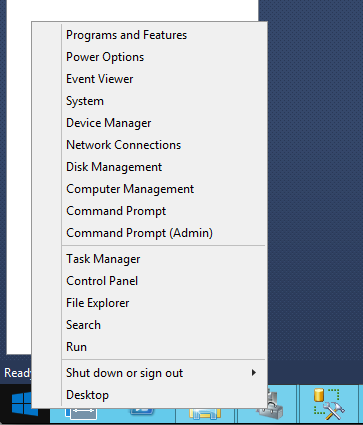
Oh, and they fixed that Start menu thing, too.

You can’t easily migrate your Windows 2008R2 Cluster to Windows 2012+

Right clicking on the Start Menu in Windows Server 2012 R2

The final reason I wouldn’t plan a new highly available environment on Windows 2008R2 is simply that I don’t want to be stuck there. You might think, “We’ll start out on a known OS and then upgrade soon” — but that’s easier said than done.

If you’re on a Windows 2008R2 cluster and you want to upgrade, you will need to create a new, separate failover cluster using Windows Server 2012, and then migrate to it. That requires separate storage, separate servers, and a careful migration plan. It’s absolutely doable, but it’s not simple, cheap, or easy. (Note that the built-in “Migrate a Cluster” wizard doesn’t support SQL Server installs for Windows 2008R2 -> Windows 2012.)

What about SQL Server 2008? Or 2005?

If you’re doing a new server buildout, you may decide to install SQL Server 2008 R2 on a Windows 2012 / 2012 R2 failover cluster. That’s supported, but to get installation to work you may need to use a slipstream installation and take a few other steps. (I think slipstreaming is great, but budget extra time to get everything tested and working.)

If you’re thinking about running SQL Server 2005 on Windows 2012 or Windows 2012 R2, that’s just not supported by Microsoft.

It’s Time to Embrace Our New OS Overlord

I really like Windows 2008 R2. I’ve used it for years, it’s very familiar, and I feel like I know its quirks. But I also recognize that it’s got a lot of baggage. It’s not really simpler or easier to manage.

The improvements to Windows Failover Clustering features in later versions of the operating system should be very compelling to anyone considering clustering SQL Server or using Availability Groups. It’s not always perfect and it’s certainly complicated, but it’s much better than what you’ve got in Windows 2008R2.

It’s time to start planning your new SQL Server implementations with Windows 2012 and higher.


Top Classic Country Songs for SQL Server DBAs

Humor
17 Comments

“I Shot a Server in Reno (just to watch it die)” Johnny Cash

“AlwaysOn on My Mind” Willie Nelson

“WASD, Don’t Take Your Single Thread to Town” Kenny Rogers

“Transactions in the (Replication) Stream” Kenny Rogers and Dolly Parton

“Stand by Your Maintenance Plan” Tammy Wynette

“Ring Buffer of Fire” Johnny Cash

“Your Deadlockin’ Heart” Hank Williams, Sr.

“Friends in Low Latency Places” Garth Brooks

“Mommas Don’t Let Your Babies Grow Up to Be Virtual Clusters” Willie Nelson and Waylon Jennings (cover)

“Crazy” Patsy Cline (Let’s face it, there’s no improving on this one.)

“Here’s a Quarter (Call Someone Who Understands Oracle)” Travis Tritt

“I Wish You Could Have Turned My Head (And Left My Indexes Alone)” Oak Ridge Boys

“I Love the Way You Optimize Me” John Michael Montgomery

“The Night the Lights Went Out in the Datacenter” Reba McEntire

“All My Transactions Take Place in Texas” George Strait

“She’s In Love With the Feature” Trisha Yearwood

“Could I Have This Lock” Anne Murray


How to Use Partitioning to Make kCura Relativity Faster

kCura Relativity
4 Comments

kCura Relativity is an e-discovery program used by law firms to find evidence quickly. I’ve blogged about performance tuning Relativity, and today I’m going to go a little deeper to explain why DBAs have to be aware of Relativity database contents.

In Relativity, every workspace (case) lives in its own SQL Server database. That one database houses:

  • Document metadata – where the document was found, what type of document it is
  • Extracted text from each document – the content of emails, spreadsheets, files
  • Document tagging and highlighting – things the lawyers discovered about the documents and noted for later review
  • Workspace configuration – permissions data about who’s allowed to see what documents
  • Auditing trails – who’s searched for what terms, what documents they’ve looked at, and what changes they made

For performance tuners like me, that last one is kinda interesting. I totally understand that we have to capture every activity in Relativity and log it to a table, but log-sourced data has different performance and recoverability requirements than other e-discovery data.

The AuditRecord table is append-only. We don’t go back and modify AuditRecord data – we just constantly add to it, tacking on data at the end of the table. This means it has different backup requirements – I certainly don’t want to be doing a full backup on this table every day, repeatedly backing up the exact same data over and over and over when it will never change.

It will never get deleted. We have to keep this data throughout the life of the case because the client may need to go back through time to see who did what during the case. This means it will keep growing and growing, making backups tougher over time.

In big cases, it can dominate the database. I’ve seen instances where the AuditRecord table consumed more than half of the database size – meaning in a 1TB database, 500GB of the contents are AuditRecord. This means backups will take twice as long.

In the event of a disaster, I don’t need it right away. In our 1TB workspace example, I would prefer to restore the 500GB workspace data first, let the lawyers in to do document review, and then take my time restoring a separate 500GB AuditRecordArchive database.

Splitting AuditRecord Into an Archive Database

In order to pull this off, I need two separate databases:

  1. Workspace database – the normal EDDS12345 database for workspace 12345. Inside this database, I have all the normal Relativity tables, but only a small AuditRecord table with the current audits – say the last 7 days. As people review documents, I’d log that data into this AuditRecord table.
  2. AuditRecordArchive database – say, EDDS12345_AuditRecordArchive. In here, I have one AuditRecordArchive table that has all of the AuditRecord data more than 1 week old.

Once I’ve set this up, then I need a job that sweeps the EDDS12345.AuditRecord data into the archive database once per week. Immediately after that job finishes, then I do a full backup and DBCC of EDDS12345_AuditRecordArchive – and then I don’t need to back it up again until the next sweep.

If I want to get really fancy, I don’t do daily DBCCs or index maintenance against that AuditRecordArchive database either. If anything goes wrong with it, like database corruption, I just restore to last week’s full backup and I’m off to the races. This means less downtime for database maintenance.

Great News! kCura Supports This

It’s called “partitioning the AuditRecord table”, and your kCura support contacts can walk you through it. It doesn’t involve SQL Server partitioned tables at all – they just call it partitioning because it’s the same basic concept, only done with application-level code.

However, I don’t recommend doing this by default across all your databases. This technique is going to instantly double the number of databases you have and make your management much more complex. However, I do recommend reviewing your largest workspaces to see if AuditRecord is consuming half or more of the database space. If so, consider partitioning their AuditRecord tables to get faster backups, database maintenance jobs, and restores.

At the risk of sounding like a fanboy, this is one of the reasons I love working with the kCura folks. They really care about database performance, they take suggestions like this, and they implement it in a way that makes a real difference for customers.

This is also why database administrators need to:

  1. Understand the real business purpose of the biggest tables in their databases
  2. Build working, productive relationships with their software vendors
  3. Come up with creative approaches to ease SQL Server pains
  4. Help the vendors implement these approaches in software

Back Up Transaction Logs Every Minute. Yes, Really.

Right now, your transaction log backups are set up to run every 15 minutes, every hour, or maybe every few hours.

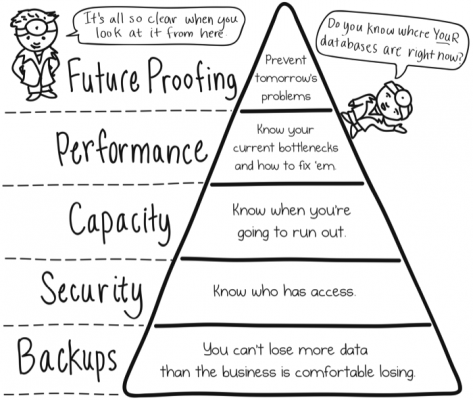
It’s time for a reality check. Figure out what internal customer owns the data inside the database, and walk into their office. Ask them how much data they’re comfortable losing.

You’re probably going to have to repeat the question a couple of times because they won’t believe these words are coming out of your mouth. After they eventually recover, they’ll blurt out words like “NONE” and “ZERO” and “ZOMG”. Give them a quick overview of how much it costs to have a no-data-loss system – typically in the millions of dollars – and then ask for another answer.

They’re going to ask for a list of options and their costs. Forget the fine-grained details for now – let’s just assume one of your solutions involves transaction log backups.

The big hand is on the network cable, and the little hand is on the power cable.

Is it more expensive to run your log backups:

  • A – Every hour
  • B – Every 15 minutes
  • C – Every 5 minutes
  • D – Every minute

It’s a trick question – they all cost the same.

“BUT MORE LOG BACKUPS MEAN MORE SLOWDOWNS!”

Nope – it actually means less overhead. To keep the numbers easy, let’s say you generate 60GB of transaction log data per hour. Would you rather back up 1GB per minute in small chunks, or kick the server in the junk every hour trying to back up 60GB all at once? The users would definitely notice the latter – the server will slow to a crawl while it handles that firehose of log data for a sustained period.

“BUT MORE LOG BACKUPS MEAN MORE FILES!”

Yes, but if you think you’re really going to manually restore log backups through the GUI, one at a time, you haven’t been through a real mission-critical crash. Long before disaster strikes, you need to be familiar with a script-based method to automatically restore all of the log files in a directory. Test it, get comfortable with it, and then when the outage hits, you can let your script restore everything ASAP, no clicks required.

“BUT MY LOG BACKUP JOBS CAN’T FINISH IN A MINUTE!”

If you have too many databases and your jobs can’t keep up, it’s time to start breaking up the log backups into multiple jobs. Some of my clients use two jobs, for example – one to back up all odd-numbered databases by the database ID in sys.databases, and another one to back up all the evens. The log backups don’t stress out their servers by any means, and users don’t notice the impact of two simultaneous log backups in two different databases.

“BUT SURELY YOU CAN’T BE SERIOUS!”

I’m just as serious as you were when you randomly picked 15 minutes or 1 hour as the log backup schedule. The point is that it’s not for the geeks to decide – it’s for the customer to decide. Ask your business user about the business needs for their data, and then give them a menu of options to meet that goal.

You think they’re all going to insist that all data is mission-critical, but you’d be surprised. Once they see the costs involved with log shipping, AlwaysOn Availability Groups, SAN replication, and so forth, they’re able to make better informed decisions about which data really is priceless, and which data we could really re-enter at minimal cost.

But until you ask them this question, they assume you’re never going to lose data.


Alaska has a SQL Server User Group!

Alaska is on the PASS map!

I’m really stoked to share the news: Alaska (my home state) finally has a PASS Chapter of its own! The group just got started last December, and officially welcomed into the PASS organization at the end of January. While they don’t have a Facebook or Twitter account yet, they do have a website and a YouTube channel.

The group meets every month and draws about twenty attendees, according to Chapter Leader Greg Burns. (Greg also runs the local SharePoint user group, which has about eighty members.) The audience is a mix of DBAs and developers, mostly.

Curious. Why would I mention the audience?

Because Greg is running a PASS Chapter for the first time, he could use a lot of help. He’s looking for speakers — remote or in-person — to present at upcoming meetings. If you’re interested in presenting to the group remotely, or just looking for an excuse to visit by far the largest state in the union…[prolonged eye contact with Texas]…just drop Greg a line at AlaskaSQL(at)gmail.com.

But wait, there’s more! If you’re a current or former PASS Chapter leader, you probably have some great tips on how to structure meetings, build membership, advertise your group, line up sponsors, and other things it takes to grow a user group. Rather than flood Greg’s inbox with your collective wisdom, let’s assemble them here in the comments so they’re all in one place. I can think of no better way to welcome Alaska to the SQL Server community than to show them how much we help each other.