
How I Configure SQL Server Management Studio v21
Several years ago, I wrote a post about how I configure older versions of SQL Server Management Studio, but now that SSMS v21 is out, it’s time to revisit that post. SSMS v21 is built on the Visual Studio shell, so it’s got a lot of cool new tricks. Let’s make sure you’re using ’em.
Click Tools, Options, and the first thing that’ll jump out at you is Color Theme – we have a Dark Mode now!

I’ll go ahead and choose that first, hit OK, and SSMS goes lights out. However, go back into Tools, Options, and…

Not everything is dark in dark mode just yet. Microsoft is gradually working through the code, enabling dark mode. It’s up to you whether you roll with dark mode or not. Me personally, I’m sticking with the regular Blue mode until dark mode shows up in query plans – the difference is too jarring between the different windows. So I’ll go back to Blue mode and keep going, but I understand if you’re desperate for some Oreo action, dear reader. I don’t judge. Moving on.
On the left side, click Environment, Documents, and I change an option here:

I uncheck “Check for consistent line endings on load” because I constantly get scripts with all kinds of wacko line endings. That warning is a pain in the butt, and doesn’t really serve any purpose for me.
On the Environment, Fonts and Colors options, I used to get fancy. There are all kinds of “best programming fonts” articles out there with great-looking fonts. However, when I did screenshots for presentations or clients, people kept asking, “Why does your SSMS look so weird? Is it because you’re on a Mac?” These days, I leave those options at their defaults.
On the Environment, Keyboard, Query Shortcuts screen, you should set up shortcuts for the scripts you run most often:

I don’t – but it’s only because I have a wacko job as a consultant. I’m constantly jumping into an SSMS on someone else’s desktop, and they won’t have the shortcuts set up, so I don’t wanna develop muscle memory for something I won’t have access to. If I was you, though, dear reader, I’d set these up.
In the Environment, Preview Features screen, there’s a Certificate Revocations option, and it’s checked by default. I’ve heard complaints from folks who say SSMS doesn’t start quickly enough, and one of their suggested fixes was to uncheck this feature to avoid phoning home looking for disabled certificates. Me personally, I’m fine with the SSMS load speed, so I don’t uncheck that, but you could.
In the Startup options, I love setting it to “Object Explorer and query window”:

The default is just to open Object Explorer, but might as well open a query too, because that’s what I spend a lot of time doing in SSMS.
Tab and Window Config
In the Tabs and Windows screen, the cool Visual Studio stuff starts. Because I tend to work with a lot of windows, I like my SSMS to look like this:

The blue block in the center is vertical tabs – each line is a query editor tab. The tabs are clearly named with just the file name, no big long server/database/login stuff that causes everything to overflow. They’re alphabetically organized so I can quickly jump to the query I’m working on, or switch between different workflows. (Just FYI, you won’t see this on my live streams because I’m only working with 1080p resolution there. I do this on the machines I work with at home, though, on my big monitor.)
To do it, I go into Tools Options and set:
- Tabs and Windows – Set tab layout = “Left”
- Text Editor – Editor Tab and Status Bar – Tab Text – set everything to “False” except “Include file name”
You may have to close SSMS & reopen it for the left tabs to take effect.
Scroll down to “Tab Text” and set everything to False except for “Include file name.” When you click OK, it doesn’t take effect on existing tabs, but after you close & reopen them – ahhh, much more legible, and you can cram in more tabs per screen.
Source Control Config
Under Source Control, Git Global Settings, set up your Github account name & email, and the folder where you keep your Github repos:

I don’t use my OS’s Documents folder for my Github repos because I don’t want the constant changes copied to all my roaming profiles, taking up space in my backups, etc. I tend to use a \LocalOnly folder off the root, and put stuff in there that I know won’t be backed up. (After all, if your computer dies, the real backup is the source control, and we should be checking in our changes regularly.)
Scroll down through this screen, and near the bottom, there are options for “Open folder in Solution Explorer when opening a Git repository” and “Automatically load the solution when opening a Git repository” – I like checking those because if I’m opening a repo in SSMS, then I’m working on the source code.
Text Editor Config
Under Text Editor, All Languages, General:
- Word wrap – check this if it’s your fetish. It’s mine. I understand that some people are too exhausted these days to hit the enter key to break things up, and I’m too exhausted to scroll across to read all that.
- Line numbers – check that. Makes things way easier when you’re communicating issues with coworkers.
Under Scroll Bars, the “Use map mode for vertical scroll bar” will give you that a text map down the right hand side scroll bar.
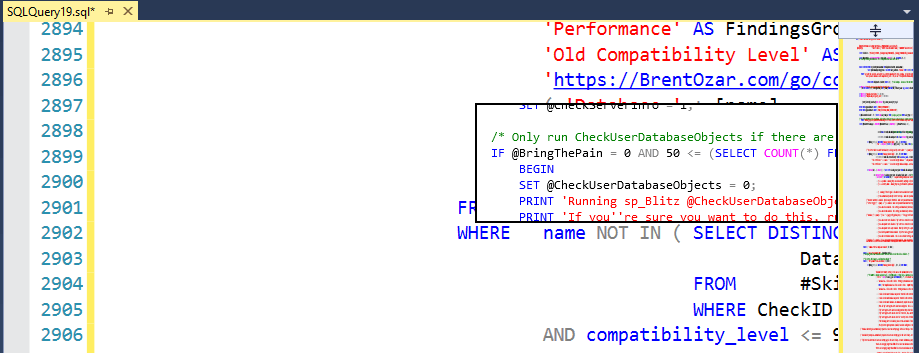
I don’t find that all that useful, so I don’t enable it, but if you’re the kind of person who has long stored procs, you might. The really cool part is when you hover your mouse over the scroll bar map on the right, you get a little zoom popup so you can see a preview of the code at those lines: I don’t set mine up that way, but I can see why people do, and if you’re reading this post, you’re probably interested in that option.
If you’re Team Spaces, go into Text Editor, All Languages, Tabs, and change it to “Insert spaces.” I used to be Team Spaces, but when I found out that tabs are better for accessibility, I changed teams.
Query Execution Options
Under Query Execution, SQL Server, I like to uncheck the last two boxes, “Prompt to save unsaved queries” and “Check for open transactions before closing query windows”.

Make your “live dangerously” jokes, but I don’t have complaints about how long SSMS takes to open. I have complaints about how long it takes to close, hahaha.
One other note while we’re here: if you ever need to play a prank on someone, it’s hard to beat changing the batch separator from “GO” to something else, like “SELECT”. The resulting error messages will stump ’em hard.
Under Query Results, SQL Server, Results to Grid, I change my XML data size to unlimited so that it brings back giant query plans. (Man, does my job suck sometimes.)
A lot of presenters like to check the box for “Display results in a separate tab” and “Switch to results tab after the query executes” because this gives them more screen real estate for the query and results. I’m just really comfortable with Control-R to hide the results pane.
Under Designers, Table and Database Designers, I like to uncheck the “Prevent saving changes that require table re-creation.” I hardly ever use the table designer, but when I do, it’s on really small tables anyway, and I’m not worried about recreating the table. That’s just me though.
Under SQL Server Object Explorer, Commands, I like to turn off “Surround object names with brackets when dragged.” I’m not the kinda guy who names stuff with spaces anyway, and when I drag & drop names, I’m often dragging them into places where brackets will break stuff, like input for DBCC SHOW_STATISTICS.
And that’s it! Are there any changes you like to make, or things you think I should include in this checklist? Let me know in the comments.

40 Comments. Leave new
I wonder if you are really comfortable with Control-R to hide the results pane while other presenters like to check the box for “Display results in a separate tab” and “Switch to results tab after the query executes” because this gives them more screen real estate for the query and results.
Couldn’t figure that one out 😛
I haaaaaate switching tabs. I want to see both the query and the results at the same time. I think it’s jarring for the audience and harder to follow.
I think Binkin was indirectly hinting the paragraph covering “display results in a separate tab” is duplicated in your post. See 2nd to last and 5th to last paragraphs.
I totally agree with you.
Wondering why the auto-switch feature was implemented in the first place…
Damnit, replied to the wrong thing ?
Hey Brent, just noticed that your 2nd-to-last paragraph is a duplicate of the one a couple of paragraphs up
Good catch, fixed! Thanks!
These are all great.
Under Object Explorer I like to put in the row counts for tables in the view.
so the header line looks like this:
Name Schema Create Date Data Space Used ( KB) Index Space Used (KB) Row Count
Really handy to me for testing.
Dark Mode Theme’s Law:
“Every software attempts to expand until it reaches the Dark Mode Theme. Those that cannot expand are replaced by those that can.”
And in fact, this SSMS installation looks more like a Visual Studio installation than the older version we were used to.
Once again, it’s like a thermometer measuring how SQL Server developers are getting older—and losing their eyesight.
Where are connect to reporting services, analysis services, integration services hidden?
Currently greyed out in object explorer
No clue, I don’t use those.
Not sure about SSAS, but Erin addresses SSIS in the GA blog post: https://techcommunity.microsoft.com/blog/sqlserver/sql-server-management-studio-ssms-21-is-now-generally-available-ga/4415230
Woops, we use SSIS. Gonna have to go back to 19, or install 20.
SSRS, SSAS need to be selected in “individual components”, doesn’t get selected when you choose business intelligence
You have to run Visual Studio Installer, pick the SSMS option, then choose the Business Intelligence workload.
Environment | Tabs and Windows | Show pinned tabs in a separate row
is very handy, so you can pin your most important query windows and easily access them (and it takes less space than the separat Tab pane mentioned in your article
Query Resluts | SQL Server | Results to Grid | Retain CR/LF on copy or save
it is VERY important, when you have scripts that e.g. creates some SQL statements and contains line breaks to separate them / for better readability.
Text Editor | All Languages | Tabs |Insert spaces
I assume that about 98 % of all developers prefers spaces instead of CHAR(09), so I don’t understand, why this is not the default (maybe the other 2% are very loud) …
PS: cautious people or whoever is used to work with Oracle may want to enable
Query Execution | SQL Server | ANSI | SET IMPILCIT_TRANSACTIONS
This way they have explicit to execute a COMMIT (or ROLLBACK) after every query (even a simple SELECT).
It may prevent accidental deletions / updates but can cause extended locks when you forget to COMMIT it and go to a break.
About tabs vs spaces – tabs are better for folks who use screen readers: https://github.com/prettier/prettier/issues/7475#issuecomment-668544890
https://www.reddit.com/r/javascript/comments/c8drjo/nobody_talks_about_the_real_reason_to_use_tabs/
This may be a valid purpose, but the blind developers falls under the 2% – and I see no reason, why the screenreader / braille converter / other tools that they are using should not be able to replace multiple spaces to tabs at showtime, regardless what is really in the file. Special cases / needs should be handled in specialized tools, not in general settings.
And particularly in T-SQL you usually have to combine TAB and SPACE, when you want e.g to right align the FROM under the SELECT (so that the M is in the same column as the T). This would usually become a mess when you replace the TAB by space or vice versa later.
We agree that people with accessibility problems are the minority of the population, but we seem to disagree about the relevance of that fact.
Amen!
Regarding Dark mode in query plans, I noticed in a recent Erik Darling post / YouTube video titled “Learn T-SQL With Erik: SELECT FROM WHERE?” that he shows query plans in Dark Mode, about 13:30 in, and I thought he was running SSMS v21. Now I wonder what version of SSMS he’s running. Thanks,
He might be using a newer build – I first wrote this post a month or two ago with one of the CTPs.
That makes sense, I noticed in some of his older videos when he first started using Dark Mode that the execution plans were not in Dark Mode. Thanks Brent.
Regarding the “Tab and Window Config” section, there is a cool registry hack for when you cycle through open tabs with Ctrl + Tab. The hack enables a thumbnail picture of the highlighted tab and shows the query text and results pane, or whatever that tab is currently showing.
Registry Hack:
* HKEY_CURRENT_USER \ Software \ Microsoft \ SQL Server Management Studio \ 20.0_IsoShell \ General
* Right-click on the Folder, select New >> D-WORD (32 Bit)
* Name: ShowThumbnailsOnNavigation
* Modify and set the value to 1
Notes:
* The above path is for SSMS 20 but should also work for 21. I have used for several years over several versions.
* I have also used this for Visual Studio as it and SSMS are build off the same IDE framework.
* Credit goes to a presenter at SQL Saturday Boston 2013.
Disclaimer: No guarantees. With any registry edit, use caution.
Cool, didn’t know that one
FYI V21 has major bug.
If you open a sqlagent job step that uses SSIS Catalog all the fields are empty – package source, Server, package – all blank. Curious they released the tool without testing this. It’s show stopper for us – just got all excited with the new 64 bit tool and it’s awesome new GUI and then only to find out it’s unusable for us. Thanks Microsoft 😉
Not a bug. Theo Glick’s post above has a link explaining, kinda, the lack of support for SSIS in this version. But hey, we get Dark Mode!
I use Solutions and Projects extensively. I find it really helpful to have available a whole slew of SQL files simply by opening the one Solution file (and all the Projects it contains). In SSMS 20 and previous, that file had an extension of *.ssmssln. That file type is not supported and cannot be opened in SSMS 21. Now I need to create NEW Solution files and manually add in all the projects.
Well, at least they imported my Settings and Registered Servers.
I came here searching for “*.ssmssln” for the same reason. I’ve opted to ‘open folder’ instead as the way to get all the child folders too. Not exactly equivalent functionality, particularly if solutions and items were linked rather than in a single folder hierarchy.
I too have tried many fonts and am now back on the default-ish for the same reasons.
By default font goes to “Cascadia Code”, I tweak to “Cascadia Mono” to avoid ligatures.
Changing the 2 character != into one character ? mucks up alignment and makes searching a little harder as ‘?’ is not actually in the code. Turning = into ? and ? is also getting harder to see as I age. YMMV
Side point, I am hoping != gets deprecated the same as *= and =*. If love data too much to move back to C#.
case in point, the browser just refused to display the ligatures. Try displaying , !=, = using Cascadia code and see what I mean.
Since learning multiple cursor tricks in VS Code I can never go back to editing queries solely in SSMS. VS Code multiple cursors changed my query editing life.
We need an option [ ] Use VS Code text editor.
I asked Microsoft if we could get the VS Code text editor engine inside SSMS and they basically said it was a big job and too hard to do.
I mean…I thought that’s what major releases were for.. big jobs and all…new features.
Sure, you can run queries in VS Code and all, but we all still like SSMS don’t we.
I will be REALLY happy when they implement tab group by server! I know you can do this (somehow) with project grouping, but just give me the server grouping and I’m off and running!
My number one settings is Disable Copy of Empty Text: https://sqlserver-kit.org/en/ssms/ssms-tips#7
The second – configure team settings for all developers: https://sqlserver-kit.org/en/ssms/ssms-tips#1
I found the grid lines in the new grid results view way too dark and to harder to read (in comparison with previous SSMS versions).
Fortunately, I found that this is now customizable under Environment/Fonts and Colors/Grid Results.
You can choose alternate ‘Grid Results Lines’ colors but I used a custom color to lighten it enough to make it look like the previous versions. You can also change the background color for NULL valued cells here as well.
I would like to increase the maximum number of characters per column returned by a query. I currently am working on SSMS 20.2 and I find that every time I restart SSMS I have to change the default of 256 characters to a much larger number in order for my queries to produce the proper size of file.
Still no SQL Formatter in v21 or v22. Cry.
Looks like Blue is gone, suggested color is Light which is code for Washed Out Tones of White. Would love to show my inflexibility and get Blue back as a choice.
This applies to SSMS 22.1