
How to Use Github in SSMS v21
SQL Server Management Studio v21 added native Git support, making it easier to use source control natively inside SSMS.
This feature is for developers who are already used to working with Github to manage specific object changes as they work, and who are already accustomed to Git terminologies like branches, commits, pushes, and pulls. This feature is not for DBAs who think it’s going to automatically keep your SQL Server’s object definitions inside source control for you. I totally understand why you’d want that, for sure, and I do as well, but our princess is in another castle.
So back to developers – let’s set it up. To use Github in SSMS v21, we’re going to:
- Sign into SSMS using our Github account with permissions on the repo
- Clone the repo locally
- Add a branch to make our changes
- Commit the branch, push it, and open a pull request
Let’s walk through the specifics with screenshots. When you first open SSMS v21, you’re prompted to sign in:

For the sake of simplicity, I’m going to sign in with my Github account.
Cloning a Repo Locally
After SSMS starts, click File, Clone Repository:
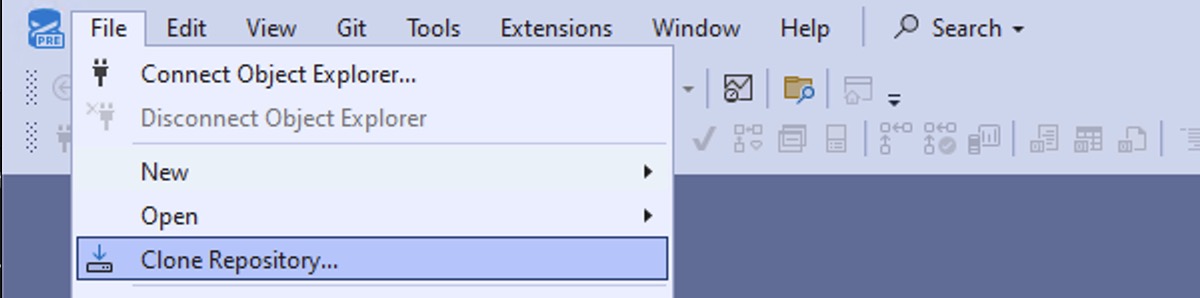
SSMS will ask for which Github repo you want to clone, and what path you want to clone it to:

The repository location is a little picky – it has to be the exact root folder of the repo, without subfolders like /tree or /tree/main. I’ll be working with the First Responder Kit, so the main URL for that is: https://github.com/BrentOzarULTD/SQL-Server-First-Responder-Kit/

Click Clone at the bottom of the window, and SSMS will clone the repository locally. After it finishes, you’ll have lots of options in the Git menu:

If you click Git, Manage Branches, you get an overview of what’s happening in the repo at the moment:

Click View, Solution Explorer, and you can go into the folder where the Github repo has been cloned (downloaded) locally – it’s on the right hand side of my window:
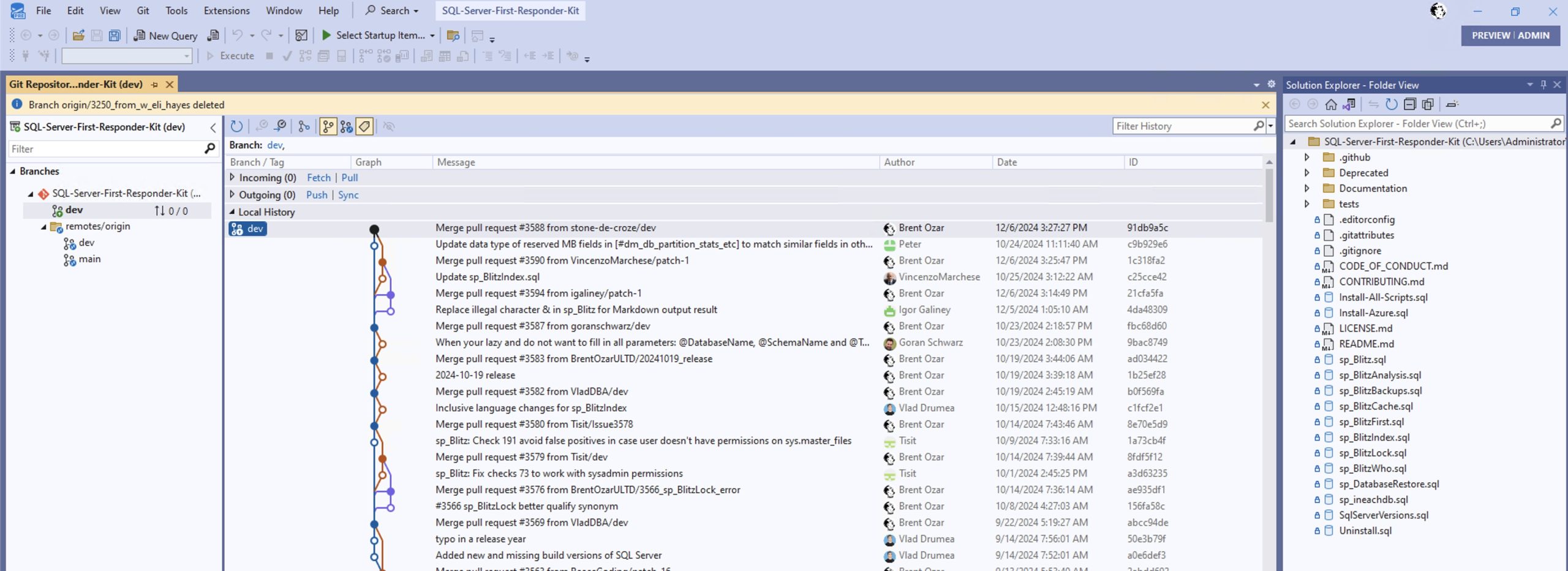
This is a little bit tricky. What SSMS did was create a completely isolated, standalone local repository. I’m not actually working with the origin repository directly, even though:
- I’m signed into SSMS with my Github account
- I’m the maintainer for the First Responder Kit repo
Those two things are unrelated. When SSMS cloned the repo, it acted as an anonymous member of the public. You kinda get a hint of this when you look at the settings & changes for this repo – it says things like you need to configure a username & email address for this repo:
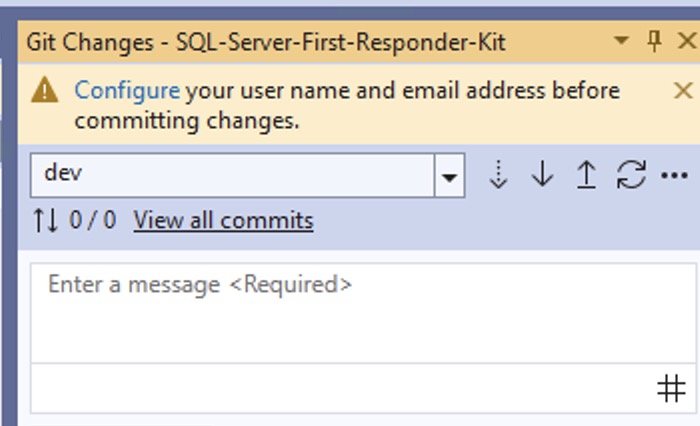
To set a global default for all of your repos, go into Git, Settings, Git Global Settings, and the first two entries are user name and email:

Just be aware that when you’re working with SSMS, you’re dealing with a completely standalone local set of repositories, even if you’re a project maintainer. (This is different than how Github Desktop works for project maintainers.)
Making a New Branch for Changes
I’ve got an issue I need to work on, so let’s create a new local branch of my repo to hold my changes. In the list of branches on the left, right-click on the default development branch for your remote repo – in this case, remotes/origin, dev – and choose New Local Branch From:

This is important. If you create a branch any other way, like clicking Git in the File menu, then the origin of your branch is going to be based off whatever local repo line happens to be highlighted in the background. You probably don’t want your code based off your local code – you wanna stick with the current remote repo that you’re working with. I’ll name my branch with my Github issue number and a brief description:

Then in the list of branches on the left, click my newly created branch, and click View, Solutions Explorer to get the list of files on the right hand side:

I’ll make some code changes to fix my particular issue, and after saving my changes and closing the files, I’ll click Git, Commit or Stash:

Whenever I make changes, I like to double-click on each of the files that have been changed, then take a look at the diff to make sure that I’m only committing changes I really want. Sounds crazy, but I’ve just left so many accidental things inside my commits, like testing queries. In the example here, I’ll double-click on the sp_Blitz_Checks_by_Priority.md file (Markdown), and the diff viewer pops up, highlighting my changes:

After poking around in my changes, satisfied that I’m only committing good stuff, I’ll write my change description:

And click “Commit All”. This commits the change locally in my C drive, but not at the origin (Github), as shown in the confirmation message at the top after I clicked Commit All:

To push it to the origin, I’ll click Git, Push, and I’ll get a confirmation that my changes were pushed up to Github:

Now I need to do a pull request to get the maintainers (me) to accept my code. There’s a “Pull” option in the Git file menu, but that’s just for your local repo. You have to click Git, Github, New Pull Request.
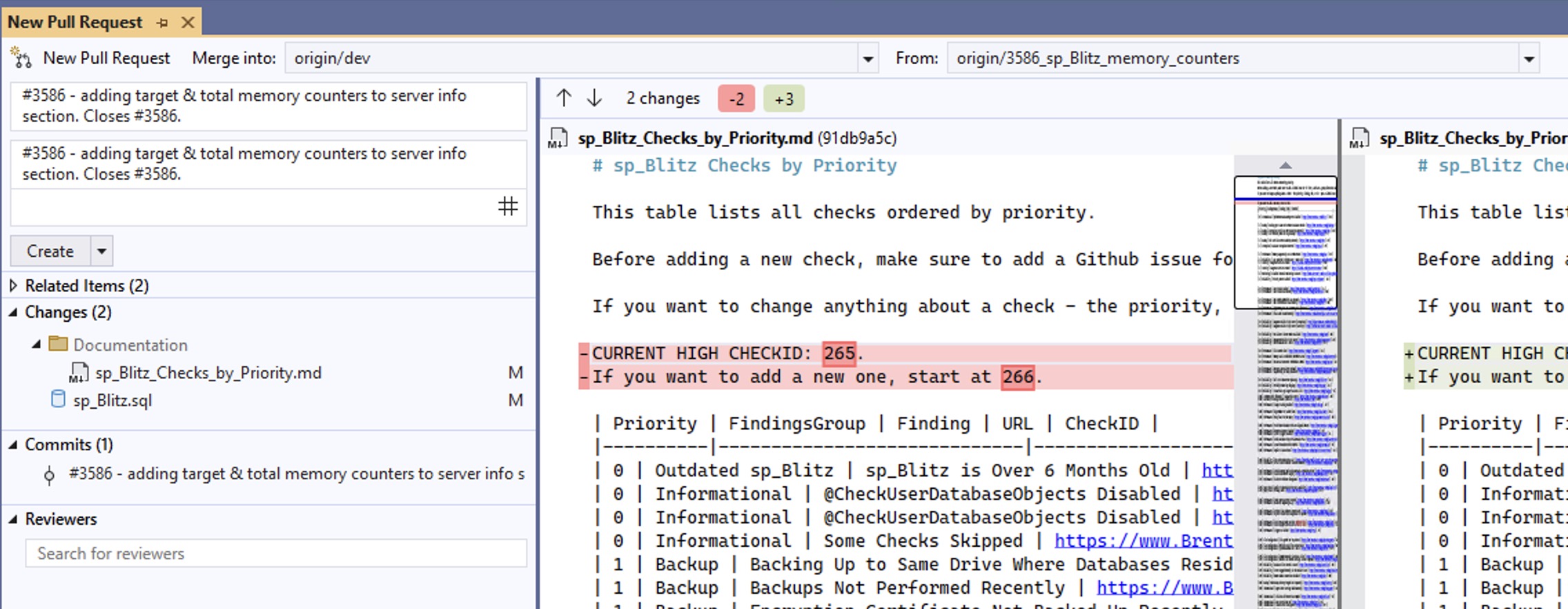
Note that at the top of the screen, it shows “Merge into” and “From”. We’re requesting that our pull get merged into origin/dev, from origin/3586_sp_Blitz_memory_counters. If you were working from a purely local repo (because you weren’t the project maintainer), then the “from” would show your local repo instead.
I’ll make sure my commit notes and my changes look right, then click the Create button at the top left, and I get a confirmation:

Click on the pull request link to go to Github.com, set milestones, assign people, check the results of your continuous integration tests, and merge the PR.
If, like me, you have Github set up to automatically delete branches after they’re successfully merged, you’ll need to update SSMS’s list of branches. Click Git, Manage Branches, then Git, Sync, and you’ll get a warning saying that your branch was not found in the remote repo, as shown at the top here:
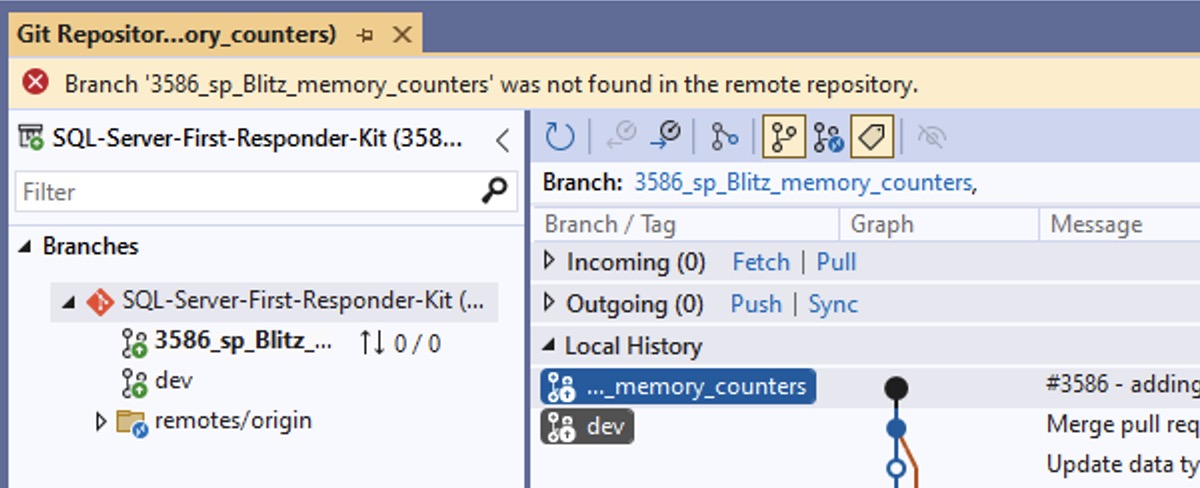
That’s totally okay! It’s just your sign that you wanna switch to another branch, or make a new branch to work on your next issue, and the process starts all over again.

14 Comments. Leave new
Does it work with Devops repos too?
No clue, never used them.
Thanks! I’ll look into it.
[…] Brent Ozar ties into a Git repo: […]
Awesome explanation! As to the feature, meh, I’ll just stick to GitHub Desktop. We already have our work processes and have been using it for years. This does not seem to be any easier that what we are doing today. In truth, it’s perhaps a bit more convoluted. Anyway, great write-up, much appreciated.
I am trying to imagine a use case, but I cannot (except First Responder Kit, maybe). I rarely see Git repos with just SQL code in it, usually they have an app where SQL is the backend but there is more, so IDEs like VS Code look like a better fit. I appreciate Microsoft’s effort to add the Git integration, but I don’t think too many people were crying for it.
In any case, I appreciate your blog post, this is how I found about this feature 🙂
I agree with you. I think there’s a future for this feature where it’s a better fit for production DBAs, but that’s not quite what we have here.
Different people handle DCM (database change management) differently, and some folks (myself included) actually do have entire git repositories dedicated to the SQL scripts for their database schema. I’m just now starting to play around with SSMS 21, but I can see this being pretty useful for me.
Not as useful as I was hoping. Users will still have to use something like Redgate’s SQL Source Control to push changes from their local database to the git files.
[…] PR to push/merge into the origin, and you’ll do that by clicking through to Github itself (https://www.brentozar.com/archive/2024/12/how-to-use-github-in-ssms-v21/). Branch management seems a little ropey, needing you to keep on top of deleted branches […]
Think I’ll stick with Github Desktop. Much simpler.
[…] For more information on SSMS v21 Git Integration, our friend Brent Ozar has this covered in his blog post: How to use GitHub in SSMS v21 […]
Would be great if the extensions were also added to SSMS 21, i currently use git on WSL with Visual Studio Code. when doing bulk environment updates the Unix command line excels. Also as we have code server builds for AWS, terraform , DSC etc i just found all that easier through WSL. Just need the extension so i dont have multiple copies, even being able to read the unix folders would be a start. i suspect im in a minority of DBA’s though.
This feature is not for DBAs who think it’s going to automatically keep your SQL Server’s object definitions inside source control for you. I totally understand why you’d want that, for sure, and I do as well, but our princess is in another castle. – Do you have a tool for this? I have SQL Source Control but that’s my issue, the cost to get all of my devs using it