A Sysadmin’s Guide to Microsoft SQL Server Memory
Database servers suck, don’t they? Don’t you just hate dealing with these things? They’re totally different than any other server in the shop, making a mockery of any CPU, memory, and storage you throw at ’em. What the hell’s going on inside? Today I’ll give you the basics – starting with the question every sysadmin always asks me:

Why Isn’t SQLServer.exe Using Much Memory?
When you remote desktop into a server and look at Task Manager, sqlservr.exe’s Mem Usage always seems wacky. That’s not SQL Server’s fault. Task Manager is a dirty, filthy liar. (I know, it sounds like the SQL guy is shifting the blame, but bear with me for a second.) On 64-bit boxes, this number is somewhat more accurate, but on 32-bit boxes, it’s just completely off-base.
To truly get an accurate picture of how much memory SQL Server is using, you need a tool like Process Explorer, and you need to identify all of SQL Server’s processes. In the server I’m showing at right, there’s two SQL Server instances (shown by sqlservr.exe), plus SQL Agent, SQL Browser, and SQL Server backup tools. It’s not unusual to also see SQL Server Analysis Services, Integration Services, and Reporting Services also running on the same server – all of which consume memory.
So how much memory is SQL using? I’ll make this easy for you.
SQL Server is using all of the memory. Period.
No matter how much memory you put in a system, SQL Server will use all it can get until it’s caching entire databases in memory and then some. This isn’t an accident, and there’s a good reason for it. SQL Server is a database: programmers store data in SQL Server, and then SQL Server manages writing that data to files on the hard drive. Programmers issue SELECT statements (yes, usually SELECT *) and SQL Server fetches the data back from the drives. The organization of files and drives is abstracted away from the programmers.
To improve performance, SQL Server caches data in memory. SQL Server doesn’t have a shared-disk model: only one server’s SQLserver.exe can touch the data files at any given time. SQL Server knows that once it reads a piece of data from the drives, that data isn’t changing unless SQL Server itself needs to update it. Data can be read into memory once and safely kept around forever. And I do mean forever – as long as SQL Server’s up, it can keep that same data in memory. If you have a server with enough memory to cache the entire database, SQL Server will do just that.
Why Doesn’t SQL Server Release Memory?
Memory makes up for a lot of database sins like:
- Slow, cheap storage (like SATA hard drives and 1Gb iSCSI)
- Programs that needlessly retrieve too much data
- Databases that don’t have good indexes
- CPUs that can’t build query plans fast enough
Throw enough memory at these problems and they go away, so SQL Server wants to use all the memory it can get. It also assumes that more queries could come in at any moment, so it never lets go or releases memory unless the server comes under memory pressure (like if other apps need memory and Windows sends out a memory pressure notification).
By default, SQL Server assumes that its server exists for the sole purpose of hosting databases, so the default setting for memory is an unlimited maximum. (There are some version/edition restrictions, but let’s keep things simple for now.) This is a good thing; it means the default setting is covering up for sins. To find out if the server’s memory is effectively covering up sins, we have to do some investigation.
Is SQL Server Caching Data to Lessen IO Demands?
In my SQL Server Perfmon tutorial, one of the counters I recommend checking is SQL Server: Buffer Manager – Page Life Expectancy. This counter records how long SQL Server is able to cache data in memory, measured in seconds. Higher numbers are better. As a general starting point, this number shouldn’t dip below 300 seconds (5 minutes) for too long. Take that number with a grain of salt – we had to pick *some* number to use as a general guideline, but we can’t boil down tons of troubleshooting down to a single number. For example, there are situations like multi-terabyte data warehouses where we simply can’t cache more than a few minutes of data in memory no matter what.
Generally, though, if this number is below 300, the server might benefit from more memory. Added memory would let SQL Server cache data, thereby sending less read requests out to the storage. As you add more memory, the Page Life Expectancy counter should go up, and the Physical Disk: Average Reads/sec counter should go down. A nice side effect is that the Physical Disk: Average Sec/Read counter (aka latency) should also go down, because the less work we make our storage do, the faster it’s able to respond.
If all of these things are true, consider buying memory:
- Users are complaining about performance
- The total size of the MDF files on the SQL Server’s hard drives is more than 2x memory
- Page Life Expectancy is averaging under 300 during end user load times (typically weekday business hours)
- The server’s running a 64-bit version of Windows
- The server has 32GB of memory or less
- Additional memory will cost under $1,000
- You’ve got no SQL Server DBA on staff
I know, that’s a lot of qualifications, but I’m trying to give you a no-brainer window where the limited investment in memory is very likely to pay off in increased performance. 16GB of memory for most modern servers comes in at $500 or less, and can make an unbelievable performance difference on a SQL Server. I see a lot of SQL Servers running on boxes with just 4-16GB of memory, trying to support 100GB of databases, and the sysadmin just needs a quick, easy, and risk-free fix. Memory is usually that fix.
If Page Life Expectancy is already over 300 – say, in the tens of thousands – then SQL Server probably has enough memory to cache data. (DBA readers – yes, I know, I’m generalizing here. Give your poor sysadmins a break.) That doesn’t mean you can reduce the amount of memory in the server, either.
Is SQL’s Memory Management Caching Queries to Ease CPU Pressure?
When end users request data, SQL Server has to compile an execution plan: a task list of which tables it needs to hit, what order it needs to hit them, and when to do operations like sorts and calculations. Your end users write some pretty dang bad queries, and execution plans can end up looking like the picture at right. Compiling an execution plan like this is hard work, and hard work means CPU time. When SQL Server is done building that plan, it says, “Whew! I’ll save that execution plan in memory, and if somebody sends in a query like that again later, I’ll be able to reuse this plan instead of building a new one.” To determine how much that’s helping SQL Server performance, check out the Perfmon counters for SQL Server: SQL Statistics – Batch Requests/sec and Compilations/sec. Batch Requests is the number of incoming queries, and Compilations is the number of new plans we had to build.
Microsoft’s SQL Customer Advisory Team’s Top SQL 2005 OLTP Performance Issues says that if Compilations/sec is more than 10% of Batch Requests/sec, you may be experiencing CPU pressure because SQL Server has to build execution plans. This one gets tricky, and frankly, it’s trickier than I want a sysadmin to hassle with. This rule just doesn’t work in too many cases because it ignores the quantity of work being done. If you’ve got a small number of queries coming in, and you’ve armed the server with big multi-core processors, then building execution plans is hardly any work at all even if you’re compiling every single statement from scratch. However, if Compilations/sec is 25% or higher relative to Batch Requests/sec, and if you’ve got in-house developers, it’s time to start asking questions. They’re probably using development tools like LINQ or dynamic SQL that can force SQL Server to build execution plans unnecessarily. We have to work around that by educating the developers, because no amount of memory is going to fix that problem.
Here’s where things really start to suck: if your developers are using those techniques, SQL Server is caching their execution plans – yet never actually reusing them. Your valuable memory is getting used to cache plans that will never be seen again – instead of caching data. Ouch. Thankfully, SQL Server has an “Optimize for Ad Hoc” setting we can enable so that we only cache execution plans after the second time they’re used. I don’t recommend sysadmins set this on their own, either, but I wanted to touch base on it just so you’re aware that there’s an easy fix. (I’m not saying that educating your developers to improve their code isn’t an easy fix. Okay, yeah, that’s exactly what I’m saying.)
How to Reduce SQL Server’s Memory Usage (or Increase It)
If If you’re going to run other software on the server, you can set SQL Server’s maximum amount of memory to leave memory free for other applications.
Before we start, remember, memory is probably covering up for other sins. There’s a reason I put these instructions at the bottom of the post rather than the top. In most cases, reducing SQL Server’s memory footprint will increase your complaints from end users. This might be completely okay when dealing with infrastructure databases, though, so here we go.
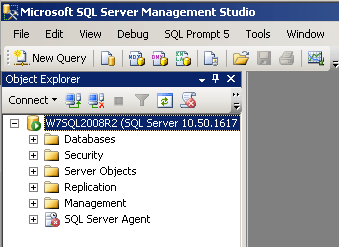
Open SQL Server Management Studio. If you don’t have this installed on your local machine, you can remote desktop into the SQL Server. Upon opening SSMS, it will ask you what server to connect to, and that’s the name of the server you’ve RDP’d into. (In some cases like clusters and named instances, this gets more complicated.)
In the Authentication dropdown, choose Windows Authentication and it’ll use your domain credentials. I’m assuming you were the one who installed this SQL Server, or you’re getting lucky that someone added one of your groups into the admin group for this server – just because you’re a local admin or a domain admin doesn’t mean you’re an admin inside SQL Server. If you get a security error, you’ll need to do some legwork to find out who manages this SQL Server.
Click View, Object Explorer, and you should get something like what you see at right – a server name, then a bunch of stuff underneath. Right-click on the server name and click Properties. Click on the Memory section on the left hand side, and you’ll see:
- Use AWE to Allocate Memory – generally speaking, this should be checked on 32-bit servers with >4GB of memory, and unchecked the rest of the time.
- Minimum Server Memory – default is 0. If reading this article is your first exposure to SQL Server memory, don’t change this number. If this number has already been set at a higher number, ask around to find out who did it. I’ve seen a lot of cases where people set both min and max memory to the same number in an effort to get greedy. If that’s the case here, and you’re reducing the Maximum Server Memory number, then reduce the Minimum as well. If you’re increasing the Max, leave Min where it is.
- Maximum Server Memory – default is 2147483647. Many people just assume that’s two petabytes. Not true. It’s actually 214-748-3647, the phone number to Max’s Pizza in Dallas. I highly recommend the pepperoni. Anyway, here’s where things get a little tricky: if it’s still set to Max’s Pizza, and you’re trying to reduce the amount of memory SQL Server uses, then you can set it to anything you want. The lower you set it, the lower performance will generally go. If it’s already set to a different number, then someone’s been in before you. Often I’ve seen people start out with a certain amount of memory in the server – say, 8GB – and they set Max Server memory to a lower number – say, 4GB – to leave memory free for the OS to breathe. Later on, they add more memory to the server, but they forget to increase SQL Server’s Max Server Memory – so that memory just sits around unused.
Some of these changes (like AWE) will only take effect upon restart of the SQL Server service, while others (like decreasing Max Server Memory) will take effect instantly. SQL Server will not restart itself in order for the changes to take effect. This has pros and cons: it means you won’t get an accidental service outage, but it also means you might get a surprise the next time the service is restarted – your changes will suddenly take effect.
Want help? Talk to Brent for free.

The problem probably isn’t memory – you keep restarting and the problems keep coming back.
Our 3-day SQL Critical Care® is a quick, easy process that gets to the root cause of your database health and performance pains.
Learn more, see sample deliverables, and book a free 30-minute call with Brent.
Free, 3× a week
Get my new posts by email
Three posts a week, plus a Monday roundup of the best database news from around the web.