SSMS Trick: Edit Large Procedures with the Splitter Bar
Here’s a SQL Server Management Studio trick that comes in super handy when you’ve got long pieces of code. I almost never see anyone use this, and I think the reason is that few people know about it.
When I’m working on a stored procedure, sometimes I want to add in a new variable or a temp table. I declare ’em all at the top of the procedure, but I’m working much farther down in the proc than that.
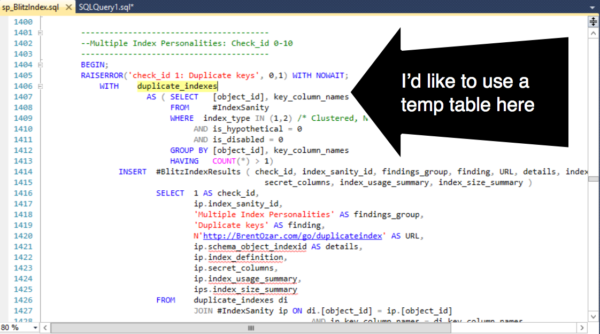
I don’t have to lose my place. I can split the window using a cool, but hard to see feature known as the “splitter bar”.

Drag the splitter bar down. I now have two synchronized views into my procedure.
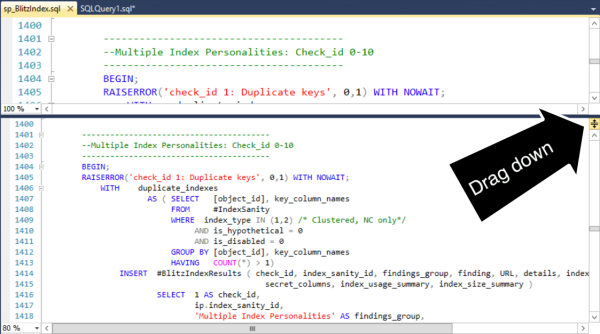
Voila, I can add my temp table in the right area without losing my place.

This feature isn’t specific to SQL Server Management Studio– it exists in lots of other products. (Including Word!) But the feature is hard to spot and most folks just never seem to learn about it. (I had no idea it was there myself until Jeremiah showed it to me a while back, and now I’m addicted to it.)
Free, 3× a week
Get my new posts by email
Three posts a week, plus a Monday roundup of the best database news from around the web.
Nice! Just used this today after reading your post. Perfect for those sprawling sprocs.
That is going to come in very handy. Thanks, Kendra.
Nice little trick Kendra.
I always used CTRL+K, CTRL+K to set a bookmark and return to it with CTRL+K, CTRL+N. You can make multiple in a document and loop through it. Depends on how many parts you need to go back and forth I guess. But the split screen is certainly easy, thanks for sharing!
Great little productivity tip, more please! Used to use it in Excel before getting into SQL.
Office 2013 has moved the splitter bar to the Ribbon. View, Split.
Thank you and very nice. I have been so busy and have not been looking into the cool features that can same me time.
Yes, I also know this, its similar to MS Word splitter.
I used use this small utility in MS Word long back (since) in early 2000s.
A great feature that I use often – also available in SSMS by clicking Window > Split.
Thanks to this blog post i went exploring in VS 2012 as well and its there as well, Same location. Also in SSMS 2008 its in the same location but with out the arrows.
Thanks for the tip as i used it earlier today.
Loving it… Thank you ever so much for saving my life.